
Settings » Domain Manager
Link: https://support.brilliantdirectories.com/support/solutions/articles/5000682661
The Domain Manager brings together the website address, domain connection, SSL certificate, email authentication, DNS records, and hosting information. Open Settings > Domain Manager to check the site's status or connect a different address.
Example: a free website address
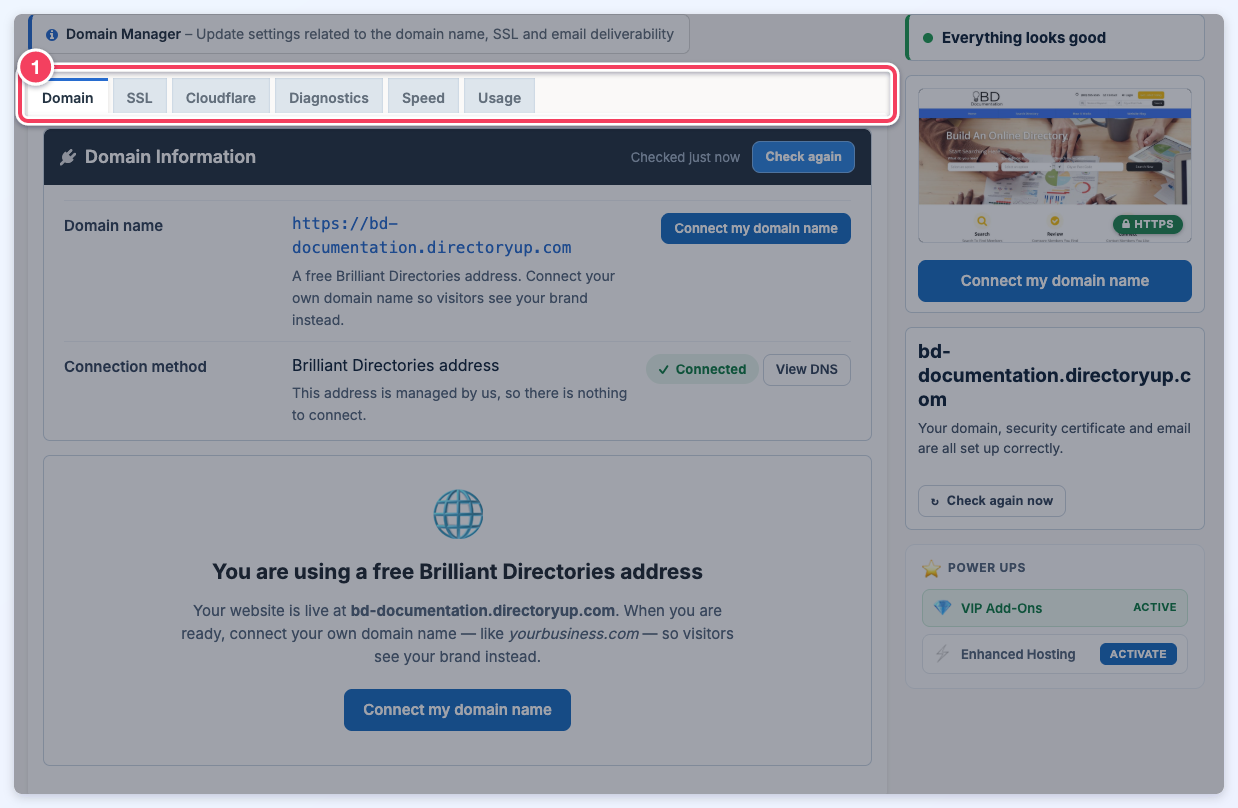
Example on a free directoryup.com address: the tab row (1) shows Domain, SSL, Cloudflare, Diagnostics, Speed, and Usage. Additional tabs appear when a custom domain and its services are available.
Example: a custom domain with Brilliant Directories DNS
This separate example uses selfautomated.com, registered at GoDaddy and connected through Brilliant Directories nameservers. It shows the additional controls available for a custom domain.
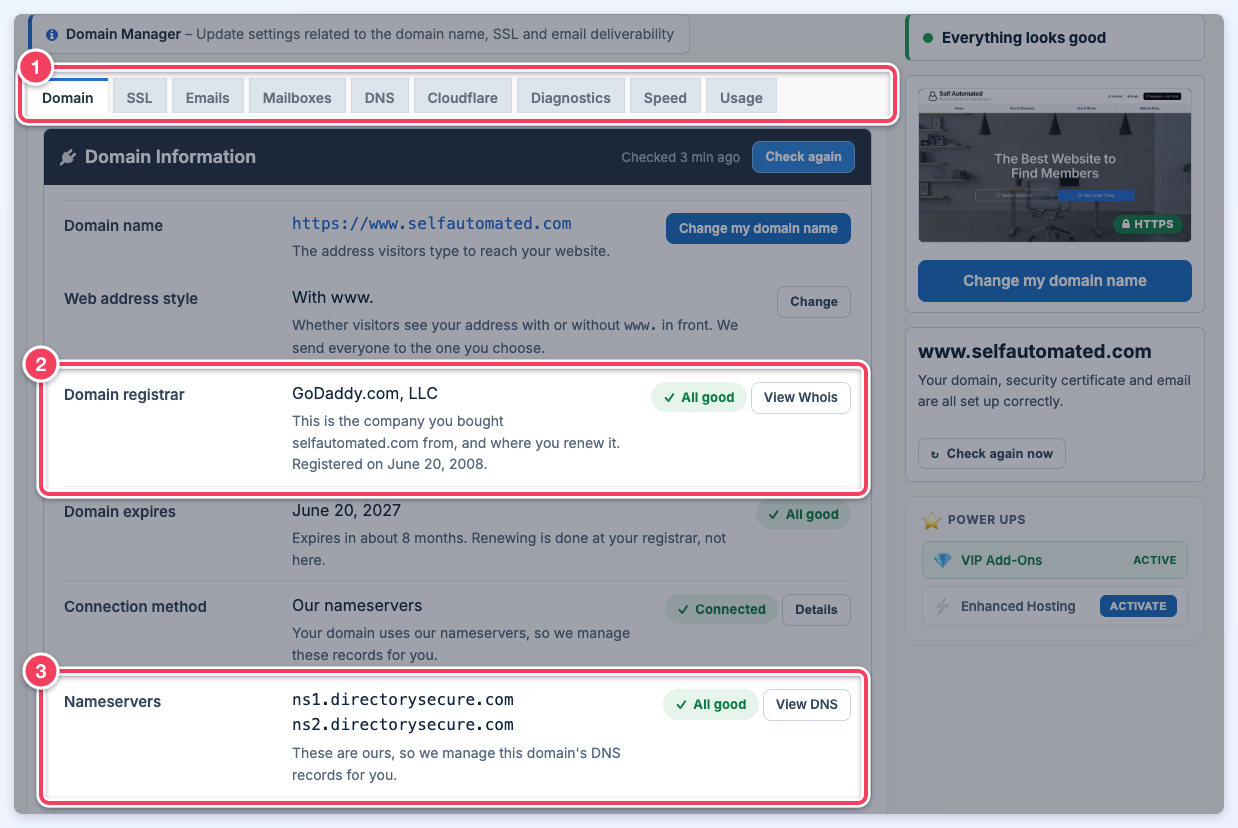
The full tab row (1), the registrar, GoDaddy (2), and the Brilliant Directories nameservers (3) on selfautomated.com.
Start with the status summary
The summary can show Everything looks good, Almost there, or Needs attention. Read the accompanying message and open the relevant tab for the specific finding. The summary can change as background checks finish; a working domain connection does not by itself confirm that email authentication and SSL are ready.
Email findings count toward the summary. Every row on the Emails tab that needs attention, such as a missing incoming-mail provider, an unpublished DKIM record for the mail provider, or an unsigned mailbox signature, is counted, and the summary message gives the number of items, such as Your email needs attention — 1 item to the left. The Emails tab shows the same number as an alert badge, so the summary and the tab agree. A mailbox signature row marked No mailboxes is not counted, because nothing is sent unsigned from a domain with no mailboxes on the Brilliant Directories server. See Emails and sender authentication.
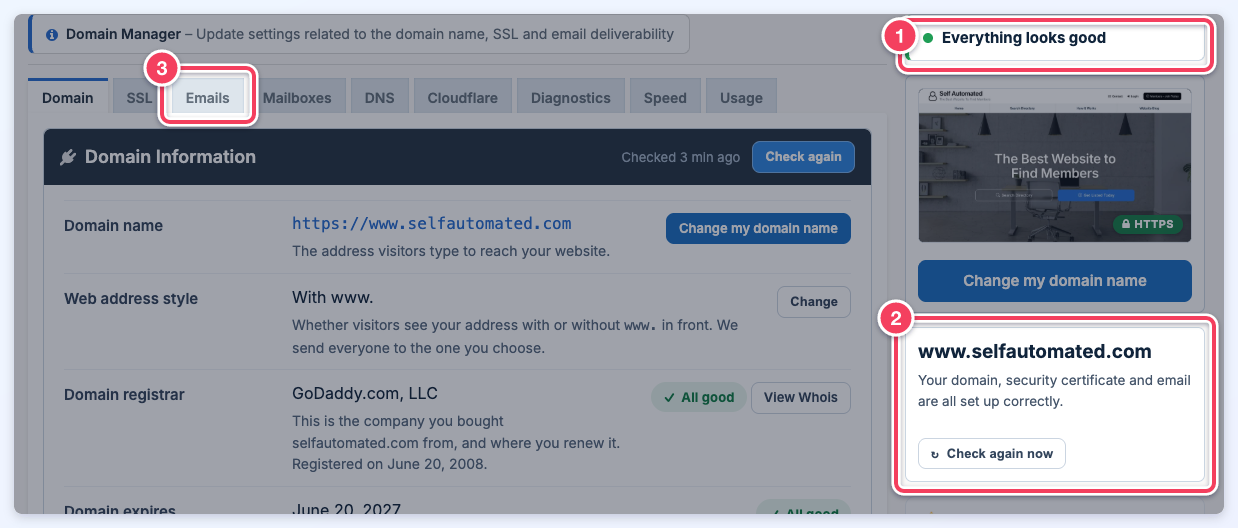
The summary on selfautomated.com after the background checks finish: Everything looks good (1) and its message (2). The Emails tab (3) carries no alert badge because no email row needs attention; when one does, the tab shows the same count as the summary.
Freshness labels indicate when information was checked. Use Check again on the relevant card after changing a record or resolving an issue.
The Power Ups panel beside the website preview lists related services and add-ons, such as Cloudflare, VIP Add-Ons, and Enhanced Hosting. A service already in use is marked Active; Activate opens the in-app checkout for an add-on the site does not have.
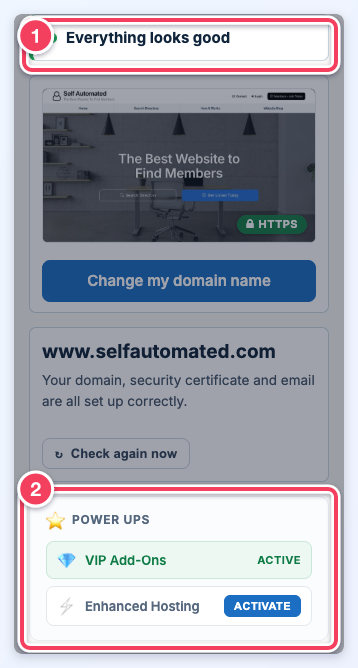
The status summary (1) and the Power Ups panel (2) on selfautomated.com: VIP Add-Ons is Active, and Enhanced Hosting offers Activate.
What each tab does
| Tab | Purpose |
|---|---|
| Domain | Check the address, registrar, expiration, connection method, nameservers, and record details. Connect or change the domain, connect a WordPress website, and choose the web address style. |
| SSL | Check the security certificate and secure website connection. Install or recheck a certificate when the corresponding action is available. |
| Emails | Check the sending address, SPF, DKIM, and sender authentication. |
| Mailboxes | Check incoming mail routing and manage supported website mailboxes. |
| DNS | Manage records for a connected Cloudflare zone or BD-hosted DNS, or inspect public records when DNS is hosted elsewhere. |
| Cloudflare | Connect the Cloudflare account and manage the available Cloudflare settings. |
| Diagnostics | Inspect detailed connection and certificate findings and website update information. |
| Speed | Run a website performance check and review saved results. |
| Usage | Review resource usage, available limits, and supported storage cleanup options. |
The available tabs depend on the website's address, DNS connection, SSL status, and administrator permissions. A free directoryup.com address does not show all the same domain and email controls as a custom domain. Speed checks require a suitable HTTPS connection. Resource-related tabs also depend on access permissions.
Read the Domain tab
Domain Information identifies the current address and the company where the domain is registered. Renewals are completed with the registrar. An unknown registration value means the lookup did not supply that information; check with the registrar before assuming the domain has expired.
Domain Connection Details explains how the relevant addresses reach the website. Use Details to inspect individual addresses and the copy controls to copy the record values shown for this site. The root domain, www, and a separate subdomain can have different results.
Repair connection address regenerates the site's unique connection target. That target does not normally change, so use this action only when Brilliant Directories support asks for it.
Connect or change the website address
- Open the Domain tab.
- Click Connect my domain name or Change my domain name, depending on the current address.
- Follow the applicable stages: Choose An Address, Check It, Point Domain, and Switch Over.
The Choose An Address stage offers Use a domain from my Cloudflare account (when available), A domain name I own, A free address from us, and My WordPress website. My WordPress website shows the directory inside an existing WordPress website, such as www.mybusiness.com/directory, through the Brilliant Directories plugin for WordPress. It does not change the directory's own website address and skips the other stages; see Connect a WordPress Website.
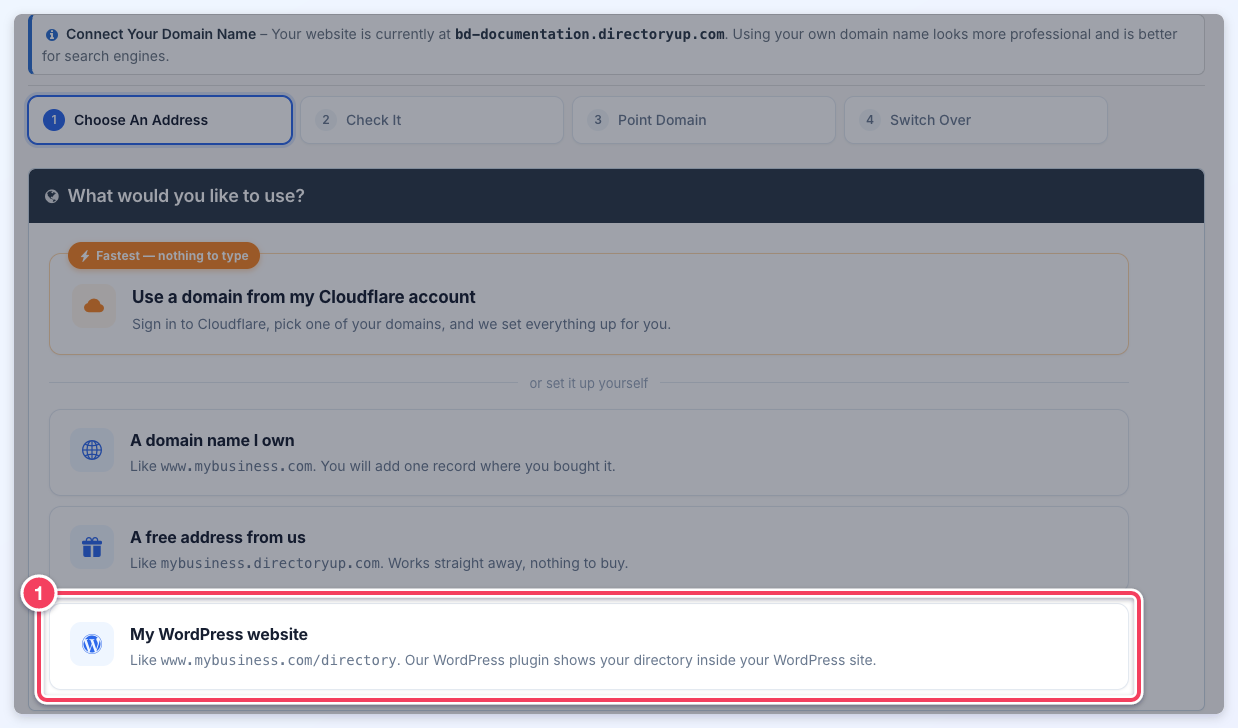
The address choices on the Choose An Address stage, with My WordPress website (1) marked.
The complete walkthrough is in How to Connect a Domain to a Brilliant Directories Website. For an existing live site, complete the domain-change checklist before switching.
Choose the web address style
Web address style controls whether the preferred website address includes "www.". Click Change beside that row and review the available choice. This preference is separate from DNS pointing. A true subdomain, such as members.example.com, should not receive an extra www. prefix. See the www and non-www guide.
After a change
Confirm that the selected address opens the intended website, then check SSL and Emails. If DNS is managed outside the connected services, add the records shown at that provider. Rechecking does not change a third-party provider's records or make a cached DNS answer expire sooner.
Continue with SSL, Emails and sender authentication, DNS records, Cloudflare, Mailboxes, Diagnostics, Speed, or Usage.
