
Settings » Domain Manager » Speed Tests
Link: https://support.brilliantdirectories.com/support/solutions/articles/12000109762
The Speed tab in Settings > Domain Manager runs Google PageSpeed Insights tests for the website homepage and keeps previous results for comparison.
Before starting
The website must have a successfully detected HTTPS certificate, and the administrator must have permission to view website resources. If the tab is missing, check SSL and the administrator's access permissions first.
Run a performance test
- Open Settings > Domain Manager > Speed.
- Find PageSpeed Insights.
- Click Run the test.
- Keep the page open while the mobile and desktop tests complete.
- Review both sets of results.
A run normally takes around half a minute, but the testing service can take longer. The panel allows one combined mobile-and-desktop run every 24 hours per website. If a recent result is already available, use it and the saved history instead of repeatedly starting another run.
Read the results
Compare the mobile and desktop scores separately. Review the metrics, flagged issues, and suggested improvements below the scores. Scores describe the test conditions at that time; they are not a guarantee of every visitor's experience or a promised search ranking. Alongside performance, the results show Google's Accessibility, Best practices, SEO, and Agentic browsing scores.
Use the history to compare measurements after a website change. If a test fails, confirm that the homepage loads over HTTPS and review the error before retrying when permitted.
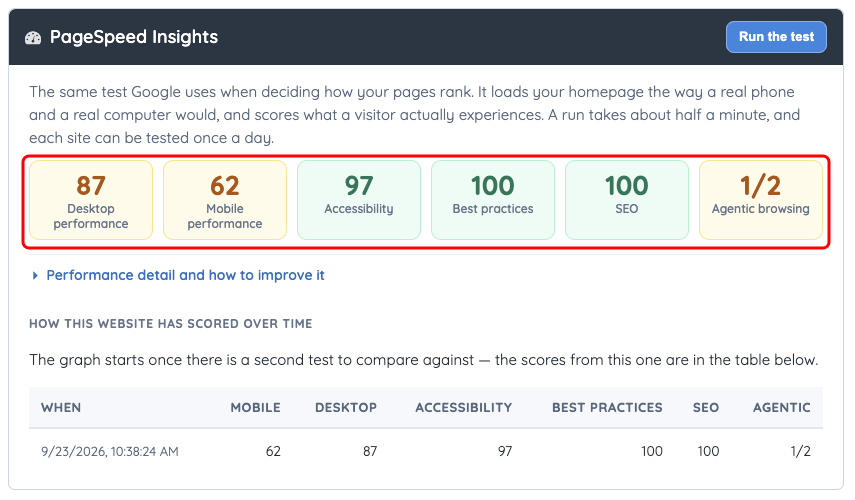
Example test results. A comparison graph becomes available after a second saved test.
Improve and measure again
Start with the specific large files, loading delays, or other issues identified in the result. Retest after the change when the next test is available. See bandwidth optimization for related advice on resource use.
The Speed tab uses Google PageSpeed Insights to test the website’s performance and track results over time. If you need help investigating an issue, the Brilliant Directories support team may use additional diagnostic tools to take a closer look.
