
How to Optimize the Bandwidth Usage of a Site
Link: https://support.brilliantdirectories.com/support/solutions/articles/12000101331
How to Optimize the Bandwidth Usage of a Site
High bandwidth usage can affect website performance and can require additional capacity. The tools below help measure traffic and reduce unnecessary transfer.
Viewing Bandwidth Usage
Domain Manager
Open Settings > Domain Manager > Usage for the current usage summary. The displayed limit includes the website license and any capacity purchased through the VIP Add-Ons Club or Bandwidth Boost Add-Ons.
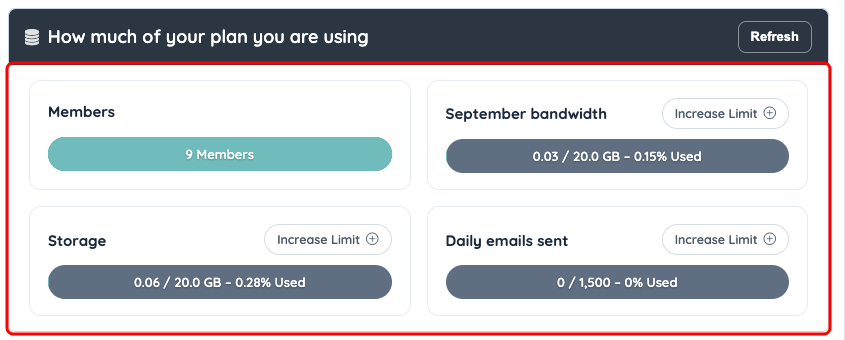
The Usage tab compares current consumption with the website’s plan limits.
cPanel
Open Developer Hub > cPanel Dashboard, then select Bandwidth under Metrics. cPanel includes historical totals and separates traffic such as HTTP, FTP, IMAP, POP3, and SMTP.
AWStats
AWStats identifies traffic sources and the bandwidth each source consumed. See Identifying Sources of Bandwidth Usage with AWStats.
General Strategies
Set Up Cloudflare
Cloudflare can cache static files and filter unwanted traffic, reducing requests to the origin server. See Connecting a Site to Cloudflare.
Optimize Images
ImageKit can resize and optimize images for the requesting device. See Use a Content Delivery Network for Images.
Remove Unneeded Screenshot Previews
Disable screenshot previews in admin areas where they are not useful, including Dashboard, Web Page Builder, Edit Post Settings, Form Manager, and Domain Manager.
Address Specific Traffic Sources
Use AWStats before blocking traffic. For sites using Cloudflare, its WAF custom rules can restrict selected countries or request patterns. Other sites can use the Block Traffic by Country tool.
Restore the default crawler rules or add deliberate custom rules through the robots.txt documentation. Blocking legitimate search crawlers can reduce indexing.
