
Connecting a Site to Cloudflare
Link: https://support.brilliantdirectories.com/support/solutions/articles/12000084176
Connecting a Site to Cloudflare
Cloudflare can manage a domain's DNS while also providing caching, traffic filtering, and other performance and security services. Two connection paths are available: the guided Domain Manager option, when offered for the website, and the manual Cloudflare setup described below.
Guided Connection in Domain Manager
Open Settings > Domain Manager and start the domain connection flow. When Use a domain from my Cloudflare account appears, the flow can sign in to Cloudflare, select a domain, check it, and prepare the required record.
See Connect and Manage Cloudflare in Domain Manager for the guided workflow.
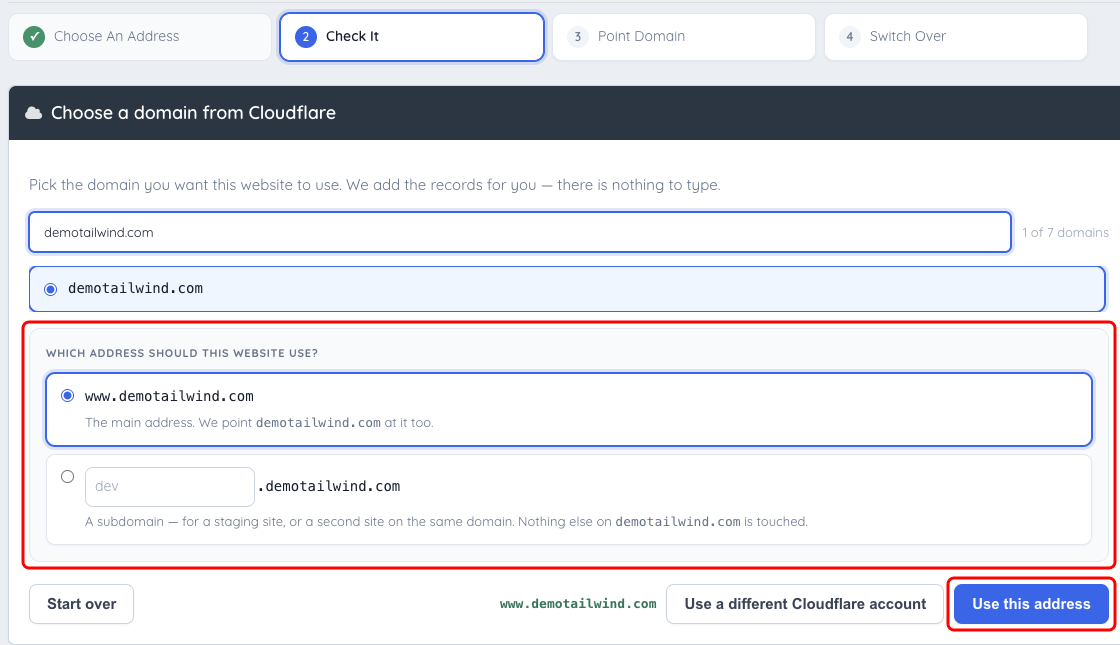
Select the intended Cloudflare domain and choose the main address or a subdomain before preparing the DNS records.
Manual Cloudflare Setup
- Create or sign in to a Cloudflare account and add the domain.
- Use Cloudflare's scan to import existing DNS records. Review every imported record before continuing, especially MX, TXT, and CNAME records used by email or other services.
- Select the appropriate Cloudflare plan. The Free plan is sufficient for the basic DNS connection.
- At the domain registrar, replace the current nameservers with the two nameservers assigned by Cloudflare.
- Wait for Cloudflare to confirm that the zone is active.
Add the Website Records
Open Settings > Domain Manager. The Domain area and its connection guide display the exact destination required by the website. Add the root and www records shown by the guide. Record types can differ by provider: Cloudflare can flatten a root CNAME, while some configurations use an ALIAS-compatible root record.
Existing mail records must also remain present. These can include MX records, SPF TXT records, and sender-authentication CNAME records. Open Emails > Sender Authentication in Domain Manager for the website-specific authentication values. Sender-authentication records in Cloudflare must be set to DNS only.
Every website can have a different destination and sender-authentication records. Use only the values displayed in its Domain Manager and email provider.
Review Cloudflare Settings
For a connected Domain Manager account, review the Cloudflare tab and its Set recommended defaults action. The panel brings together HTTPS, encryption, security, and page-caching controls. Review any existing custom configuration before applying defaults.
For manual changes, confirm the website's certificate and redirect behavior before changing Cloudflare encryption or HTTPS settings. Test forms, login, images, and payment pages after changes. See Cloudflare Connection and Settings for the Domain Manager controls.
