
How to Rename Images & Files from the Media Manager
Link: https://support.brilliantdirectories.com/support/solutions/articles/12000047933
Images, files and custom folders in the Media Manager can be renamed. Renaming changes the file's address, so read the warning below before renaming anything the website uses.
IMPORTANT: If an image is renamed while it is in use by Brand Images, Homepage Settings, Banner Ads, or Web Pages, that image will appear as broken. The file path or URL referenced in the code still points to the previous name, so the reference no longer resolves. Rename an image only after confirming it is not actively referenced in these areas, or update the reference afterward.
Renaming an Image or File
- Open My Content » Media Manager and find the file (open its folder, or type its name in Search all folders).
- Click the file to open its details panel, then click Rename File.
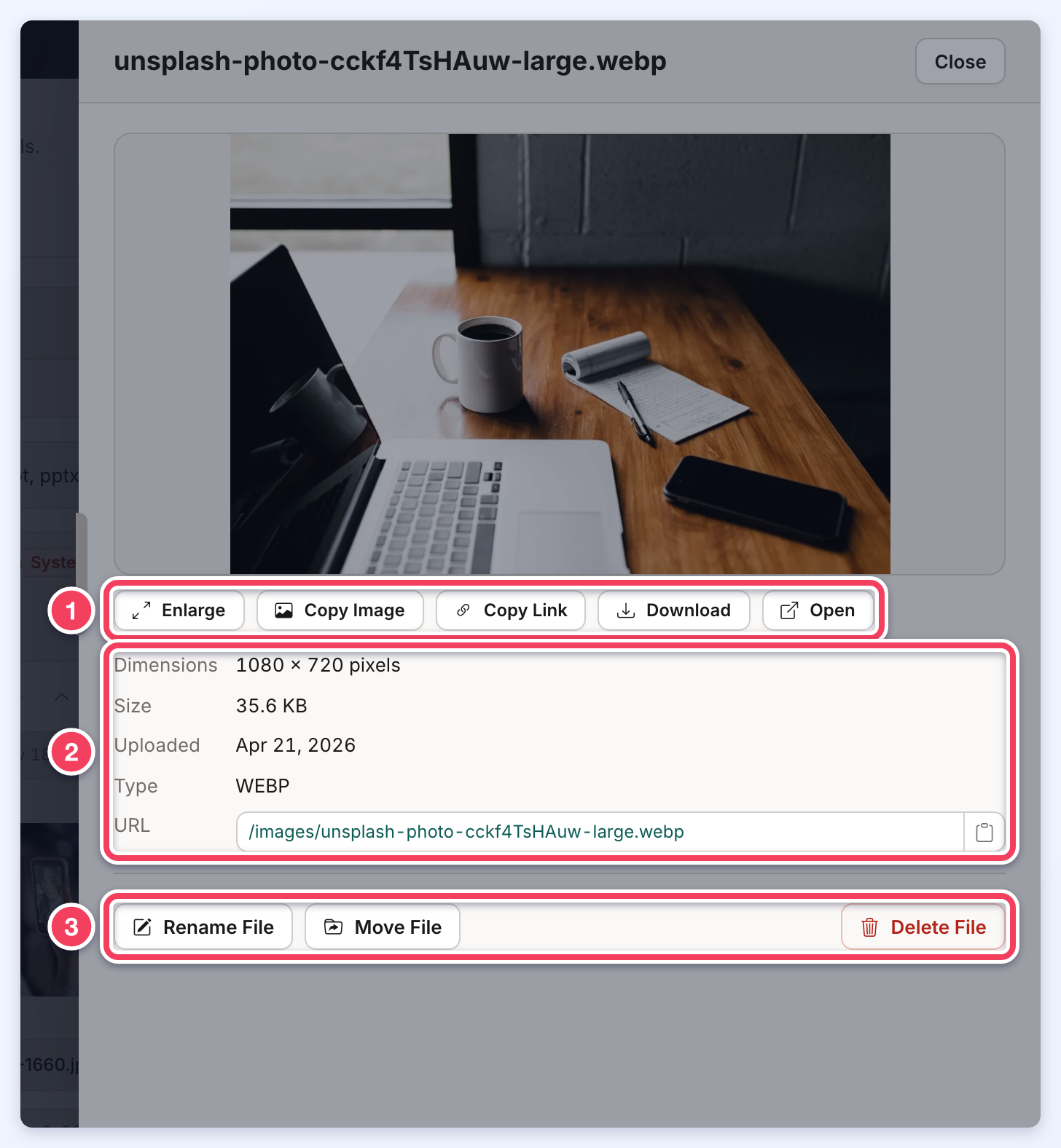
- Enter the new name in the File name field, then click Rename File.
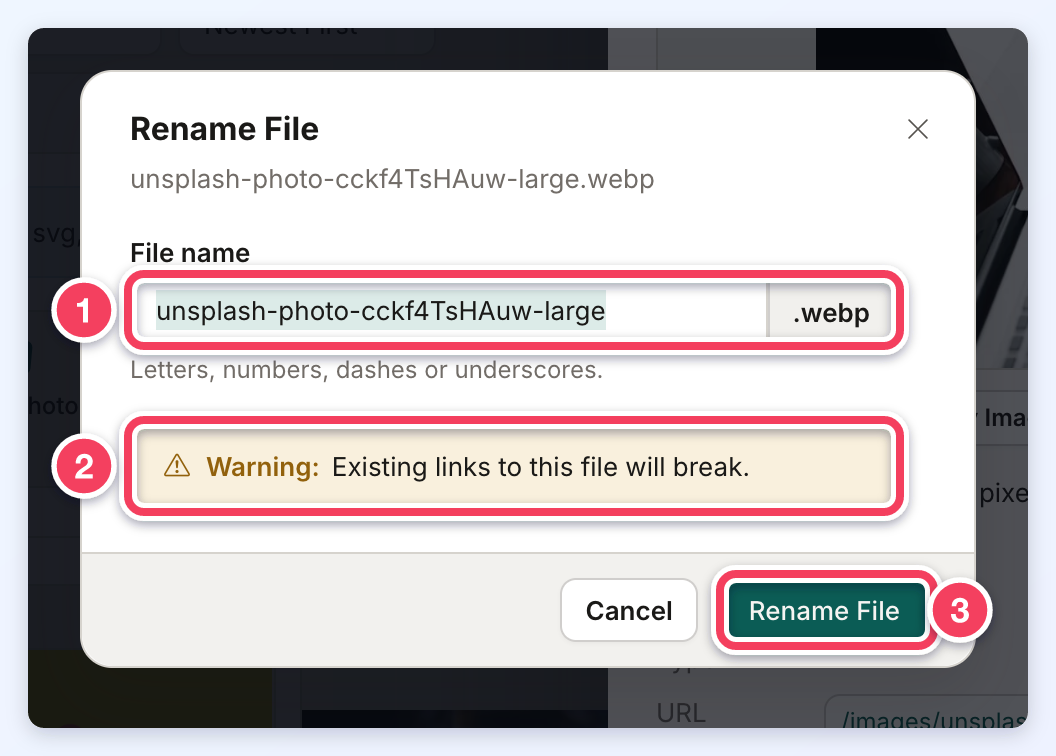
In the Rename File window:
- The File name field holds the name without its extension. The extension (for example, .webp) is shown at the end of the field and cannot be changed.
- The warning is a reminder that links to the old name stop working.
- Rename File saves the new name.
File Name Rules
- A file name is up to 100 characters and uses only letters, numbers, dashes and underscores.
- Spaces are turned into dashes; the window shows the name it will save (for example, Saved as team-photo.jpg).
- Dots, slashes and other symbols are not accepted, and a message under the field explains the rule. To put a file in another folder, use Move File instead of renaming it.
- When the folder already holds a file with the new name, the rename is refused with the message A file with this name is already here.
Renaming a Folder
- Open the folder.
- Click Rename Folder.
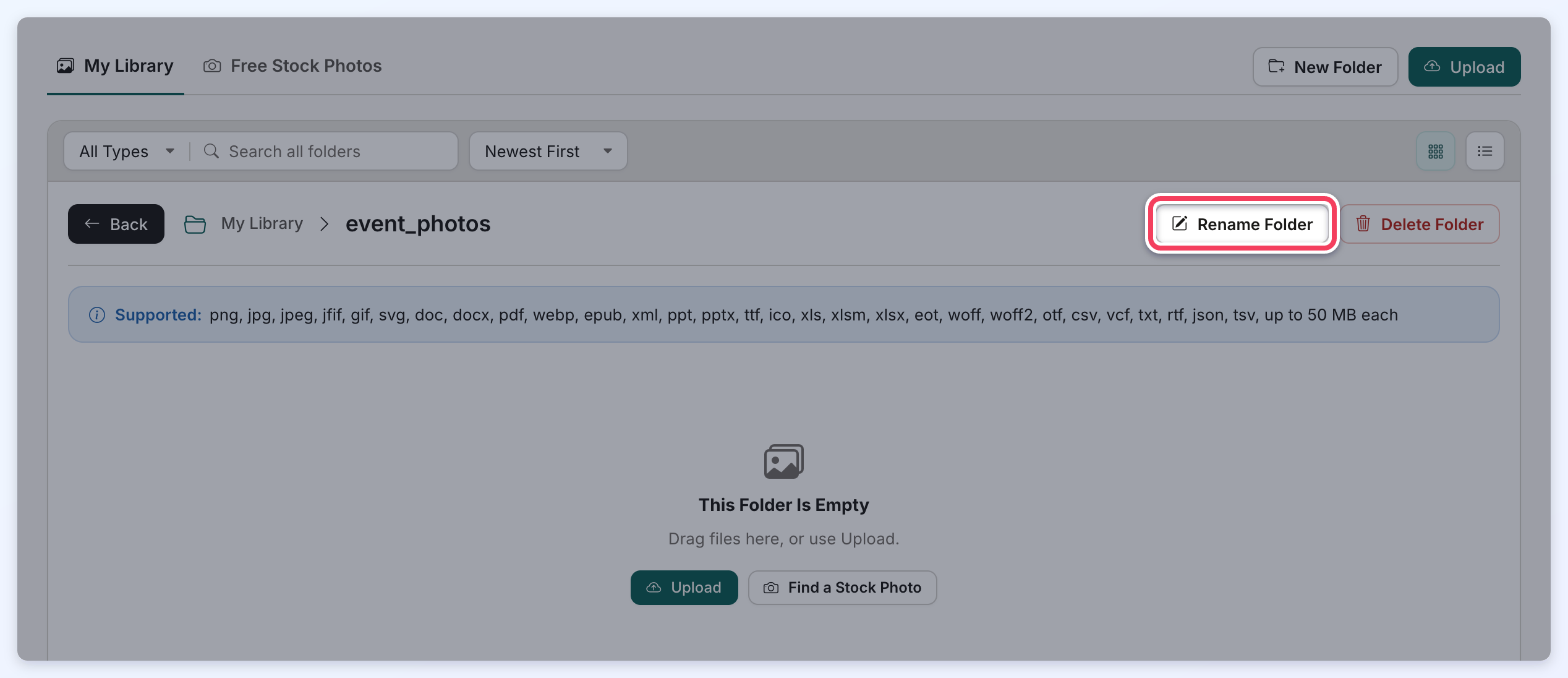
- Enter the new name in the Folder name field and click Rename Folder.
Folder names follow the same rules as new folders: 2 to 50 letters, numbers or underscores, with spaces turned into underscores. Renaming a folder changes the address of every file inside it, so links to those files break too.
The member_uploads and stock_temp_images folders, marked System, cannot be renamed, and neither can the folders and files inside them, because the website uses them by name.
Additional Information
» My Content » Media Manager
» Creating a Folder in Media Manager
