
My Content » Media Manager
Link: https://support.brilliantdirectories.com/support/solutions/articles/12000000876
The Media Manager helps keep all of the images and files being used by the Admin neatly stored in one place.
Within the Media Manager, the administrator can:
- Upload Images & Files
- Create Folders
- Rename Images & Files
- Delete Images & Files
IMPORTANT: When using Safari, the cookies must be enabled in the browser. Please see: Enable Cookies in Safari
How To Upload Images & Files
Open My Content > Media Manager.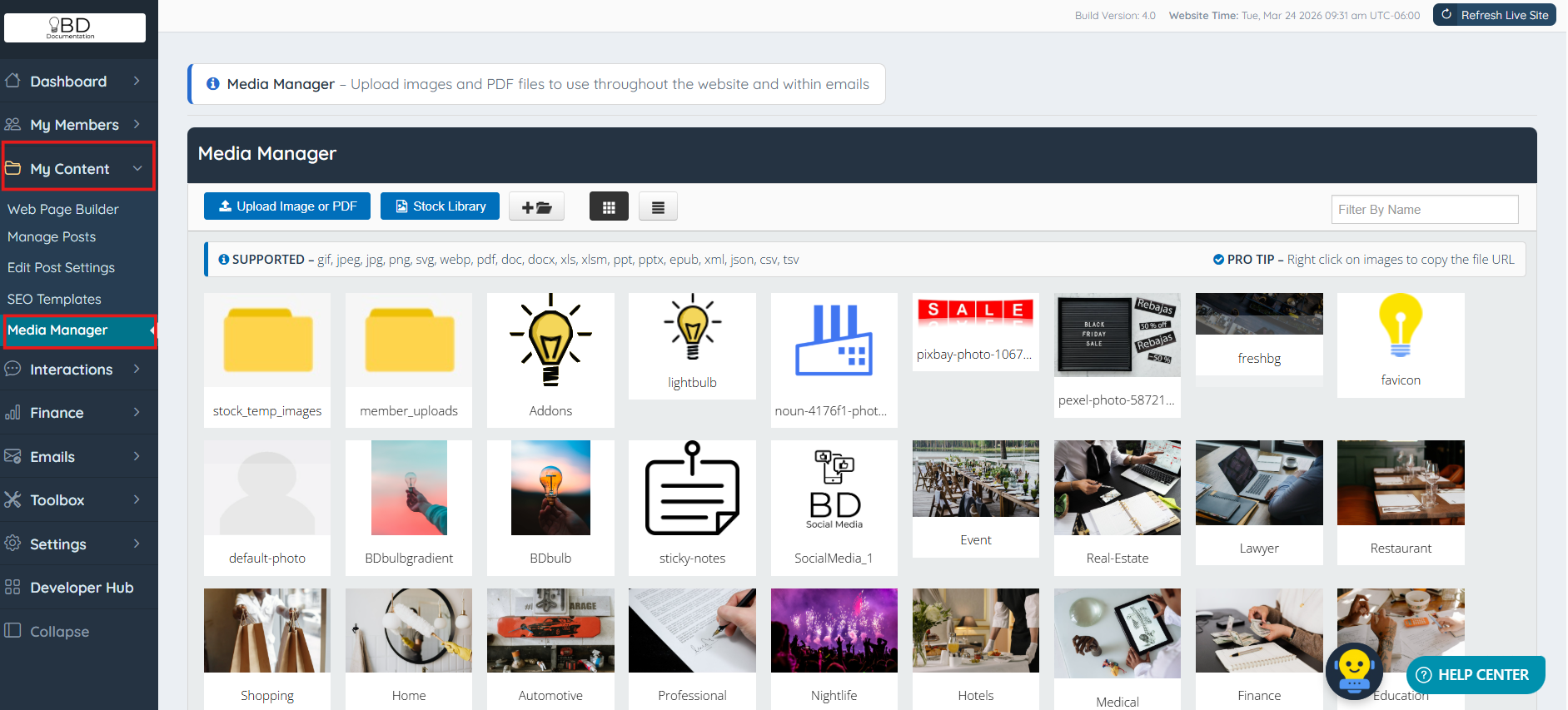
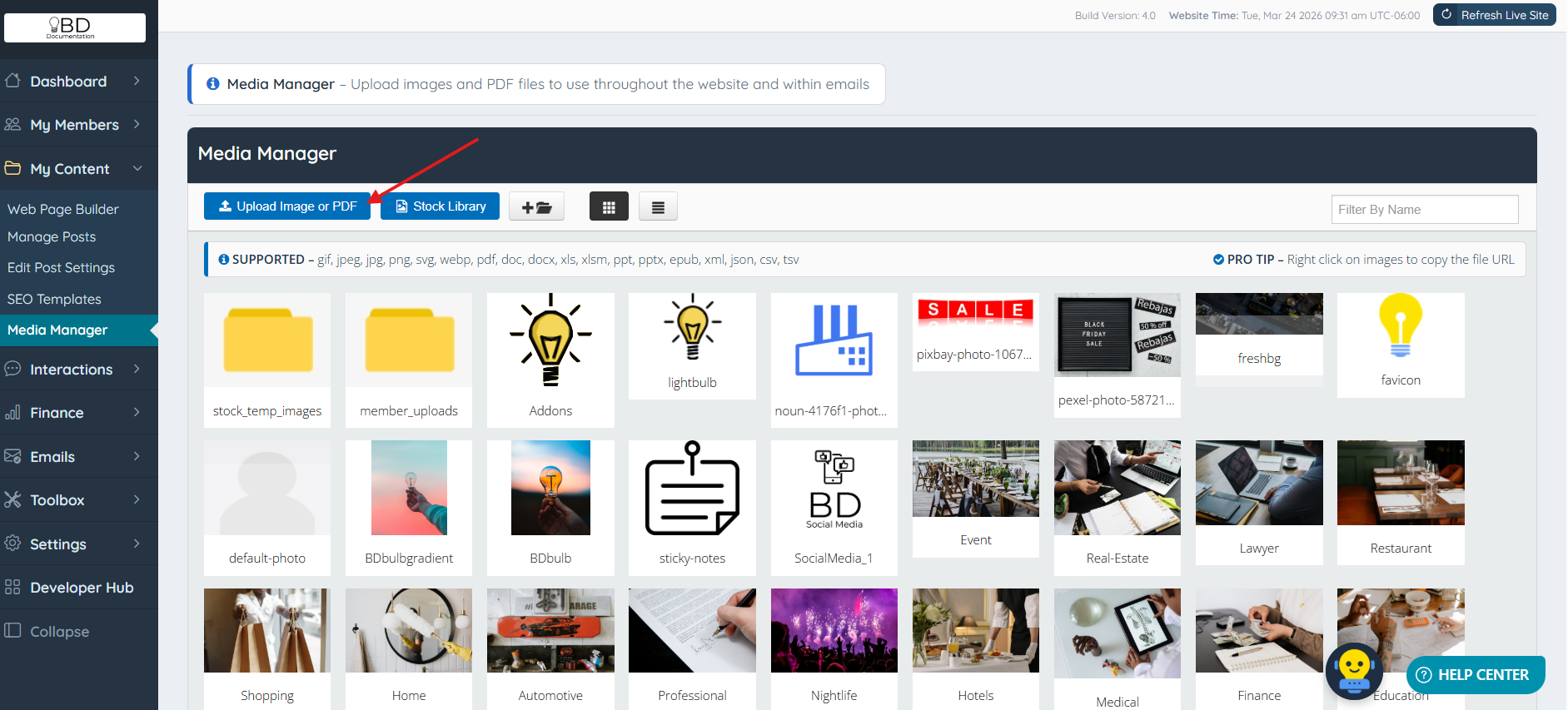
Click Upload Image or PDF.
Click anywhere within the upload box.

Select the image or file to upload and click Open.
Once the green check mark appears, click Back To All Media.
The file extensions accepted by the media manager are:
|
|
Image & File Options
Hovering over an image reveals several options:
- Download
- Preview
- Rename - How To Rename Images & Files From The Media Manager
- Erase - How To Delete Images & Files From The Media Manager
Right clicking on an image will also reveal additional information:
- FILE INFO includes:
- Name
- Dimensions
- File Size
- Date Uploaded
- Copy URL
Important Note
When an image is uploaded with spaces in the file name, the system automatically replaces each space with a dash by default to avoid broken image paths. The same applies to folder names. If an image or folder name contains parentheses, the system automatically removes them.
