
Creating a Folder in Media Manager
Link: https://support.brilliantdirectories.com/support/solutions/articles/12000052779
Folders keep the Media Manager organized, for example by page, event or post type. A folder can be created in My Library or inside another custom folder.
Creating a Folder
- Open My Content » Media Manager, and open the folder the new folder should go in (or stay in My Library).
- Click New Folder.
- Enter a name in the Folder name field.
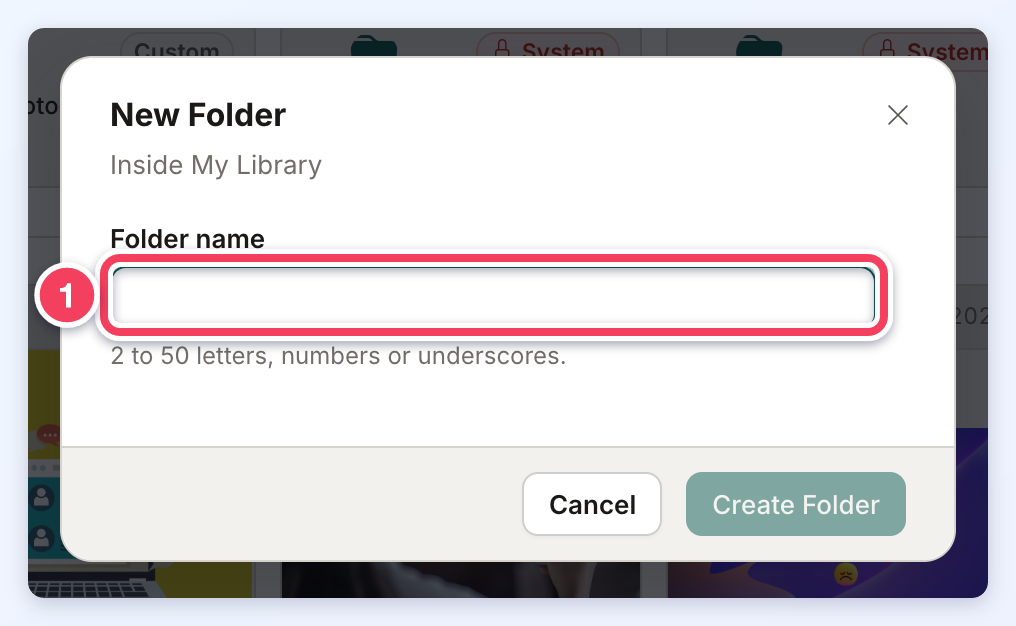
- Click Create Folder.
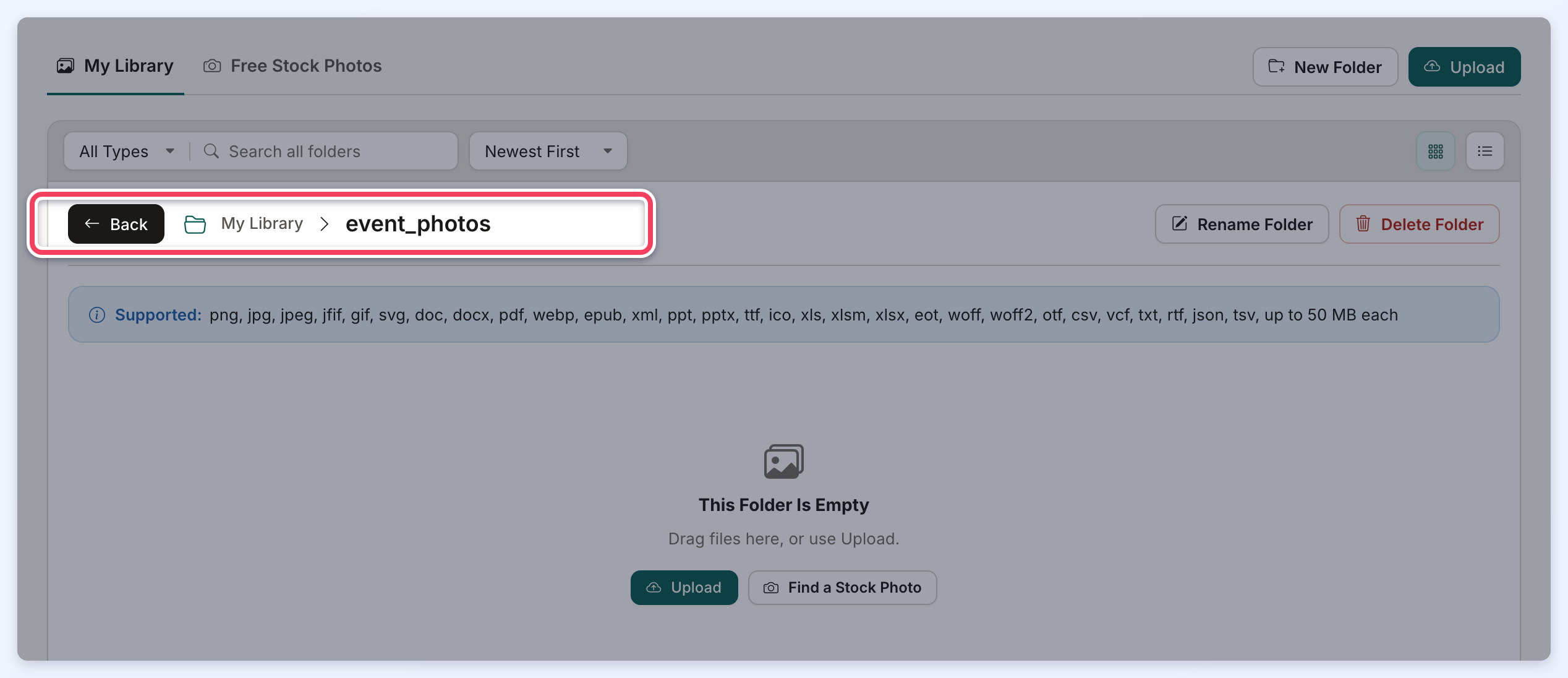
The folder appears with the other folders, marked Custom. Click it to open it; Back and the folder path at the top return to the folders above it.
Folder Name Rules
- A folder name is 2 to 50 characters long and uses only letters, numbers and underscores (for example, event_photos).
- Spaces are turned into underscores; the dialog shows the name it will save (for example, Saved as event_photos).
- Dashes, dots, slashes and other symbols are not accepted, and a message under the field explains the rule.
- Two folders in the same place cannot share a name.
Uploading into a folder works the same way as uploading into My Library: open the folder, then click Upload or drag files onto it.
System Folders
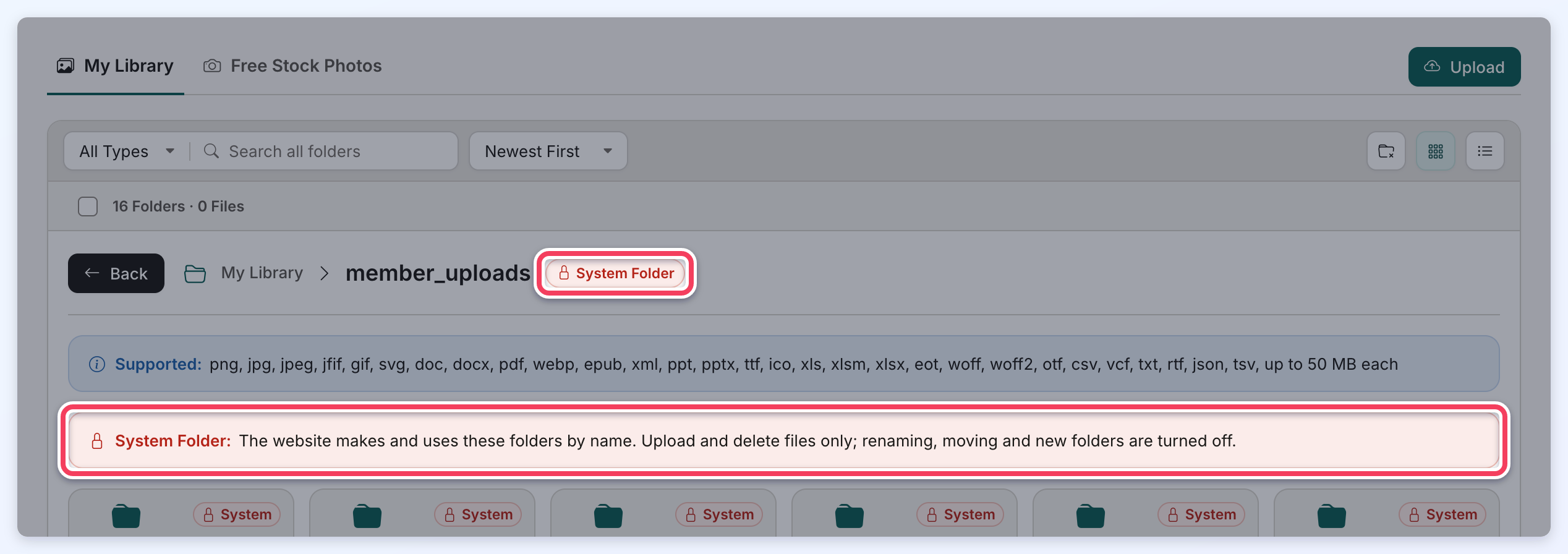
The member_uploads and stock_temp_images folders are marked System because the website creates and uses them by name. New Folder is not available inside them, and they cannot be renamed, moved or deleted. Files inside them can still be uploaded and deleted.
Additional Information
» My Content » Media Manager
» How to Rename Images & Files from the Media Manager
» How to Delete Images & Files from the Media Manager
