
Finance » Membership Plans - Sign Ups & Upgrades
Link: https://support.brilliantdirectories.com/support/solutions/articles/12000048891
This article covers all settings available in the ‘Sign Ups & Upgrades’ tab:

Set Pricing Options for This Plan
Membership Plans can be "Free" or "Paid", but if the site has the Claimable Business Listings add-on enabled, a third option called ‘Claim’ will appear.
Some settings vary depending on the account type. For example, selecting the "Free" option will hide settings that only apply to paid membership plans. Below is a more detailed explanation:
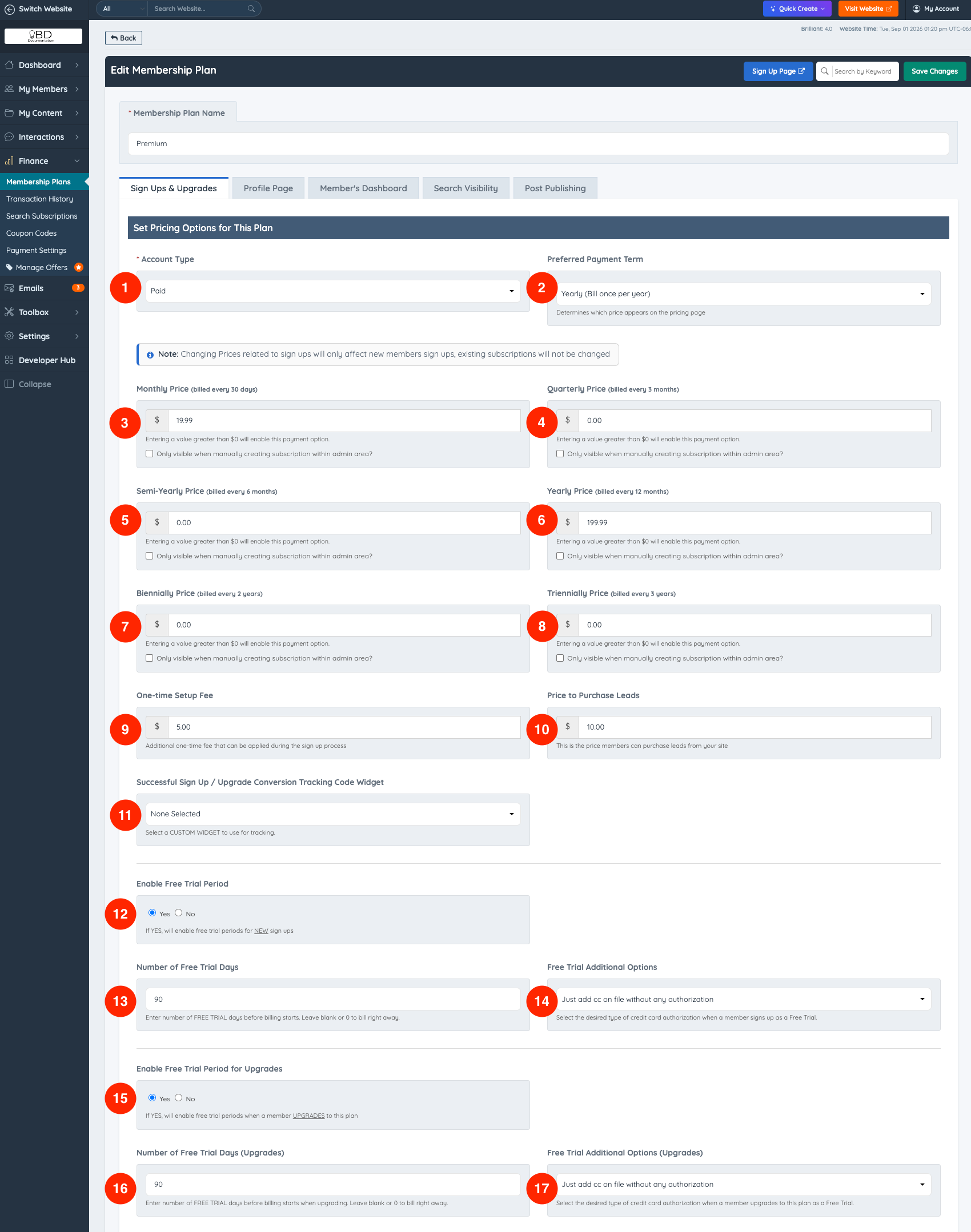
1. Account Type
Select whether this membership plan will be Free, Paid, or Claim
The claim option will only appear if the claim listing add-on is purchased or if the Vip Add-ons are active on the website.
For more information about this add-on, read this article: Claim Listings In-Depth - Add-on.
NOTE: When the account type is saved as "Claim", the system will disable the "Sign-Up Page" URL.

To set up a Free Membership Plan, we recommend reading the following documentation: Setting up Free Membership Plan.
2. Preferred Payment Term
Select the preferred payment term (monthly, yearly, etc.). The chosen option will be pre-selected on the checkout page.

3. Monthly Price
Entering a value greater than 0 will enable this payment option.
For example, by typing "10", the system will display this amount on the checkout page and will automatically charge members each month. Keep in mind that some payment gateways such as PayPal Standard and PayFast, handle the recurring subscriptions in a different way. These gateways generate an unpaid invoice but the payment won't be attempted until members log in to their account and pay from there.
The on-site payment gateways will charge their accounts automatically.
4. Quarterly Price
Entering a value greater than 0 will enable this payment option.
The system will create an option for members to sign up and pay every three months. This subscription is recurring as well.
5. Semi-Yearly Price
Members will be billed every 6 months if they select this option.
Entering a value greater than 0 will enable this payment option. This is a recurring subscription.
6. Yearly Price
Members who select this option will be billed every 12 months.
Entering a value greater than 0 will enable this payment option. This subscription is recurring as well.
To set up recurring subscriptions, we recommend reading the following documentation: Setting up Recurring Payments
If the website’s currency format or currency suffix/prefix needs to be changed, see this article: Settings » General Settings » Localization
7. Biennial Price (billed every 2 years)
Members will be billed every 24 months if they select this option.
Entering a value greater than 0 will enable this payment option. This subscription is recurring as well.
8. Triennial Price (billed every 3 years)
Members will be billed every 36 months if they select this option.
Entering a value greater than 0 will enable this payment option. This subscription is recurring as well.
9. One-time Setup Fee
This option will work for two purposes:
- Charge a Setup fee in addition to the membership price: To do this, type the "Setup Amount" and also select at least one of the options 5, 6, 7, and 8.
- Charge only a one-time payment: Leave blank options 5, 6, 7, and 8, and only add the one-time payment amount. For more information about setting this up, read this article: Setting up One Time Payments.
10. Price to Purchase Leads
For membership plans that will purchase leads, enter the amount members must pay in order to purchase the lead.
If the membership plan is free, charging for leads is recommended. If it is paid we recommend setting up a cheaper amount or allowing them to receive leads for free.
11. Successful Sign Up / Upgrade Conversion Tracking Code Widget
There are many 3rd party tools that require placing a tracking code on "success pages" in order to track sales, sign-ups, conversions, and more.
It is possible to place a tracking code for the "success pages" into each membership plan or in a specific widget that will apply to all membership plans.
For more information, see the following article: Adding Affiliate Tracking & Conversion Codes
The custom widget can be selected from the dropdown:

For settings (12-17), refer to the main article about the add-on: Free Trial Period Add-On
12. Enable Free Trial Period
13. Number of Free Trial Days
14. Free Trial Additional Options
15. Enable Free Trial Period for Upgrades/Downgrades
16. Number of Free Trial Days Upgrades/Downgrades
17. Free Trial Additional Options
Sign Up Settings
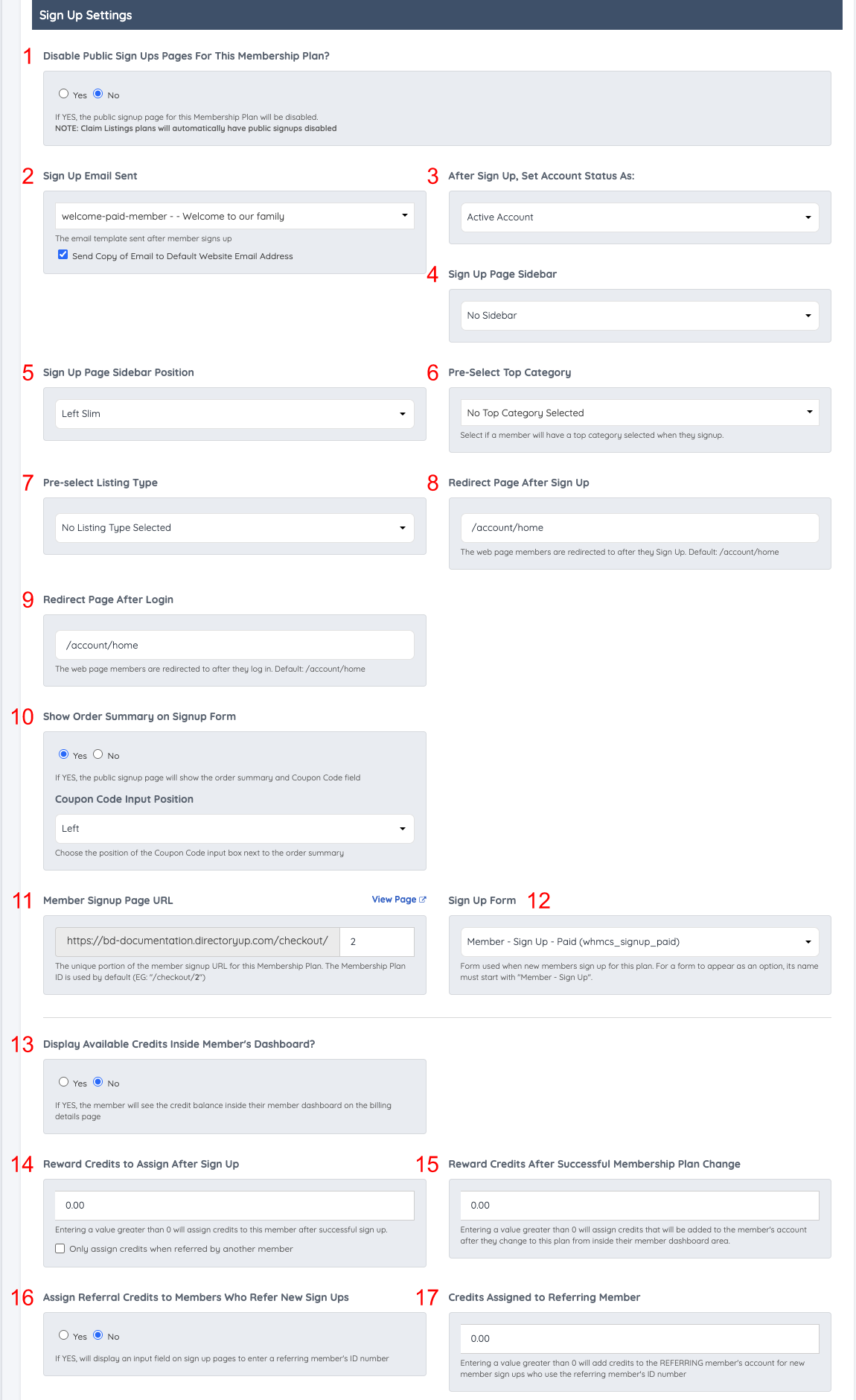
1. Disable Signups For This Membership Plan
If set to "yes", no public signup page will exist for this membership plan. This option is useful for an Admin Membership plan that visitors should not sign up for.
If the account type is set as "Claim," the option will show greyed-out and will be disabled by default.

2. Sign Up Email Sent
This is the email the members will receive right after they signed up. This email is sent automatically by the system.
By default, the system will only show 3 master system templates and all custom email templates.
- If the membership plan is Free, select the email template: Welcome-basic- [Action-required] verify your email.
- If the membership plan is Paid, select the email template: Welcome-paid- Welcome to our family
- If administrators manually verify members, select the email template: Welcome-Manual-Review - Welcome to our family
Send Copy of Email to Default Website Email Address: If this setting is checked (Default), the system will send a copy of this email to the owner of the site (Default Website Email Address).
Important Note: If the Send Copy of Email to Default Website Email Address checkbox setting is checked and if the member clicks on the Resend Verification Email via their member dashboard, the copy of the email will be sent out to the default website email address (each time the button is clicked).

If this setting is unchecked, only the member will receive this verification email each time the button is clicked.
3. After Sign Up, Set Account Status As
This option will determine the status of the members as soon as they sign up. In the past, this was an Advanced Setting that worked for all membership plans at once, but now, the status can be selected on each membership plan.
The following three options are available:
- Active Account. This will activate the account immediately after the member signs up making the account publicly visible right away.
- Inactive Account. Requires Email Verification. This will make sure the account is not active until the email address is verified, once they click on the verify email link, the account will be visible.
- On Hold, Requires Admin Approval. When members sign up, they are going to be on hold and not visible.
Member approvals can be managed under » Search Members, then click on Actions » Quick Edit. Change the Account Status to Active Account.
The system will ask if the member needs to be notified:
NOTE: The email template sent above is called: user-approved-by-admin.
It can be found under Emails » Email Templates.
An article about this setting can be found here: Manually Approve New Member Signups.
4. Sign Up Page Sidebar
This is the sidebar that will appear on the checkout page, right next to the new member contact information and credit card fields.
Note: Do NOT select any of the default sidebars: Homepage with Map, Lead Page Sidebar, Member Profile Page, Member Search Result, Post Search Result, and Post Single Page.
These sidebars are not recommended because they contain links, and the members can be redirected to other pages and navigate away from the checkout page. It is better to create a new sidebar for checkout pages. Make sure that it does not have any links.
An article about this setting can be found here: How to Add Confidence Boosters to Checkout Sign Up Pages
5. Sign Up Page Sidebar Position
Choose the position of the sign up page sidebar (right or left).
6. Pre-Select Top Category
Select if a member will have a "Top Category" selected when they sign up.
Keep in mind that they can change this selection. However, it will be pre-selected when they see the Contact Details form for the first time.
Refer to the image below to see where the pre-selection will be located.
7. Pre-select Listing Type
Select if a member will have a "Listing Type" selected when they sign up.
Keep in mind that they can change this selection. However, it will be pre-selected when they see the Contact Details form for the first time.
8. Redirect Page After Sign Up
This is the web page members are redirected to after they Sign Up.
Default: /account/home
9. Redirect Page After Login
The default option is: /account/home. Changing the default link is not recommended, it could cause issues when members try to log in.
10. Show Order Summary on Signup Form
Choose whether the order summary will display or not. Also, select on which side of the order summary the promo input will display (only with the Easy Coupon Codes Add-on). The order summary will display the tax information only if the VAT and Tax Manager Add-on is enabled.
11. Member Sign up Page URL
By default, the signup URL uses the membership plan ID, which is a number. With this setting, change the default URL to a custom URL.
Important Note: The wording "upgrade" is a reserved word and can't be used as a signup page URL.
12. Sign Up Form
Select the form new members use to sign up for this plan. Only forms that suit the plan are listed, so a plan cannot be pointed at a form that would break its checkout page. A form is only offered as an option if its name starts with "Member - Sign Up".
- Paid plan: Only forms that collect payment are listed. On a site that uses an external payment gateway (for example PayFast), only external-gateway forms are listed. On other sites, only the forms with a credit card field are listed.
- Free plan: Only forms without any payment area are listed.
- Claim plan: Every form is listed and the field is locked, because public sign ups are disabled for Claim plans.
The list updates as soon as the Account Type is changed, before the plan is saved. A new membership plan starts as a Paid plan, so its list starts with the paid forms.
If the plan already has a form saved that does not suit it (for example, a free sign up form saved on a paid plan), that form stays selected and is labeled "(not recommended for this plan)". The saved form is never changed automatically. To fix the plan, select a suitable form and click Save Changes.
For settings (13-17), refer to the main article about the add-on: Member Credits System
13. Display Available Credits Inside Member's Dashboard?
14. Reward Credits to Assign After Sign Up:
15. Reward Credits After Successful Membership Plan Change:
16. Assign Referral Credits to Members Who Refer New Sign Ups:
17. Credits Assigned to Referring Member:
Change Plan - Upgrade/Downgrade Settings
For more information about this functionality, please see this article: How to Set up Upgrade/Downgrade Options for Membership Plans
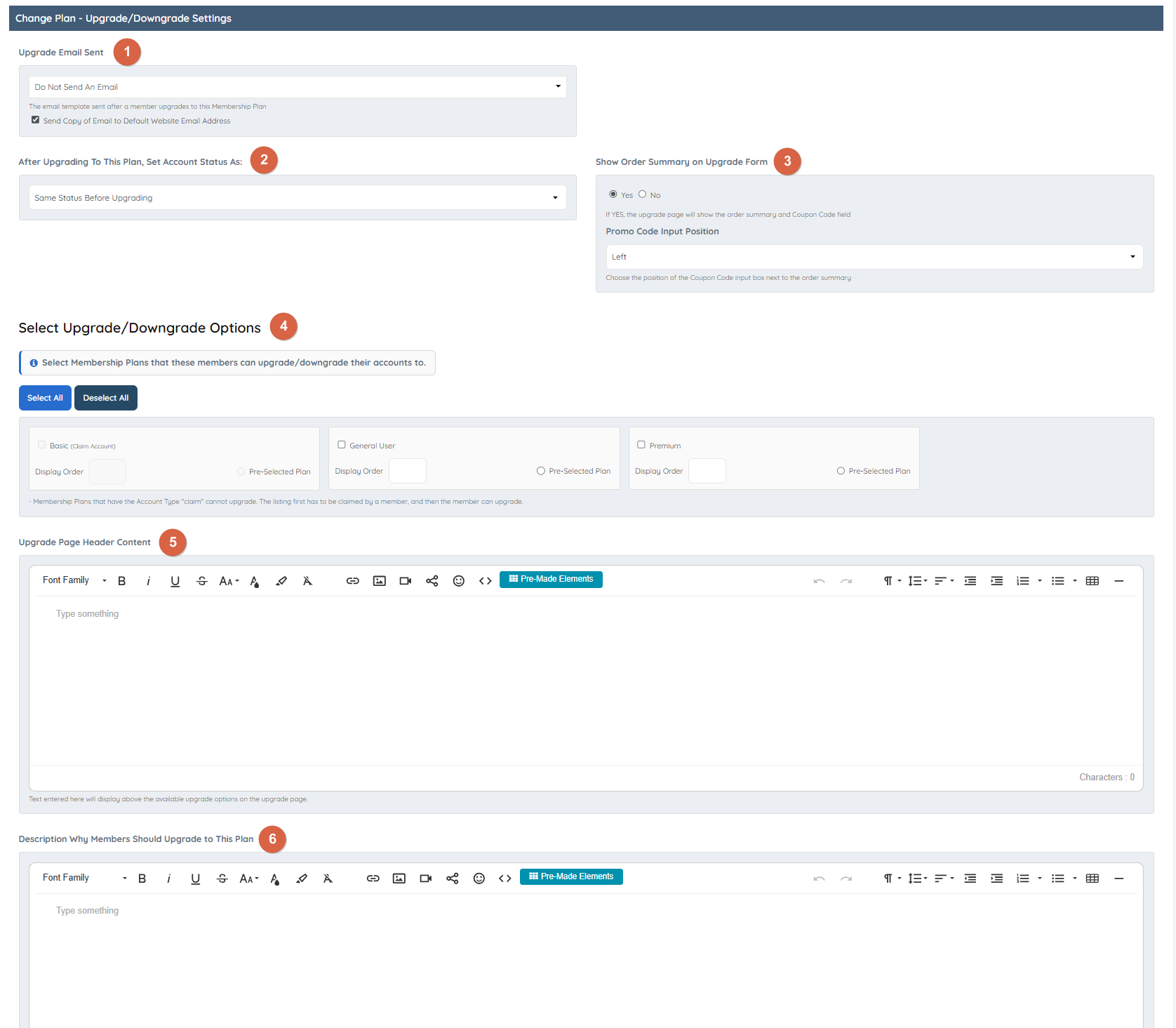
1. Upgrade Email Sent
Select the email template sent after a member upgrades to this membership plan
2. After Upgrading To This Plan, Set Account Status As
Set the status of the profile after upgrading; these are the 4 options:
1. Active Account
2. Inactive Account
3. Same Status Before Upgrading
4. On Hold, Requires Admin Approval
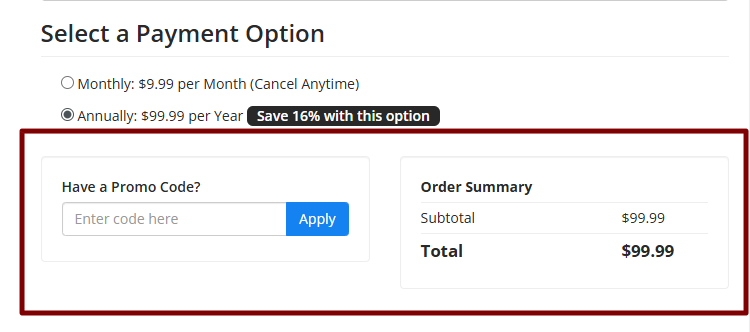
3. Show Order Summary on Upgrade Form
If YES, the upgrade page will show the order summary and the Coupon Code field:
4. Select Upgrade/Downgrade Options
Choose the membership plans that the members can upgrade or downgrade to.
5. Upgrade Page Header Content
Add content to display in the header of the upgrade page.
6. Description Why Members Should Upgrade to This Plan
Explain why the members should upgrade to this membership plan.
For details about the upgrade/downgrade settings, review this article: How To Setup Upgrade/Downgrade Options Inside Membership Plans
For instructions on setting up a free membership plan, see the following documentation.
