
Finance » Membership Plans Overview
Link: https://support.brilliantdirectories.com/support/solutions/articles/12000048836
This section allows administrators to manage membership plans.
At the top are the following columns:
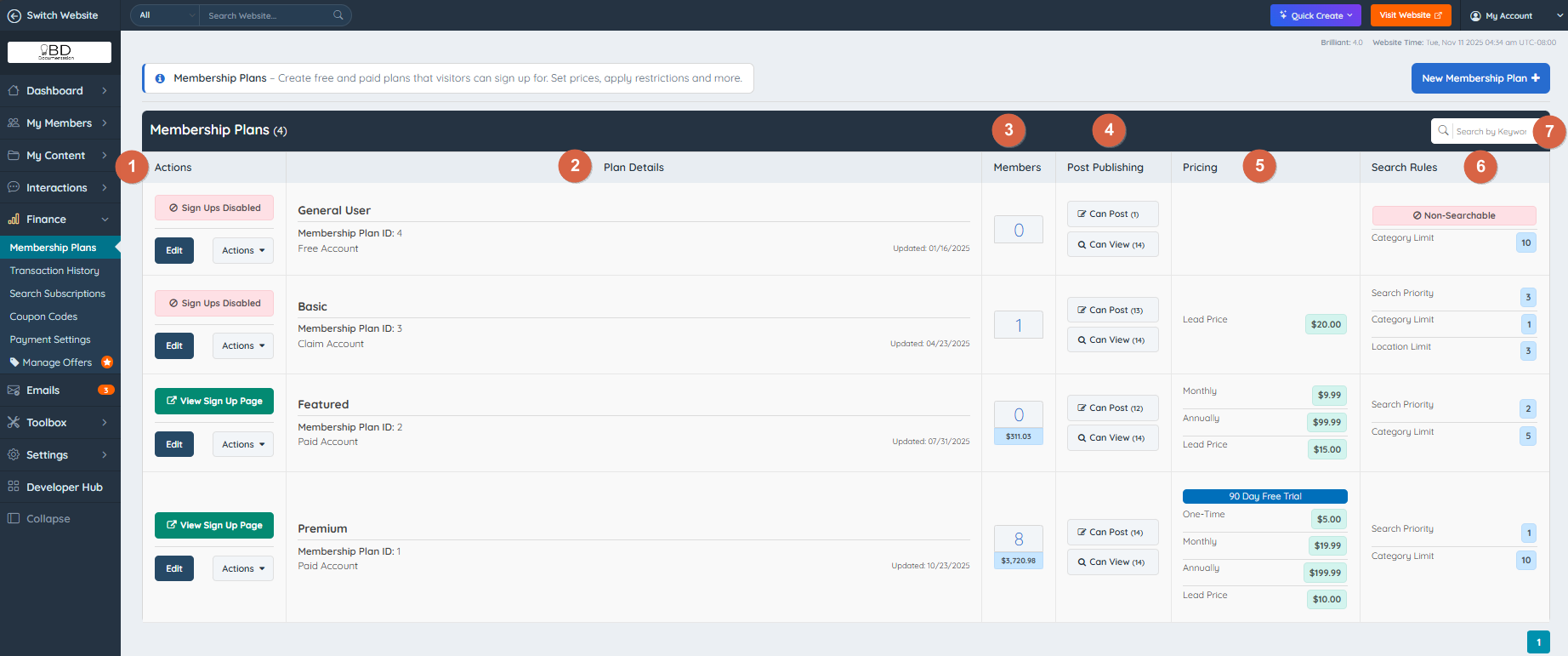
1. Actions Column
View the sign-up page (if public), edit the membership plan, and perform additional actions.
NOTE: If a red button appears in this section, members cannot sign up for this membership plan. This setting can be managed in Pricing » Disable Signups for This Product » Yes.. Scroll down to the bottom to access the "Pricing" documentation.
Hover over the Actions button and choose an action from the dropdown. Actions include:
- Clone Membership Plan.
- Copy Sign Up Link.
- Move members from one membership to another.
- Email Sign Up Link.
- Delete the membership plan.

2. Plan Details
This section displays key information about each membership plan, including:
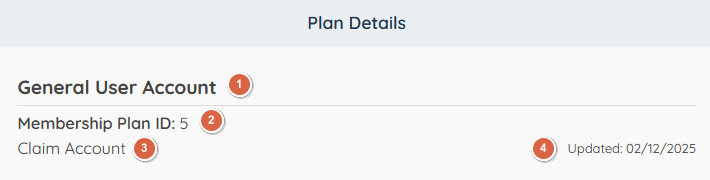
- 1. Membership Plan Name: The name of the membership plan (e.g., General User Account).
- 2. Membership Plan ID: A unique identifier for each membership plan (e.g., Membership Plan ID: 5).
- 3. Membership Plan Type: Indicates whether the plan is Free, Paid, or a Claim Listing account.
- 4. Last Updated Date: The most recent date when any changes were made to the plan settings.
This information helps admins quickly identify and manage their membership plans.
3. Members
This section displays the number of members assigned to the membership plan. Click it to view member information. This section also displays the total 'Payments Received' for the membership plan.
4. Post Publishing
This section displays all post types enabled for the membership plan.

5. Pricing
This section displays lead pricing and available subscription rates, including monthly, quarterly, semiannual, and yearly options.If no lead prices are displayed, the membership plan is free, and leads are available at no cost.
6. Search Rules
This section shows whether the membership plan is searchable on the website or not.
- Search Visibility.
- The Search Results Priority.
- Category Limit.
- Max. Location Limit.
7. Search by Keyword
This feature allows admins to quickly locate a specific membership plan by typing a keyword or the Membership Plan ID in the search bar.
Use this tool to find plans efficiently when managing multiple memberships. For example, search by the plan name (“Featured Plan”) or directly by its ID (“2”) to bring it up instantly.
Editing Membership Plans
Membership plans can be edited from the Actions section.

The membership plan settings are divided into five sections:

Documentation for each tab
Select a link below to learn more about the settings in each section
Additional Functionality
There is no need to return to the membership plan’s checkout page. Now, a button next to the search bar opens the live form directly:

A Keyword Search option is available in the top-right corner of the page. It searches across all tabs simultaneously:
For example, to find the ‘Articles’ post type within the membership plan settings, enter ‘Articles’ in the search field. The system will display the tab where it is located
