
Signing Up As A Member
Link: https://support.brilliantdirectories.com/support/solutions/articles/5000673889
When the Membership Plans have been set up, we recommend performing a few tests to make sure the payment gateway was properly set up prior to launching the website.
These test purchases can be refunded and they won't impact the website revenue.
Before starting the test, make sure the site has a payment gateway "Active" under Finance » Payment Settings:
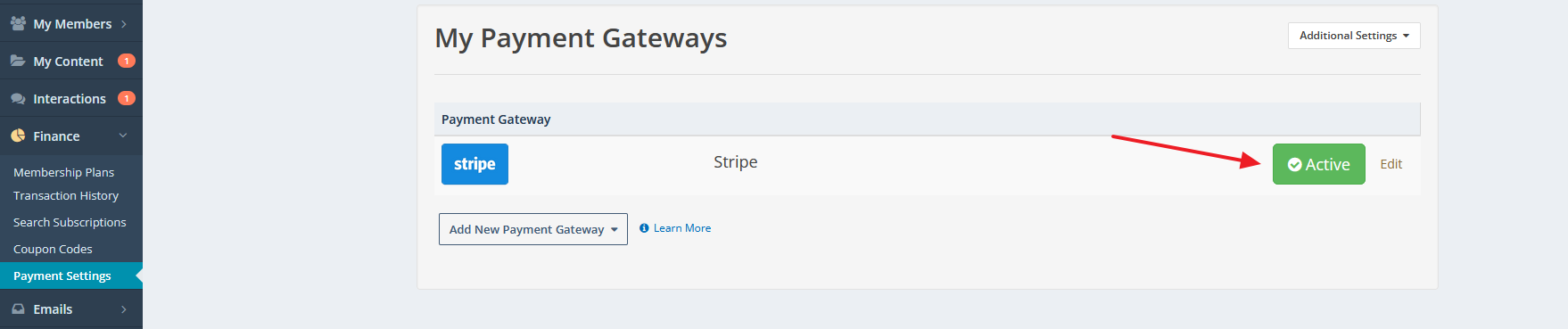
If the site doesn't have an active payment gateway yet, select one from the Supported Payment Gateways.
Note: For new sites launched using a directoryup.com subdomain, test mode payment credentials are already active. Paid signups can be tested without adding a separate payment gateway. Once the site is switched to a real domain, these test credentials will stop working and a live payment gateway will need to be configured.
Test the Billing Module
1. Temporarily edit the Membership Plan monthly price to $1. This is not necessary; however, it is a good practice to test purchases when using real credit cards.
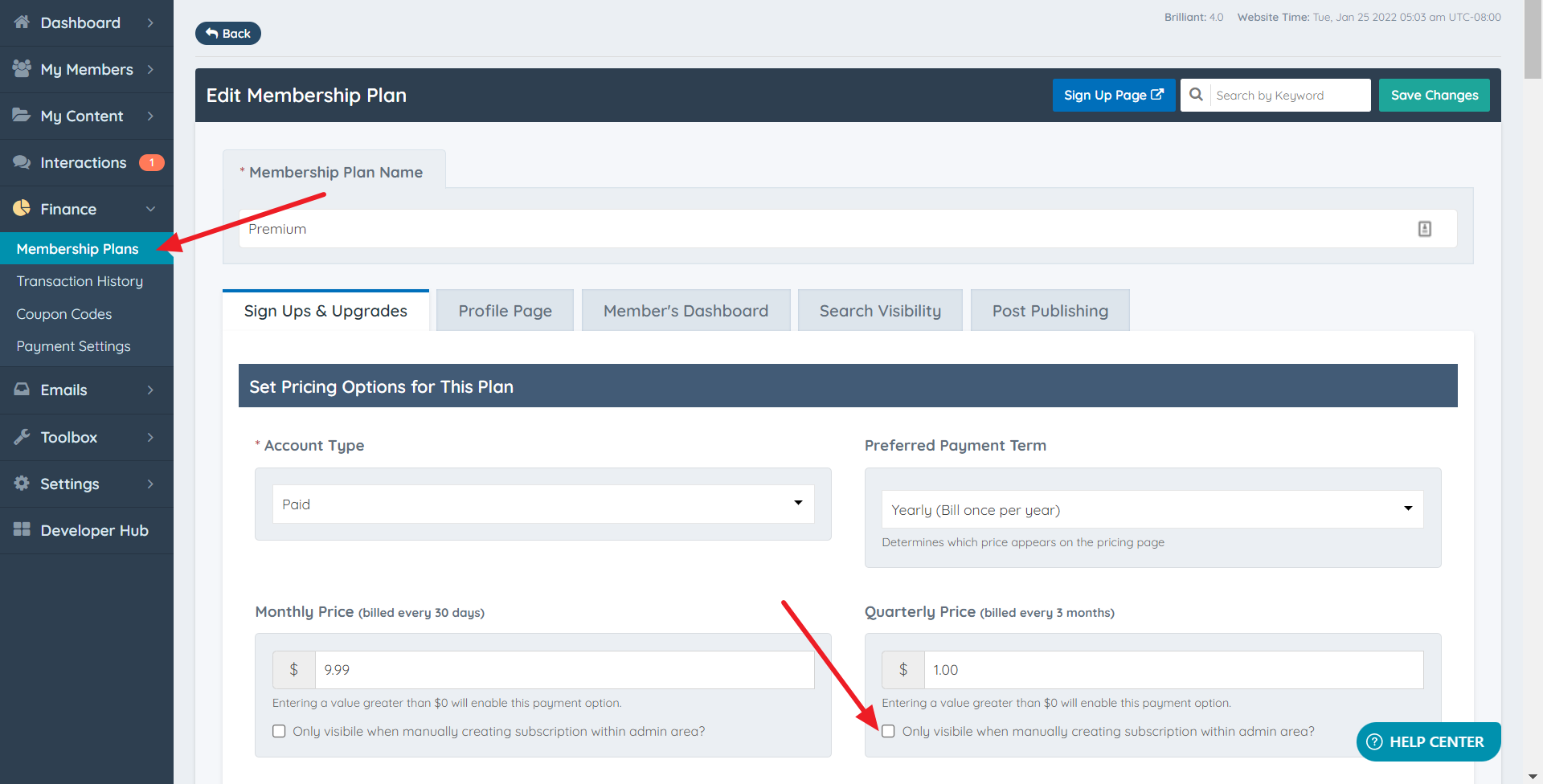
To do this, go to the admin and click on Finance » Membership Plans.
2. Select one of the paid memberships and click Edit.
3. Then, go to the "Sign Ups & Upgrades" tab and change the amount of the monthly membership to $1.
Save changes:
Note: Do not select the "Admin Only" option for this test, because we will signup as a new member, not as an admin. This option will hide the payment information in the payment form.
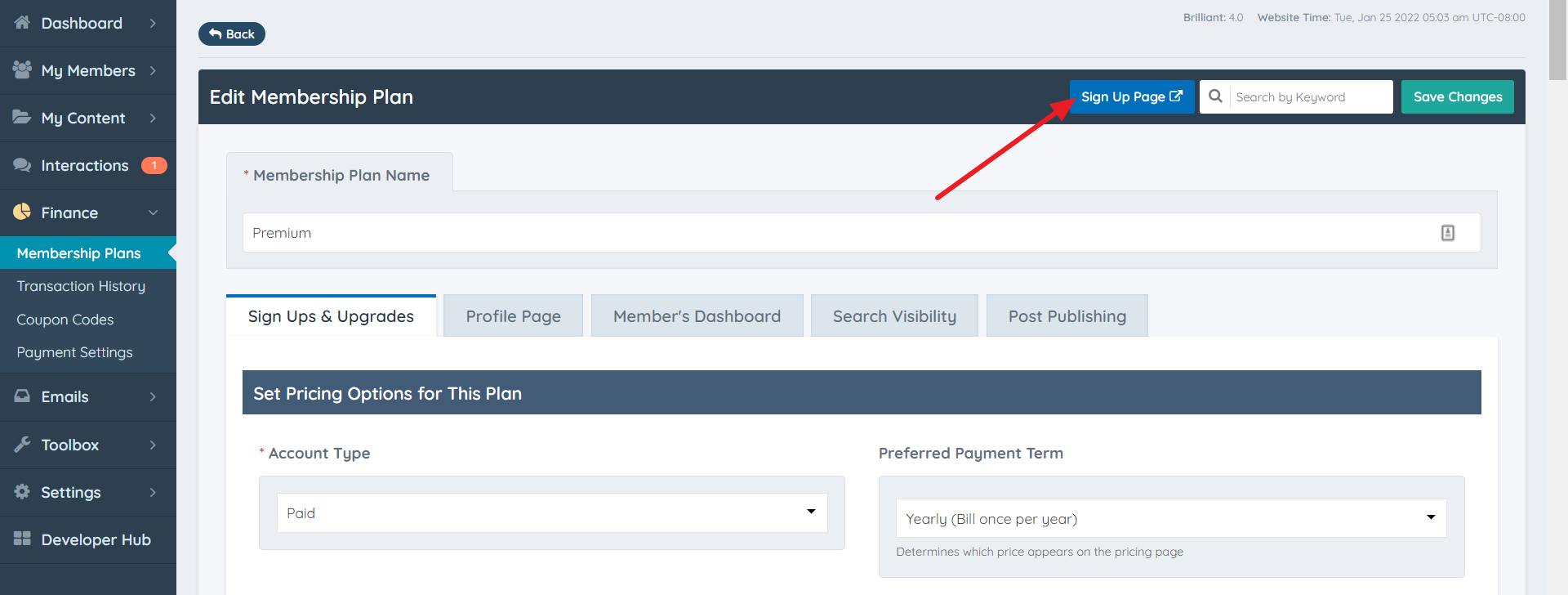
4. Click the "Sign Up Page" button:
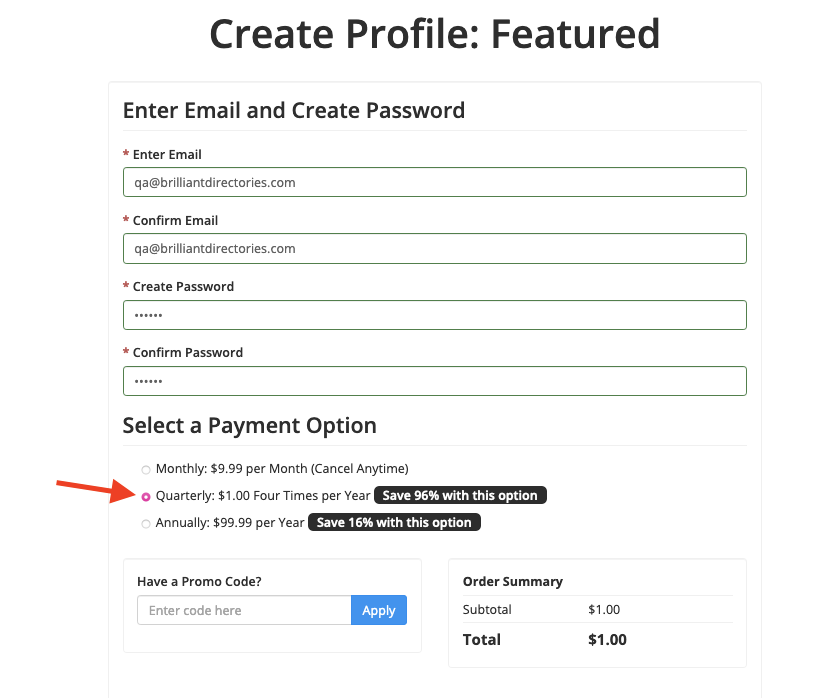
5. It will redirect to the paid checkout form.
Fill out the form and make sure to select the $1 option.
6. Add the credit card information.
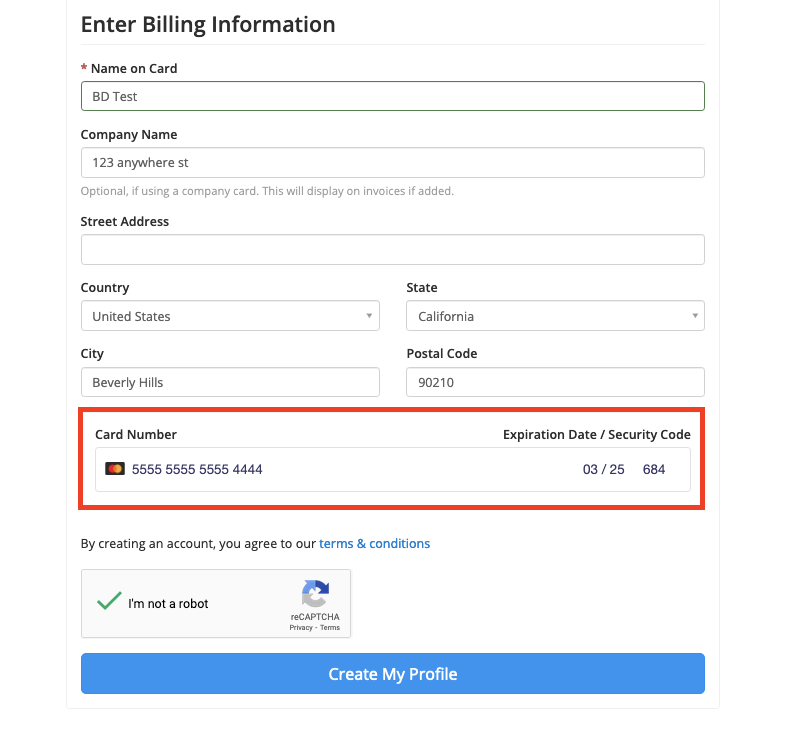
Important Notes for This Step:
- If the site is using Stripe, the look of the Enter Credit Information fields will vary slightly. See the image above.
- If the site is using PayPal Standard, PayFast, 2Checkout, or any other off-site payment gateway, the credit card fields won't appear in this form. The system will redirect the person to the payment gateway website in order for them to pay.
- If the site is using PayPal Payflow, Authorize.net, or any other on-site payment gateway, the credit card fields will show up in the checkout form.
7. After clicking 'Create My Profile,' the system will process the payment. A pop-up will appear, click the "Click To Continue" button:
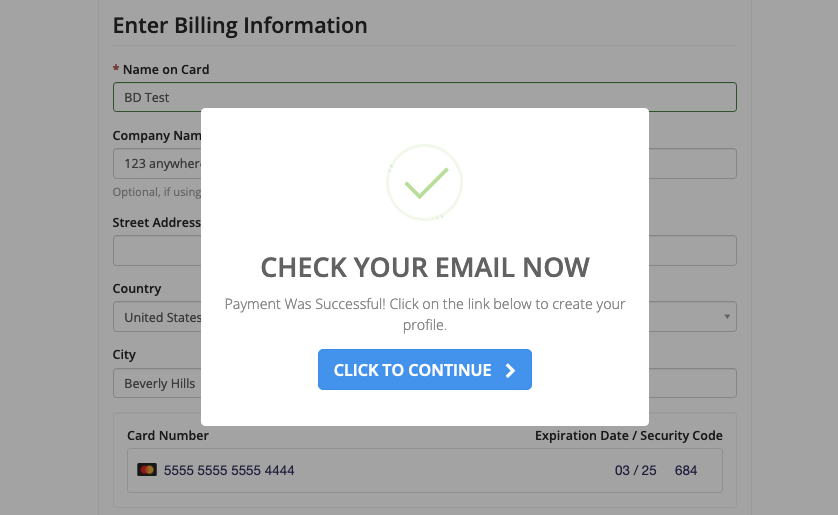
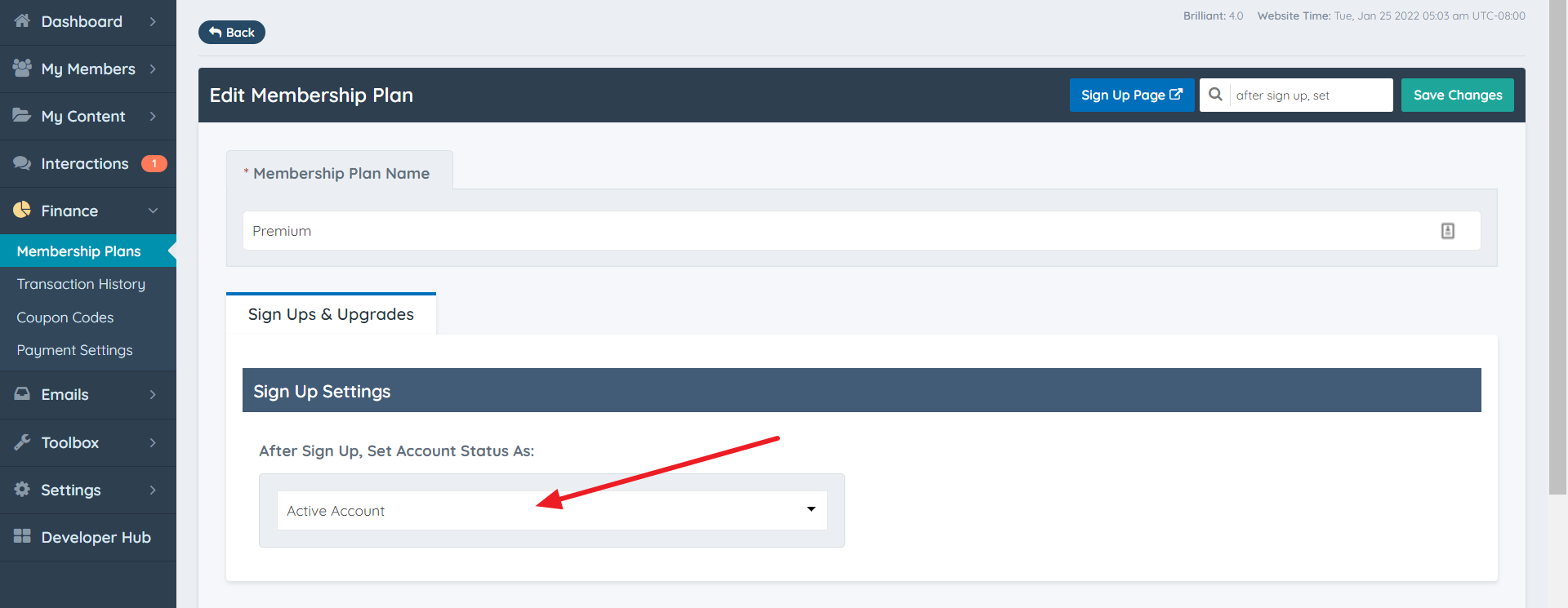
Important Note: The message shown in the pop-up above will depend on the "After Sign Up, Set Account Status As" setting assigned to this membership plan. The above message will display if the "Active Account" option is selected:
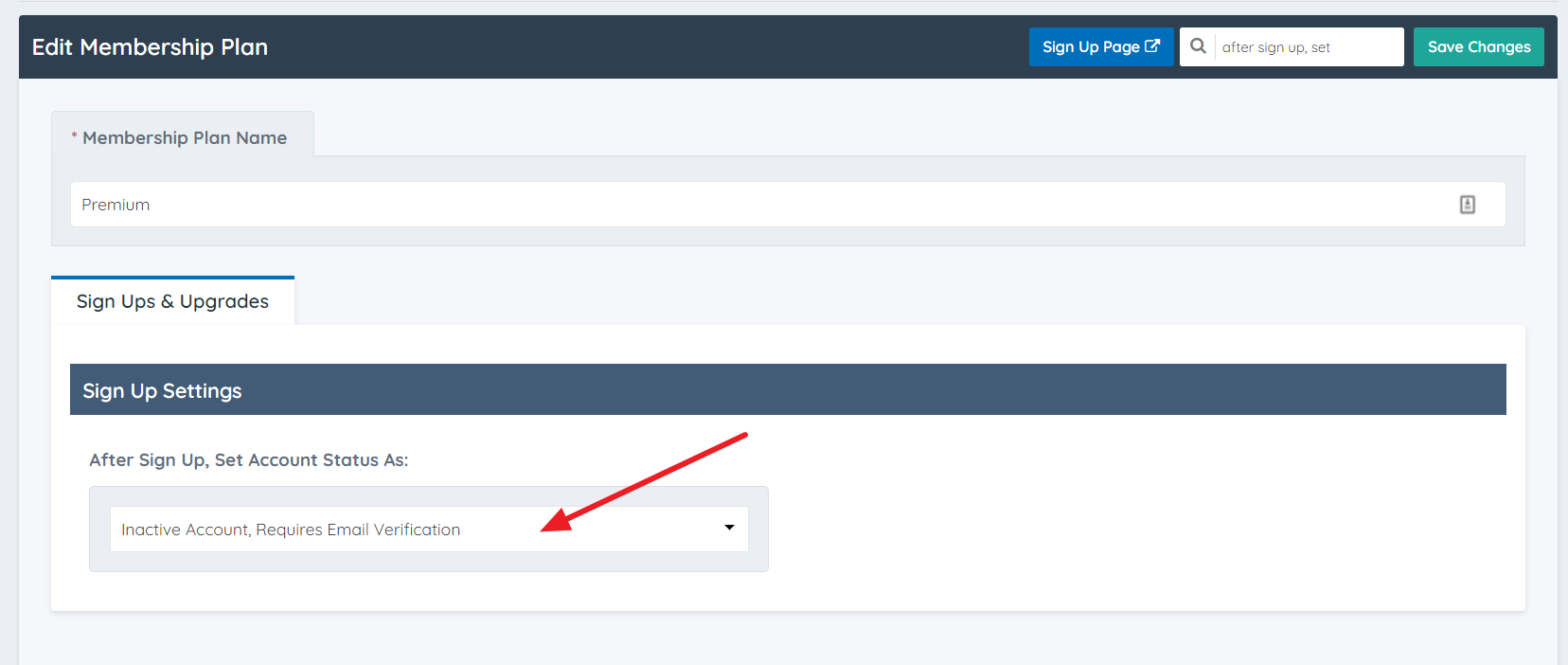
If the "Inactive Account, Requires Email Verification" option is selected:
The message below will appear:
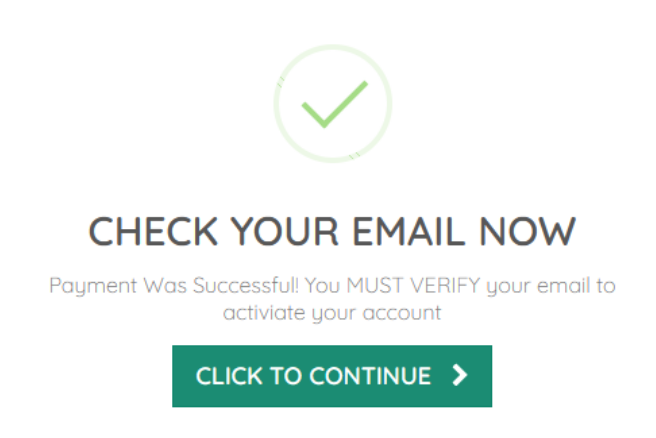
If the "On Hold, Requires Admin Approval" option is selected:
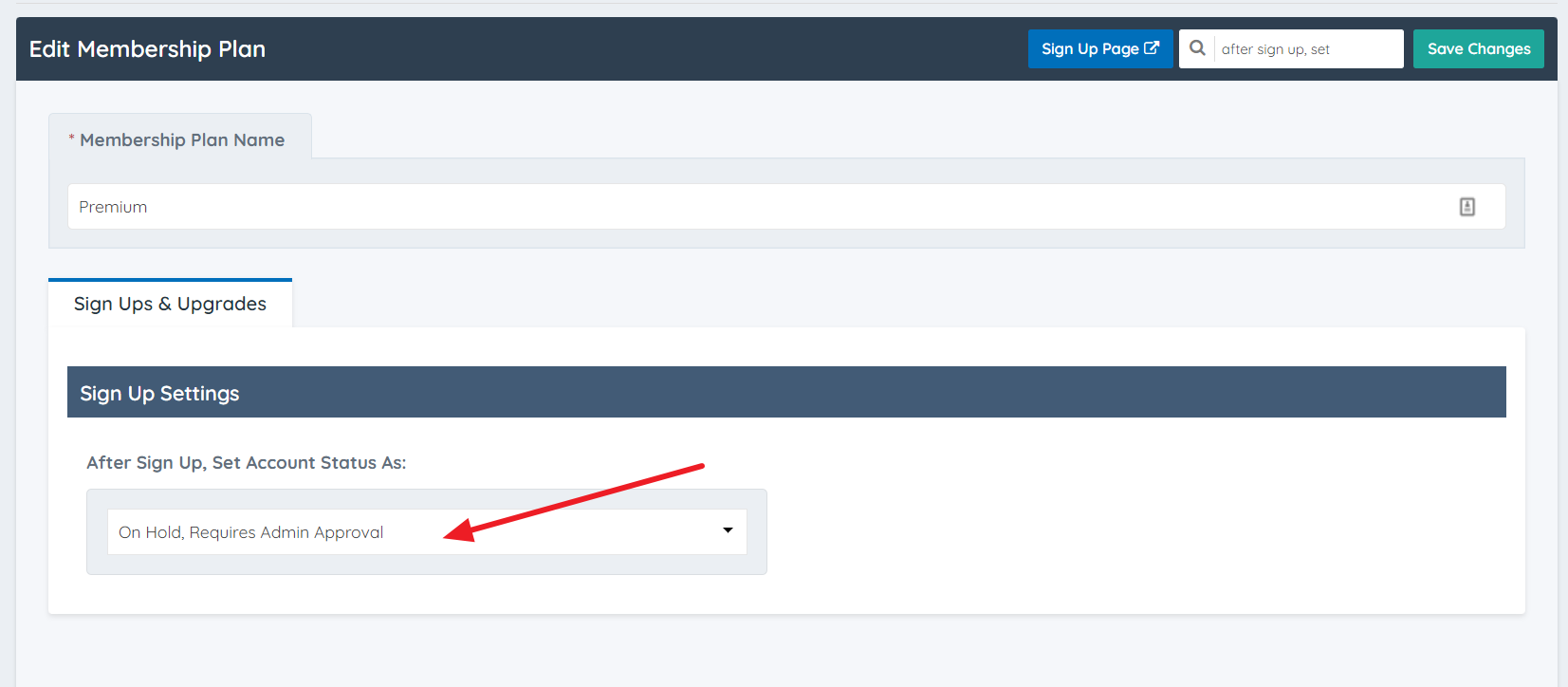
The message below will appear:
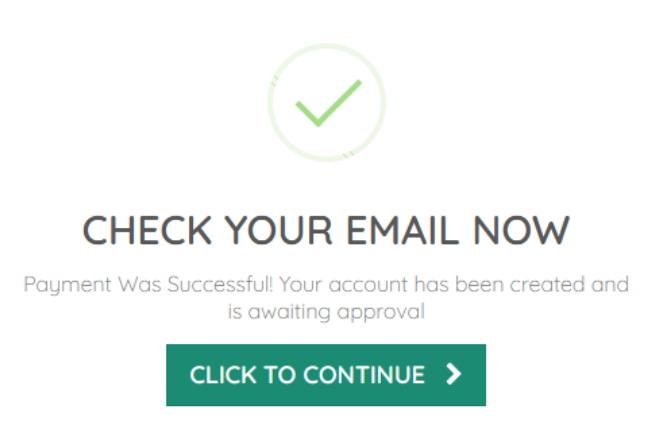
All of this text can be edited under Text Labels directly.
8. The system will log in the member automatically into the account.
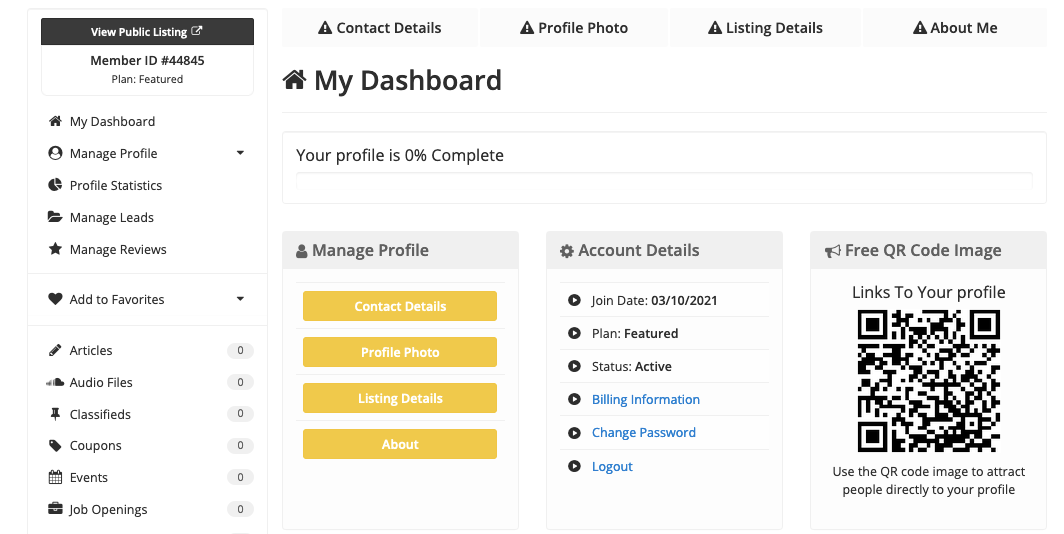
From the Owner's Perspective
After all the steps above have been completed, a new profile will be created with an 'Active' status in the member's section.
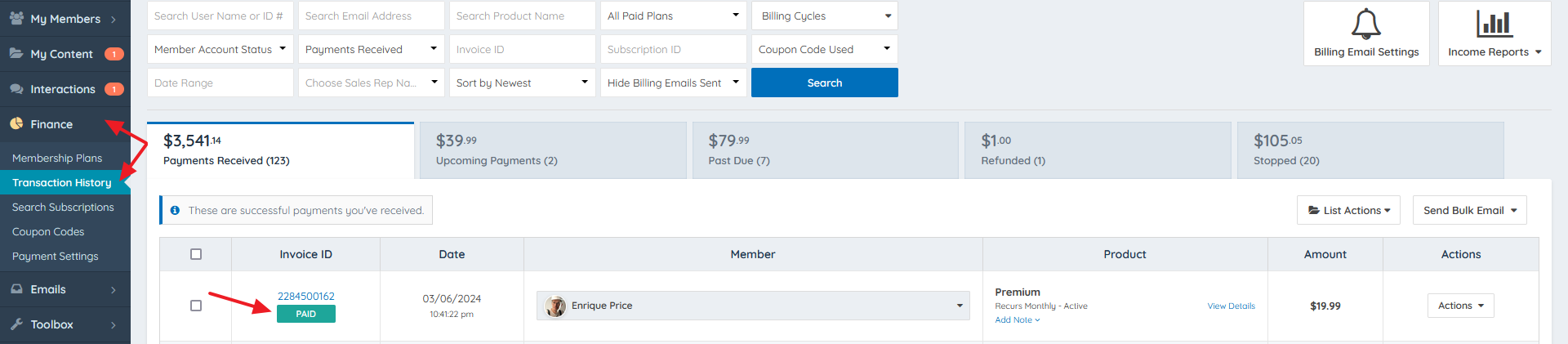
Also, a transaction will appear in the "Transaction History" section of the Finance tab in the Admin area.
Sign Up Errors
To learn what happens when a payment fails during the signup process, read this article: Attempted Sign Up - No Payment Collected
To learn more information about Membership plans, read the articles below:
