
Interactions » Private Chats
Link: https://support.brilliantdirectories.com/support/solutions/articles/12000110284
The Private Member Chats page in the admin is where the website admin finds, reads and manages the chats members send each other through the Private Member Chat add-on: changing a chat's status, reviewing reported chats and deleting chats. Setting up the add-on, choosing which membership plans can chat and what members see are covered in the Private Member Chat article. The Private Chats menu item appears only while the Private Member Chat add-on is active.
Opening the Private Member Chats Page
Go to Interactions » Private Chats to open the Private Member Chats page. It lists every chat between members, with the most recent activity at the top:
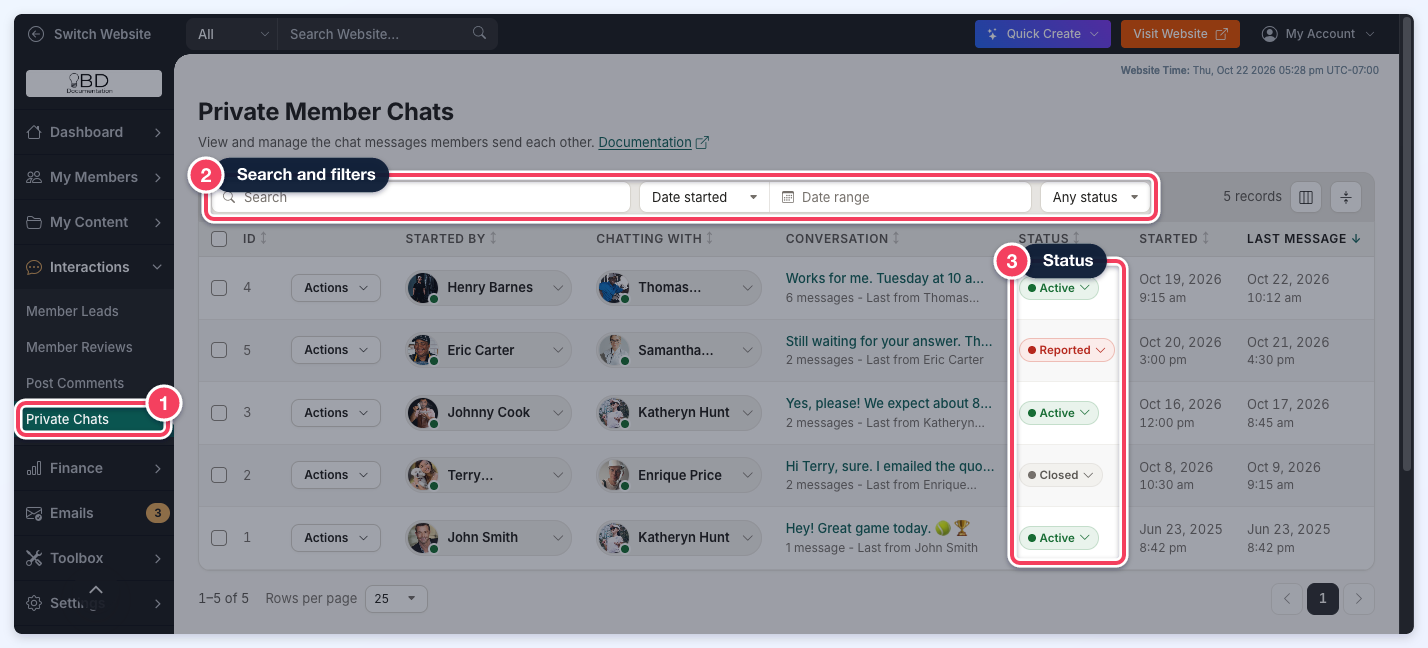
- Interactions » Private Chats opens the page.
- Search and filter the chats.
- The Status of each chat.
Each row shows the chat ID, the member who started it (Started By), the other member (Chatting With), the latest message with the number of messages and who sent the last one (Conversation), the Status, and the dates the chat Started and received its Last Message. Hovering over a conversation shows a preview of the last message and the page the chat started on.
Finding a Chat
- Search looks through message text, member names and email addresses, chat and member IDs, and the page a chat started on.
- The Date started / Last message menu chooses which date the Date range filter uses.
- The status filter (Any status) shows only Active, Closed or Reported chats, or any combination of them.
- Click a column heading to sort by it. Sorting by Conversation sorts by the number of messages.
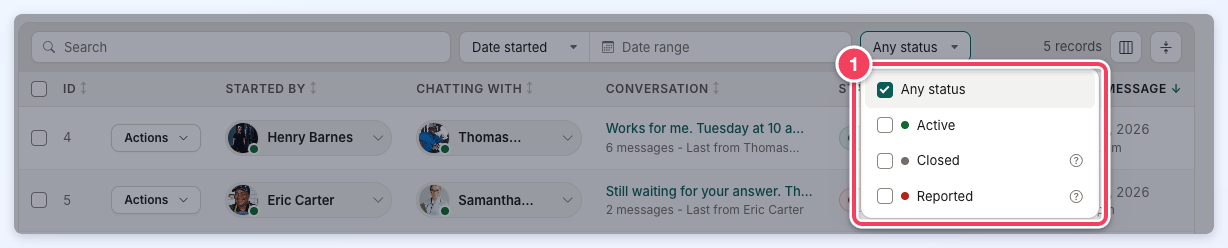
Reading a Chat
Open the row's Actions menu and click View Chat. The chat opens in a side panel with:
- both members (Started By and Chatting With);
- the Chat Status, with a help icon that explains the selected status;
- the Date Started;
- the messages in order, with each sender's name, the date and time, and any images (click an image to enlarge it). A chat with more than 200 messages shows only its newest 200, with a Show Earlier Messages button above them to load older ones;
- Origin: the page where the chat started, with a button to copy its link.
The Actions menu also has Open Origin Page, which opens that page in a new tab.
Chat Statuses
- Active: the members can send each other messages.
- Closed: the chat is turned off, so neither member can send more messages. Members see these chats marked ARCHIVED.
- Reported: a member reported the chat. It stays closed until its status is set back to Active.
To change the status of one chat, click its status in the list and pick the new status. The Change Chat Status window opens with that status selected; click Update Status:
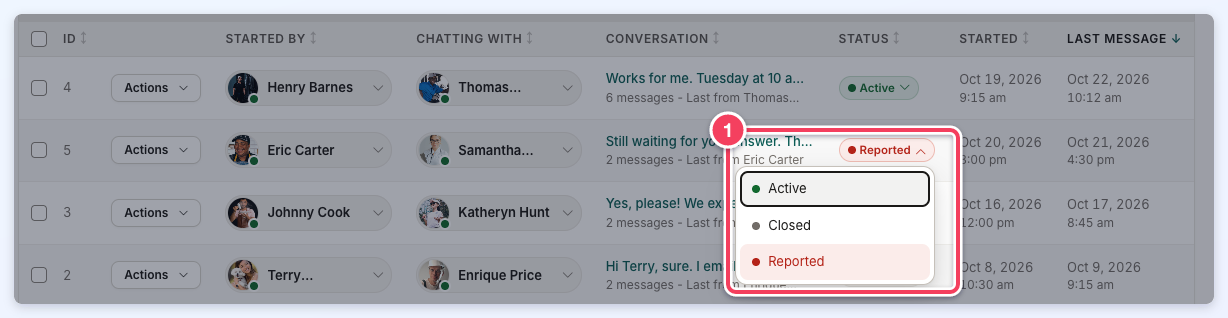
The status can also be changed in the chat's side panel: pick it under Chat Status and click Save. The panel stays open after saving.
To change the status of several chats at once, tick them, choose Change Status from Select Action, click Continue, pick the new status and click Update Status:
Reported Chats
A reported chat opens with a Reported Chat notice. Read the messages, then set the chat to Active or Closed, contact the member, or delete the chat:
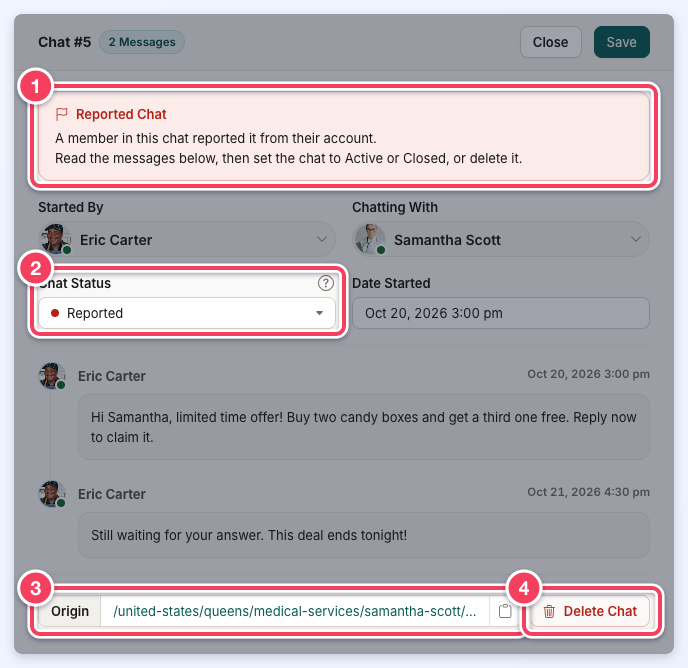
- The Reported Chat notice.
- Chat Status: choose the new status and click Save.
- Origin: the page where the chat started.
- Delete Chat.
The link in the report notification email opens this page with the reported chat already open. The list then shows only that chat, with a Chat # button above it; click that button to show every chat again.
Deleting Chats
To delete one chat, open the row's Actions menu and click Delete Chat, or click Delete Chat in the chat's side panel, then confirm:
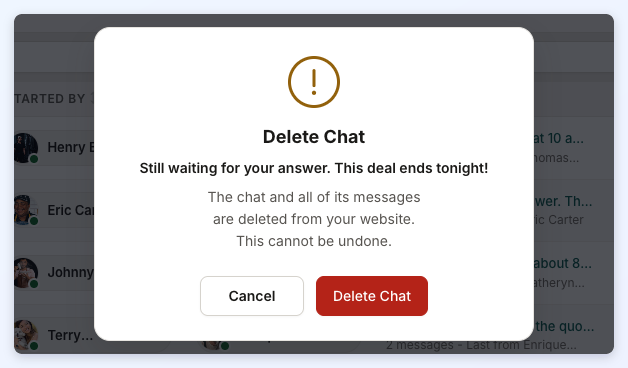
To delete several chats at once, tick them, choose Delete from Select Action, click Continue and confirm. Deleting removes the chats and all of their messages from the website, and cannot be undone.
NOTE: If both members in a private chat are deleted, the chat and its history are deleted too.
