
Private Member Chat
Link: https://support.brilliantdirectories.com/support/solutions/articles/12000055517
Private Member Chat allows members to chat back and forth through the website. Keep members coming back to the site when replying to their chat messages.
By default, members receive an email notification when they get a message. With this add-on they can respond back to messages directly from within their member dashboard area.
IMPORTANT: Private Member Chat is exclusively for member-to-member communication. Unregistered users will be prompted to log in or create an account to access this feature.
How To Get This Add-On
- Websites with the VIP Add-Ons Club automatically have this add-on available: Join The VIP Add-Ons Club
- Purchase Individually: Private Member Chat Add-On
Enabling the Add-On
Go to Interactions » Private Chats and click Chat Settings at the top right of the page. The Private Member Chat Settings panel opens:
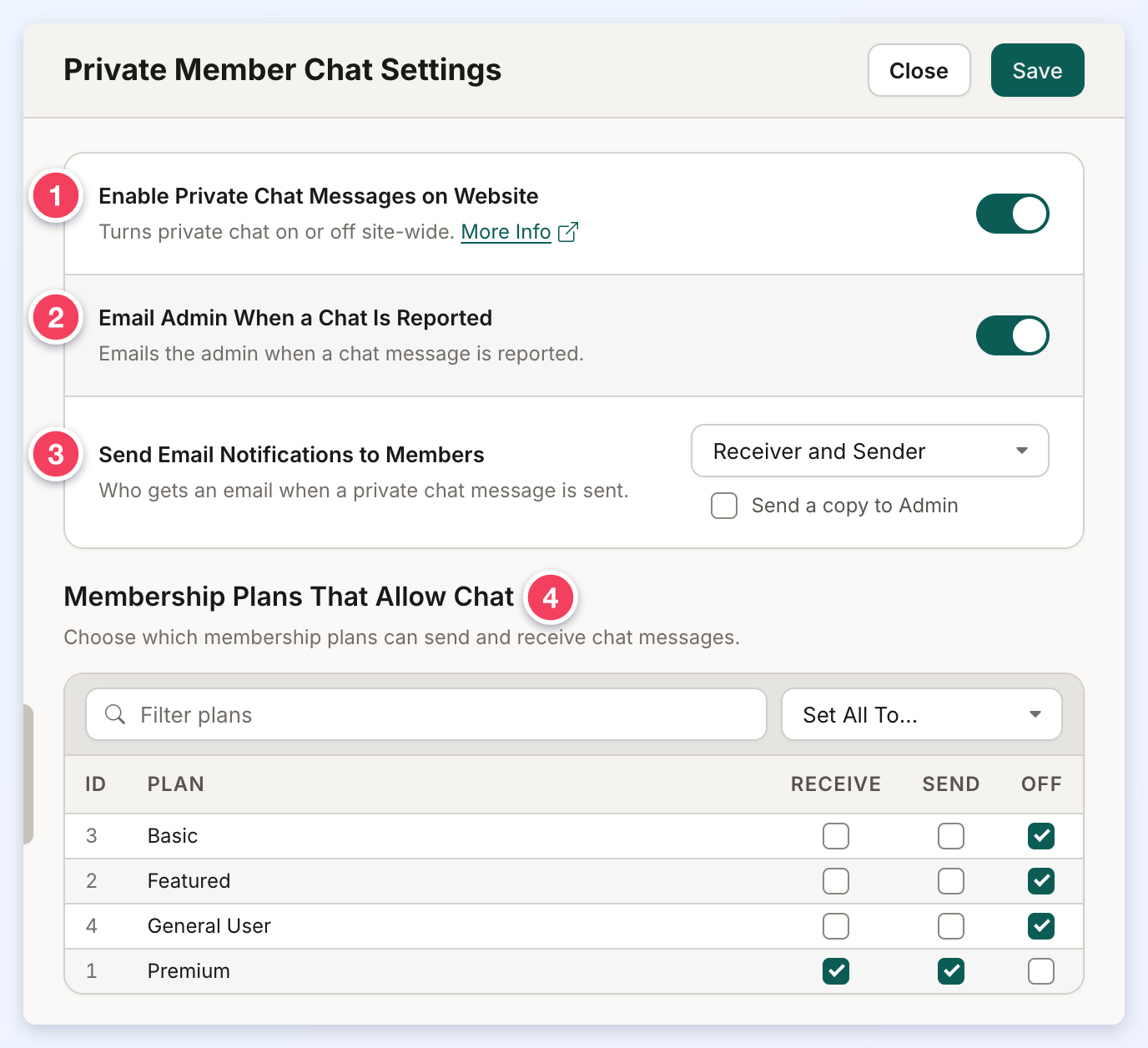
- Enable Private Chat Messages on Website turns private chat on or off for the whole website. The other settings in the panel appear only while it is on.
- Email Admin When a Chat Is Reported emails the website admin when a member reports a chat.
- Send Email Notifications to Members chooses who gets an email when a chat message is sent:
- Receiver and Sender
- Receiver (every message)
- Sender (first message)
- Disable Emails
- Membership Plans That Allow Chat lists every membership plan. Tick Receive, Send or both for each plan whose members can use the chat, or tick Off to turn chat off for that plan. Type in Filter plans to find a plan by name or ID, and use Set All To… to give every plan shown the same access: Send and Receive, Receive Only, Send Only or Off.
A changed setting is marked with a dot next to its name until it is saved. Click Save to keep the changes. Clicking Close with unsaved changes asks Discard Your Changes?: Keep Editing returns to the panel and Discard closes it without saving.
Private Chat Email Notifications and Templates
The chat notification email templates are:
- conversation-reply
- start-conversation-general-user
- start-conversation-member
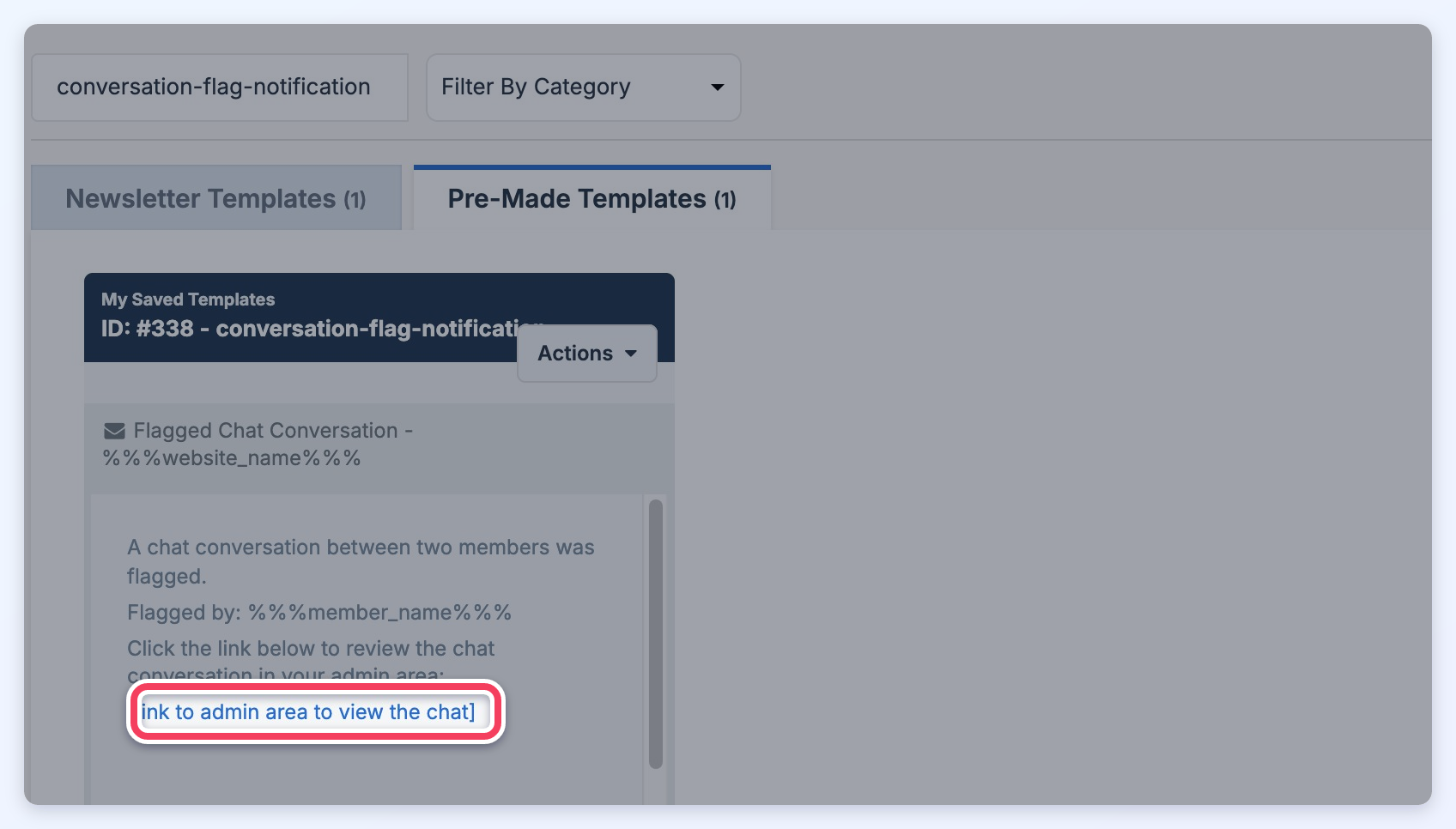
- conversation-flag-notification (sent to the admin when a chat is reported)
>> How to Edit Email Templates
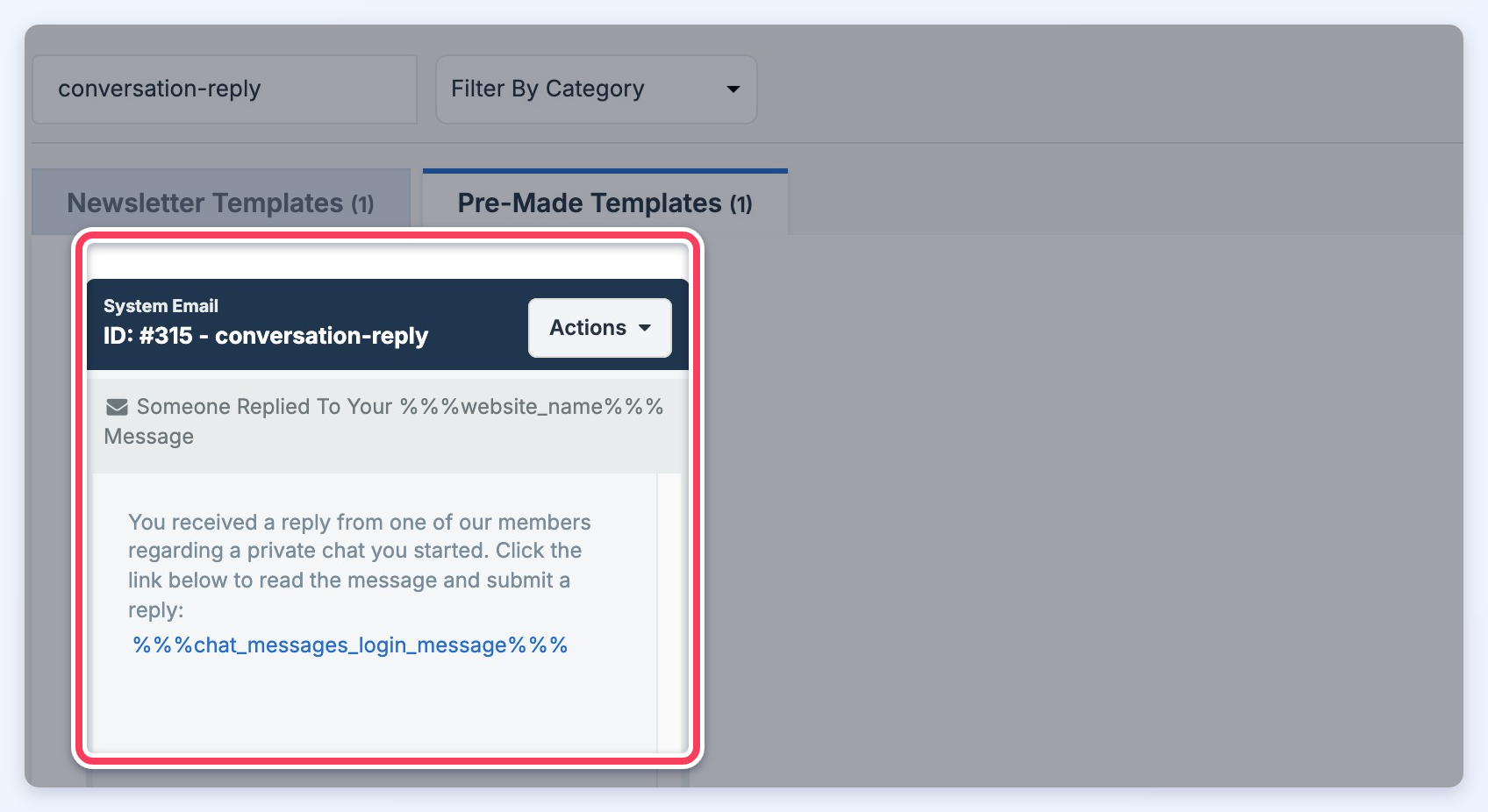
To include the text of the chat message in these emails, add this Email Template variable:
%%%chat_message_content%%%
Other variables specific to private chat emails print the sender's company name, first name or full name:
%%%sender_company%%%
%%%sender_first_name%%%
%%%sender_full_name%%%
Private Member Chat Membership Settings
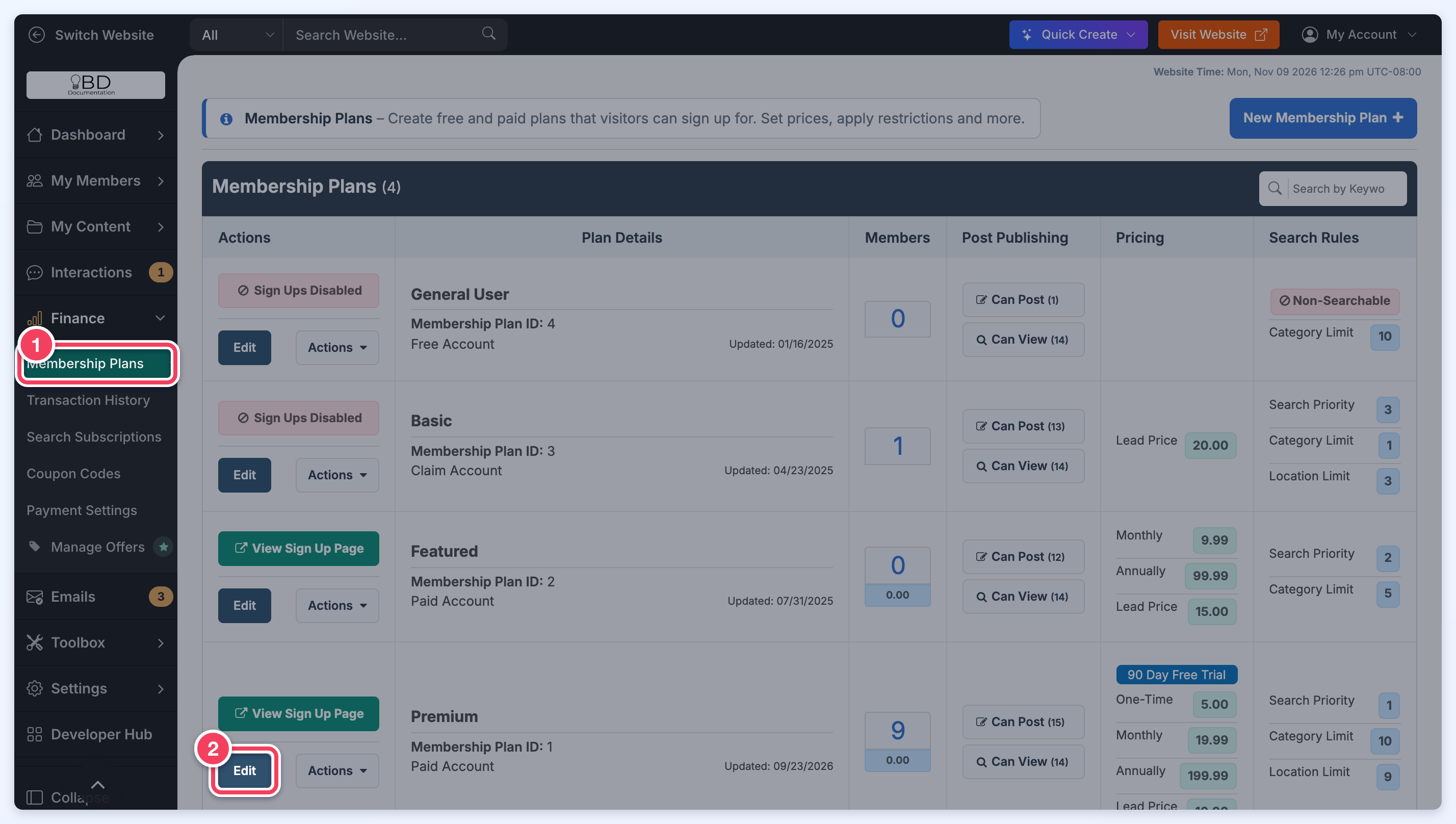
The same chat access shown in Membership Plans That Allow Chat can also be set on each membership plan. Go to Finance » Membership Plans and click Edit on the plan:
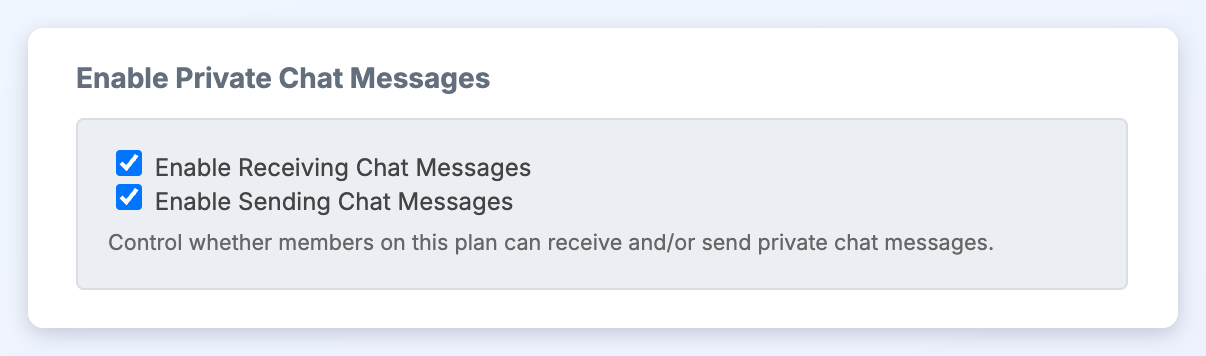
Click the Profile Page tab and scroll down to Enable Private Chat Messages. Tick Enable Receiving Chat Messages, Enable Sending Chat Messages, or both, depending on whether members on this plan should receive chats, send them, or do both. Then click Save Changes.
Sending Private Chats
When Private Member Chat is enabled, the Send Message buttons that contact a member open the private chat instead of the contact form. A visitor who is not logged in is sent to the login page instead:
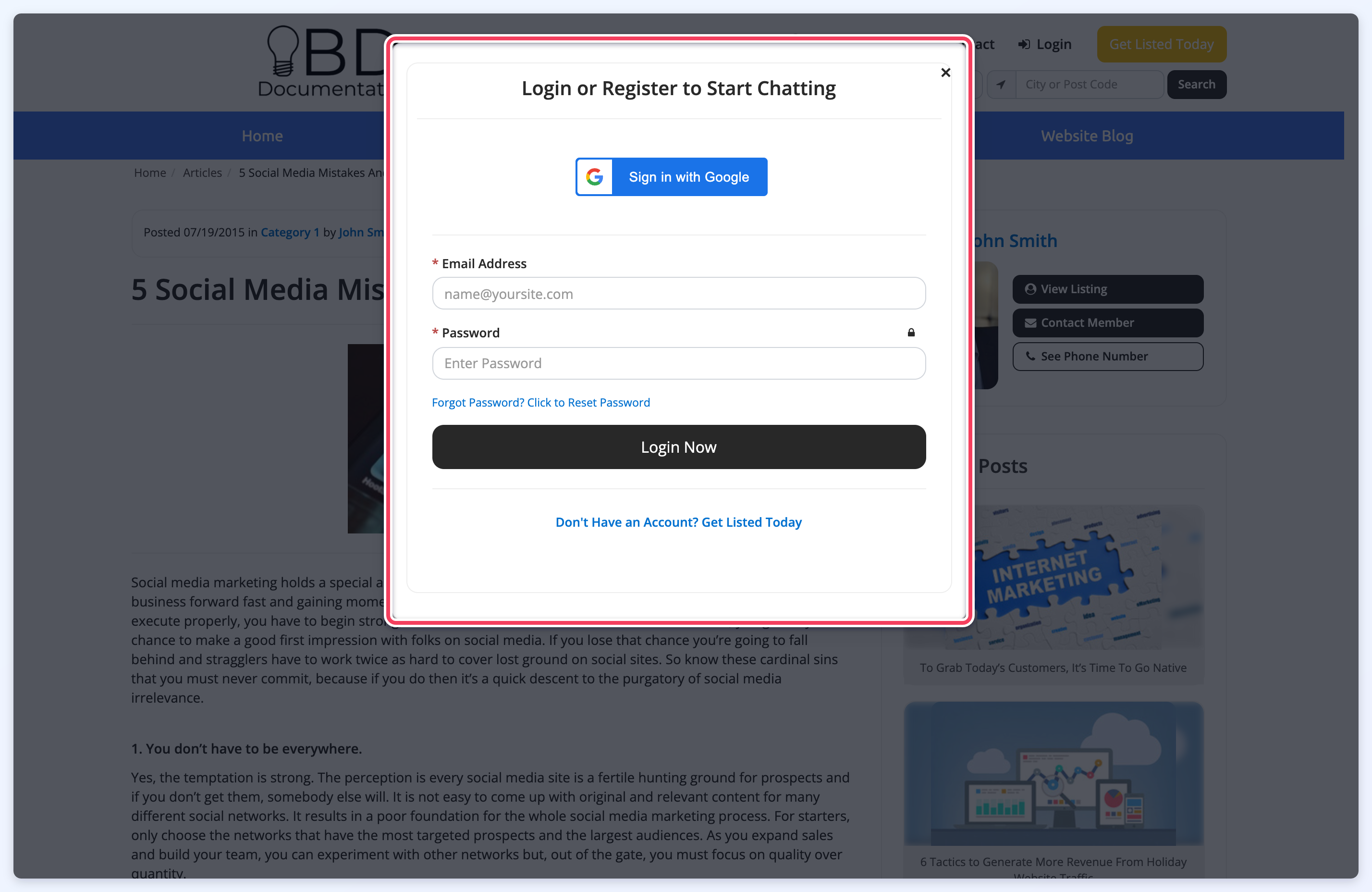
The same applies to the Contact Member button on member posts. On post pages, a window asks the visitor to log in or create an account:
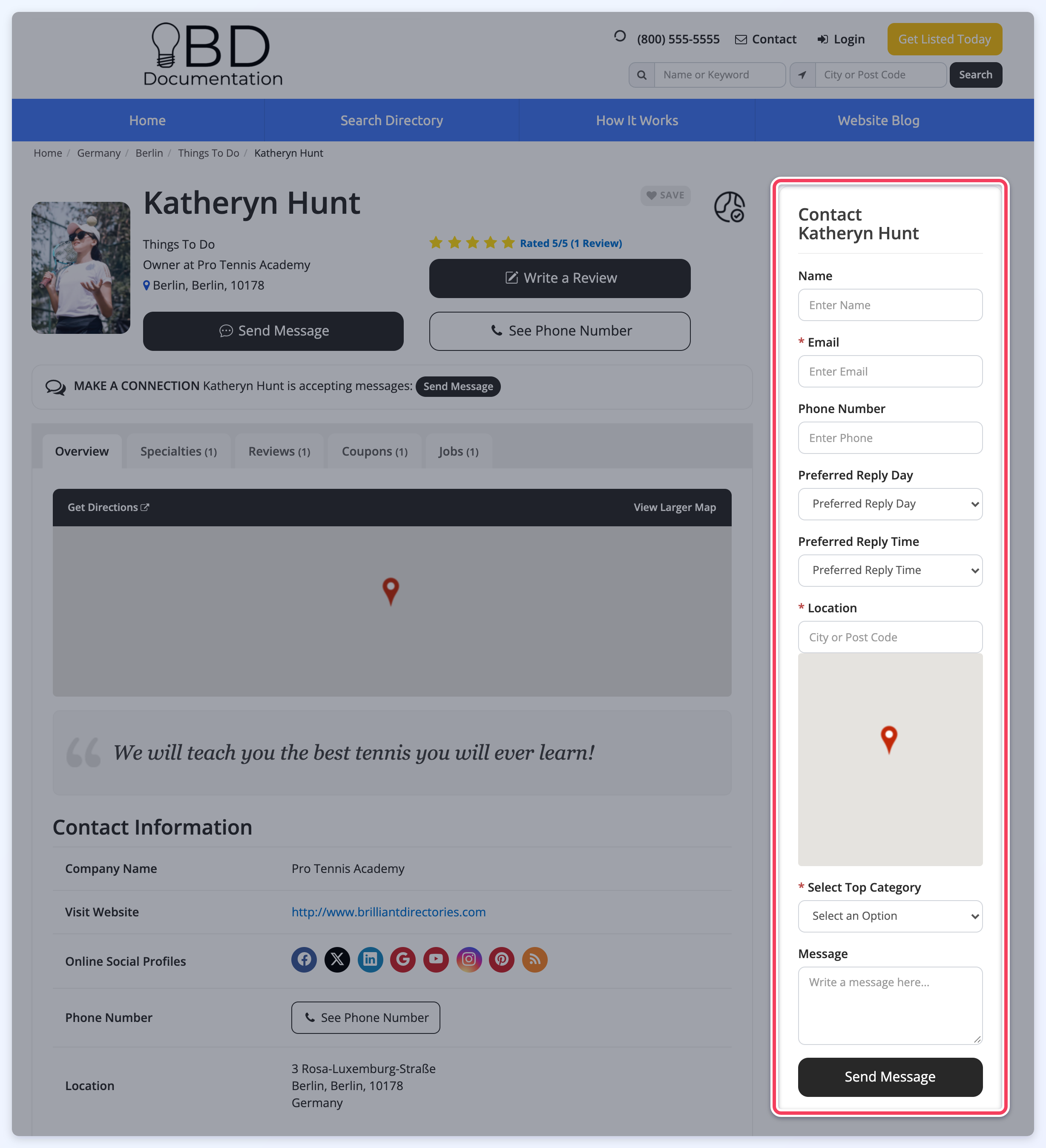
The general contact form in the default Member Profile Page sidebar stays available to visitors who are not logged in:
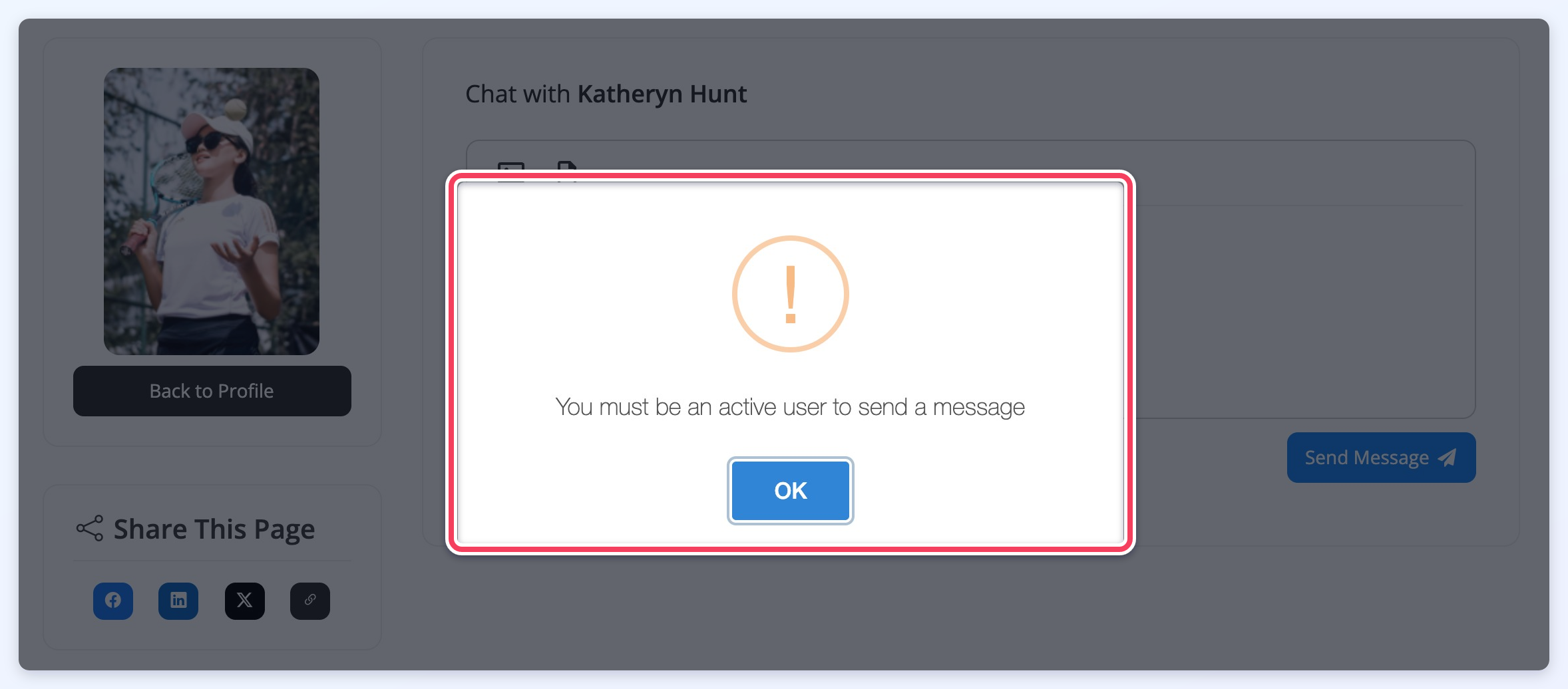
A member who is logged in but whose account is not active cannot use the private chat and sees this message instead:
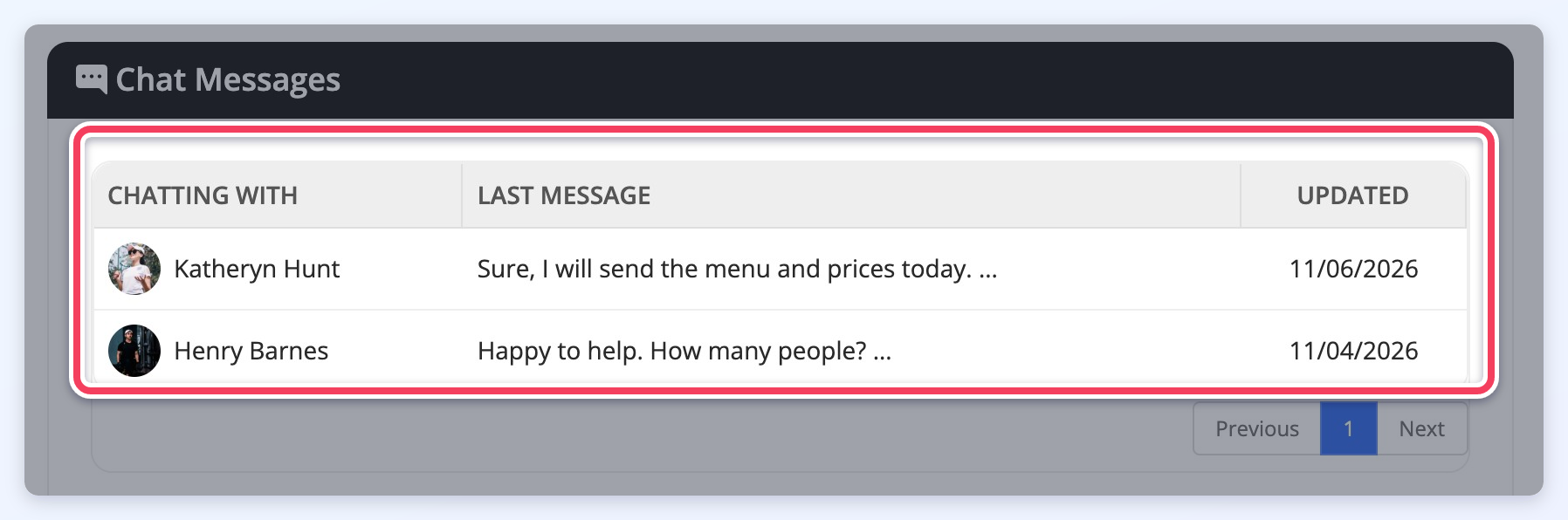
For a logged-in member with an active account, the profile button reads Send Chat Message. The member clicks it, types the message and clicks Send Message. After the confirmation, the conversation opens in the member's Chat Messages:
The member who receives the chat finds it under Chat Messages in their member dashboard, and gets an email notification based on the Send Email Notifications to Members setting.
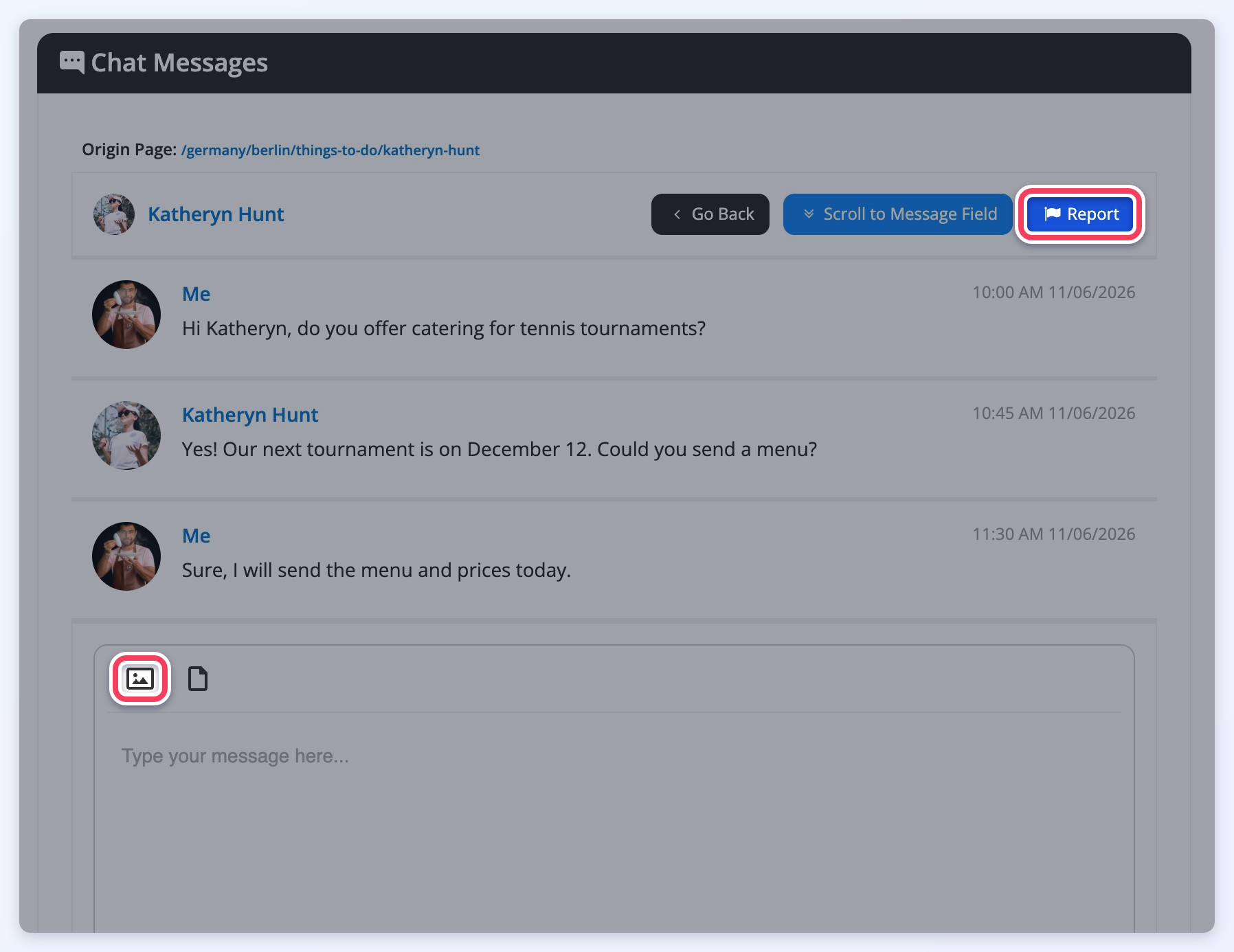
Inside a chat, both members see the page the chat started on (Origin Page), a Scroll to Message Field button that jumps to the reply box, and the Report button. The image button in the reply box adds pictures to a message:
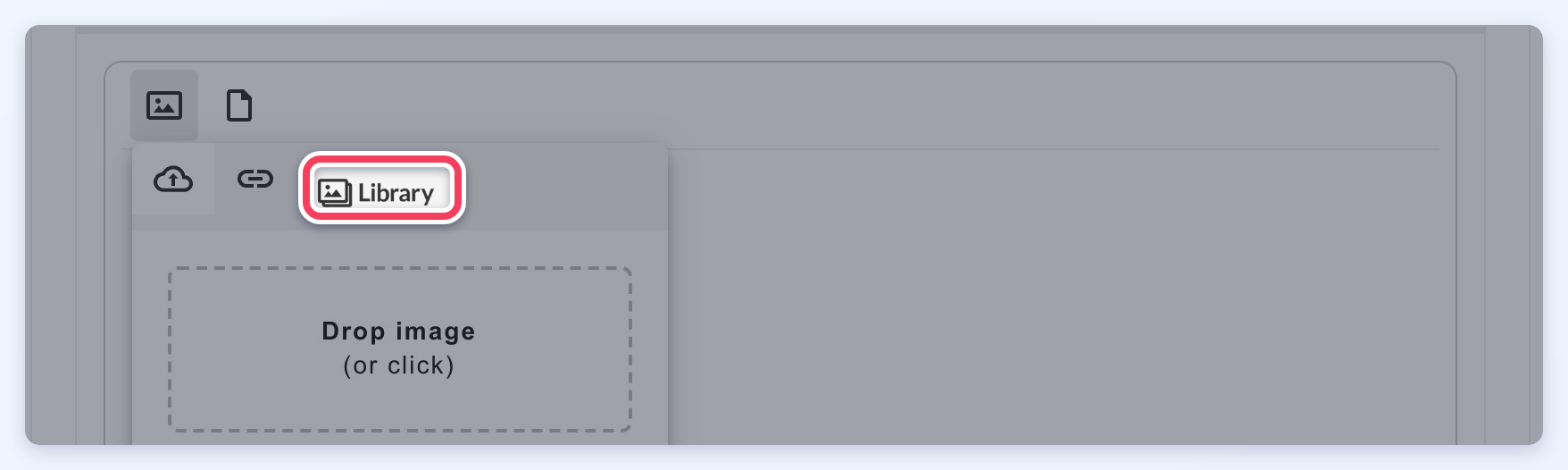
Members can upload an image, add one from a link, or pick one from the stock photo Library when it is enabled (see Stock Images for Private Member Chat below):
Spam Submission
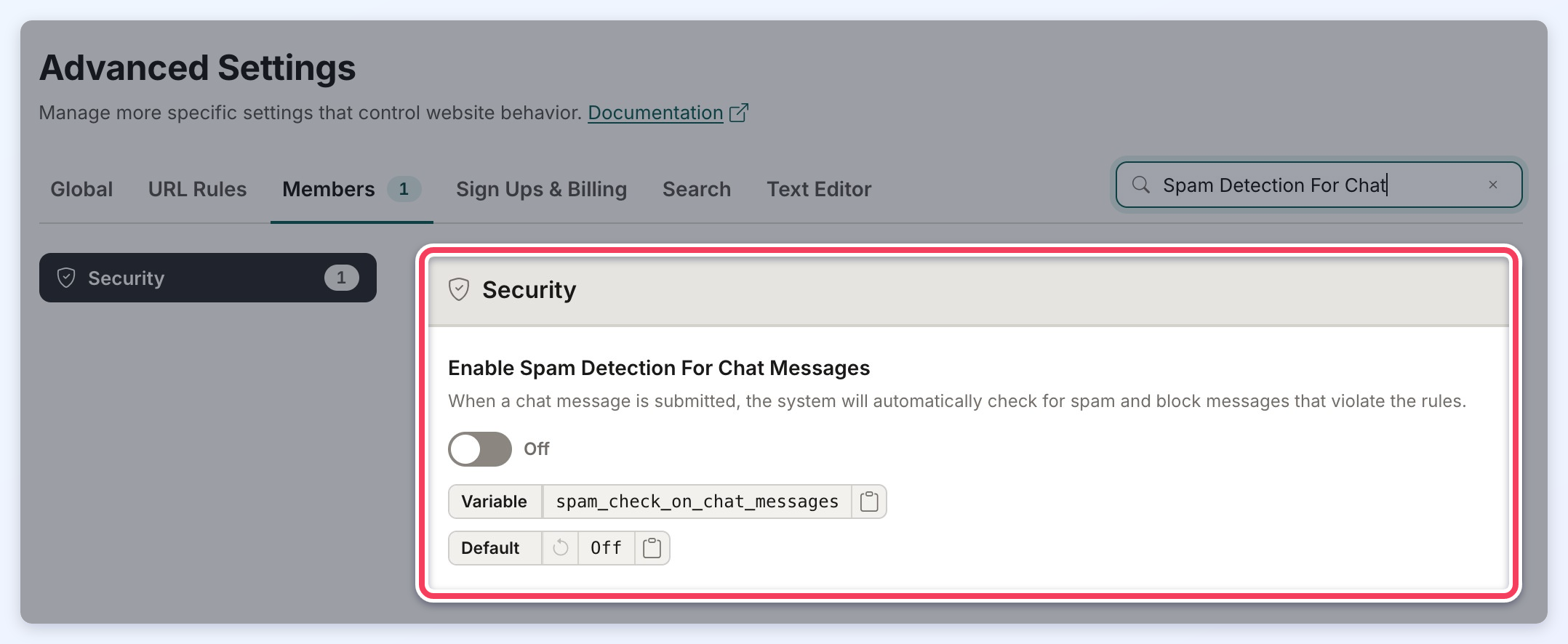
When the Advanced Setting Enable Spam Detection For Chat Messages is turned on, chat messages containing words identified as spam are blocked, based on the Spam Form Protector Add-On. Find it in Settings » Advanced Settings, on the Members tab:
Report Private Chats
Members can report a chat to the website admin, for example when they are being harassed. Clicking Report and confirming closes the chat while the admin reviews it, and the chat is marked REPORTED:
When Email Admin When a Chat Is Reported is on, the admin gets an email that uses the conversation-flag-notification template. Its link opens the reported chat on the admin's Private Member Chats page (see Interactions » Private Chats):
Private Member Chat Advanced Settings
These Advanced Settings in Settings » Advanced Settings expand the Private Member Chat add-on:
Stock Images for Private Member Chat
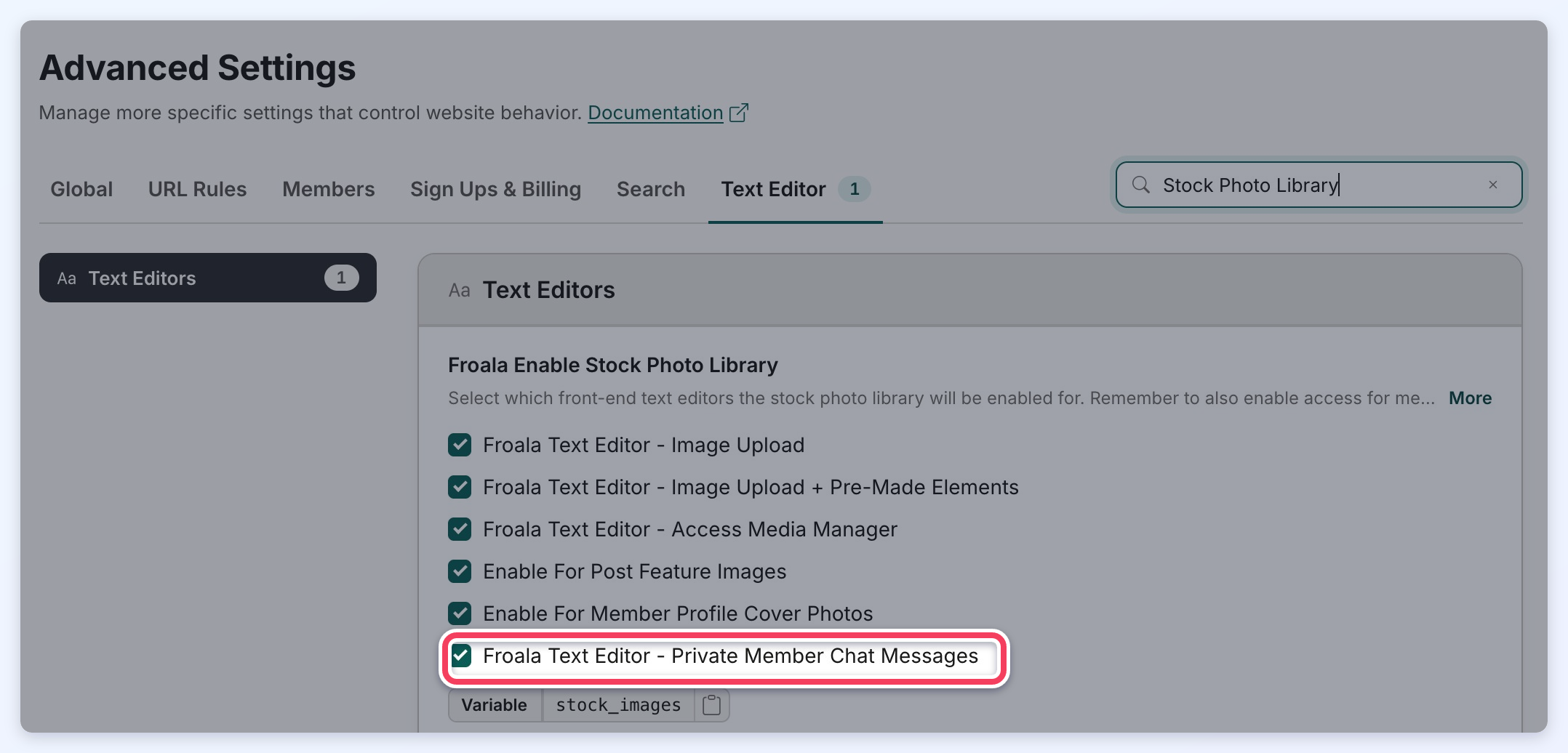
To let members pick images from the stock photo library in chats, open the Text Editor tab, find Froala Enable Stock Photo Library and tick Froala Text Editor - Private Member Chat Messages:
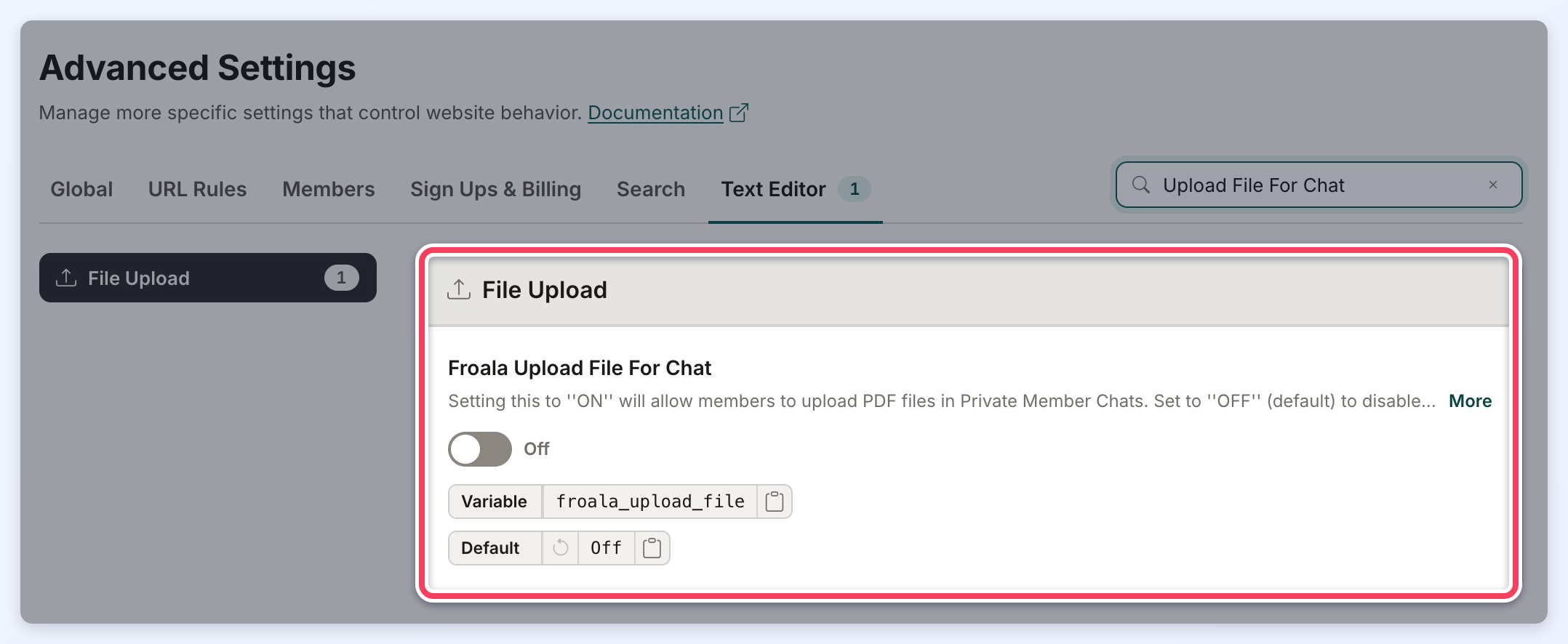
Froala Upload File For Chat
Turning On the Advanced Setting Froala Upload File For Chat (also on the Text Editor tab) lets members upload PDF files in chats:
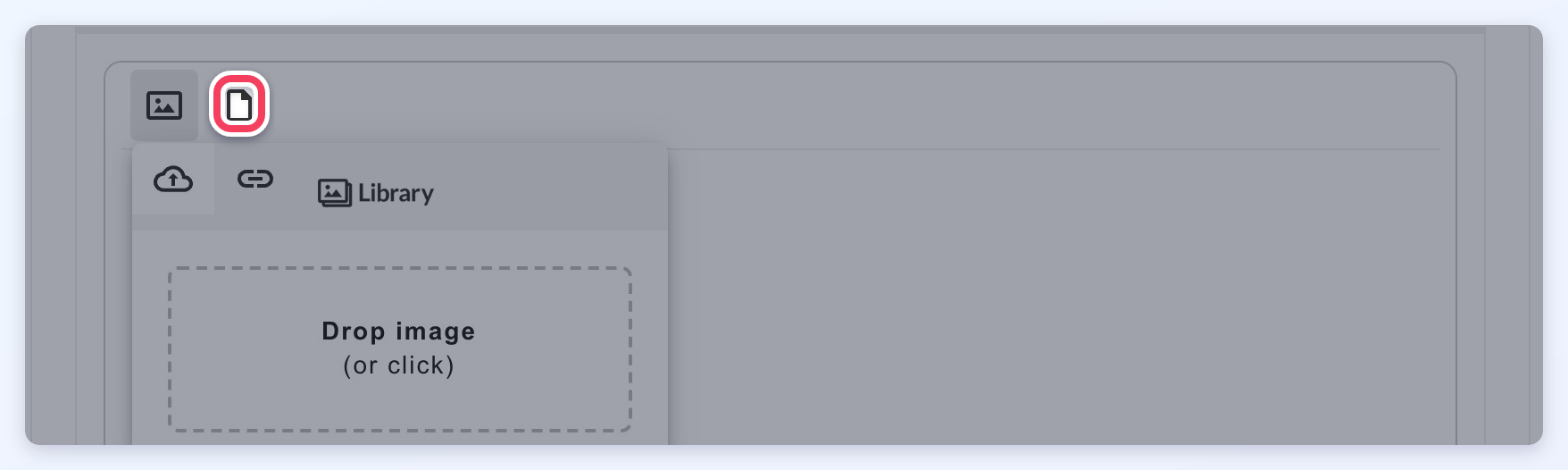
When it is on, a file button appears next to the image button in the chat reply box:
Text Labels for Private Chats
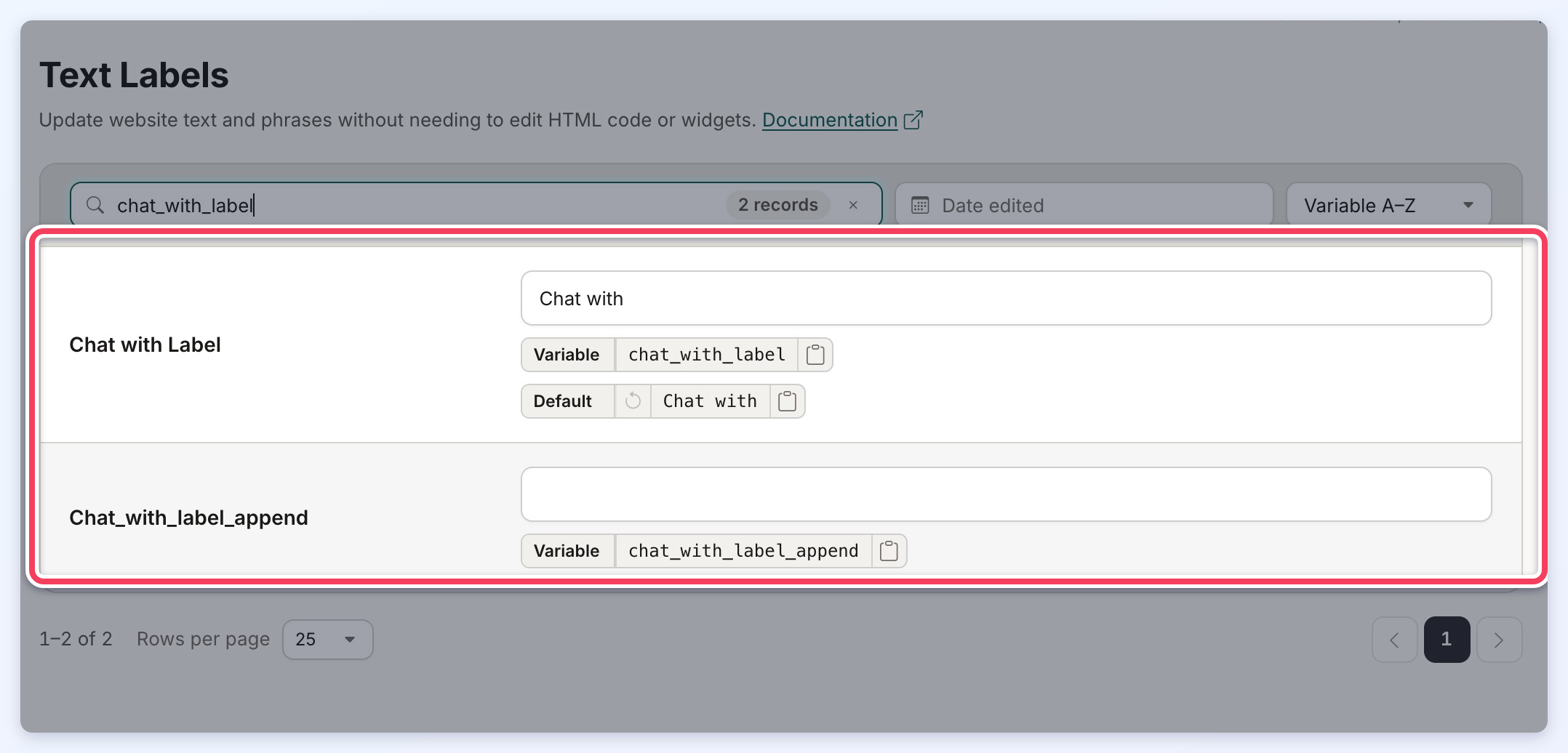
The heading above the chat box uses two text labels, which apply to all private chats. Edit them in Settings » Text Labels:
- chat_with_label
- chat_with_label_append
Admin Dashboard: Private Member Chats
The website admin reads and manages every chat between members on the Private Member Chats page (Interactions » Private Chats): finding chats, reading them, changing their status, reviewing reported chats and deleting chats. See Interactions » Private Chats.
