
Account Dashboard » Login Settings
Link: https://support.brilliantdirectories.com/support/solutions/articles/12000109947
The Login Settings page in the Account Dashboard controls how the signed-in admin account signs in: two-factor authentication, the available sign-in methods, and the ManageMyDirectory.com mobile app for notifications on a phone.
Before Starting
- Sign in to the Account Dashboard.
- Turning on two-factor authentication requires access to the inbox of the account's sign-in email, since the one-time codes are sent there.
How to Open Login Settings
- In the Account Dashboard, click the admin name at the top right.
- Select Login Settings.
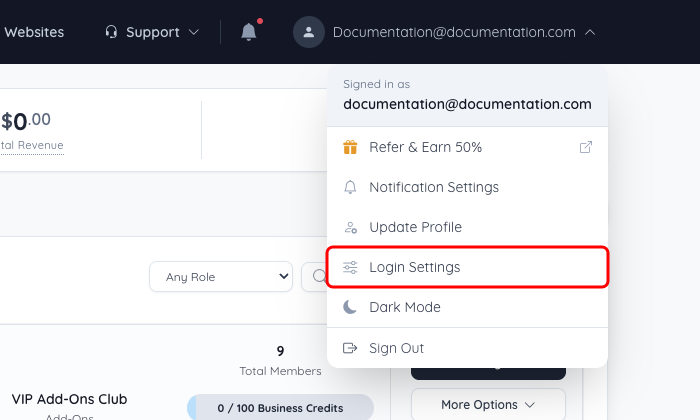
Login Settings is also listed in the Account menu on the left of every account page.
Login Settings Sections
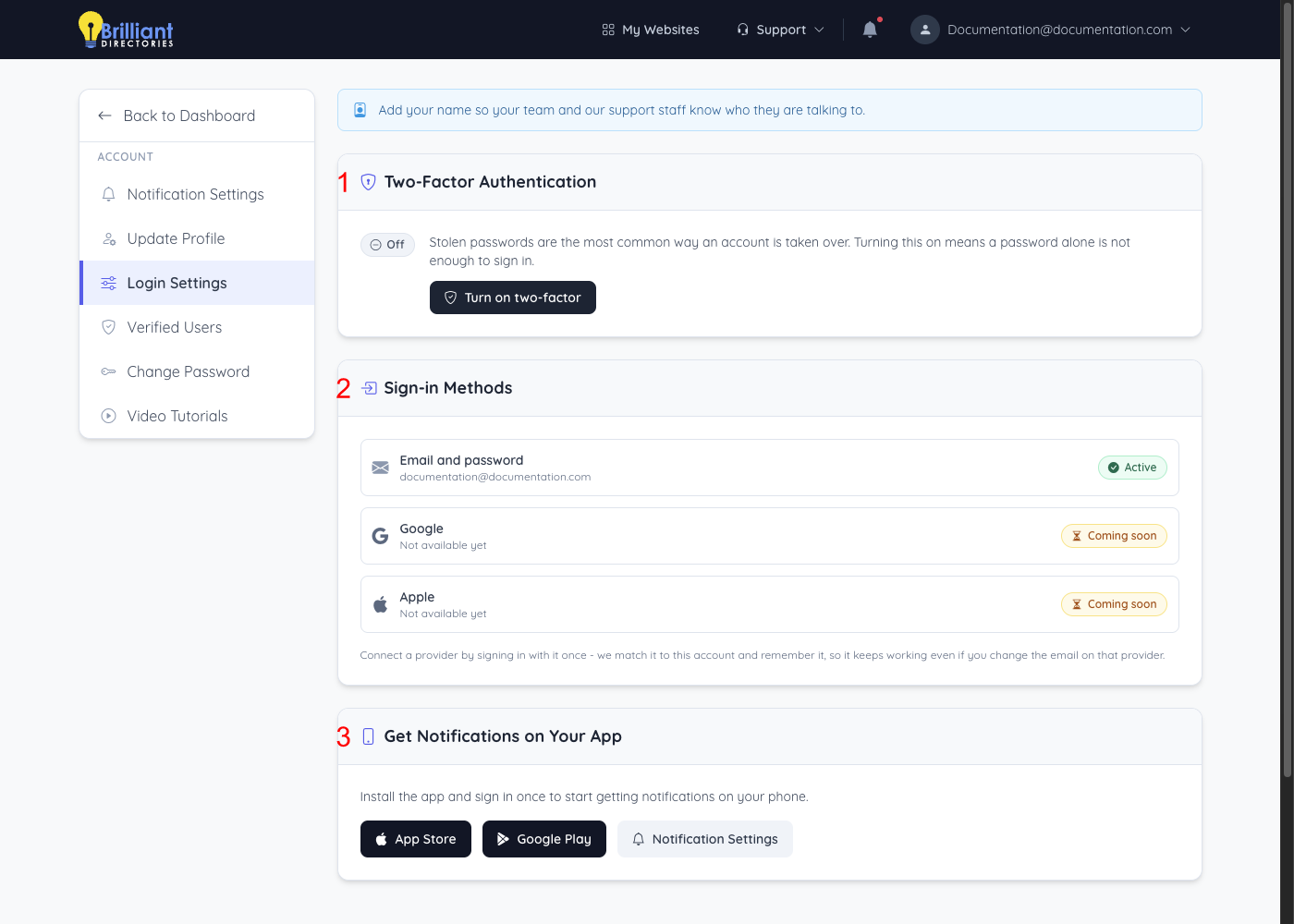
- Two-Factor Authentication – Shows whether two-factor sign-in is On or Off. With two-factor on, a one-time code is emailed to the sign-in email whenever the account signs in from a new device, so a password alone is not enough to sign in.
- Sign-in Methods – Lists the ways this account can sign in. Email and password shows the sign-in email and an Active badge. Google and Apple are marked Coming soon and are not available yet.
- Get Notifications on Your App – The App Store and Google Play buttons open the ManageMyDirectory.com mobile app. After the app is installed and signed in once, the devices that are signed in and receiving notifications are listed here with the time each was last seen. Notification Settings opens the page that controls which notifications are sent.
Turn On Two-Factor Authentication
- In the Two-Factor Authentication section, click Turn on two-factor. A one-time code is emailed to the account's sign-in email right away.
- Under Enter your code, type the code from the email.
- Click Verify & turn on.
If the email does not arrive, click Resend code. The code expires shortly, so use the most recent one.
When the code is accepted, the confirmation Two-factor is on appears and the section shows the On badge. From then on, signing in from a new device asks for a one-time code sent by email. For more about how two-factor sign-in works, see Enhancing Security with Two-Factor Authentication (2FA).
