
Account Dashboard » Change Password
Link: https://support.brilliantdirectories.com/support/solutions/articles/12000109949
The Change Password page in the Account Dashboard sets a new password for the signed-in admin account. Changing the password here also signs the account out of every session, on every browser and device, so anyone still signed in with the old password loses access.
Before Starting
- Sign in to the Account Dashboard.
- The current password is required. If it is not known, use the forgot password link on the admin sign-in page instead.
- Have the new password ready before continuing: the current browser is signed out as soon as the password changes.
How to Open Change Password
- In the Account Dashboard, click the admin name at the top right.
- Select Login Settings (or any other account page).
- In the Account menu on the left, click Change Password.
Change the Password
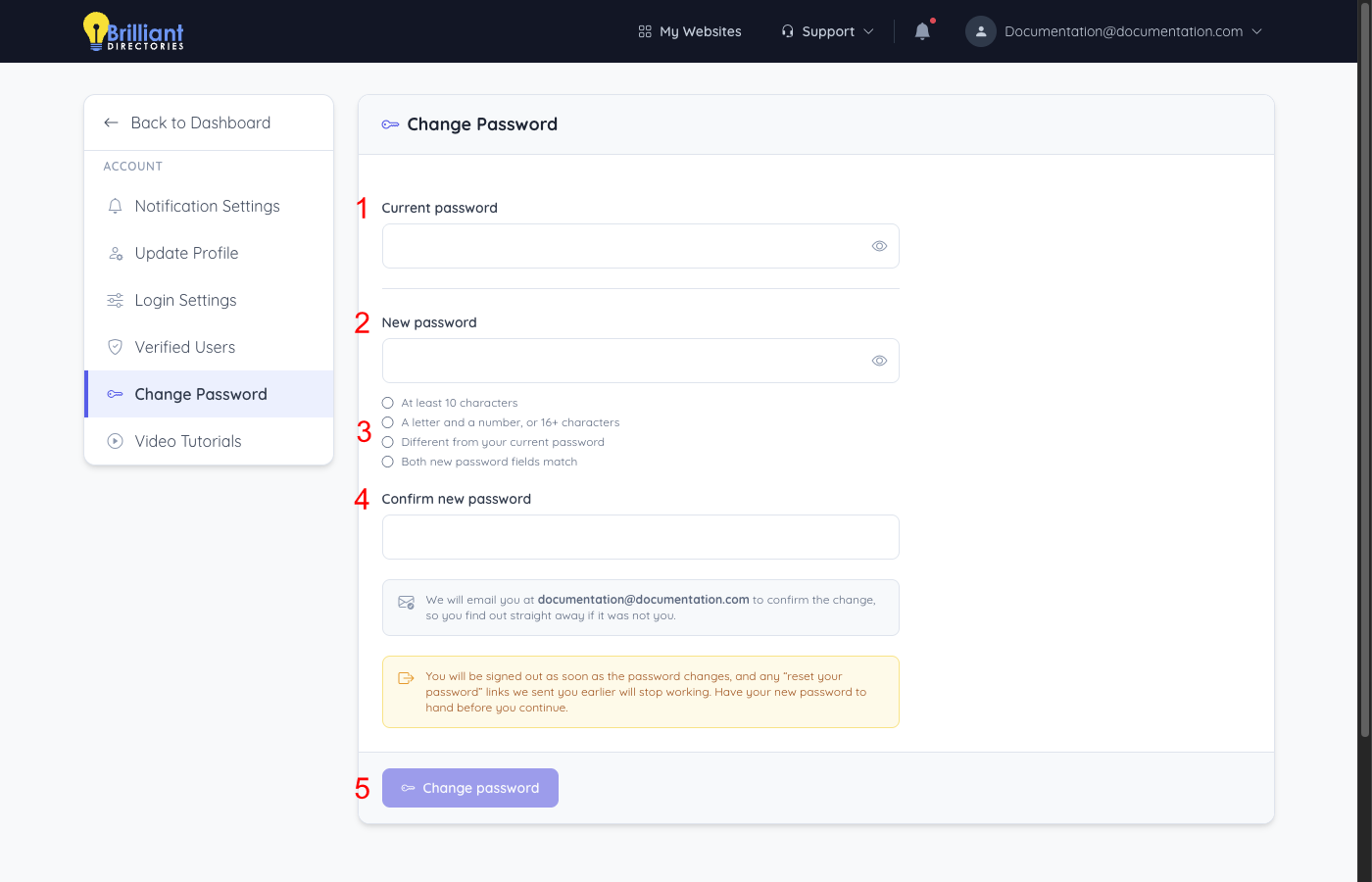
- Enter the Current password.
- Enter the New password.
- Check the requirements under the field. Each one is marked as it is met:
- At least 10 characters
- A letter and a number, or 16+ characters
- Different from your current password
- Both new password fields match
- Enter the same password again in Confirm new password.
- Click Change password. The button becomes available once every requirement is met.
The new password is also refused if it is one of the most commonly guessed passwords, matches the admin's name or email address, was used before on this account, is longer than 72 characters, or starts or ends with a space. The page shows a message explaining which rule was not met.
After the Password Changes
- The message Your password has been changed. Signing you out so you can sign in with it. appears, and the sign-in page opens with Please sign in with your new password.
- Every session for the account is signed out, including the current one. Other browsers and devices must sign in again with the new password.
- Any reset your password links sent to the account earlier stop working.
- A confirmation email is sent to the account's sign-in email, so an unexpected change is noticed straight away.
Too many incorrect attempts.
After several incorrect current passwords, the page stops accepting attempts for 15 minutes. Wait, then try again, or use the forgot password link on the sign-in page.
After several incorrect current passwords, the page stops accepting attempts for 15 minutes. Wait, then try again, or use the forgot password link on the sign-in page.
