
Brilliant Directories Mobile App: Manage Your Website From Anywhere
Link: https://support.brilliantdirectories.com/support/solutions/articles/12000109533
The Brilliant Directories mobile app gives website admins a convenient way to monitor important website activity directly from an iPhone. View member information, revenue, form submissions, account activity, and website statistics without needing to log in to the full Admin Dashboard from a browser.
The app is designed primarily for quick access and monitoring while away from a computer, making it easier to keep an eye on day-to-day website activity from one streamlined mobile dashboard.
Download and Log In to the Brilliant Directories App
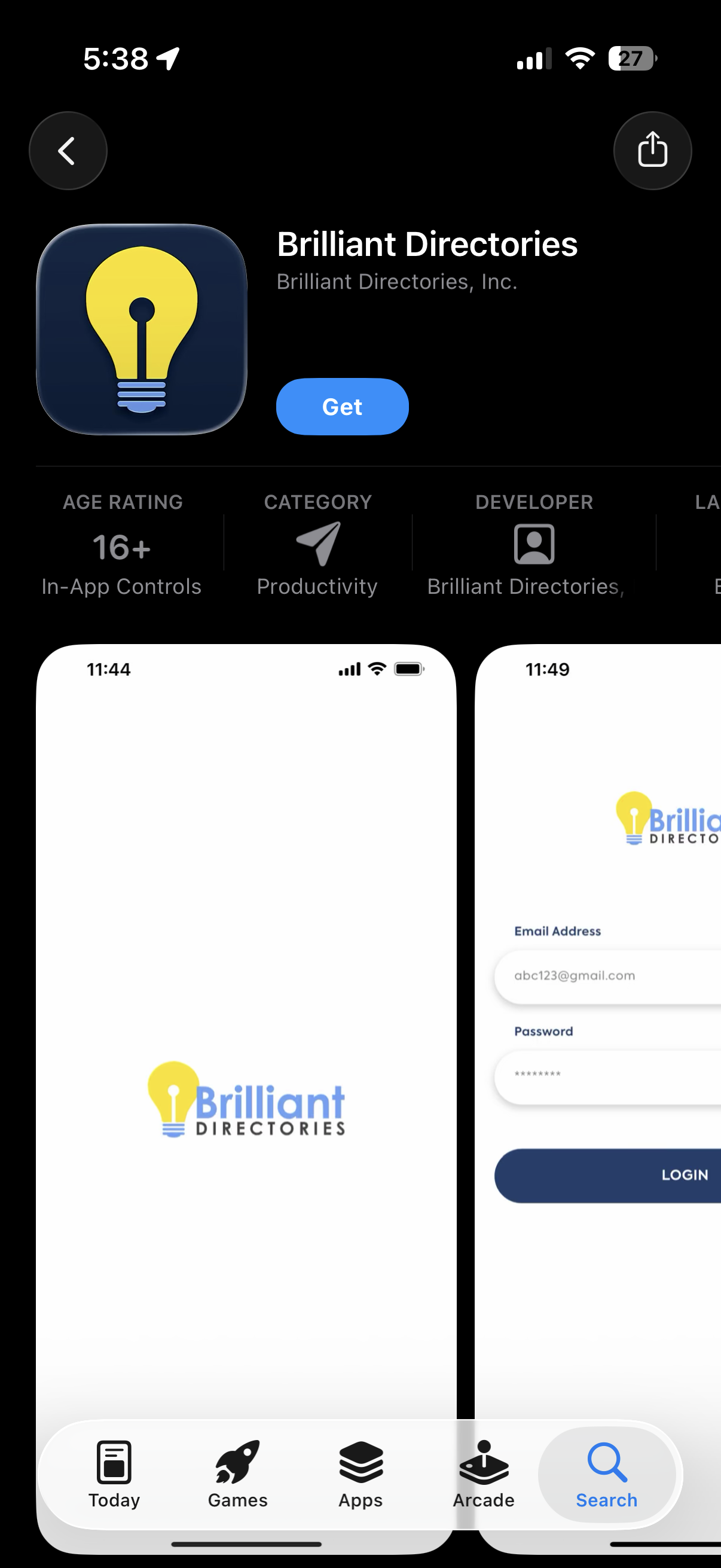
The Brilliant Directories app can be downloaded from the Apple App Store by searching for Brilliant Directories. After installing the app, log in using the email address and password associated with a Brilliant Directories admin account.
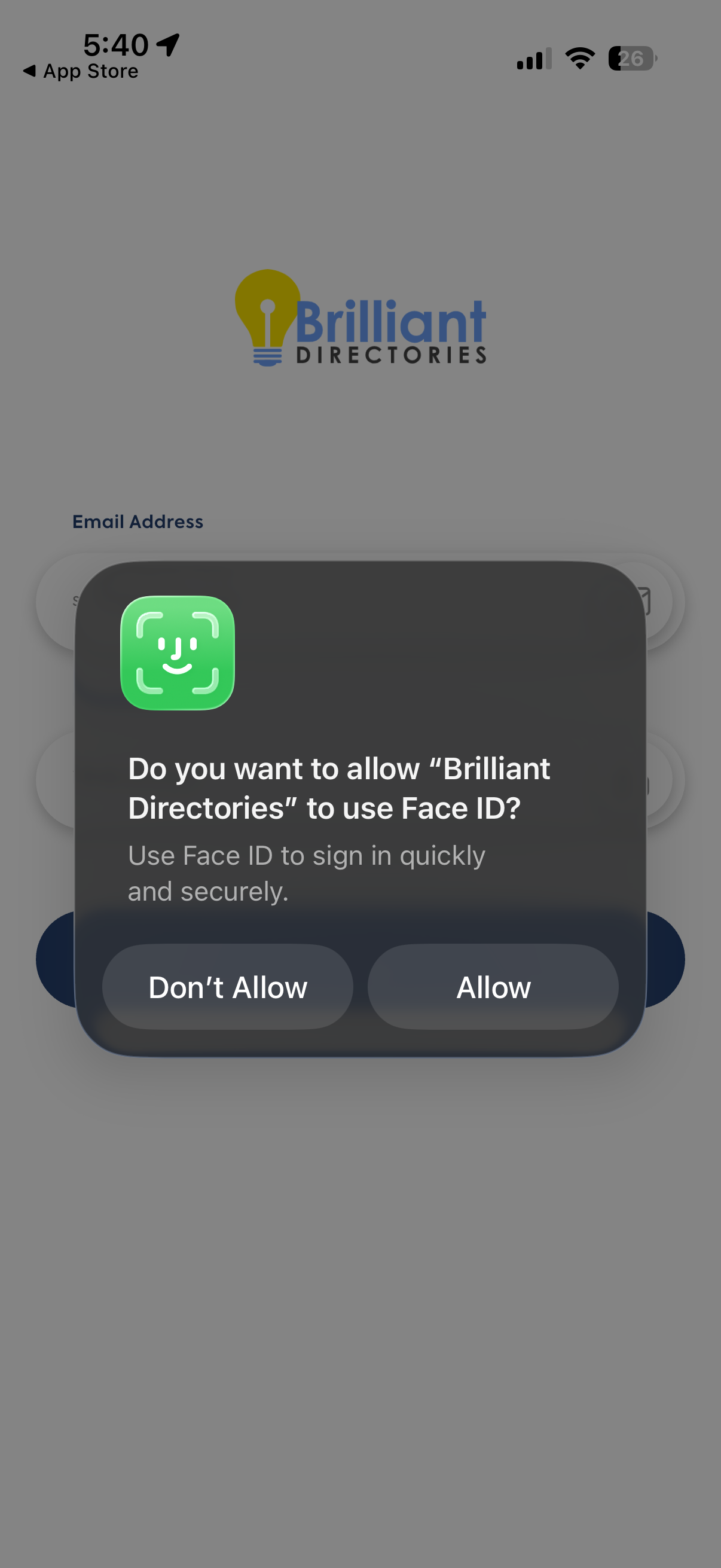
On supported devices, the app can also use Face ID for faster sign-ins. When prompted, select whether to allow Brilliant Directories to use Face ID. This permission is optional and can also be managed through the device settings.
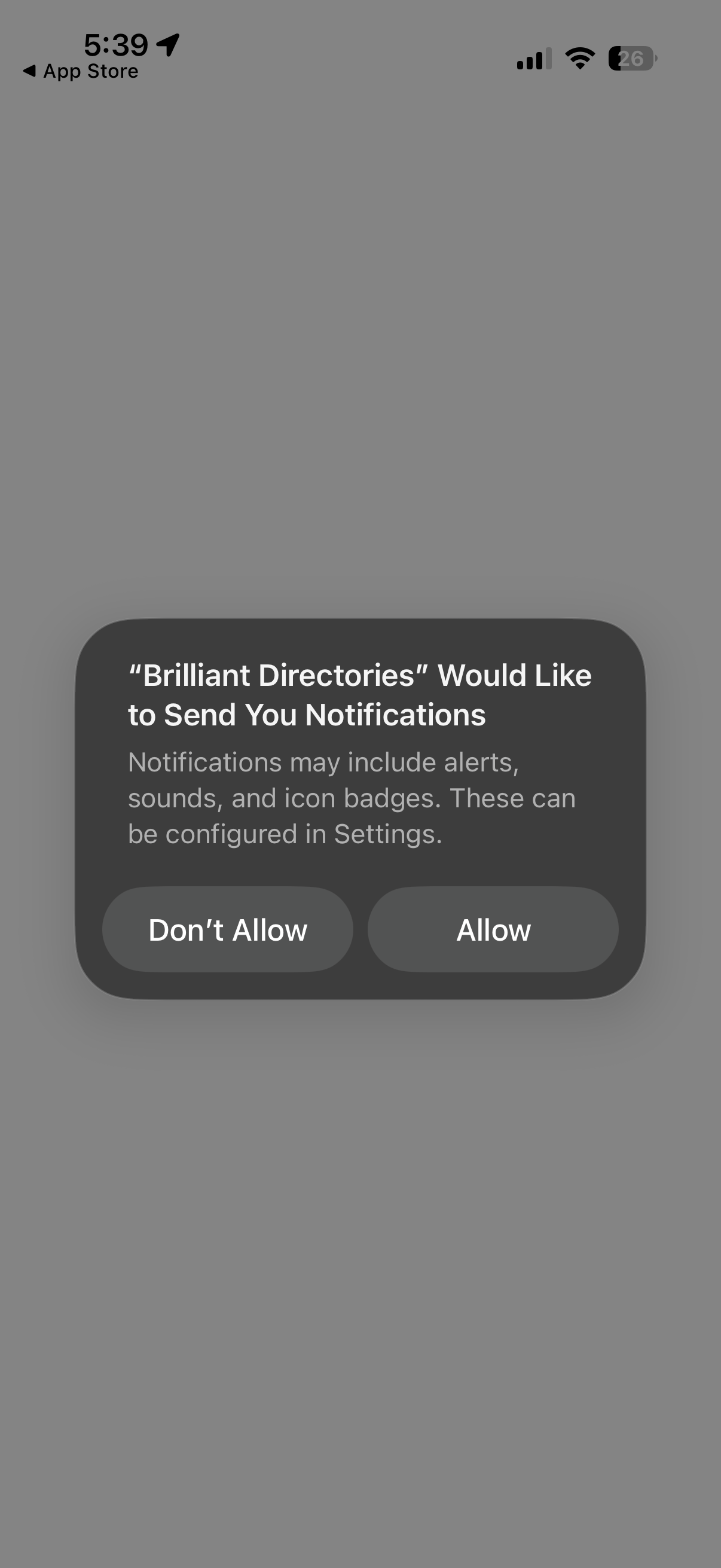
The app may also request permission to send notifications. Allowing notifications makes it possible for the app to display alerts as supported notifications become available. Notification permissions can be changed later through the iPhone settings.
| APP | Face ID | Allow Notifications |
|---|---|---|
 |  |  |
View the Website Dashboard
After logging in, the Home screen provides a quick snapshot of the selected Brilliant Directories website.
The dashboard includes:
- Members Snapshot: View the total number of members along with activity for today, the last 7 days, and the last 30 days.
- Revenue: See total revenue along with revenue totals for today, the last 7 days, and the last 30 days.
- Website Snapshot: Confirm the website name, domain, Site ID, country, and current website status.
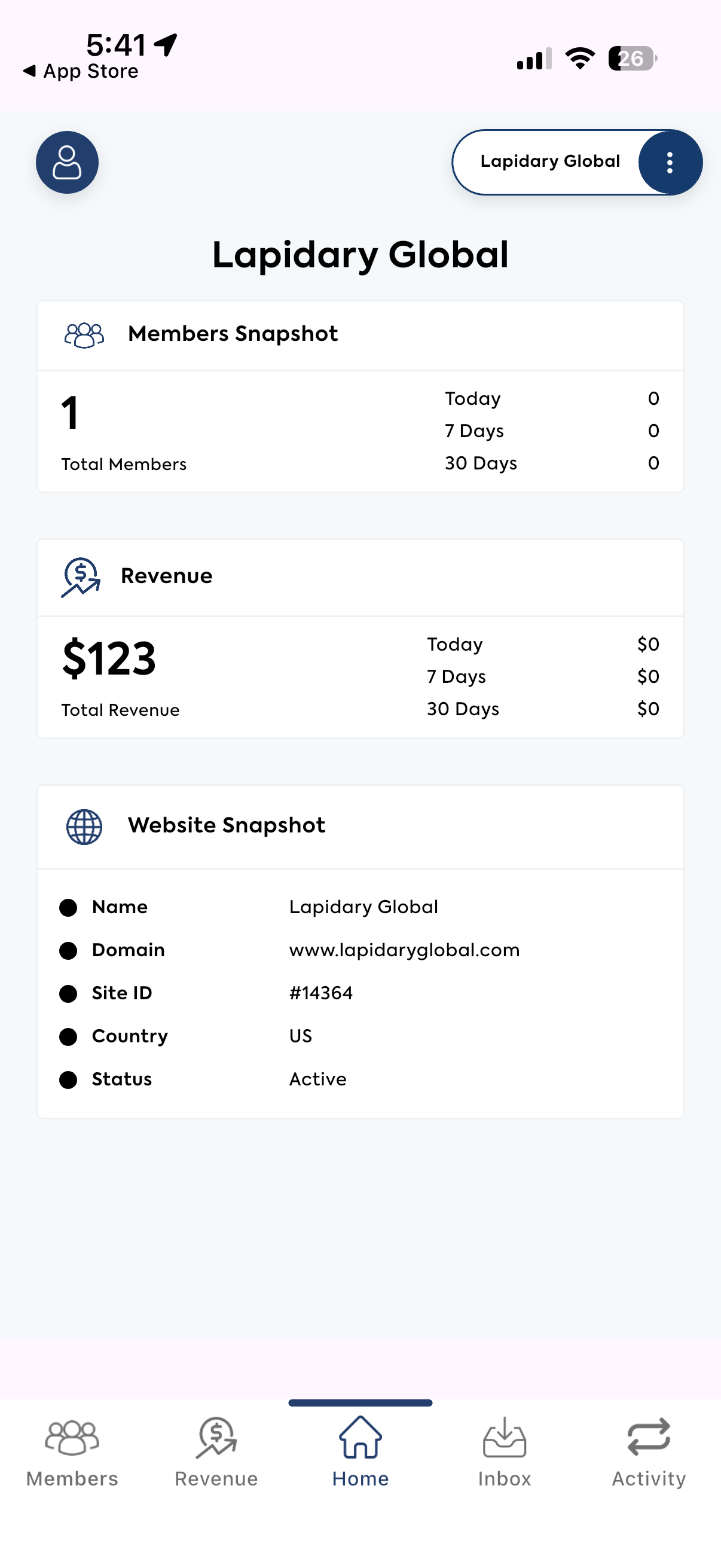 |
This screen is useful for quickly checking the overall status of a website without opening individual reports.
Switch Between Brilliant Directories Websites
Admins who manage more than one Brilliant Directories website can switch between sites directly from the app.
Tap the website selector near the top of the screen to open the website list. The search field can be used to locate a specific website, while the star icon identifies a favorite website for easier access.
Each website is displayed with its website name and Site ID, helping distinguish between multiple sites with similar names.
View Members
The Members tab provides quick access to member accounts associated with the selected website.
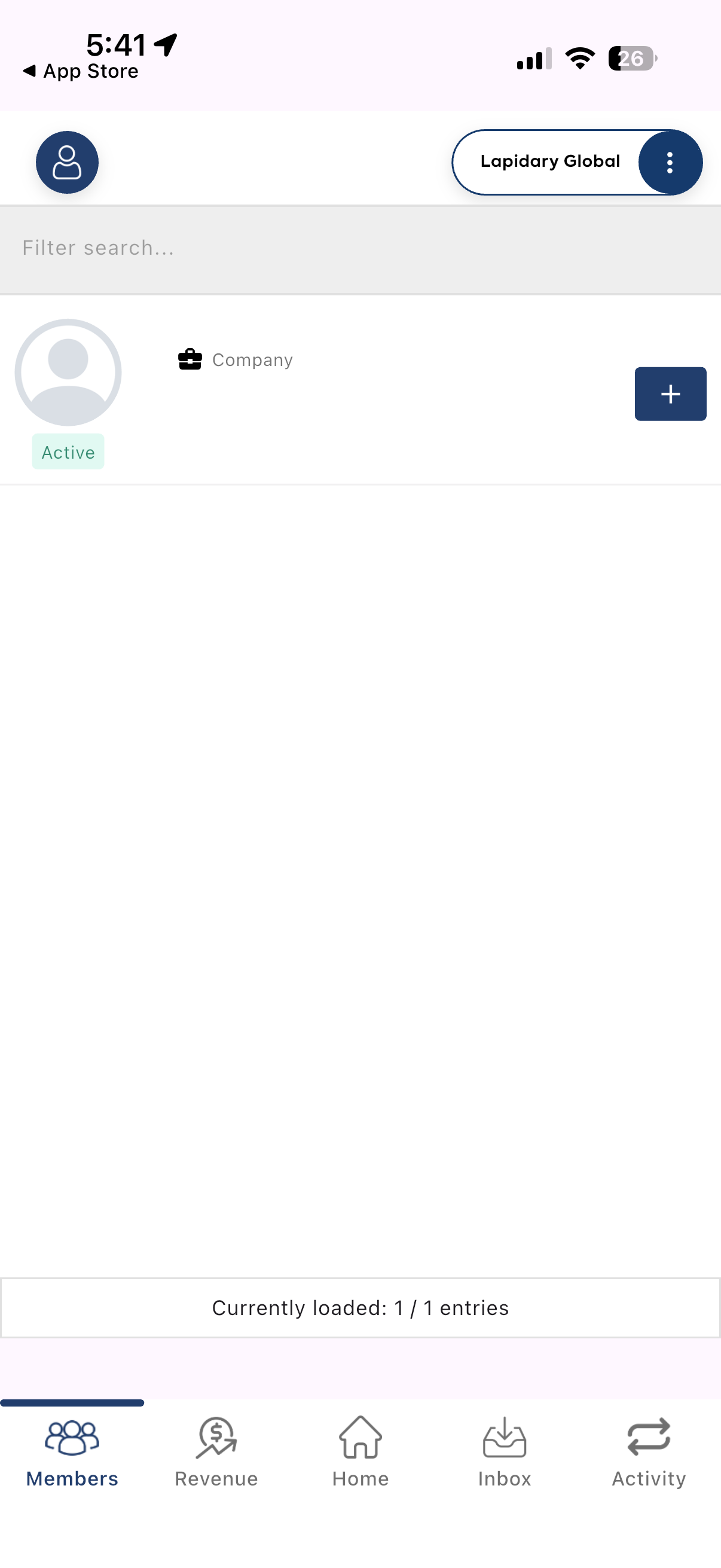 |
Each member entry displays basic information such as the member name, listing type, and account status. Tap the + icon to expand the member record and view additional information.
Expanded member details can include:
- Email address
- Phone number
- Address
- Revenue associated with the member
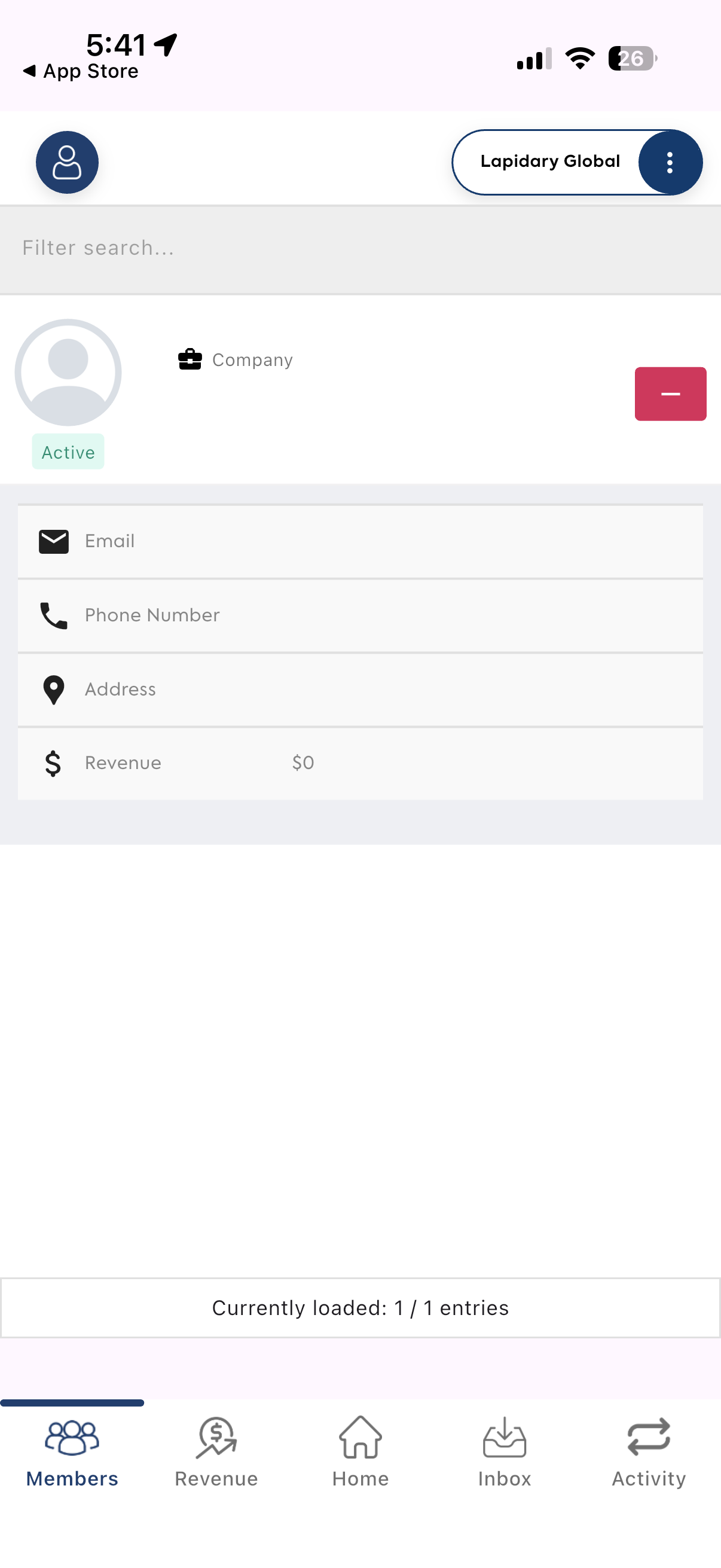 |
Tap the − icon to collapse the member details again.
A search field at the top of the screen can be used to filter the displayed member records when working with larger databases.
Monitor Revenue
The Revenue tab provides a mobile view of transactions associated with the website.
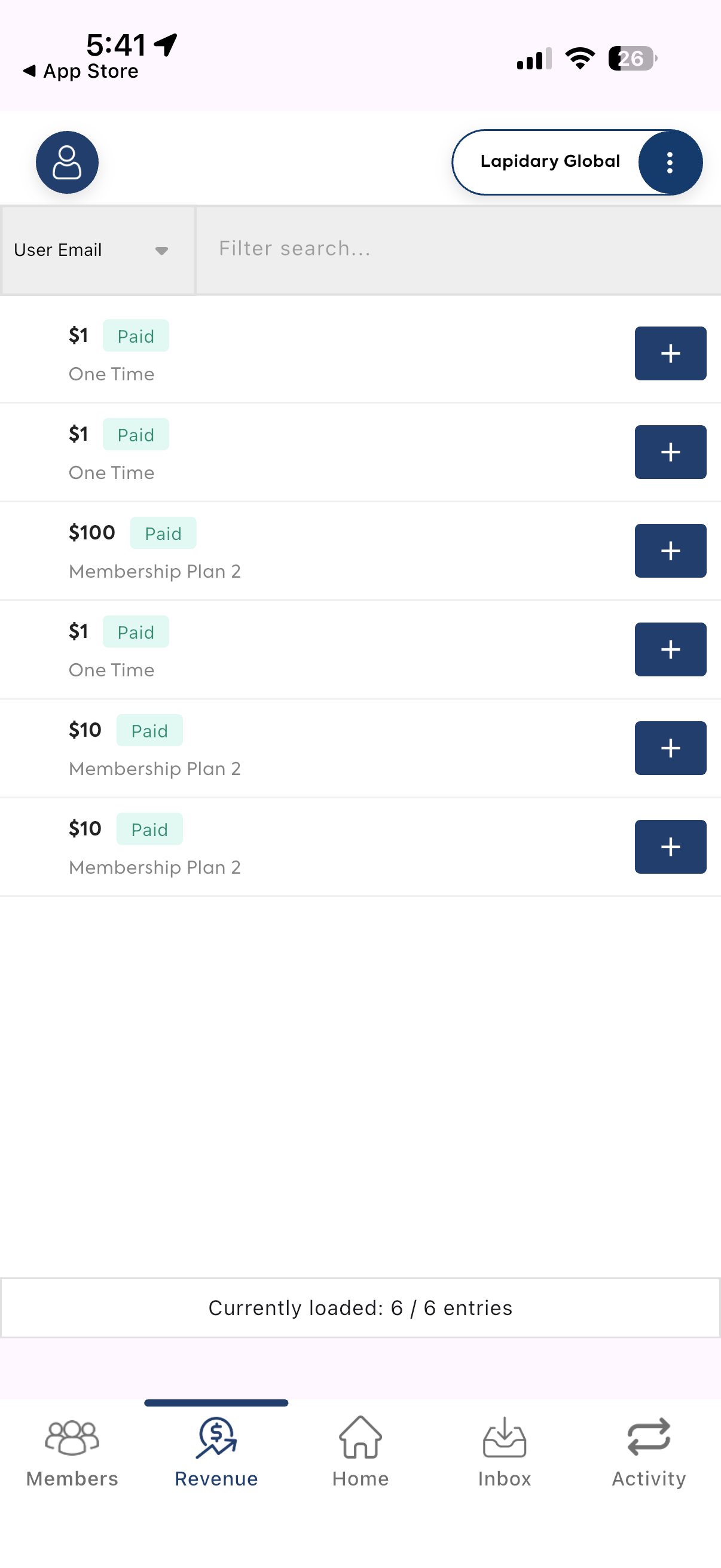 |
Each entry can display the transaction amount, payment status, and the membership plan or product connected with the payment. For example, an entry may show a $100 Paid transaction for a particular membership plan or a smaller payment associated with a one-time purchase.
Tap the + icon beside a transaction to view additional information when available.
Filter Revenue Records
The revenue search tools make it easier to locate a specific payment when multiple transactions are available.
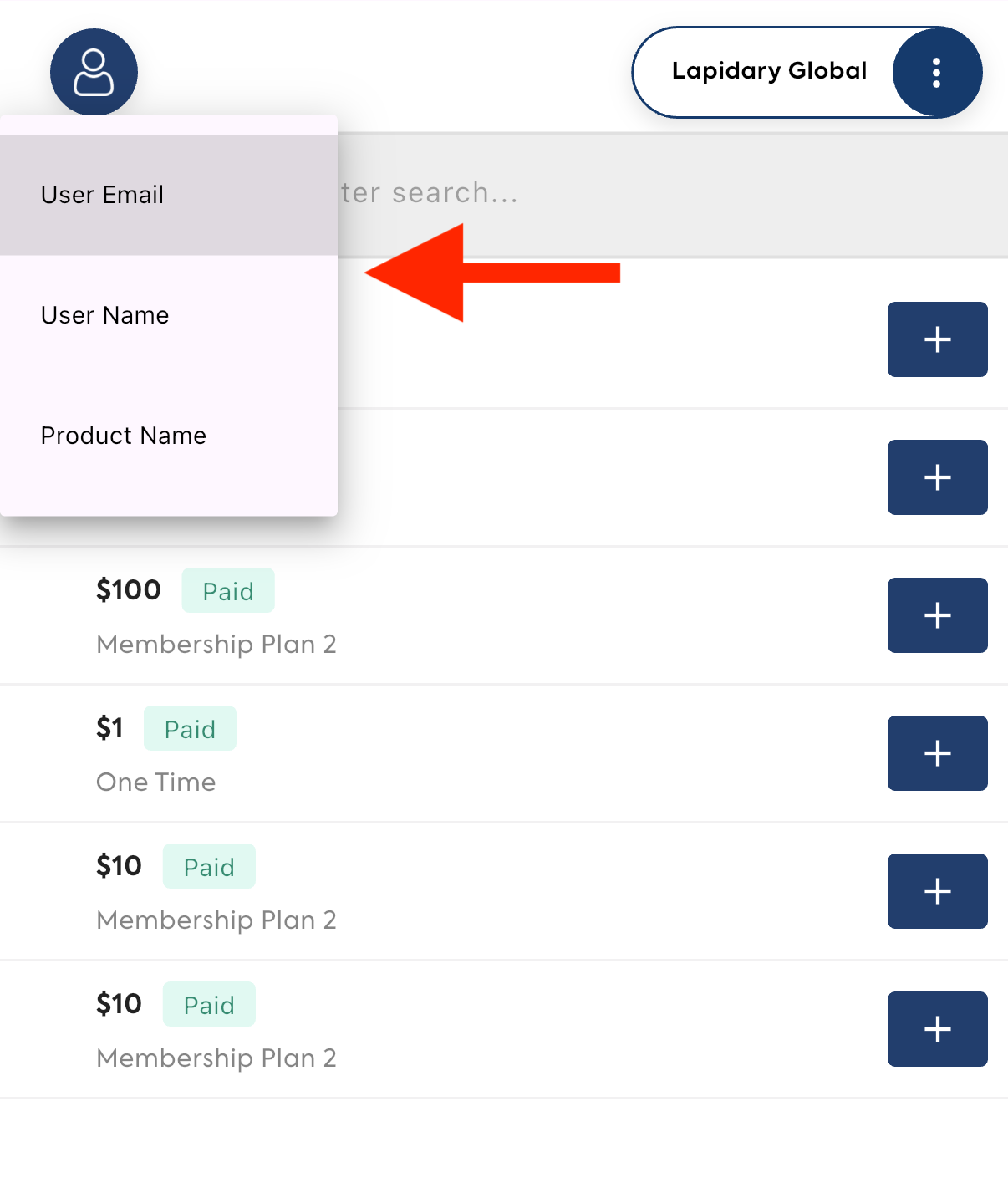 |
Revenue records can be filtered using options such as:
- User Email
- User Name
- Product Name
For example, selecting User Email and entering a member's email address can quickly narrow the transaction list to payments associated with that member.
Review Inbox Form Submissions
The Inbox tab provides access to website form submissions received through supported forms.
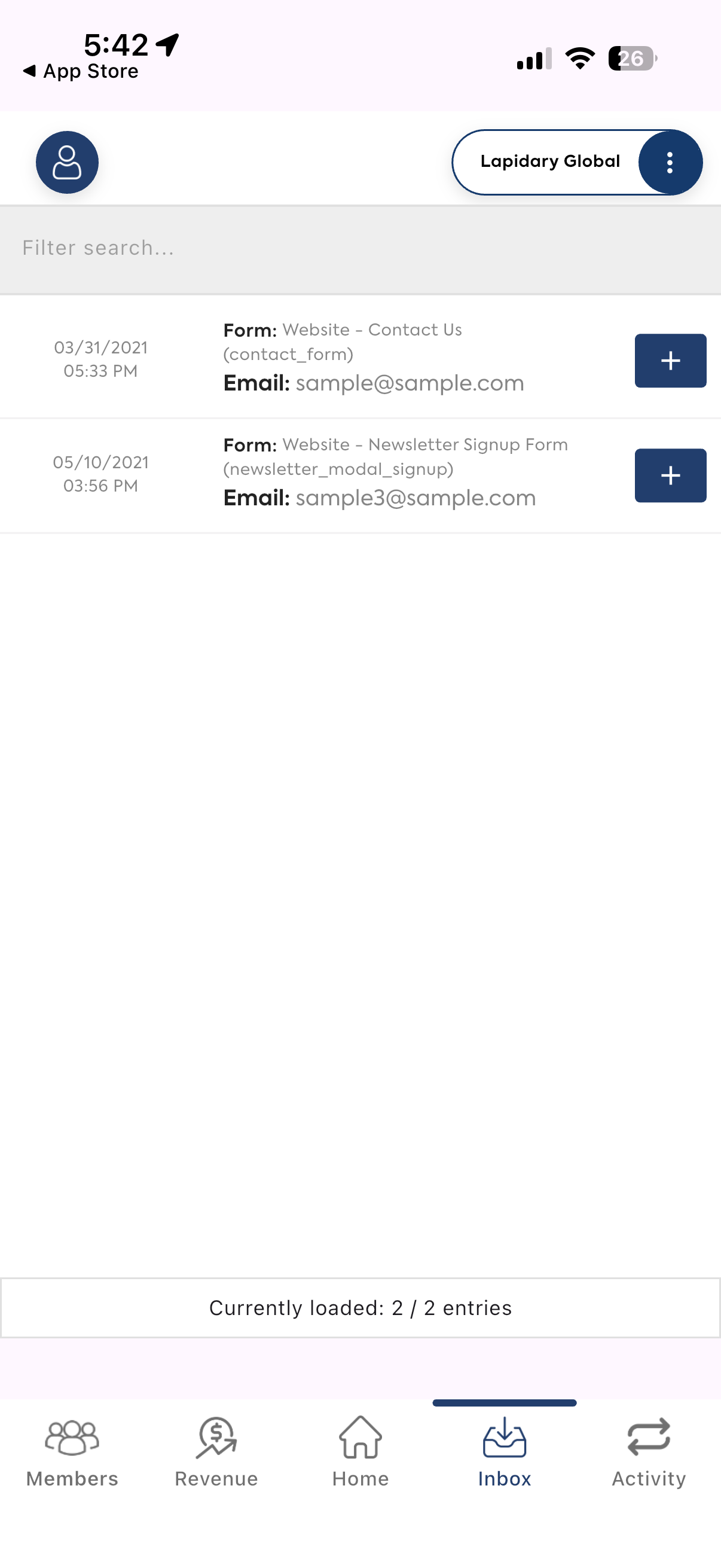 |
Each inbox entry identifies the form that generated the submission along with basic information such as the submitter's email address and submission date.
Tap the + icon to expand a submission and review the information submitted through the form. Depending on the form, this can include fields such as:
- Name
- Phone Number
- Message
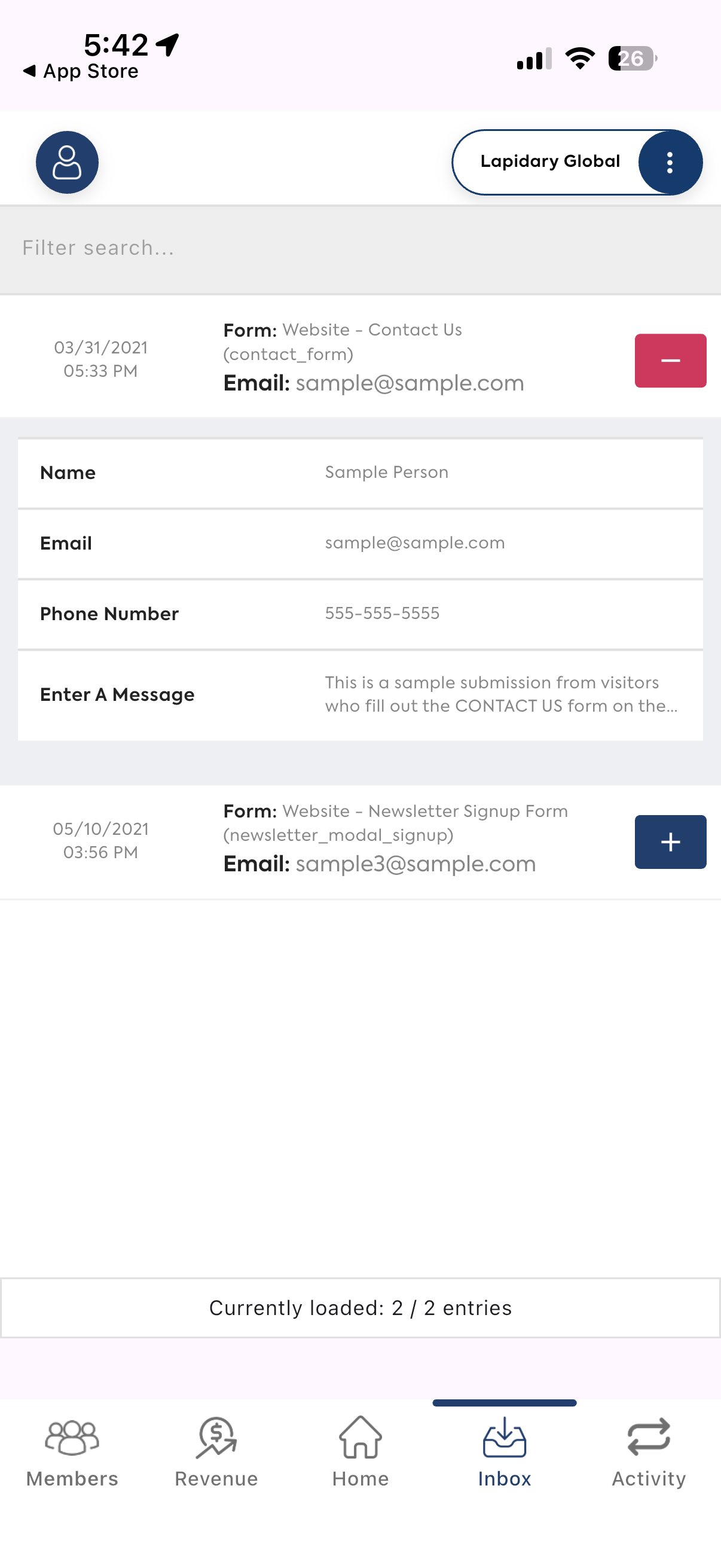 |
For example, a submission from the website's Contact Us form can be expanded to view the visitor's contact information and message directly from the app.
Review Website Activity
The Activity tab provides a chronological view of activity recorded for the selected website.
Entries are organized by date and activity type, including categories such as System, Admin Accounts, and Admin Action.
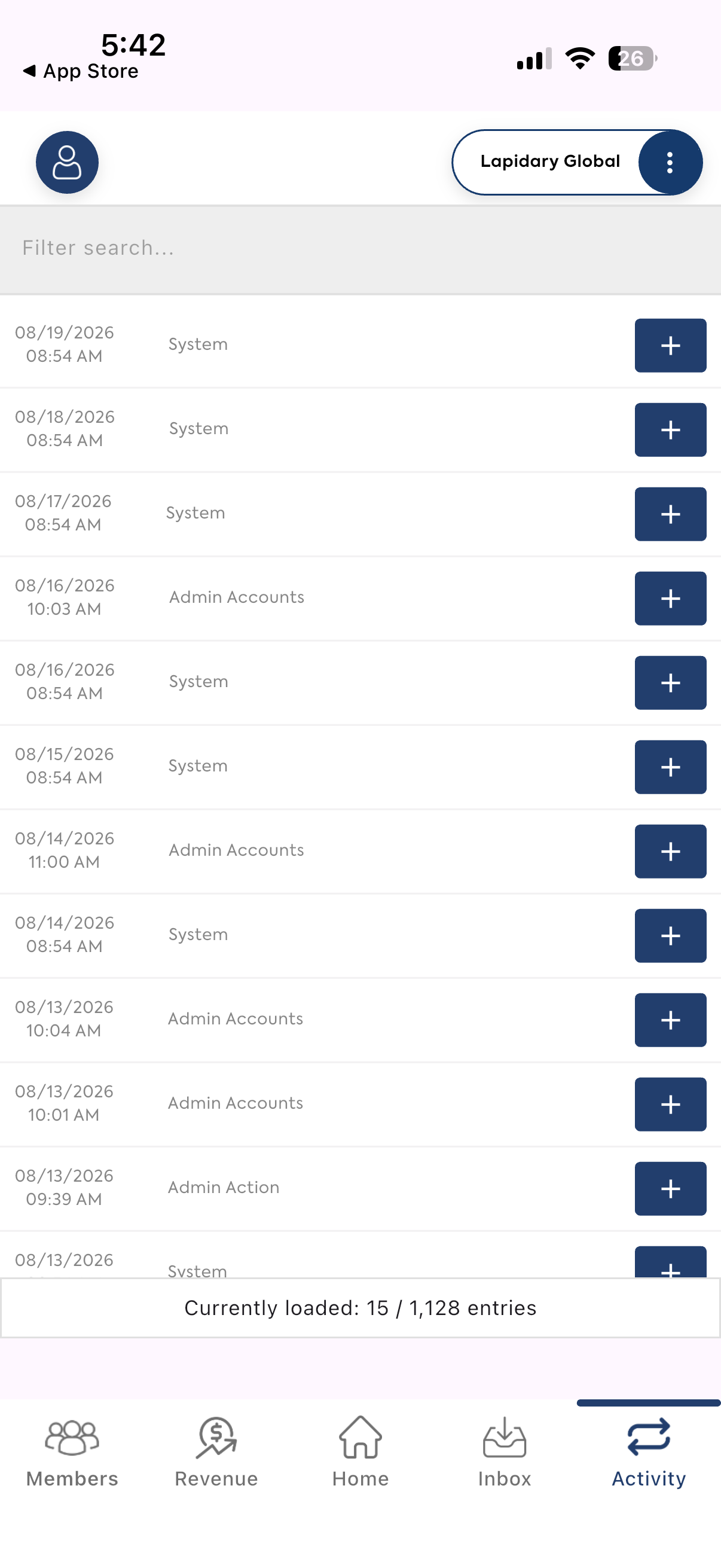 |
Tap the + icon beside an activity entry to expand it and review additional details when available. This provides a quick way to check recent administrative or system activity while away from the full Admin Dashboard.
Search and Filter Information
Several sections of the app include a Filter search field that can be used to narrow the records currently displayed.
This is especially useful when a website contains a large number of members, transactions, form submissions, or activity records. Instead of scrolling through the complete list, enter identifying information to locate the relevant entry more quickly.
The bottom of applicable screens also displays how many records are currently loaded compared with the total number of available entries.
Access Account Options
Tap the profile icon in the upper-left corner of the app to open the account menu.
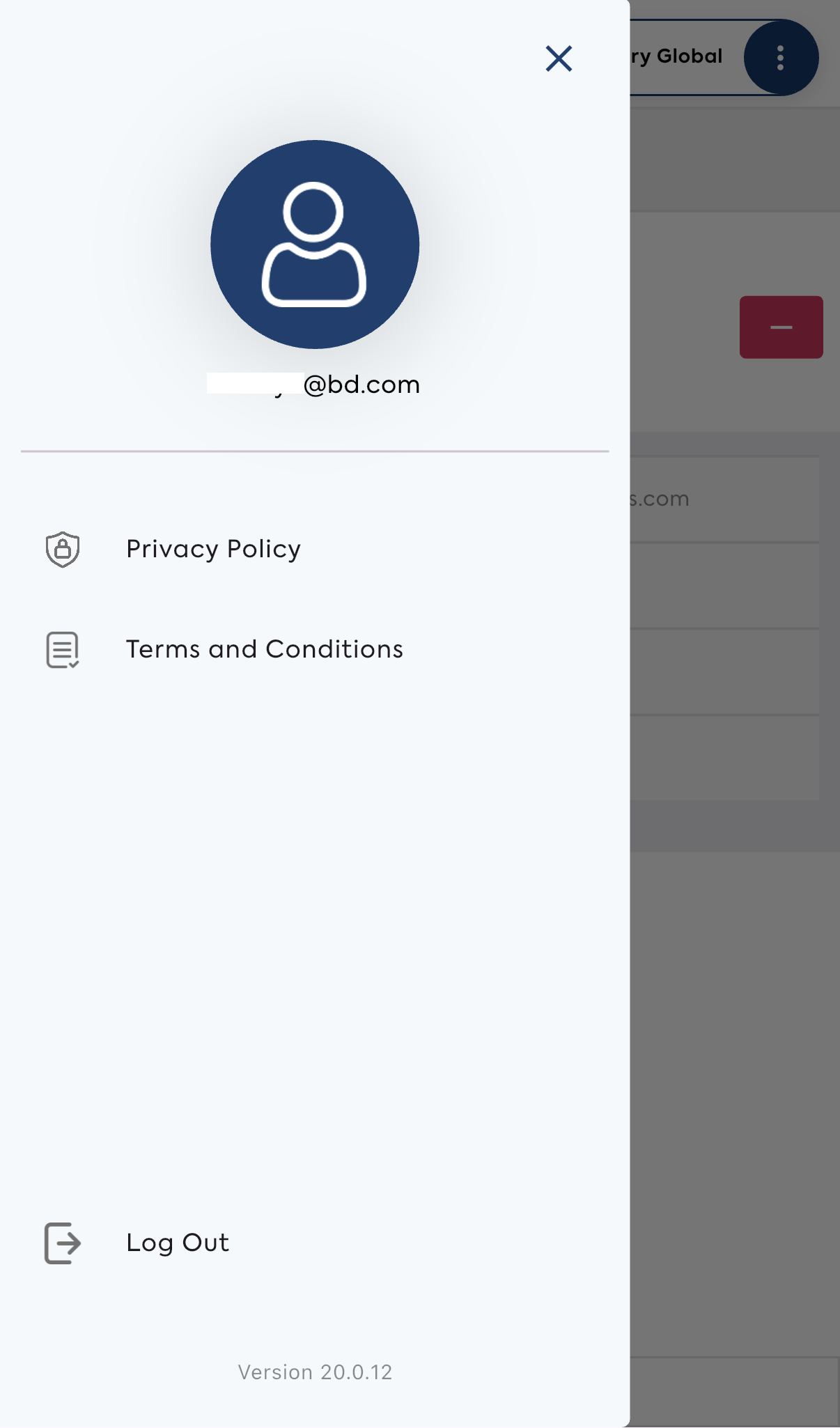 |
From this menu, admins can access:
- Privacy Policy
- Terms and Conditions
- Log Out
- Current app version information
The email address associated with the logged-in admin account is also displayed in this menu.
When to Use the BD App vs. the Full Admin Dashboard
The Brilliant Directories app is useful when an admin needs quick access to important website information without opening the full Admin Dashboard.
For example, an admin could use the app to check whether a new member has joined, confirm recent revenue, review a Contact Us submission, or see recent website activity while away from a computer.
For more extensive website configuration, content management, design changes, billing administration, or other advanced management tasks, the full Brilliant Directories Admin Dashboard remains the primary workspace.
