
BD Butler: Scheduled AI Tasks, Skills and Routines
Link: https://support.brilliantdirectories.com/support/solutions/articles/12000109264
BD Butler can create website content as a one-time task or automatically on a recurring schedule.
Scheduled tasks run in the background through Brilliant Directories. The website admin does not need to remain open, and the computer does not need to stay turned on while a task is running.
This article expands on the main BD Butler article and covers the Tasks, Skills, and Routines available inside BD Butler PRO.
- [Read] BD Butler
- [WATCH] AI Website Automation: Schedule Content Creation
- [WATCH] Scheduled AI Tasks: Create Website Content While You Sleep
Understanding Skills, Tasks and Routines
BD Butler uses three connected components:
Skill: A predefined job BD Butler knows how to complete, such as creating a blog article, event, or job listing.
Routine: A saved Task that runs repeatedly according to a selected schedule.
Task: A single execution of a selected Skill.
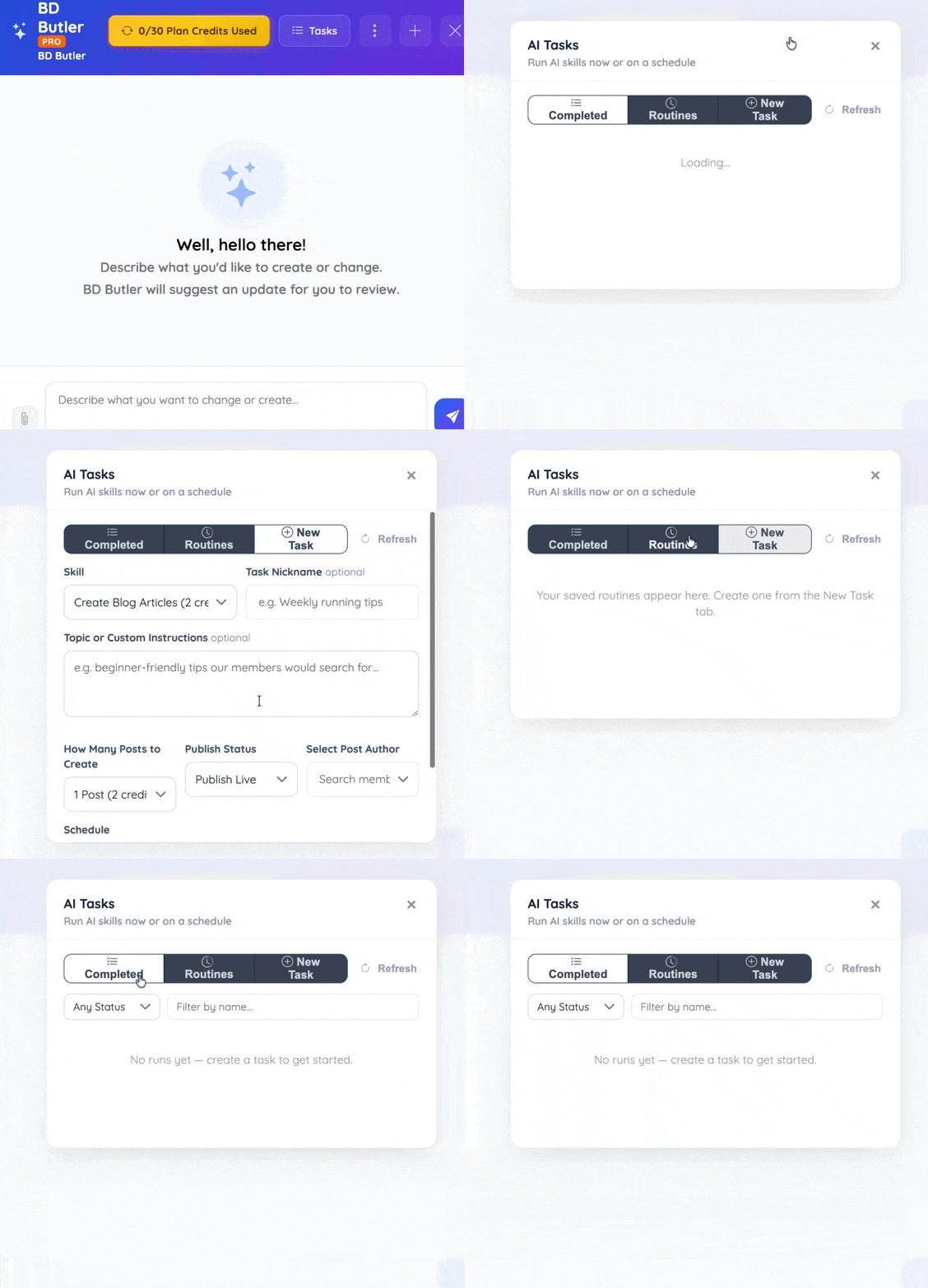
For example, the Create a Job Listing Skill can be run once as a Task or saved as a Routine that searches for and creates new job listings every week.
Available Skills
The following 3 built-in Skills are currently available.
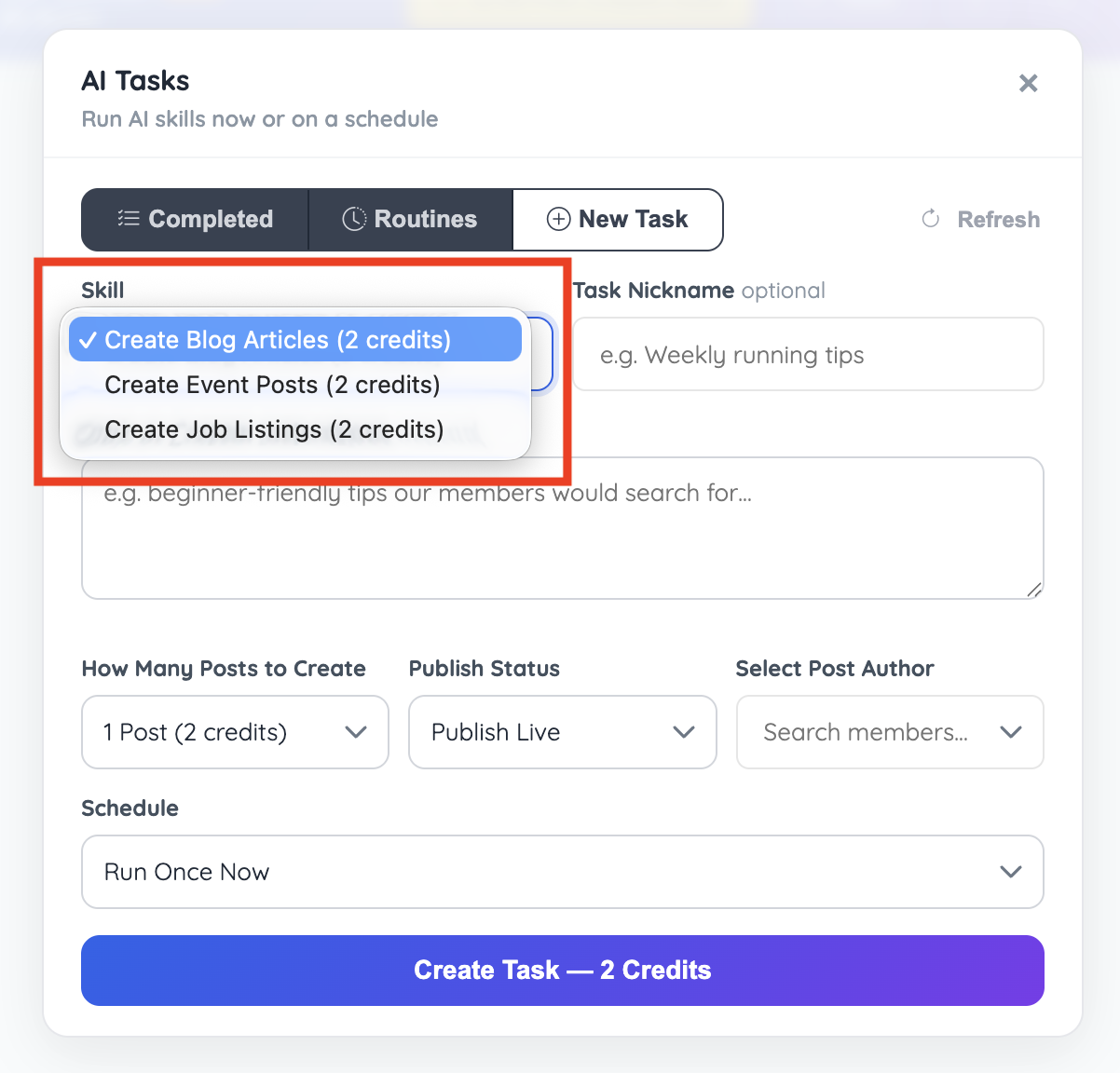
Create a Blog Article
Researches a topic related to the website and creates an article that can include:
SEO-focused written content
An article image
Internal links to related website content
Links to relevant external sources
Post and SEO details
Create an Event Post
Searches for a real upcoming event and creates an event post using information from the event’s official source.
The instructions can focus the search by:
Location
Industry
Event type
Audience
Date range
Create a Job Listing
Searches for an active job opportunity and creates a formatted job listing.
The instructions can focus the search by:
Job title
Industry
Location
Experience level
Employer type
When information is available, the generated listing can also include compensation details and a link to the employer’s official job page.
Create a New Task
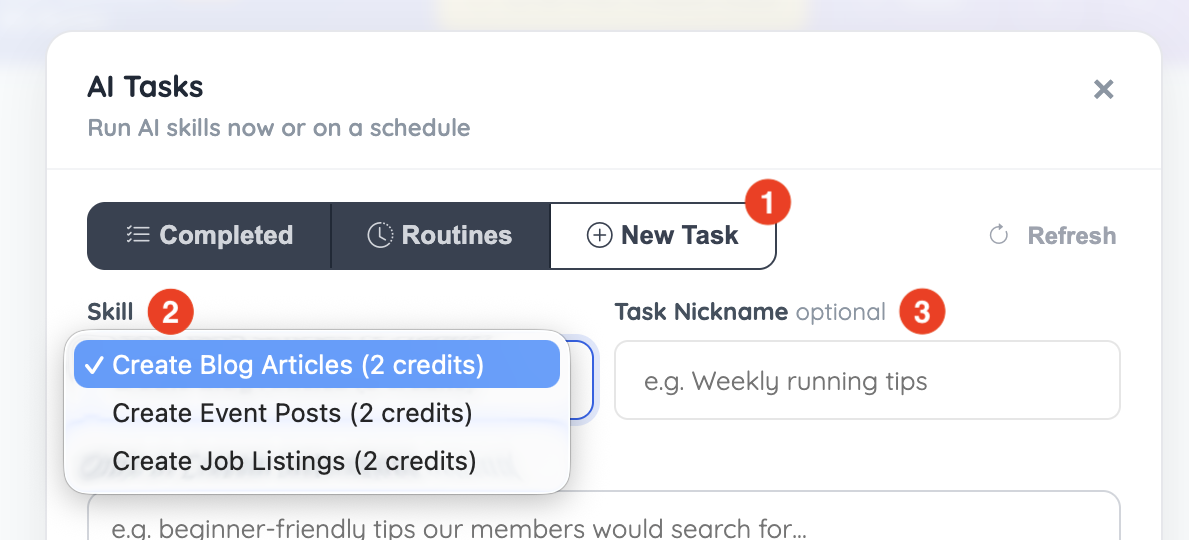
Click the New Task tab.
Select the Skill to run: Blog, Event, Job
Enter a nickname for the Task.
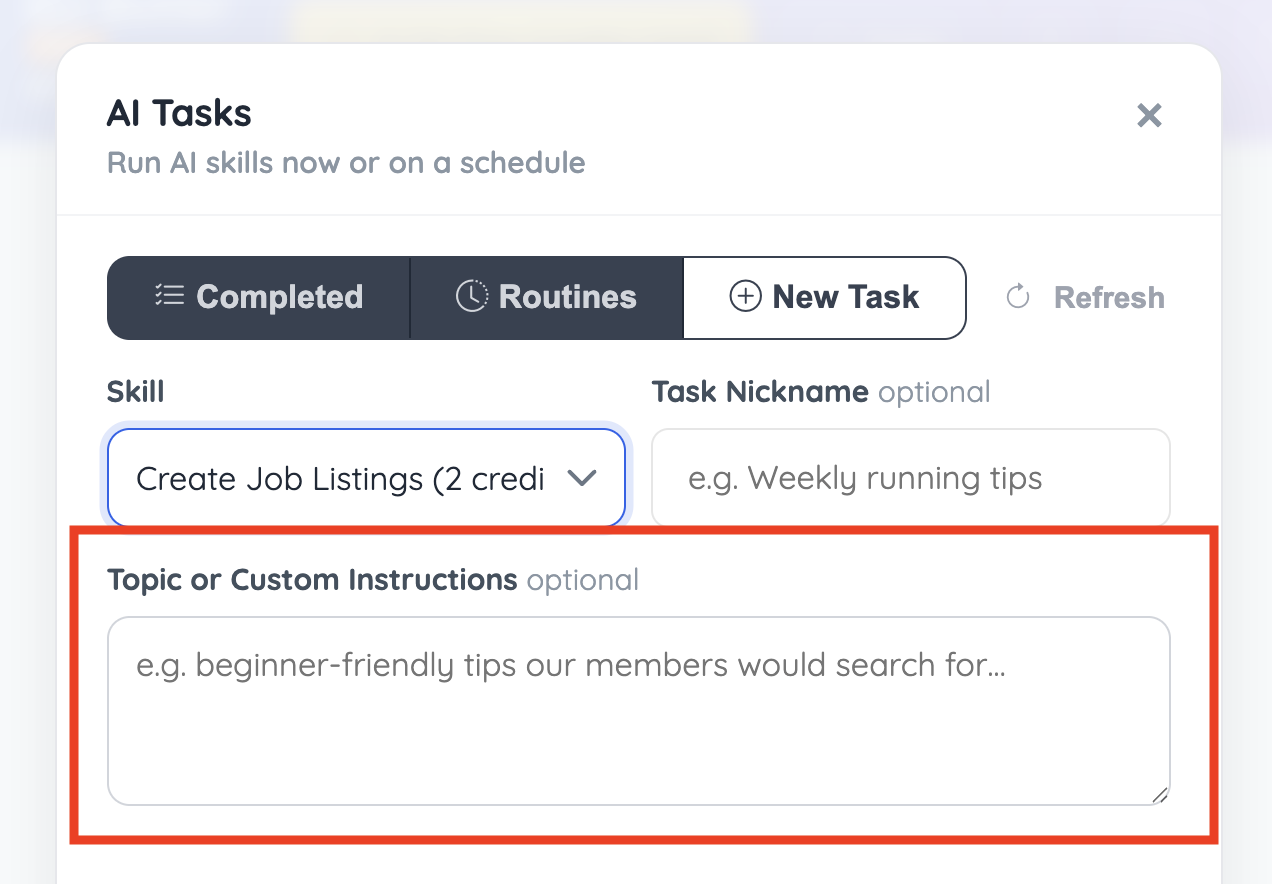
Add Custom Instructions
Custom instructions tell BD Butler what type of content to create.
This field is optional. Without additional instructions, BD Butler can review the website name, URL, menus, categories, footer links, and recent content to determine a relevant topic.
Adding instructions provides greater control over the results.
Blog Article Example
Create articles about preparing for a first half marathon. Cover training plans, recovery, nutrition, and choosing a running coach.
Event Post Example
Find upcoming small-business networking events in Austin, Texas. Only include events with an official registration page.
Job Listing Example
Find active remote marketing manager positions at software companies in the United States.
Instructions can also define the preferred structure, including:
Article length
Sections to include
Locations to target
Topics to avoid
Preferred audience
Whether FAQs or bullet points should be included
Internal or external linking preferences
For recurring Routines, use instructions broad enough to produce different results during future runs while remaining focused on the same subject.
Choose the Number of Posts
Select how many items BD Butler should create during each run.
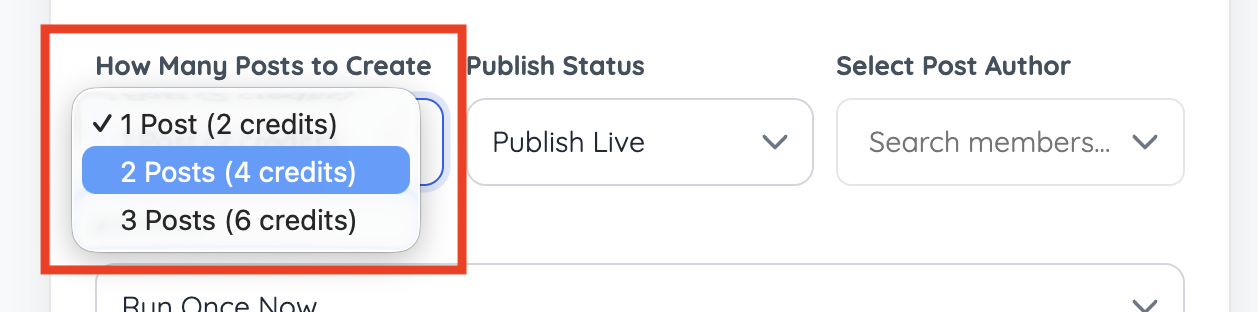
Available quantities include:
1 post (2 credits)
2 posts (4 credits)
3 posts (6 credits)
A maximum of three posts can be created during one Task. Keeping each run within this limit helps maintain consistent research and content quality.
For a Routine, the selected quantity will be created each time the Routine runs.
For example, a weekly Routine set to create three blog articles will attempt to create three new articles during every weekly run.
Choose Draft or Published Status
Select how the generated content should be saved.
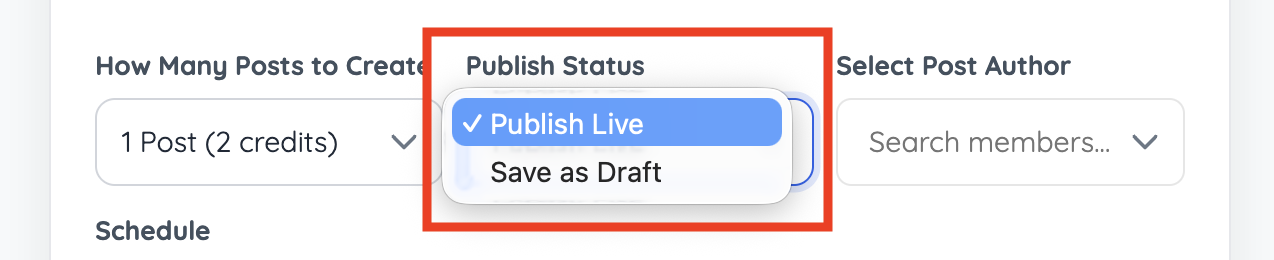
Publish Live
The content is published automatically after the Task is completed successfully.
Before using this option with a recurring Routine, run the Task at least once in draft mode and review the results.
Save as Draft
The content is created but does not appear publicly until it is reviewed and published manually.
Draft mode is recommended when testing a new Skill, prompt, or recurring Routine.
Choose the Post Author
Select the member or admin account that will be assigned as the author of the generated content.
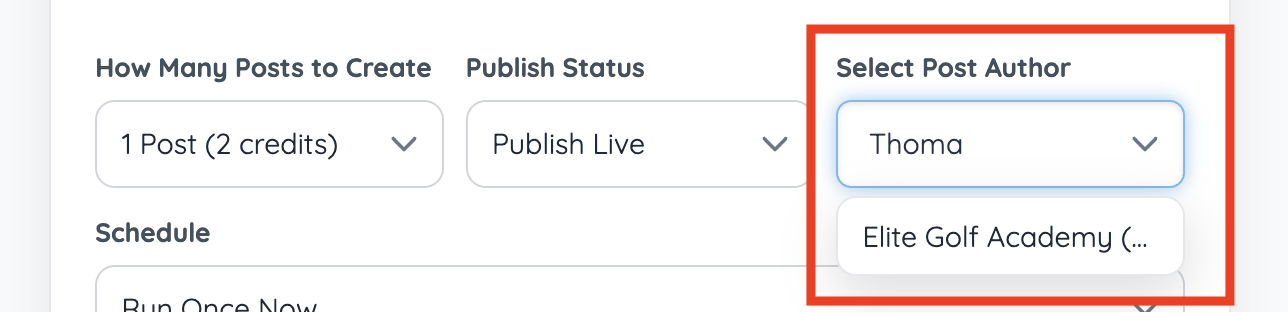
The selected author will appear as the content owner when the post is created. One author can be selected for each Task or Routine.
Schedule the Task
A Task can run once or be placed on a recurring schedule.
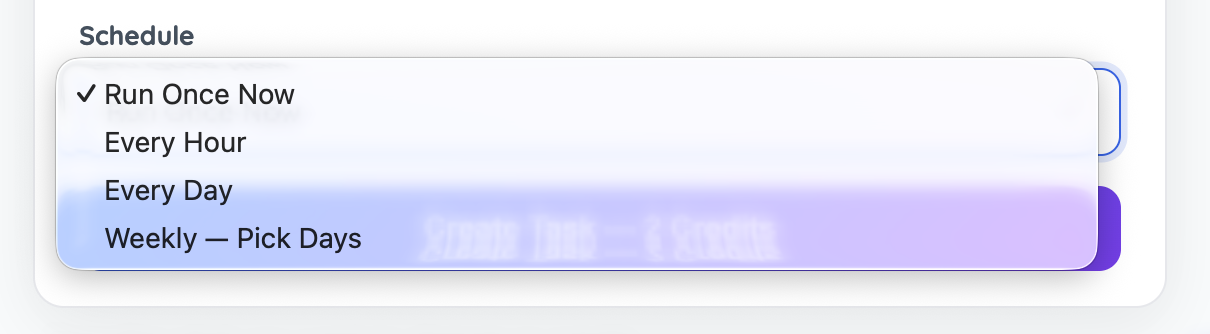
Run Once Now
Runs the Task one time immediately.
This option is useful for:
Testing new instructions
Reviewing the type of content produced
Creating a single article, event, or job listing
Confirming the selected author and post status
Hourly
Runs the Task approximately once every hour.
Daily
Runs the Task approximately once each day.
Weekly
Runs the Task on selected days of the week.
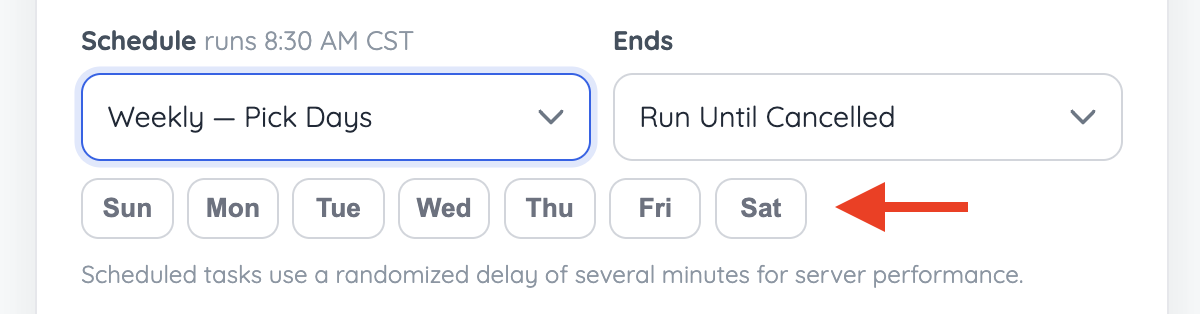
Different Routines can be assigned to different days. For example:
Monday: Industry blog articles
Wednesday: Upcoming events
Friday: New job listings
Scheduled Tasks may run up to approximately 15 minutes before or after the selected time. This built-in offset helps distribute scheduled processing and means a Routine may not always begin at the exact minute shown.
Set the Number of Runs
Recurring Routines can continue until they are manually stopped or can be limited to a specific number of runs.
A run limit can be useful for short content campaigns.
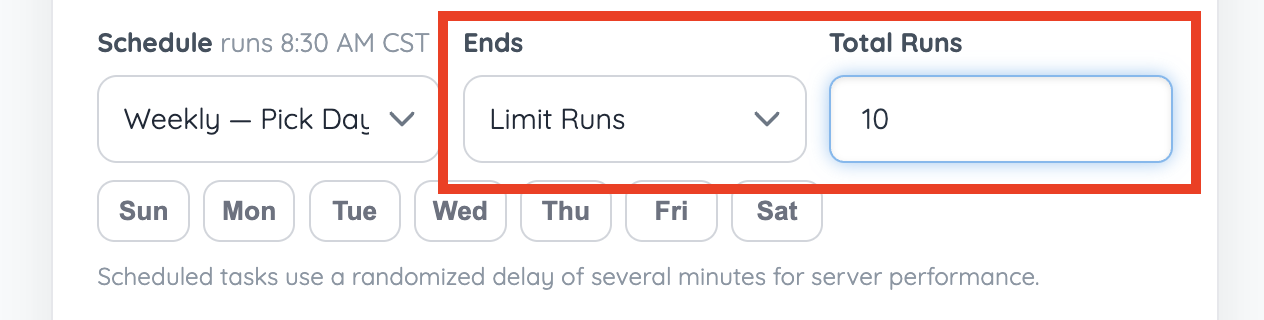
Once the selected number of runs has been completed, the Routine stops automatically.
Manage Existing Routines
Saved Routines can be managed from the Routines list.
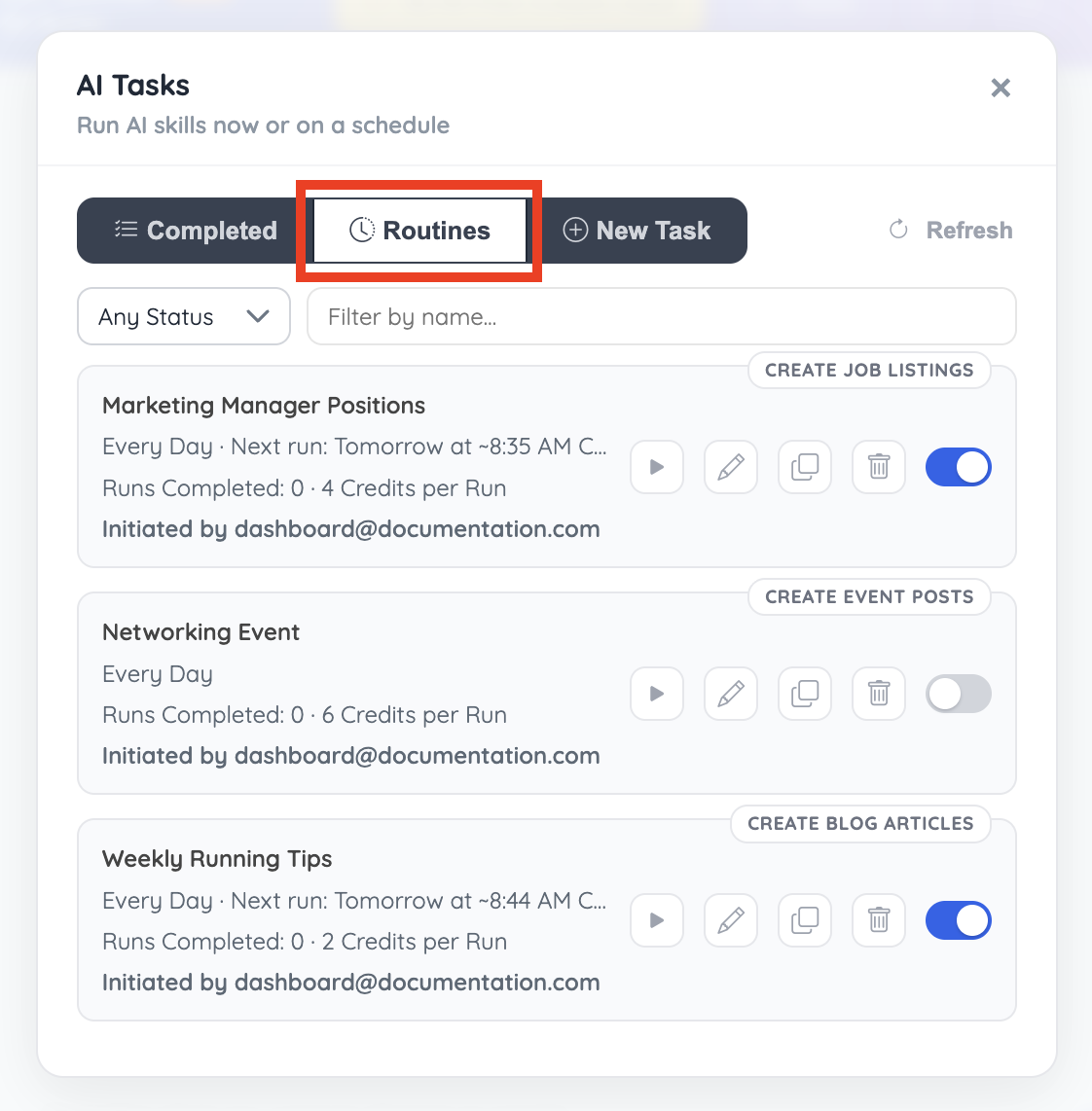
Available actions can include:
Start or stop a Routine
Edit the Routine settings
Run the Routine manually
Clone the Routine
Review previous runs
Edit a Routine
Editing a Routine changes the settings used during its next run.
This can be used to update:
Custom instructions
Content quantity
Author
Publishing status
Schedule
Run limit
Previously completed Tasks and content are not changed.
Clone a Routine
Cloning creates a copy that can be adjusted without changing the original Routine. For example, an existing job listing Routine can be cloned to target a different city, job title, or experience level.
Run a Routine Manually
A saved Routine can be run manually without waiting for its next scheduled time. This creates an additional Task using the Routine’s current settings.
Completed
The Completed tab provides a history of AI Tasks that are finished, currently processing, or were stopped before completion.
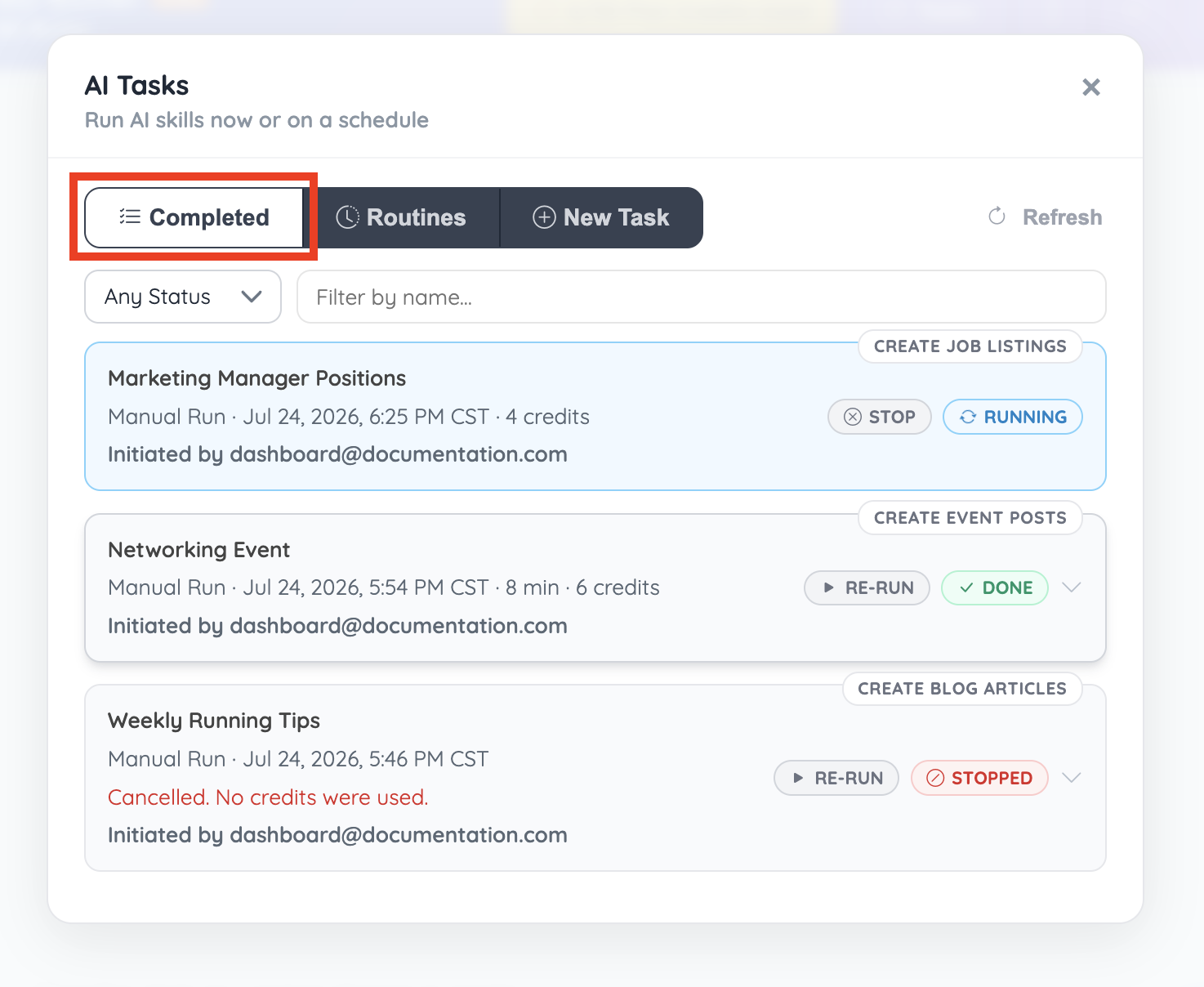
Each task card can display:
The task nickname
The selected Skill
Whether it was a manual or scheduled run
The date and time it started
The processing time
The number of credits used
The admin account that initiated the task
The current task status
Although the tab is labeled Completed, it also includes tasks that are still running or were stopped.
Filter the Task List
Use the available filters to locate a specific task.
The status dropdown includes:
Any Status
Done
Running
Stopped
Enter a task nickname in the Filter by name field to narrow the results further.
Click Refresh to check for updated task statuses.
Running Tasks
A task that is still processing displays a blue Running status.
Running tasks include a Stop button that can be used to cancel the task before it finishes.
The BD Butler window and browser do not need to remain open while a task is processing. Return to the Completed tab later and click Refresh to check its progress.
Completed Tasks
A successfully completed task displays a green Done status.
Completed task cards can also show:
How long the task took to complete
How many credits were used
A Re-Run button
An arrow for opening additional task details and results
Use Re-Run to repeat the task using the same configuration.
Stopped Tasks
A canceled task displays a red Stopped status.
The task card includes a message confirming that the task was canceled. When applicable, it will also confirm that no credits were used.
Stopped tasks can be run again by clicking Re-Run.
