
Generating a CSR for an SSL certificate in cPanel
Link: https://support.brilliantdirectories.com/support/solutions/articles/12000097161
Generate a Certificate Signing Request (CSR)
A Certificate Signing Request (CSR) is required when purchasing an SSL certificate from a third-party provider. The CSR contains information about the domain and organization requesting the certificate and is used by the SSL provider during the certificate issuance process.
Access the cPanel Dashboard
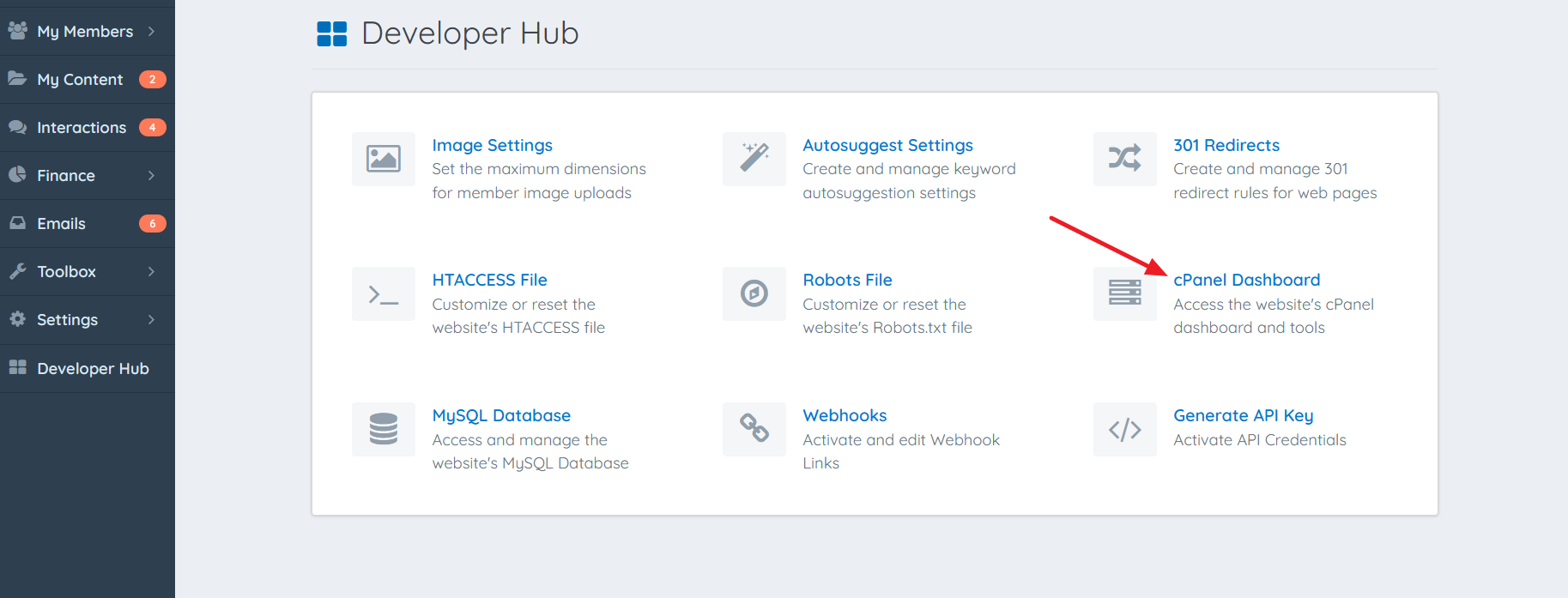
Log in to the website's Admin Area and navigate to Developer Hub > cPanel Dashboard.
Open the SSL/TLS Manager
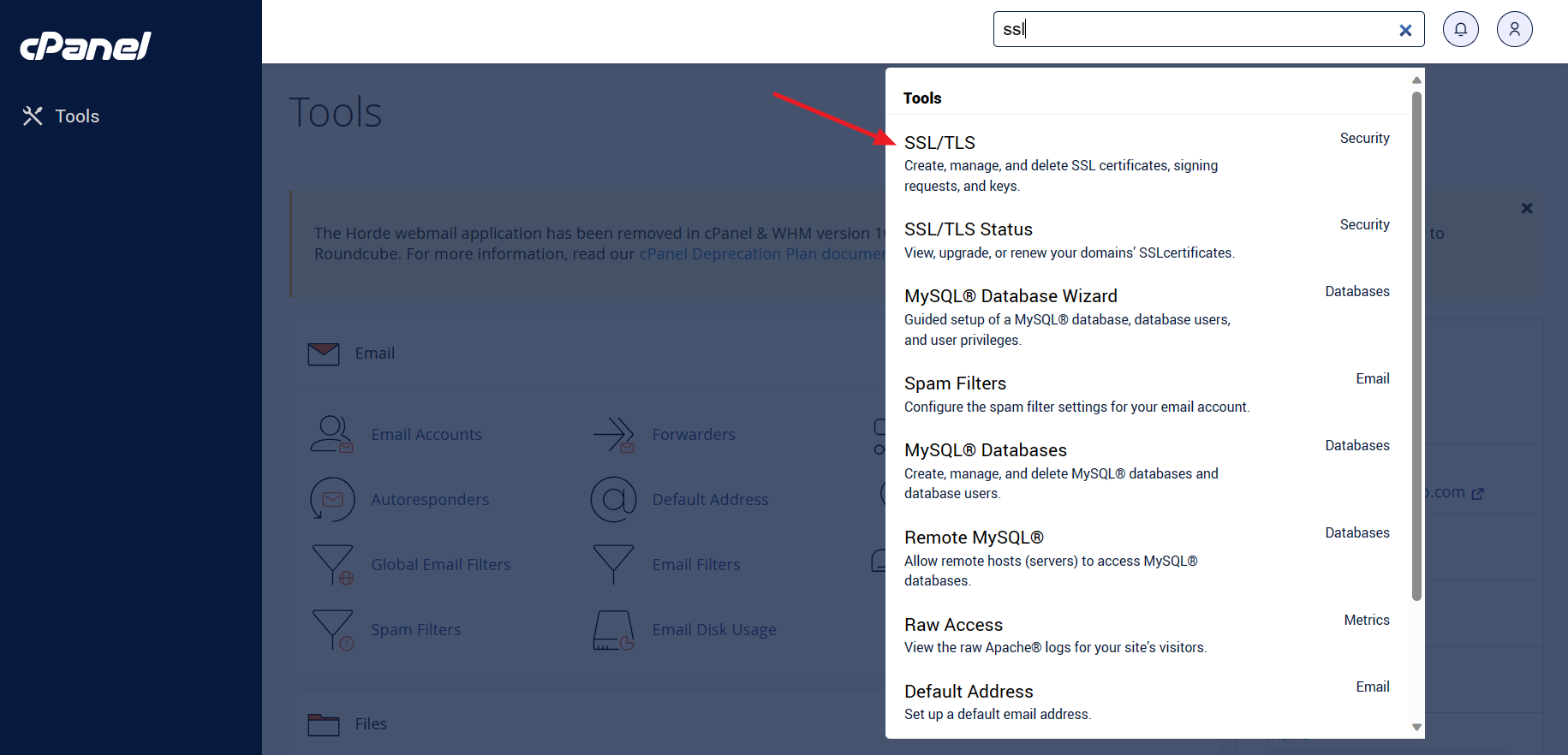
Within cPanel, locate the SSL/TLS option in the Security section.
Create the CSR
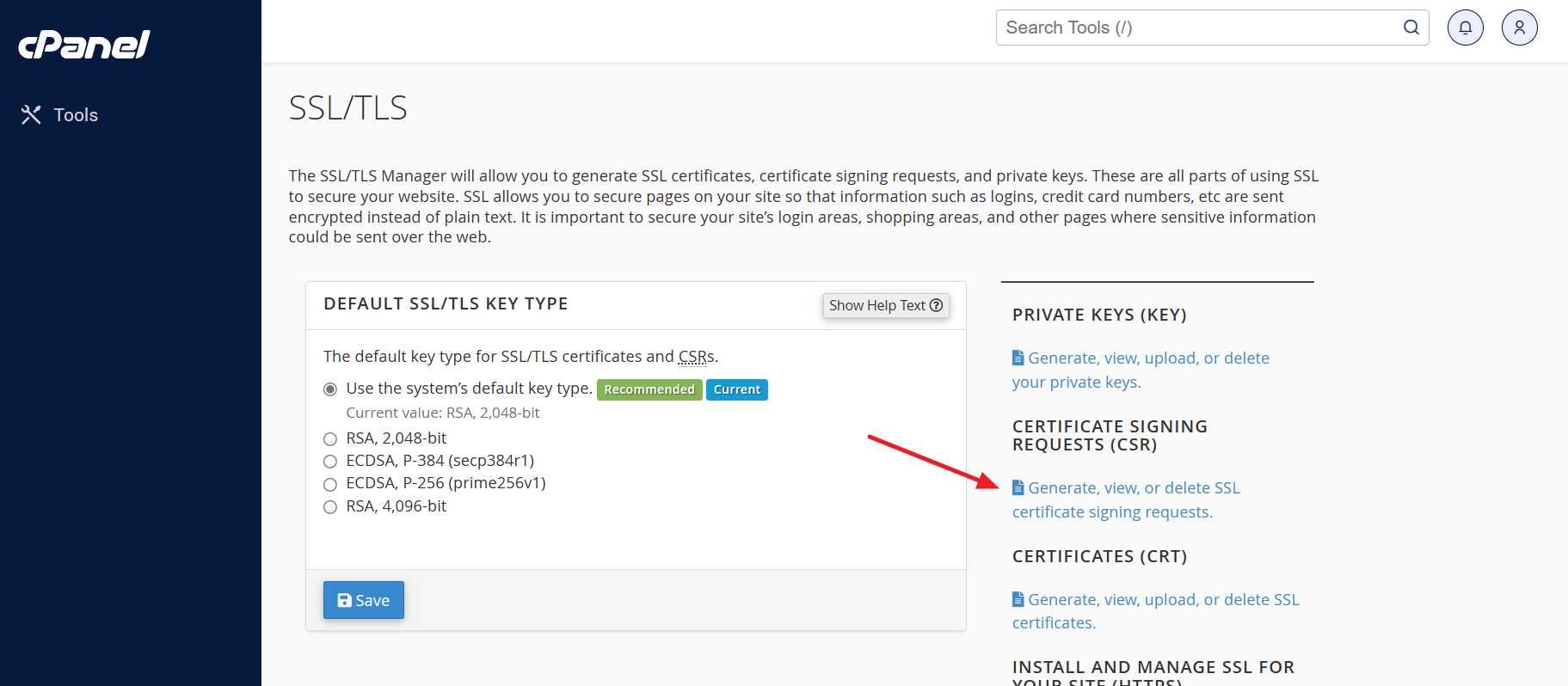
Click Generate, View, or Delete SSL Certificate Signing Requests.
Complete the CSR Information
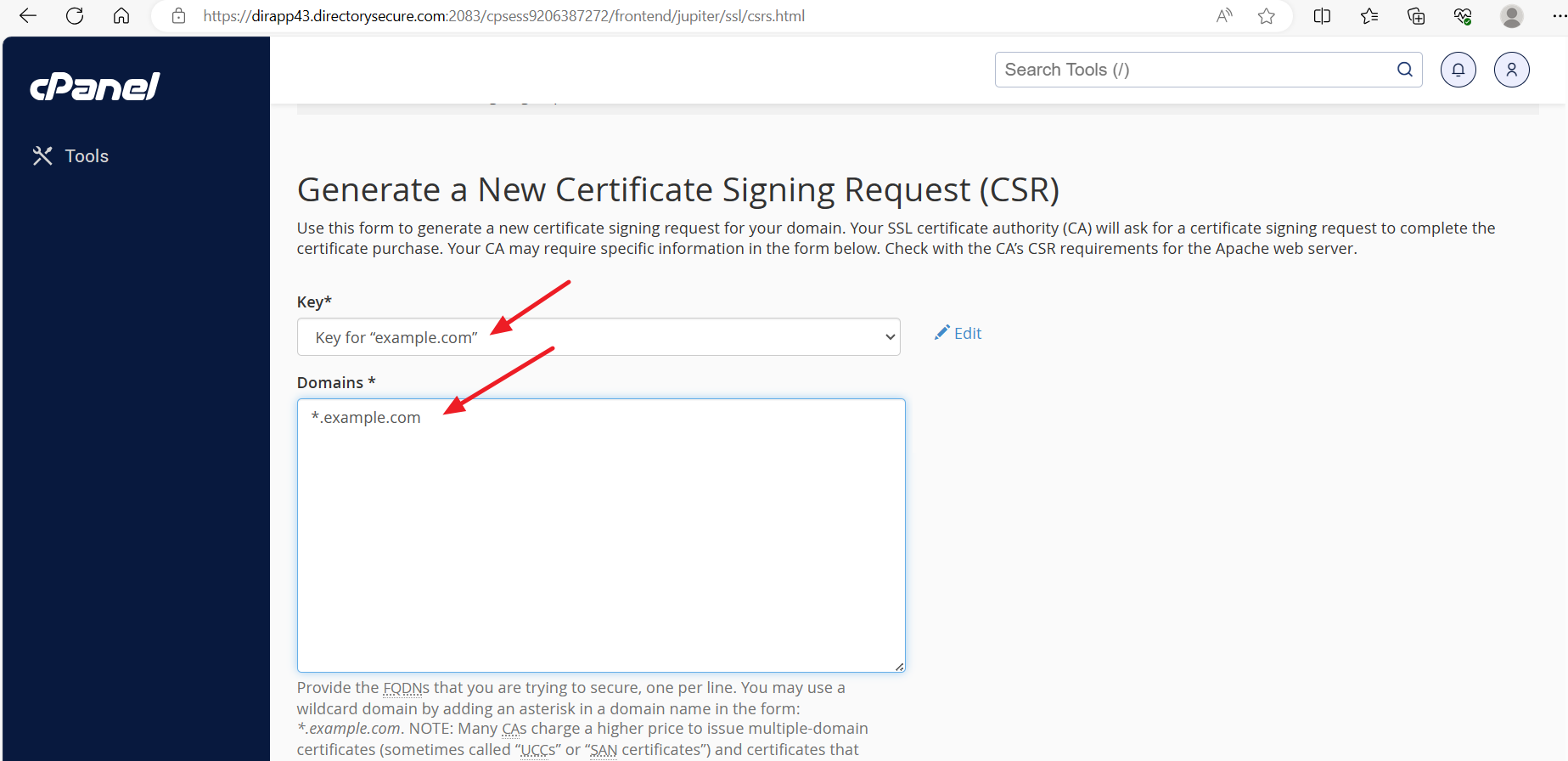
Complete the required fields, including the domain name, organization details, and location information.
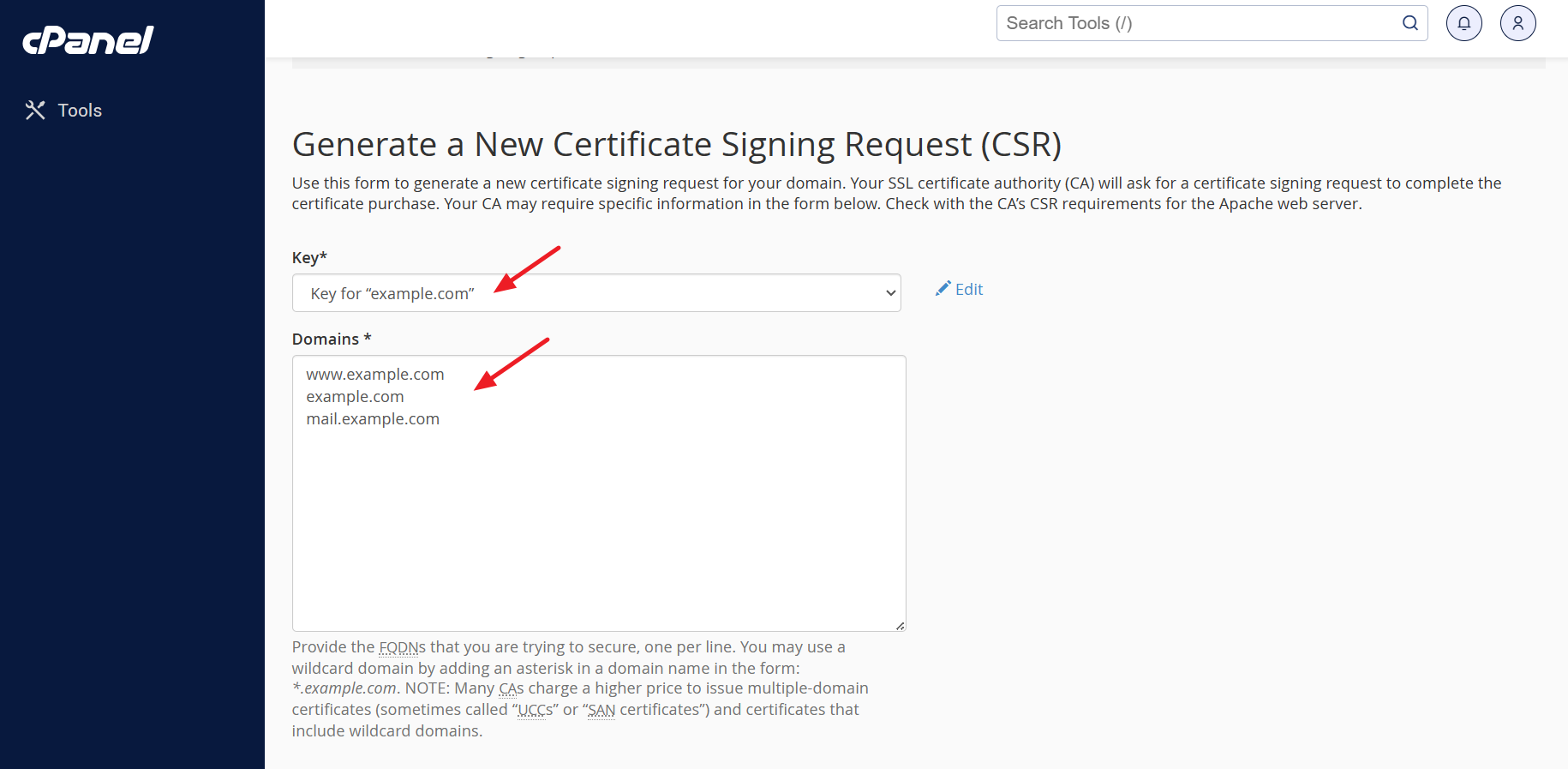
The Domains field should include all domains and subdomains that will be secured by the SSL certificate.
For a wildcard SSL certificate, the domain can be entered as:
*.example.com
Alternatively, individual domains and subdomains can be specified separately:
www.example.comexample.commail.example.com
Generate the CSR
After all required information has been entered, click Generate to create the Certificate Signing Request.
Save the CSR and Private Key
Both the CSR and private key should be saved in a secure location. The CSR will be required when purchasing the SSL certificate, while the private key will be required when installing the certificate on the server.
Loss of the private key may prevent the SSL certificate from being installed successfully and could require generating a new CSR.
