
Using Stock Images: Photos by Pexels, Pixabay, Unsplash, Stock Icons and Giphy
Link: https://support.brilliantdirectories.com/support/solutions/articles/12000096277
Free stock photos, GIFs and icons can be searched and saved to the website from the Free Stock Photos tab of the Media Manager. Five libraries are available: Pexels, Pixabay, Giphy, Unsplash and the Icon Library.
The same tab is in the image picker that opens from image fields and from the admin text editors, so a stock photo can also be added straight into a field or a page. See Choosing an Image with the Image Picker.
Search for a Stock Image
- Open My Content » Media Manager. To save the image into a folder, open that folder on the My Library tab first.
- Click Free Stock Photos (1).
- Choose the library (2): Pexels, Pixabay, Giphy, Unsplash or Icon Library.
- Type a keyword in the search box (3).
- Choose the size of the image to save (4): Large Image (1200 Pixels), Medium Image (650 Pixels) or Small Image (350 Pixels). Giphy and the Icon Library come in one size, so this menu is hidden for them.
- Choose the shape (5): Any Shape, Landscape, Portrait or Square.
- Click Search (6). Load More at the end of the results shows more.
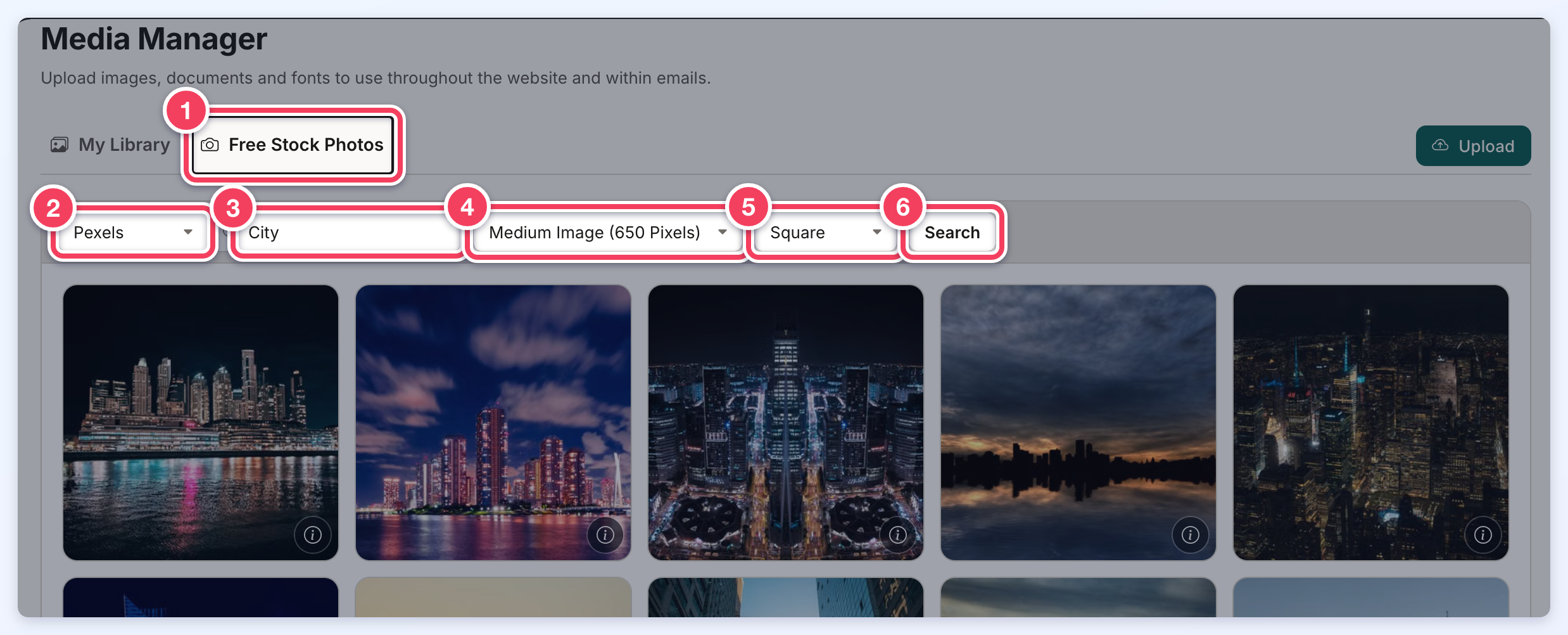
The info icon on each result shows who took the photo and links to it on the library's website.
Save a Stock Image
Hover over a result and click Save This Image (Save This Icon in the Icon Library). The image is saved to the folder that was open on the My Library tab, and the Media Manager switches back to My Library with the new file selected:
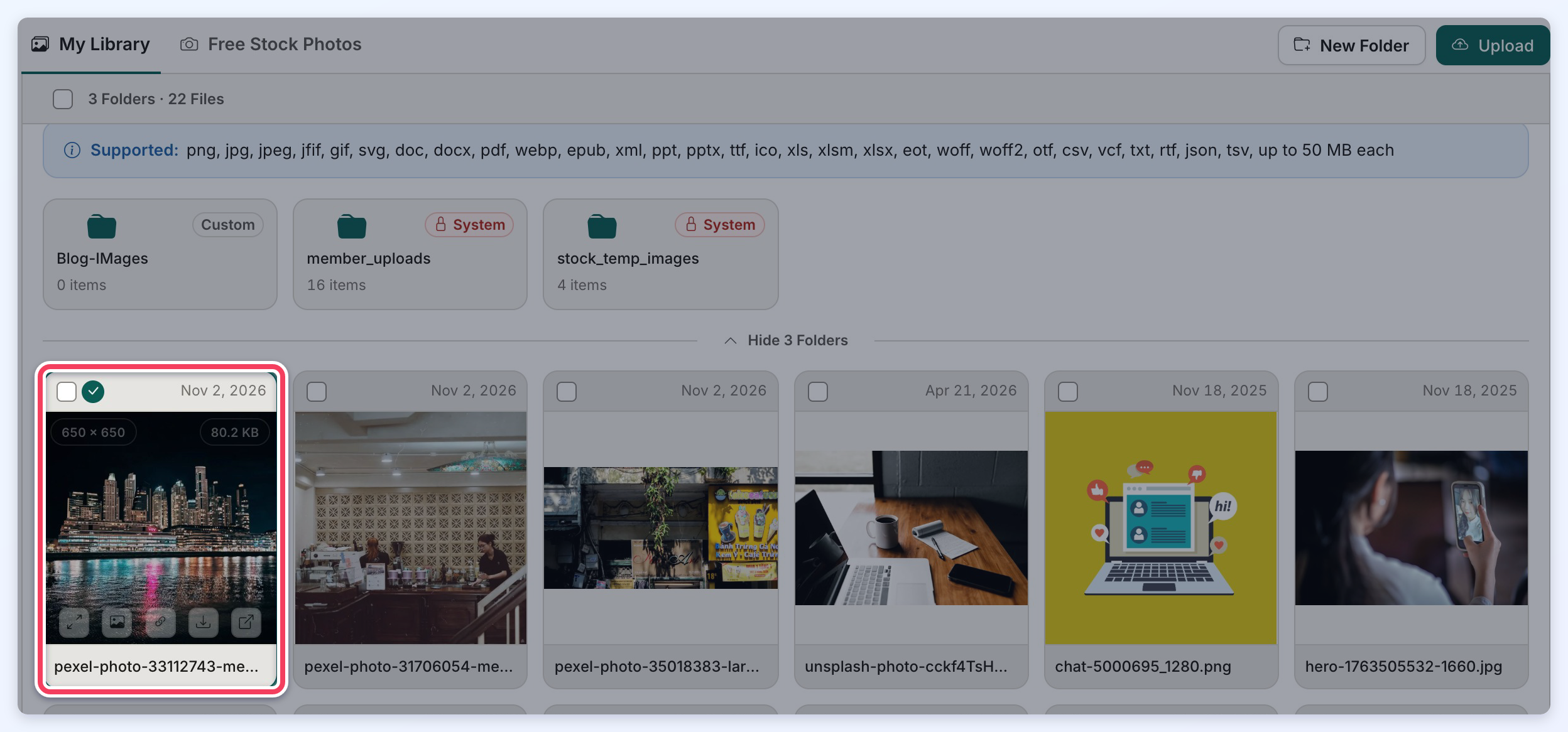
The saved file is an ordinary Media Manager file from then on: it can be used in any image field or text editor, renamed, moved or deleted.
Icon Library
When Icon Library is chosen (1), an Icon Color setting (2) replaces the size and shape menus. Pick a color so the icon matches the site's colors; each icon previews in the color it will be saved in. Black shows every icon, while another color can show fewer results.
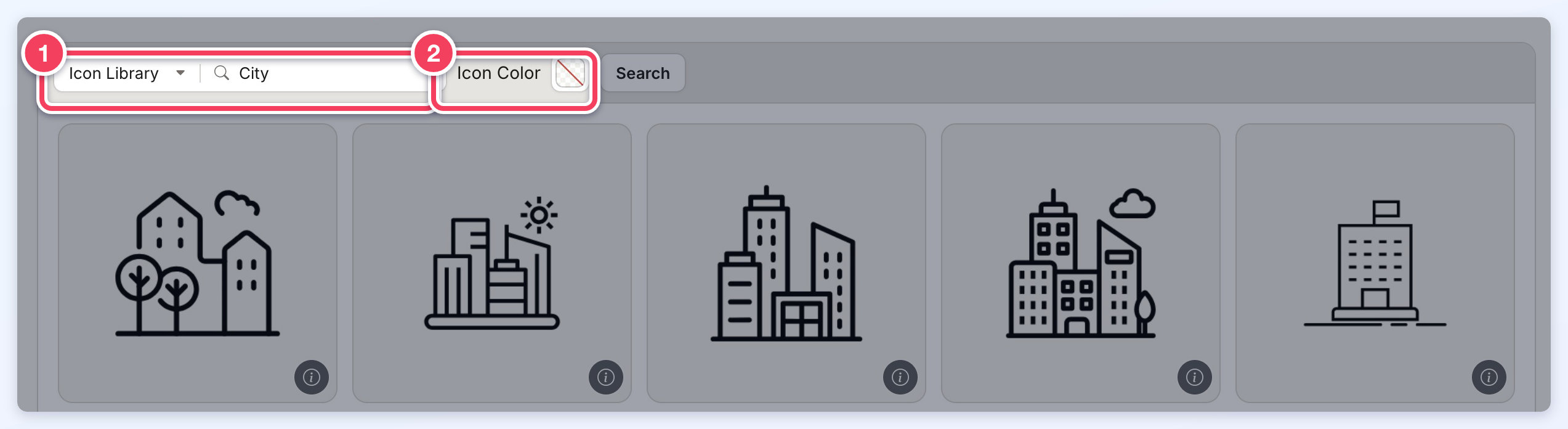
Important: The Icon Library is available only in the admin area.
Additional Information

