
Tracking Member Sign-Ups Events With Facebook Pixel
Link: https://support.brilliantdirectories.com/support/solutions/articles/12000084689
Standard events are predefined visitor actions that correspond to common, conversion-related activities, such as searching for a product, viewing a product, or purchasing a product.
This article explains how to track completed purchases (paid member sign-ups) on the site with the Facebook (Meta) Pixel.
Detailed information about conversion tracking can be found in Meta's documentation: Conversion Tracking
Step 1:
Make sure the pixel's base code is installed on every page where conversions will be tracked. This is explained in detail in the article below:
Step 2:
Customize the Bootstrap Theme - Conversion Tracking Codes widget (Toolbox > Widget Manager) to call the fbq('track') function, which tracks completed purchases on the site. Opening and customizing the widget is covered in "Embed Conversion Tracking and Affiliate Tracking Codes On Sign Up Pages".
The following example code is provided by Meta:
<script>
fbq('track', 'Purchase', {currency: "USD", value: 30.00});
</script>
Next, replace the example values with the widget's variables. All of the available variables are listed in the Bootstrap Theme - Conversion Tracking Codes widget:
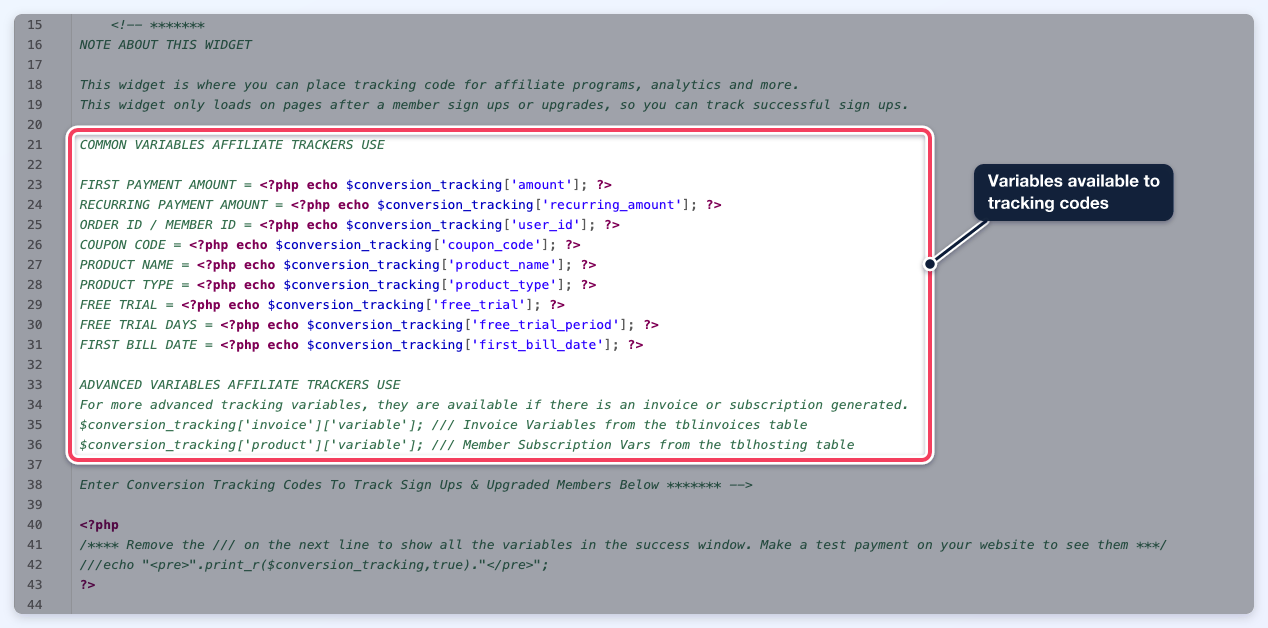
The resulting code looks like this:
<script>
fbq('track', 'Purchase', {currency: "USD", value: <?php echo $conversion_tracking['amount']; ?>});
</script>
Then add the code to the widget below line 38 and save the widget:
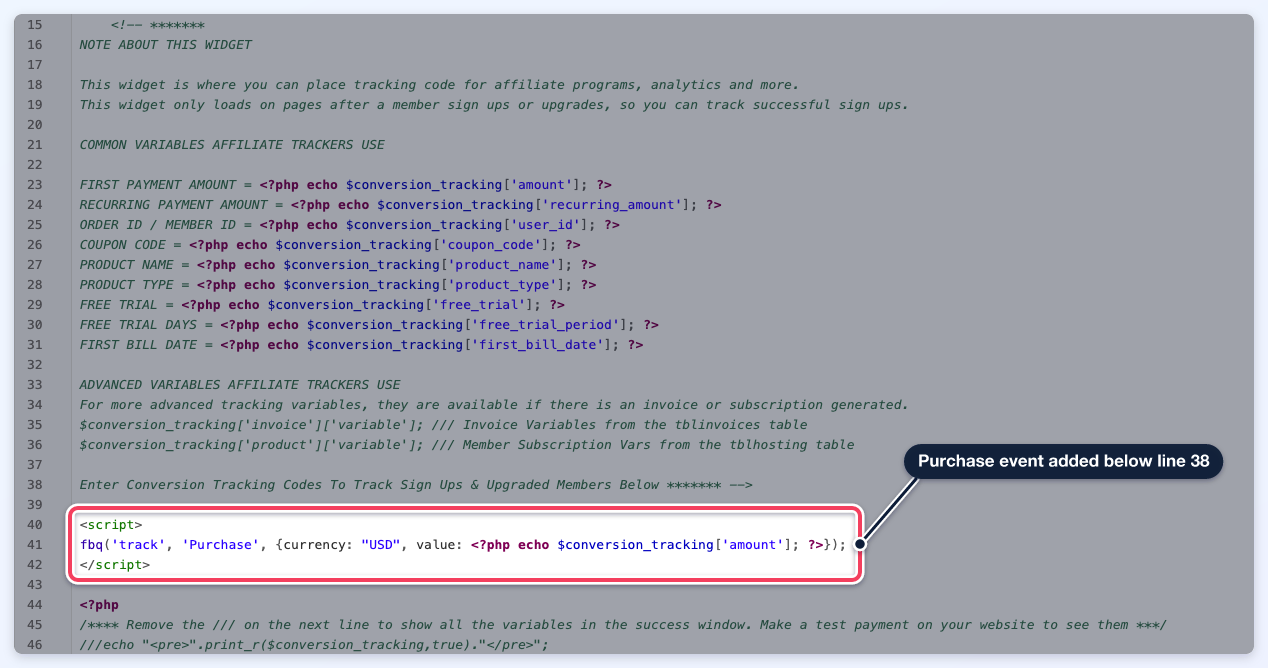
The Purchase event fires after each successful paid sign-up. When the sign-up is paid through the Stripe card form, the success message appears in a pop-up on the checkout page and the fbq('track', 'Purchase') script runs once when that pop-up appears. No change to the snippet is needed for Stripe.
When this function is called, the event is tracked as a Purchase event in Events Manager:

