
Form Settings Overview
Link: https://support.brilliantdirectories.com/support/solutions/articles/12000078795
Important Note: These form settings are only available for Custom Forms. This option does not display for Default Forms.
To reach the Form Settings, click Edit on the preferred custom form:
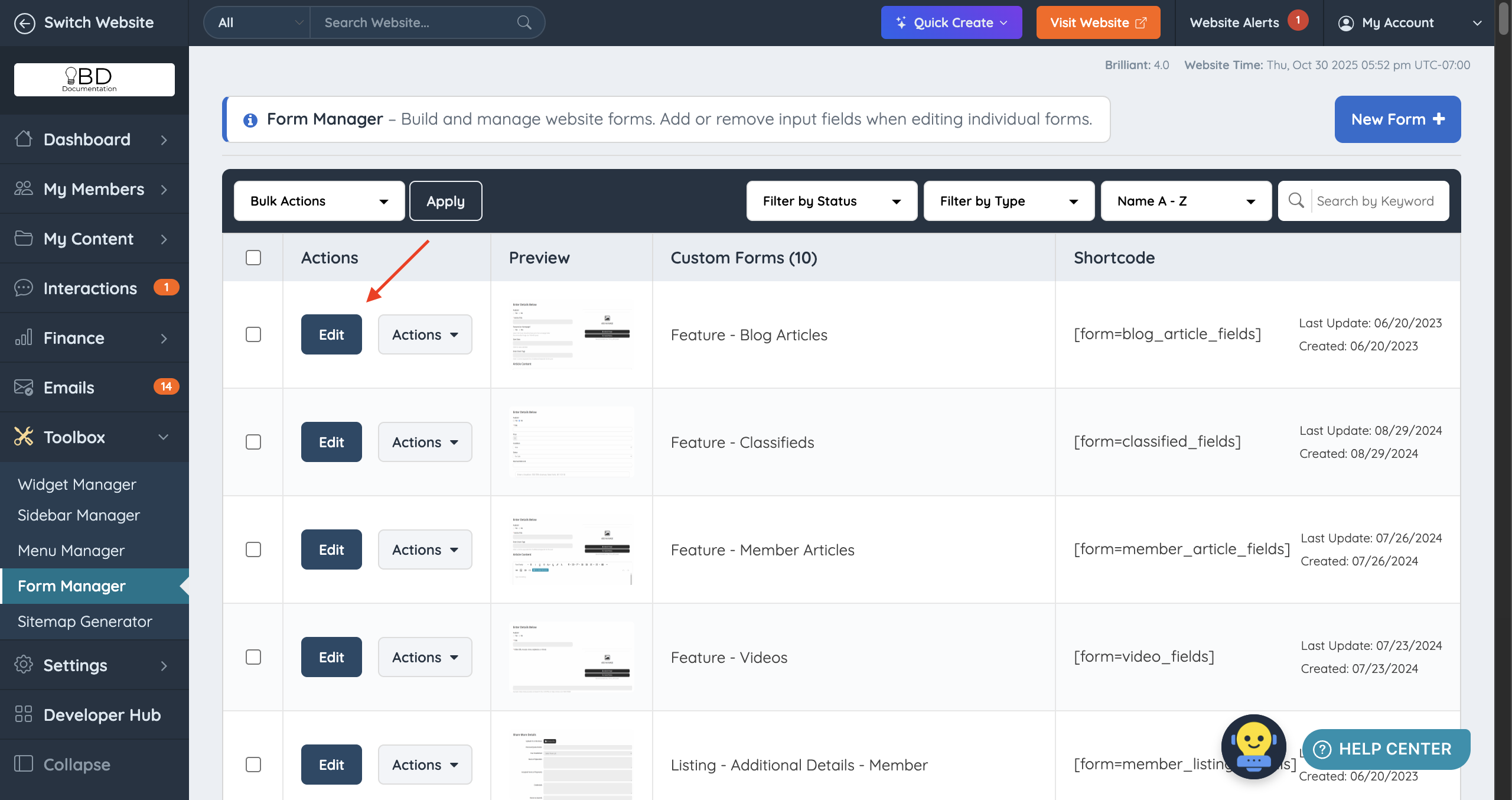
In the Edit view, the Form Settings option is in the top right:

This article covers each of these settings and how they function.
Once Edit Form Settings is clicked, a module with three tabs displays:

Submission Settings
Controls what happens after a form is submitted, such as the redirect or the message shown to the user.
Email Notifications
Controls the email notifications sent when a form is submitted, including recipients and message content.
Developer Settings
Controls advanced options such as the database table the submission posts to and the form's system name.
