How To Customize a Widget
Link: https://support.brilliantdirectories.com/support/solutions/articles/12000078430
Customizing a widget creates an editable copy that overrides the default version on the website. The default version remains stored in the system, which makes it possible to compare changes and restore earlier code at any time.
Widgets can also be identified directly on the front end using the Admin Bar, which is a quick way to find the name of the widget to customize: Locating Widget Via Admin Bar
Customizing the Widget
- Go to Toolbox » Widget Manager and type the widget's name in the search box. The search filters both the Custom Widgets and the Default Widgets tables.
- In the Default Widgets table, click Customize on the widget's row. The widget's code opens in the Customize Widget popup.
- Make the required changes to the code.
- Click Save. The custom copy is saved for the website and opens in the widget editor.
Saving without changing the code does not create a copy: a No Changes to Save message explains that the website keeps using the Default widget. A widget that already has a custom copy shows Already Customized instead; edit that copy in the Custom Widgets table.
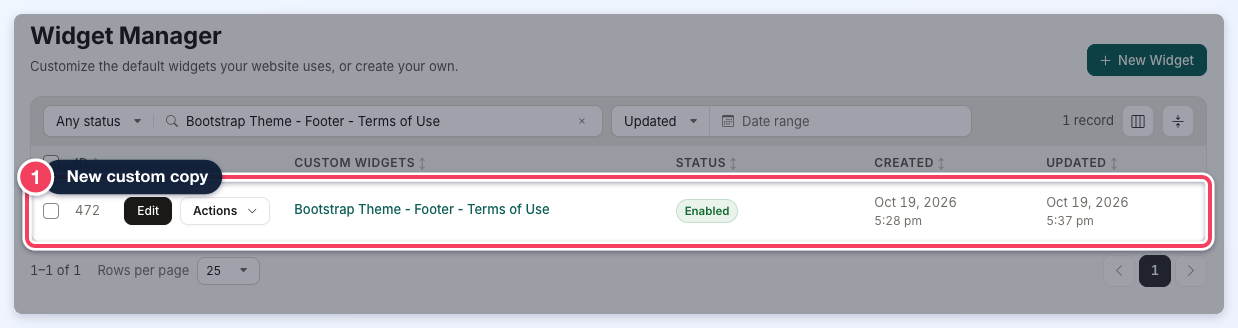
The custom copy then appears in the Custom Widgets table at the top of the Widget Manager:
Editing a Custom Widget
To change a custom widget later, click Edit on its row in the Custom Widgets table, or click its name. After the code is changed, an Unsaved changes bar appears at the top of the page: click Save to keep the changes, or Discard to drop them.
Clone Widget
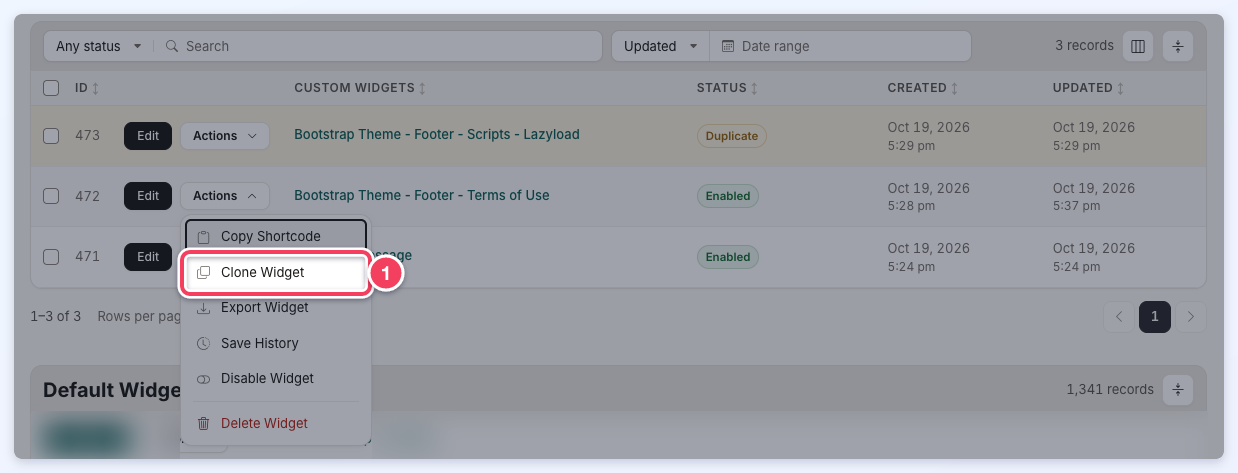
If a duplicate of a custom widget is needed, open its Actions menu in the Custom Widgets table, click Clone Widget and confirm. The copy is added to the Custom Widgets table under a new name, which the confirmation message shows.
Changes After Customization
Diff Tab
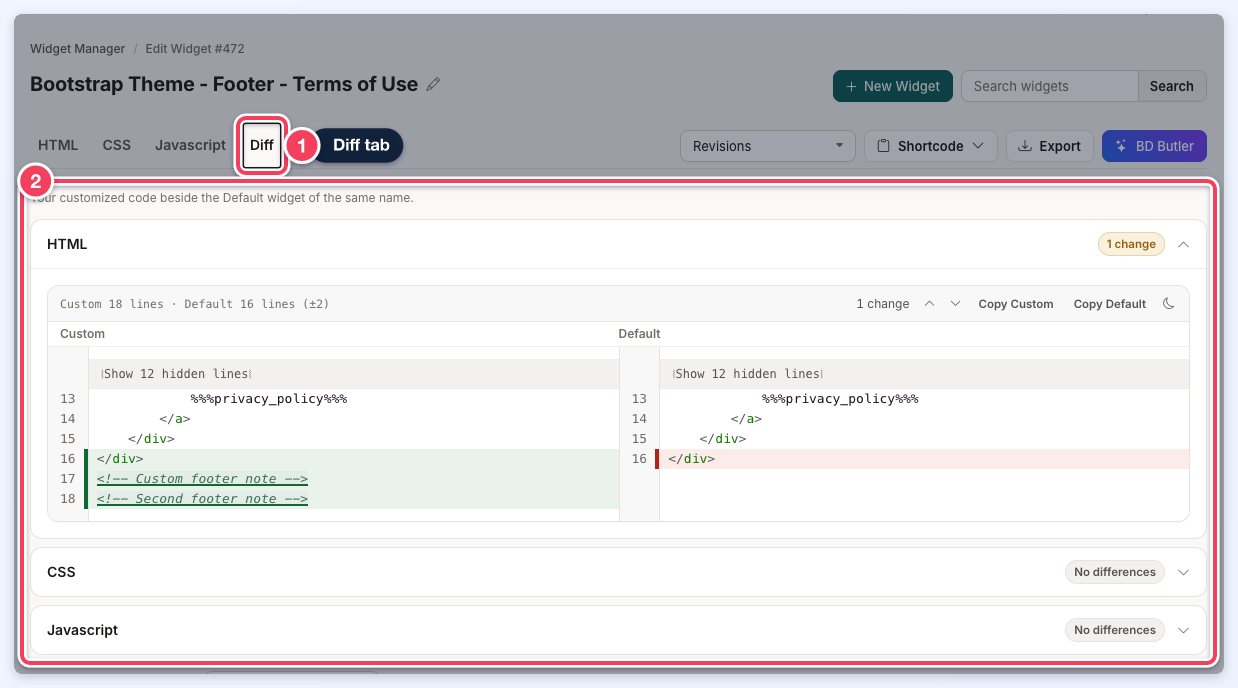
A Diff tab is added to the widget editor. It shows the customized code beside the Default widget's code, with the changed lines highlighted.
Revisions
The Revisions list in the widget editor holds the widget's earlier saves, listed by date and admin. Choosing one and clicking Load Revision puts that code in the editor without saving it. Click Save to keep the older code, or Back to Current to return to the current code. The list reads No Revisions until the widget has an earlier save.
Created and Updated Dates
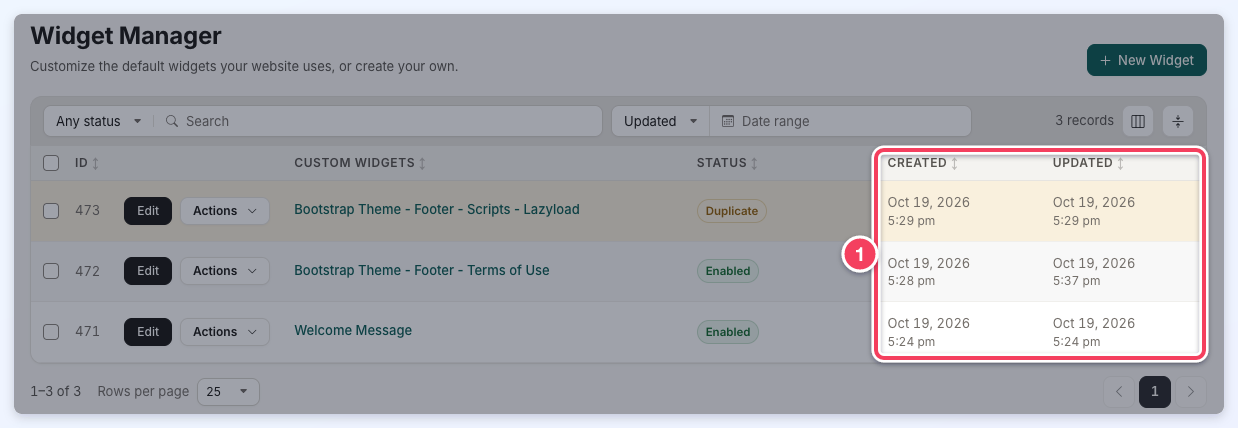
The Created and Updated columns of the Custom Widgets table show when the widget was first customized and when it was last changed, which can assist with troubleshooting. The date filter above the table narrows the list to widgets updated or created within a date range.
Save History
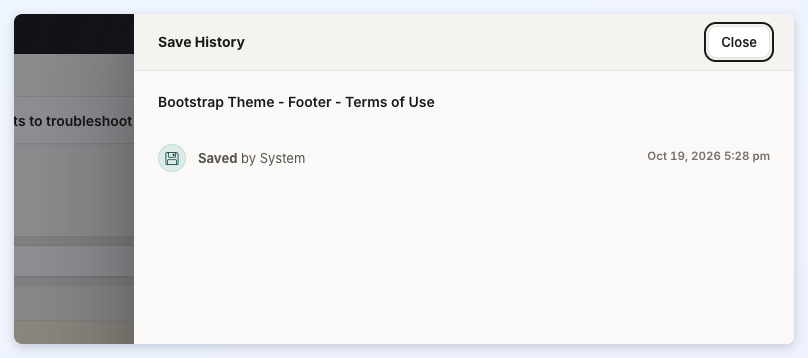
A Save History option appears in the widget's Actions menu for admins whose role can view the Activity Tracker:
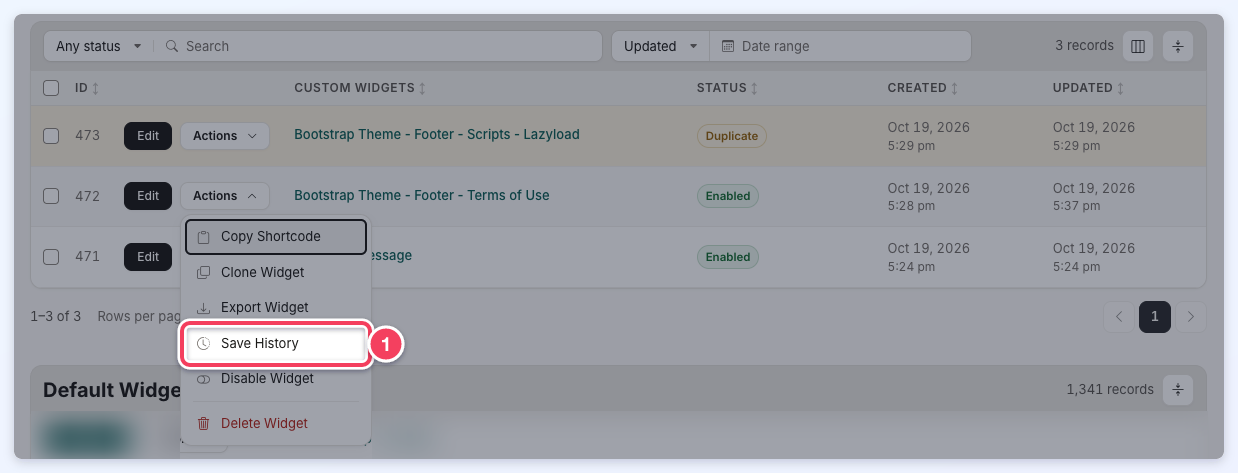
It opens a panel listing each save, enable and disable of the widget with the admin and the time. Open Activity Log at the bottom of the panel opens the full record in the Activity Tracker.