
How To Clone a Form
Link: https://support.brilliantdirectories.com/support/solutions/articles/12000078292
This article explains how to clone an existing form from the Form Manager.
Cloning a form creates a copy of an existing customized form. This is useful when a similar version of a form is needed, but the original form should remain unchanged.
Before Cloning a Form
Before a form can be cloned, the default version of the form must be customized first. Once the form has been customized, the Clone option will appear in the form’s Actions dropdown.
For instructions on customizing a default form, see the following article:
How to Clone a Form
- Go to Toolbox >> Form Manager.
- Find the customized form that should be cloned.
- Click the Actions dropdown for the form.
- Select Clone Form.
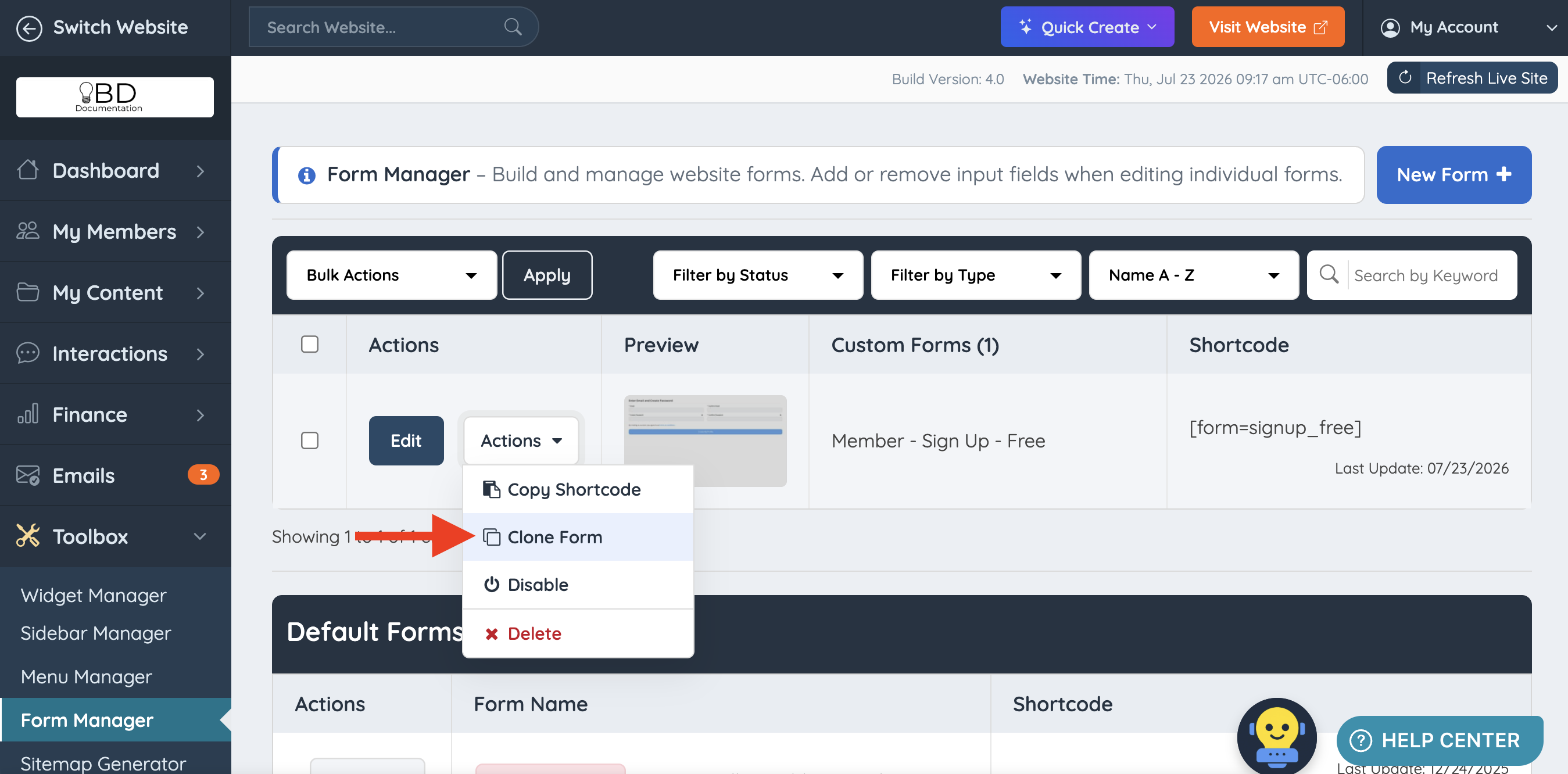
A popup will open with settings for the cloned form.
Update the Cloned Form Settings
After selecting Clone, the cloned form settings popup will open. From this popup, the Form Name can be updated.
The Form System Name can also be updated from the Developer Settings tab.
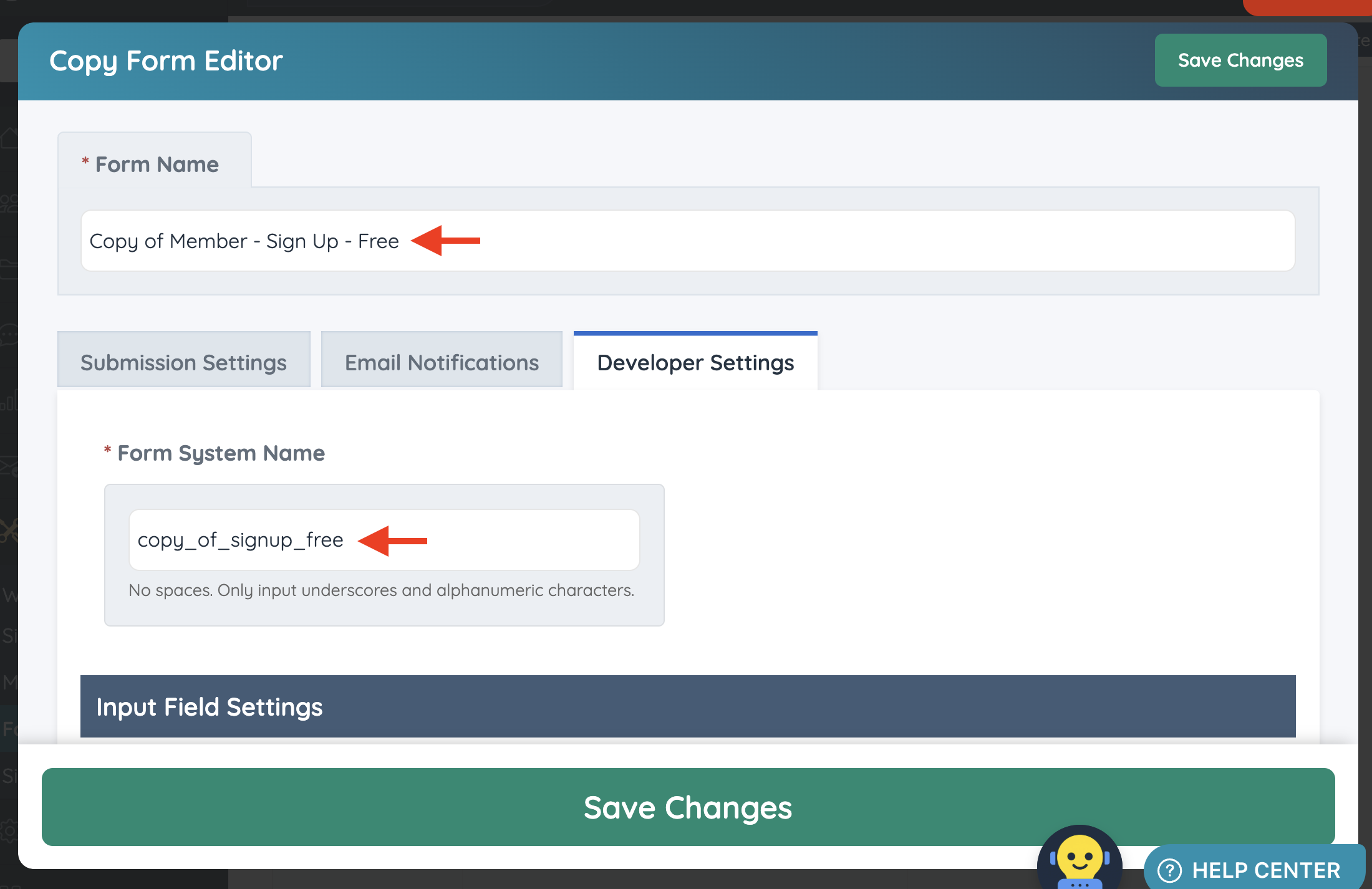
Additional settings may be available in the other tabs of the popup, depending on the form being cloned.
Default Clone Naming
When a form is cloned, the system automatically adds default copy labels to keep the cloned form unique.
- Form Name: The system adds Copy of before the original form name.
- Form System Name: The system adds copy_of_ before the original system name.
These values can be edited before saving the cloned form.
Important: The Form System Name must be unique. Avoid using the same system name as another form.
Edit the Cloned Form
Once the cloned form opens, the form fields can be edited as needed.
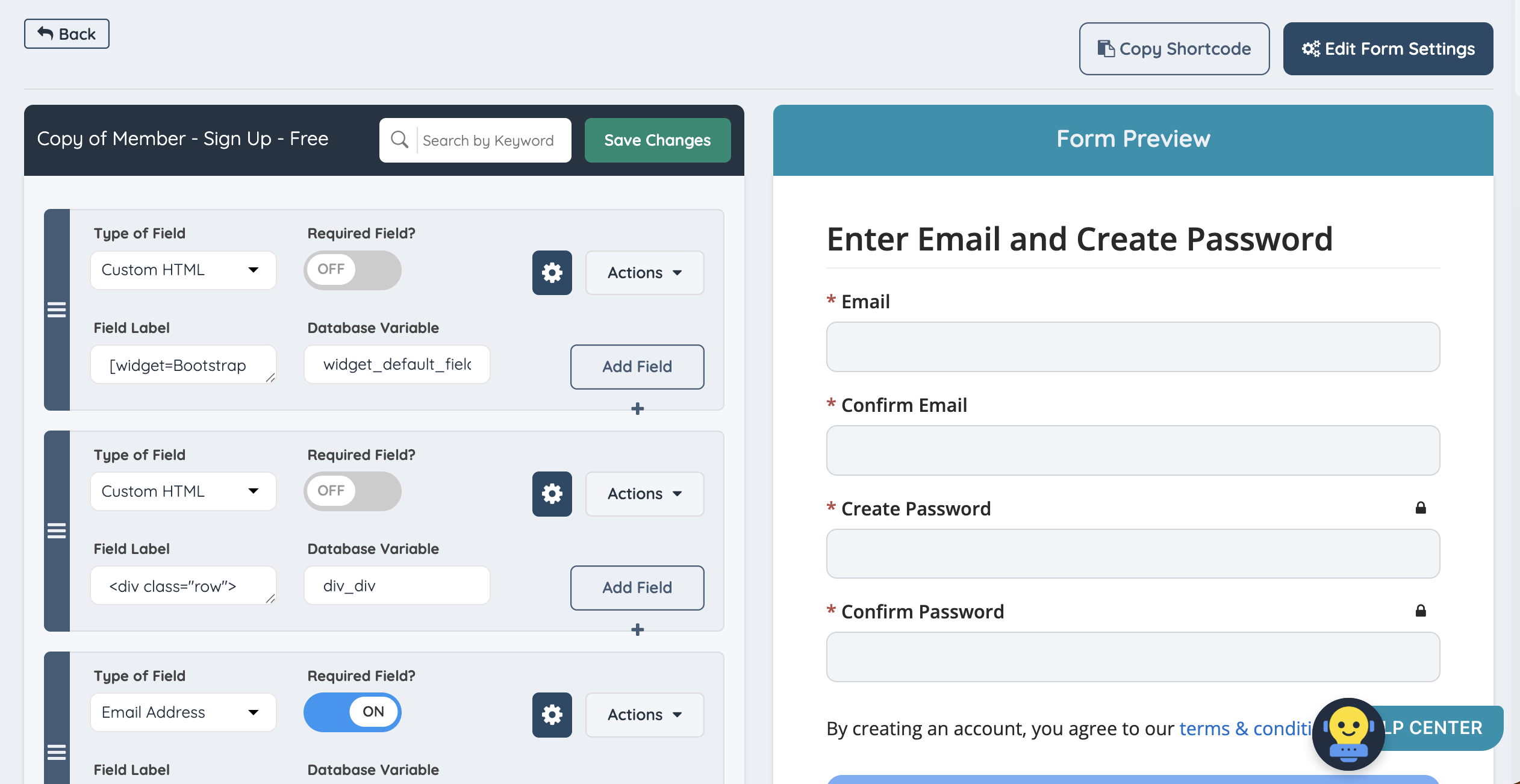
Common edits include:
- Adding new fields
- Removing fields that are not needed
- Renaming fields
- Reordering fields
- Changing whether fields are required or optional
- Updating field instructions or placeholder text
Save the form after making changes.
When to Clone a Form
Cloning a form is useful when a second version of an existing form is needed.
Examples:
- Create a shorter version of a signup form.
- Create a plan-specific checkout form.
- Create different inquiry forms for different website pages.
- Create a test version of a form before changing the live version.
- Create a custom version of a default form while keeping the original customized form available.
Important Notes
- A default form must be customized before it can be cloned.
- The Clone option only appears for customized forms.
- The cloned form should have a unique Form Name.
- The cloned form must have a unique Form System Name.
- After cloning, review the form fields and settings before using the form on the website.
