
Common Mistakes with Google and Facebook Login
Link: https://support.brilliantdirectories.com/support/solutions/articles/12000068966
Google and Facebook Login can create a new membership or sign in to an existing member profile. Each provider must be linked to that profile before it can be used to sign in. A matching email address alone does not link a Google or Facebook account.
Before Troubleshooting
The relevant social login add-on must be activated and enabled for the membership plan. See Using Google Login and Using Facebook Login for setup and member dashboard instructions.
Signup and Login Have Different Purposes
- Signup: Creates a new membership with the selected social account.
- Login: Opens the member profile already linked to the selected social account.
- Sync: Links a social account from an existing member dashboard after the member has signed in.
An existing member should sign in or recover access to the existing membership before syncing another provider. Repeating signup is not a password recovery method.
Google Signup Followed by Facebook Login, or the Reverse
Signing up with Google does not automatically link Facebook. Signing up with Facebook does not automatically link Google. This remains true when the same email address is used with both providers.
- Sign in with the provider already linked to the membership, or use the membership email address and password.
- Open the member dashboard.
- Sync the other social account.
After syncing, either linked provider can be used to access the same member profile.
Account No Longer Linked
If the selected social account is not linked to a member profile, the login message provides a password recovery link. Google displays Google Account No Longer Linked; Facebook displays Facebook account no longer linked. The message does not by itself confirm whether a membership exists for the email address.
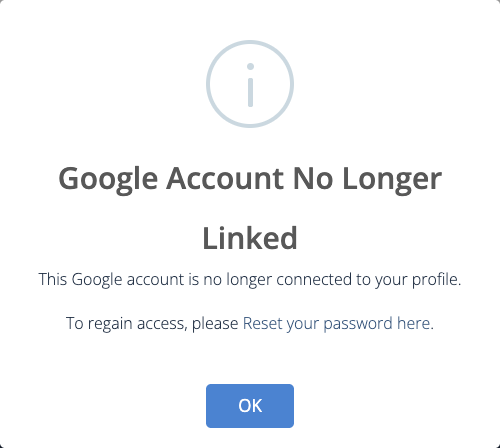
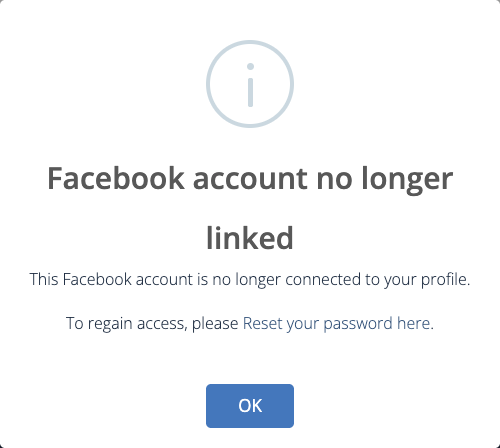
- Open the password recovery link in the message.
- Enter or confirm the email address used for the existing membership.
- Submit the password reset request.
- For an existing account, use the instructions in the reset email to set a password.
- Sign in with the membership email address and password.
- Sync the desired Google or Facebook account from the member dashboard.
The linked social account can then be used to sign in again. If the member cannot access the membership email address, contact the directory administrator for assistance.
Set a Password First
Before removing a Google or Facebook connection, the member account must have a password. If it does not, selecting Unsync displays Set a Password First and keeps the social account linked.
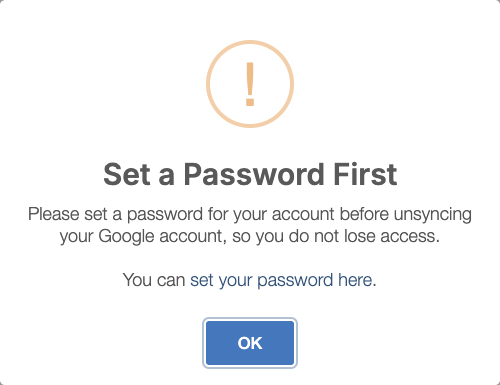
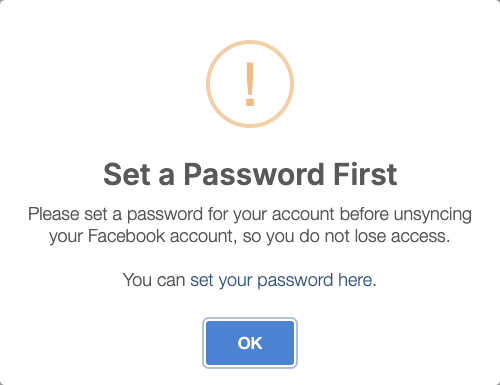
- Open the password link in the message. The member is logged out and taken to password recovery with the member email address filled in.
- Submit the password reset request.
- Set a password using the emailed link.
- Sign in with the membership email address and new password.
- Return to the member dashboard and select Unsync for the desired provider.
The member can continue signing in with the membership email address and password after the social connection is removed.
