
Using Google Login
Link: https://support.brilliantdirectories.com/support/solutions/articles/12000069287
Google Login allows members to create a membership or sign in with a linked Google account. The add-on must be activated and enabled for the applicable membership plan before use.
If Google login credentials haven't been set up yet, please follow this article:
Activating Google Login Add-On
1. Once the set up has been completed, the admin will need to go to Finance - Membership Plans and edit the levels they wish to grant this to.

2. Go to the Member's Dashboard tab, and make sure this is set to YES.
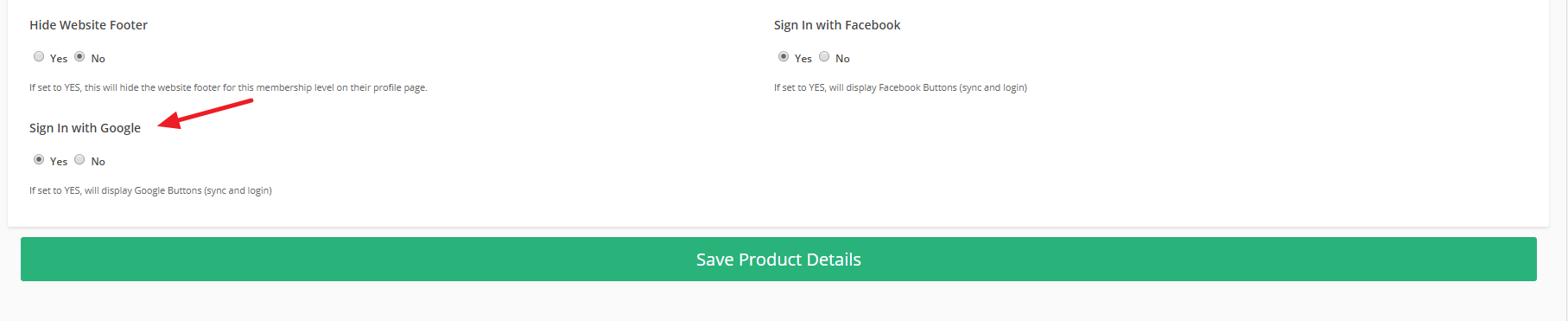
3. Make sure to Save Product Details, even if it's already set to Yes.
After setup, the Google login option appears throughout the website:
Members can use the signup option to create a membership with a Google account:

Existing members can sign in using a linked Google account:
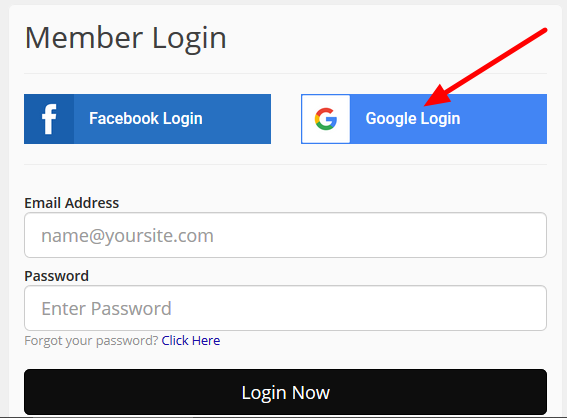
Google login works when the member signed up with that Google account or synced it from an existing member dashboard. A matching email address alone does not establish this link:
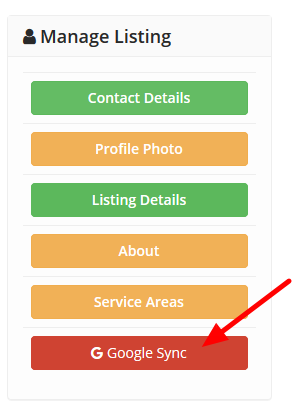
Members with a password can remove the Google connection by selecting Unsync. Accounts without a password must set one first, as explained below:
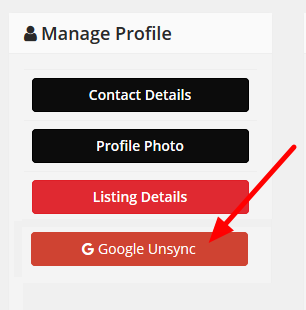
Recovering Access When the Account Is Not Linked
If the selected Google account is not linked to a member profile, a message titled Google Account No Longer Linked provides a password recovery link. Using the same email address for both accounts does not automatically link them. This message alone does not confirm whether a membership exists for that email address.
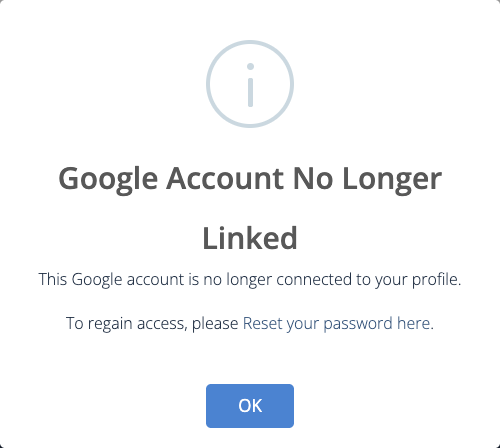
- Open the password recovery link in the message.
- Enter or confirm the email address associated with the existing membership.
- Submit the password reset request.
- For an existing account, follow the instructions in the password reset email to set a password.
- Sign in with the membership email address and password.
- Sync the Google account again from the member dashboard.
Once the account is synced, Google login can access that member profile again. The signup option is for creating a new membership, not for recovering an existing one.
Setting a Password Before Unsyncing
A member account must have a password before its Google connection can be removed. If no password has been set, clicking Unsync displays Set a Password First and leaves the social account linked.
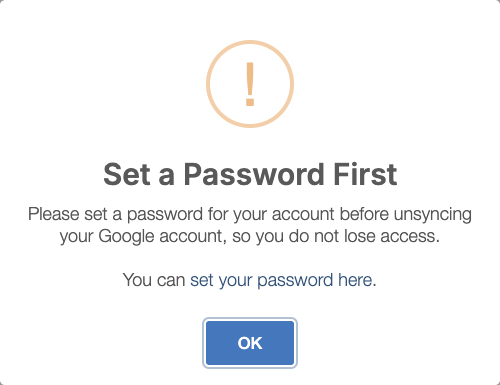
- Open the password link in the message. This logs the member out and opens password recovery with the member email address filled in.
- Submit the password reset request.
- Use the emailed link to set a password.
- Sign in with the membership email address and the new password.
- Return to the member dashboard and click Unsync for Google.
After unsyncing, the member can continue to sign in with the membership email address and password.
For additional login scenarios, see Common Mistakes with Google and Facebook Login.
