
Edit Checkout Pages: Translate Billing Country or State Fields Dropdown
Link: https://support.brilliantdirectories.com/support/solutions/articles/12000063347
Editing States or Provinces
To edit states or provinces, contact support by clicking here and request that the Advanced Setting ‘Use Custom States / Provinces List’ be enabled.
The system will use the website's local list of states/provinces in the drop-down menu when this setting is enabled.
This setting is useful when a custom list of states is required or to translate the states and provinces to a different language. When this is turned on, the admin can modify the states directly in the MySQL Database.
Editing Countries
Currently, the only way to translate country names is through the database.
Note: Contacting support is not required for this process.

Steps to Edit Countries and States / Provinces
1. Go to Developer Tools » MySQL Database:

2. Click the "Directory" option in the left sidebar. This will open the available tables that are inside the "Directory" folder:

3. In the left sidebar, find the table called "list_countries" to edit the Countries.
And find the table called "list_states" to edit States and Provinces.
4. Double-click the country name that needs to be translated (Step 2 below) and press Enter when finished.
Changes are saved automatically.

For example, to translate a country name into Spanish:

To go to the next page, click here:

Once the translation or editing has been completed, close the database and return to the Admin Dashboard » Refresh Live Website.
State Drop-downs
If the "Country" field is hidden in the form (for example, in the Checkout or Sign Up pages), the State/Province dropdown will not load any values unless a default country value is defined.
This happens because the State field is dynamically populated based on the Country field selection. If the country is not selected or preset, the system doesn't know which states to load.
How to Fix:
For example, if the state dropdown should show U.S. states, but the Country field is hidden, add the country code as the default value (US) to that field:
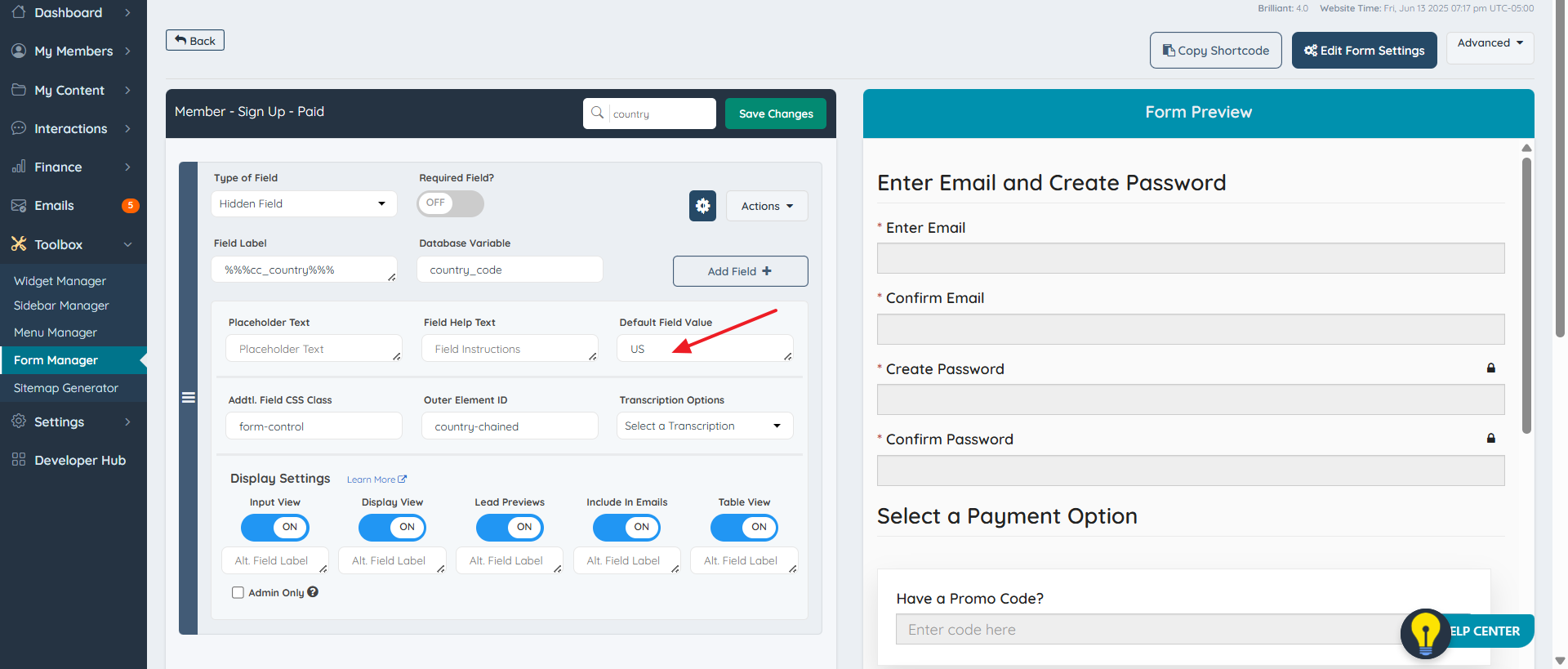
You can do this in the Form Manager:
Go to Settings > Form Manager.
Find the Member - Sign Up form (or the form you're editing).
Locate the country_code field (even if it's hidden).
Click the Gear icon to open the Field Settings.
Add
USas the Default Value.Save the form.
Once set, the state dropdown will correctly populate with U.S. states even if the Country field is hidden.
