
Workaround: Members Selecting Multiple Top Level Categories
Link: https://support.brilliantdirectories.com/support/solutions/articles/12000057947
The way that the software is designed, all members can only select one Top Level Category. There is a workaround however that will allow members to select Multiple Top Level Categories.
The site owner will need to create a General Top-level category that captures all of the members, then have the rest of the categories as sub and sub-subcategories.
Step 1 - Add Categories to CSV File
Edit the CSV file that has been used to upload the Category Structure and add a new column or create a new CSV. file for this process.

With this workaround, here’s the updated file structure:
- The old Top Level Categories now function as Sub-Categories.
- The old Sub-Categories now function as Sub-Sub-Categories.
We’re using “Hidden Top Category” as an example name, but you should replace it with something that fits your site. This label will appear on the front end in links, so choose a name that makes sense for your visitors.

Now proceed to re-upload the new category structure using the CSV file. To access this file, feel free to click on this link: http://managemydirectory.com/admin/member-category-structure-import-sample.csv or use the option that can be found on the screen after clicking on the Import Categories in the backend of the site. (see image below)
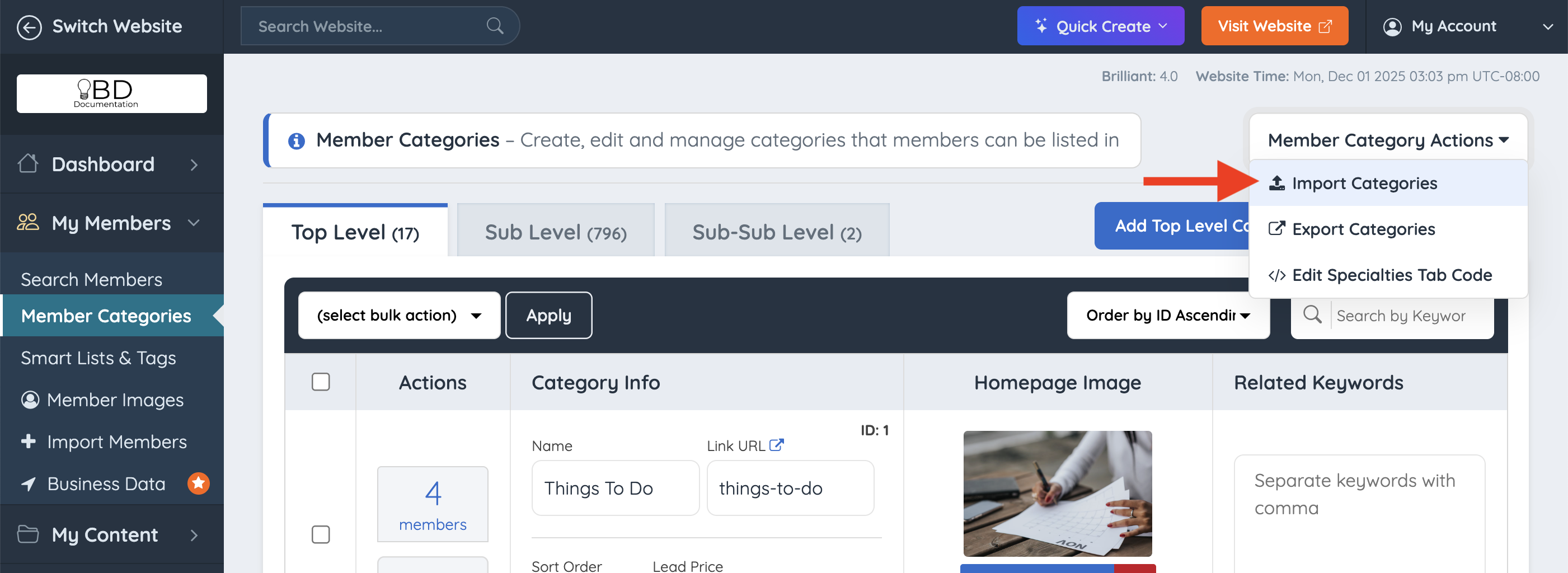
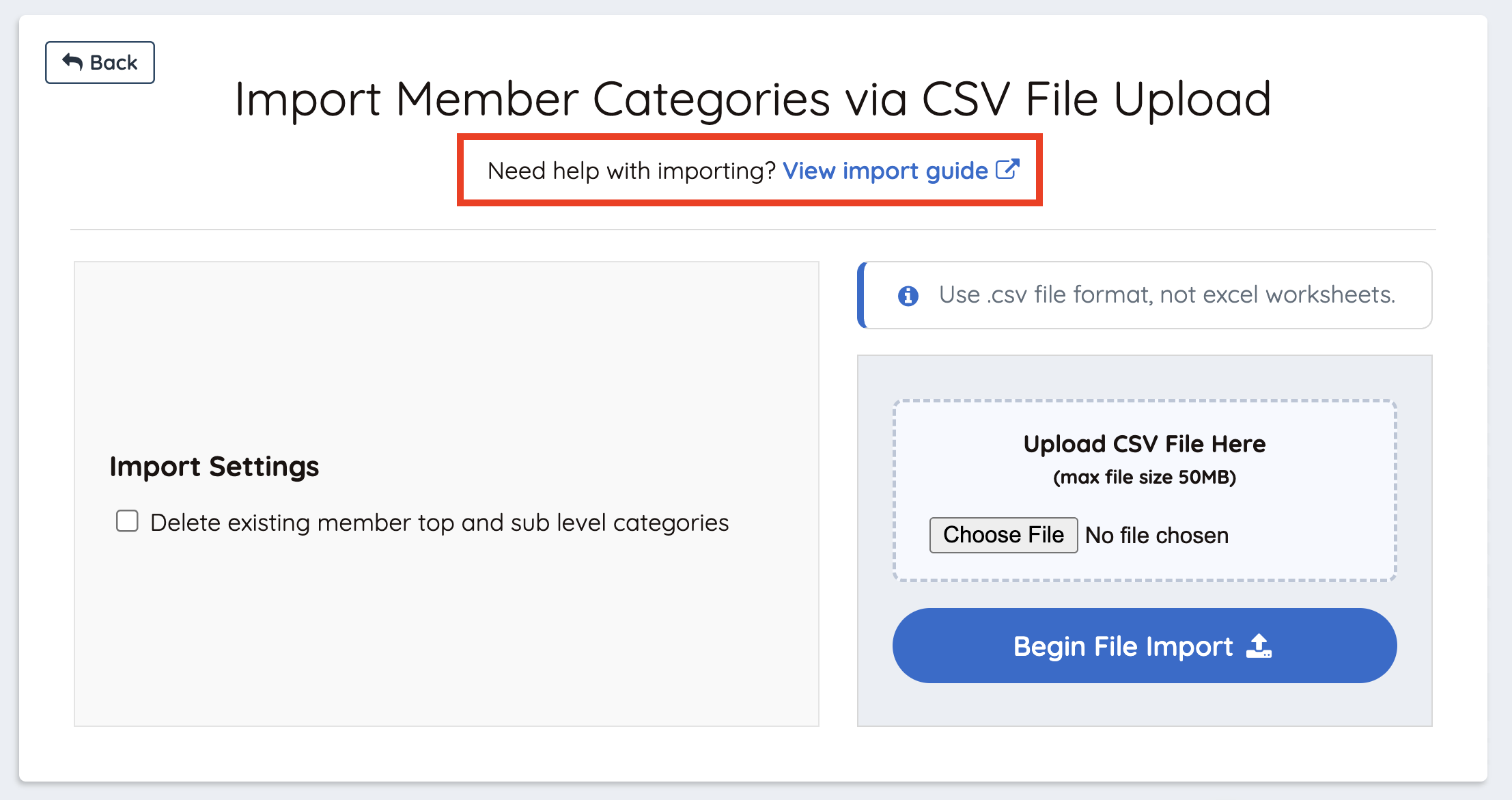
CRITICAL DATABASE IMPACT: Selecting the option to delete existing categories will permanently erase all current category assignments across every active profile. Existing members will be forced to manually re-select their categories. This workaround is recommended for brand-new directory setups containing zero or few members.
Step 2 - Pre-Select the Top Level Category
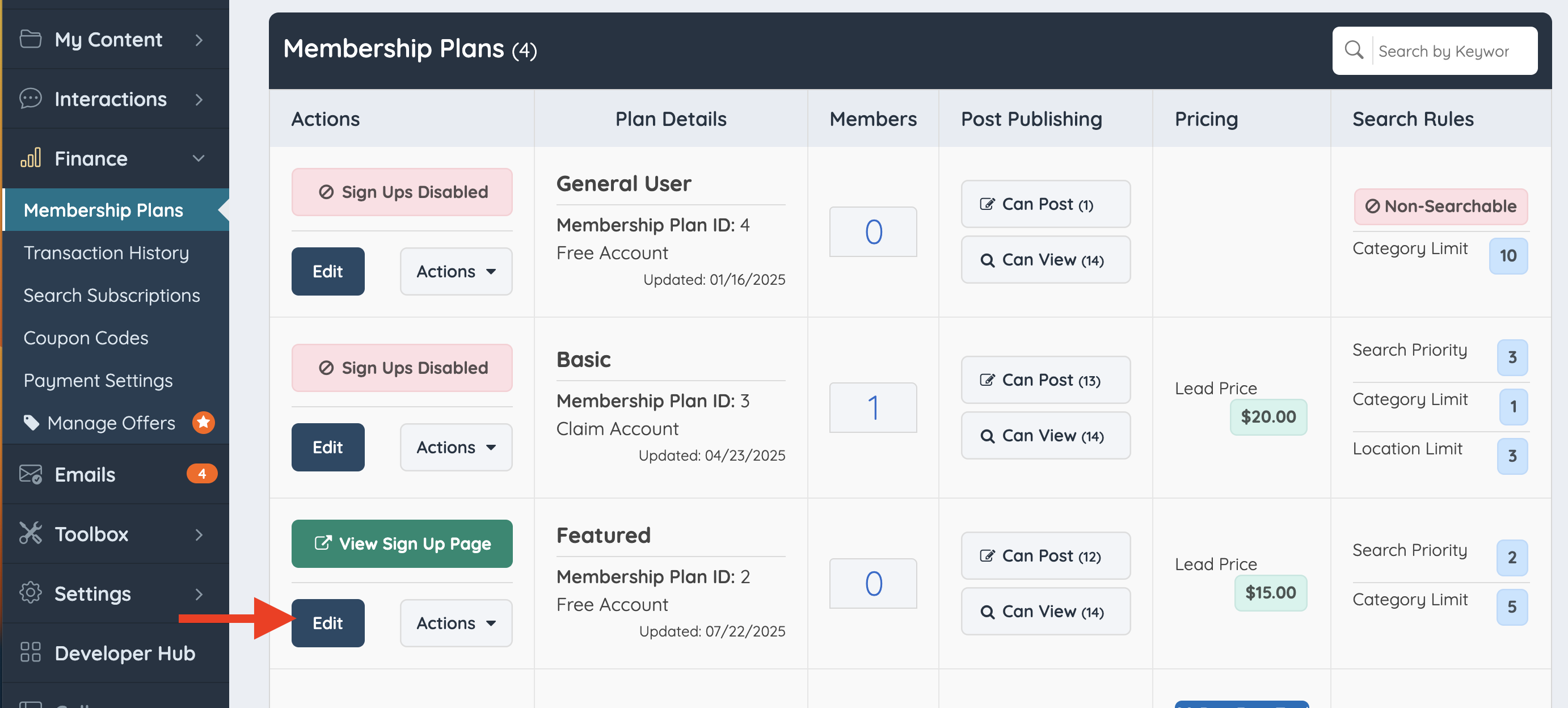
1. Finance » Membership Plans » Edit:
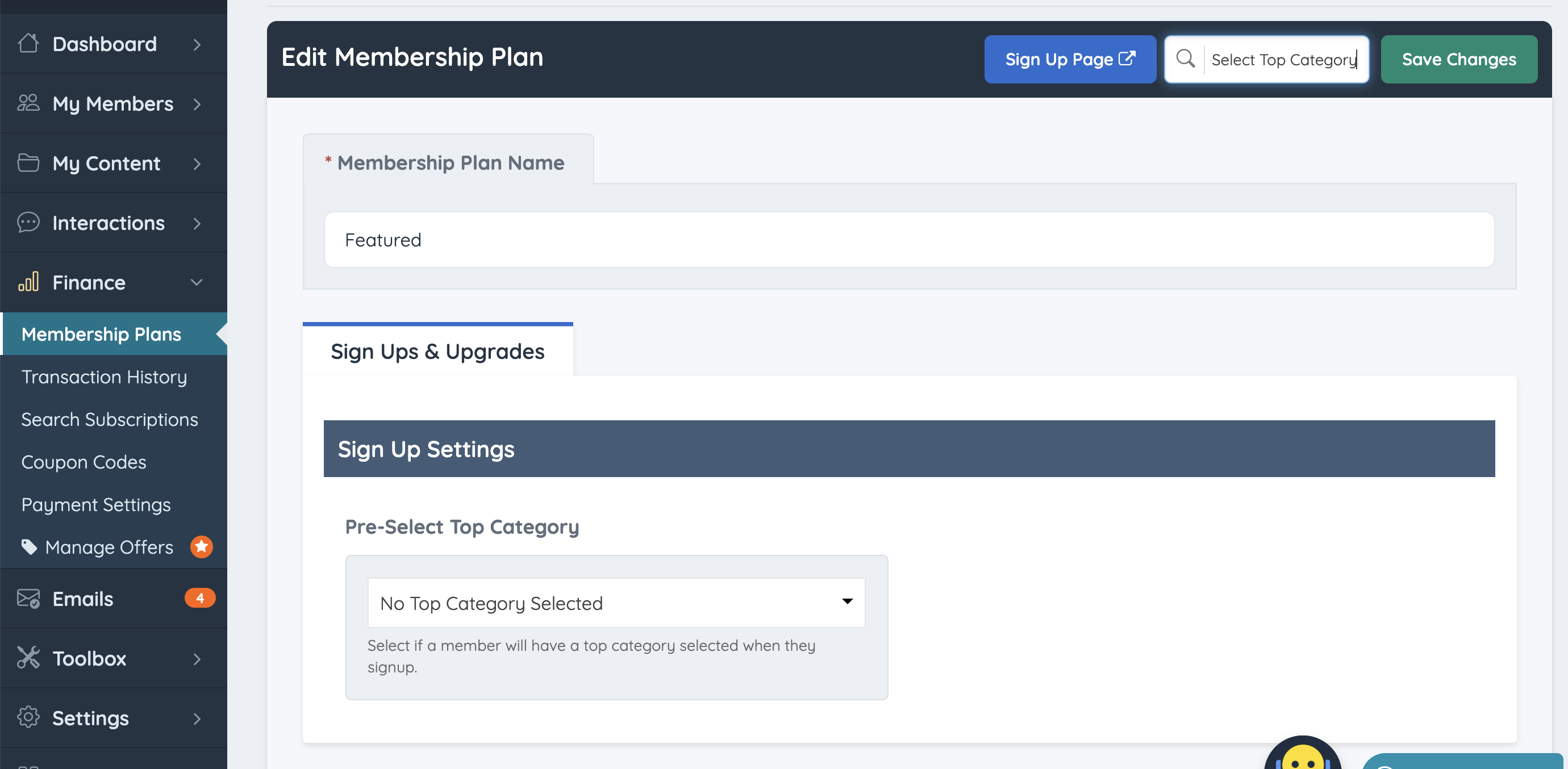
2. Once inside the "Edit" screen search for the setting inside the General tab » Pre-Select Top Category:
Step 3 - Hide the Hidden Top-Level Category
To get started, complete the following steps:
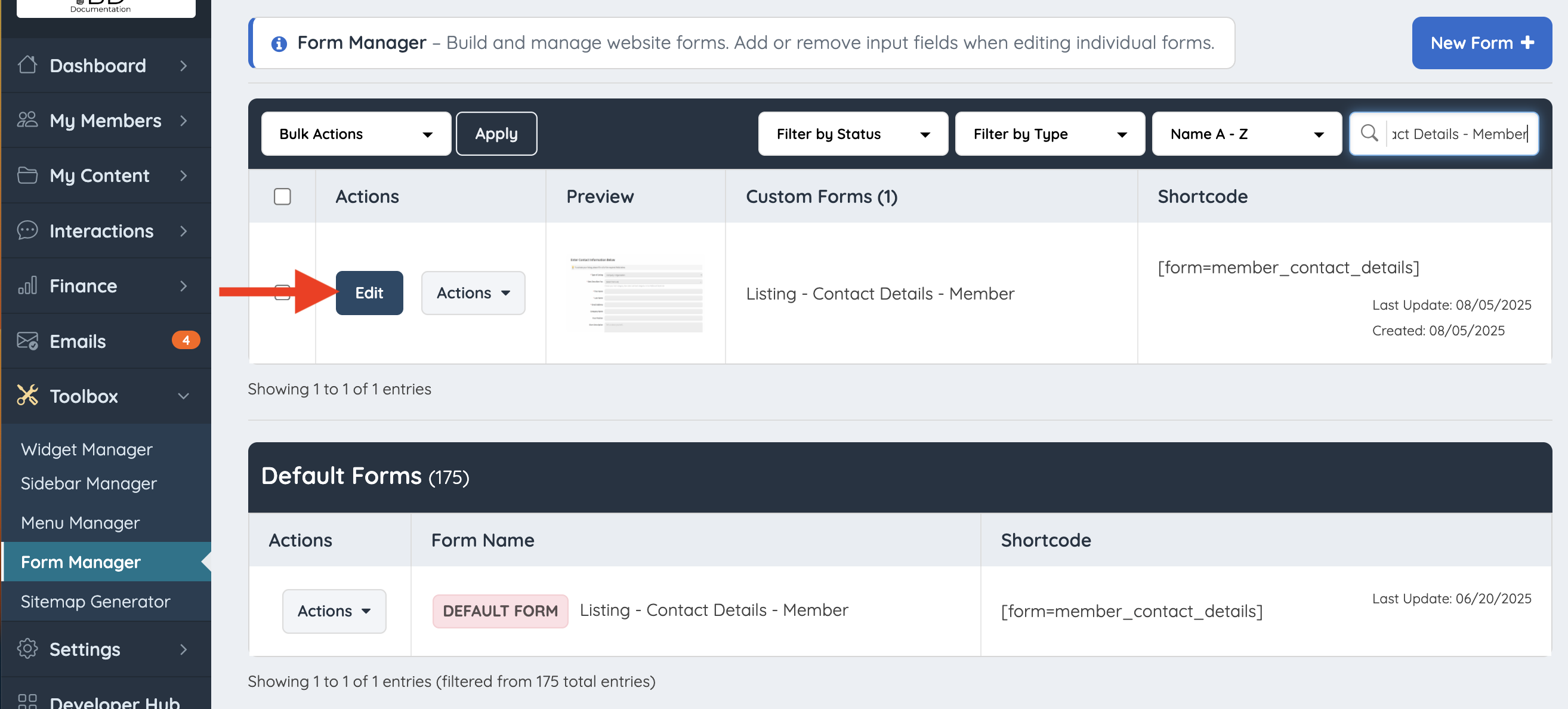
1. Navigate to Toolbox » Form Manager. Locate and edit the specific contact form utilized by the target membership plan (e.g., Listing - Contact Details)
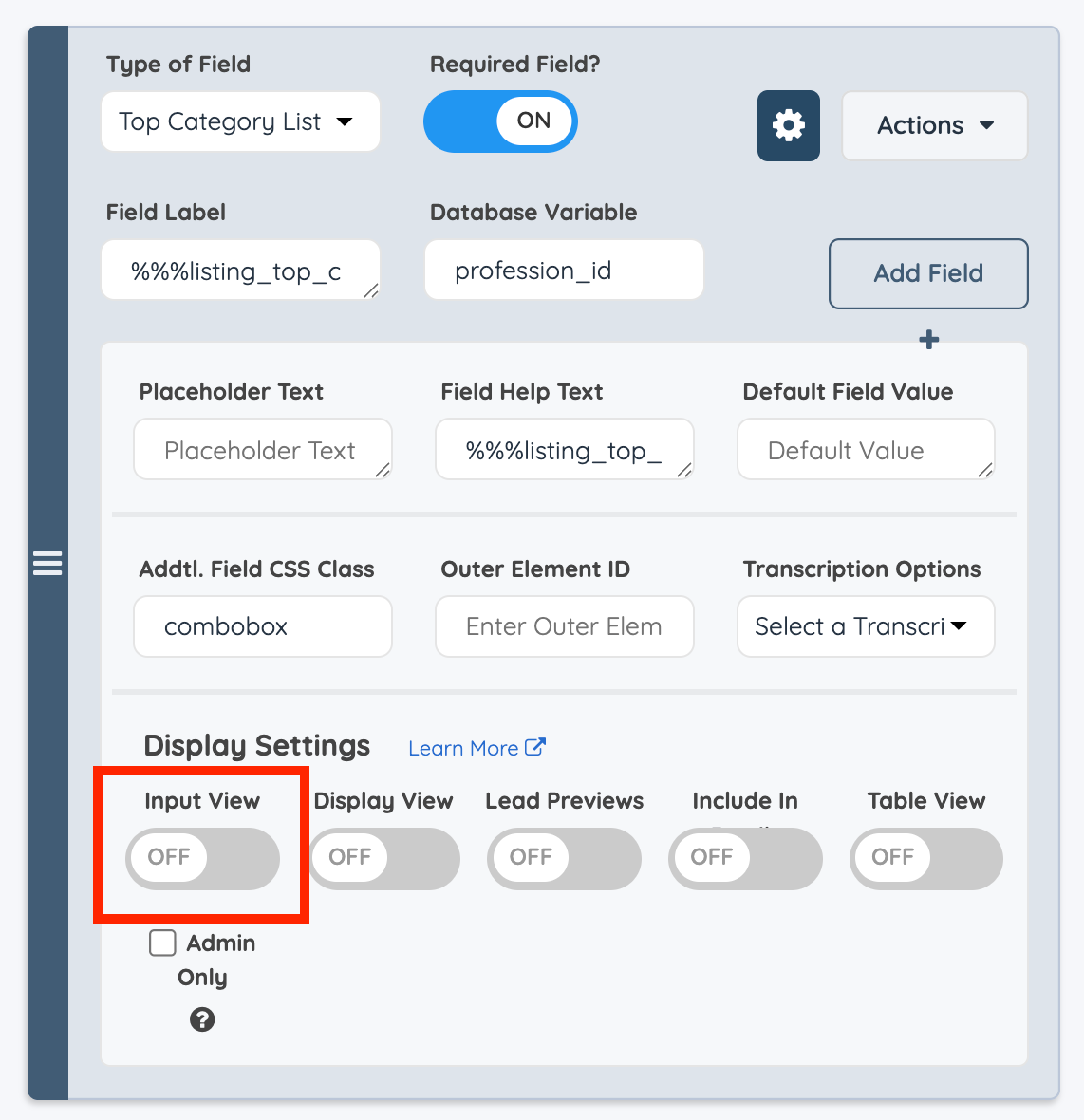
2. Locate the profession_id field row. Click the Gear Icon to open field settings and disable the Input View toggle to hide the single selection element from the member dashboard.
3. Save the form changes.
Member Form: Category Workaround
Logging in as a member, it is now possible to select more than one Category and Sub Category from the Listing Details Tab:

Homepage Search Module
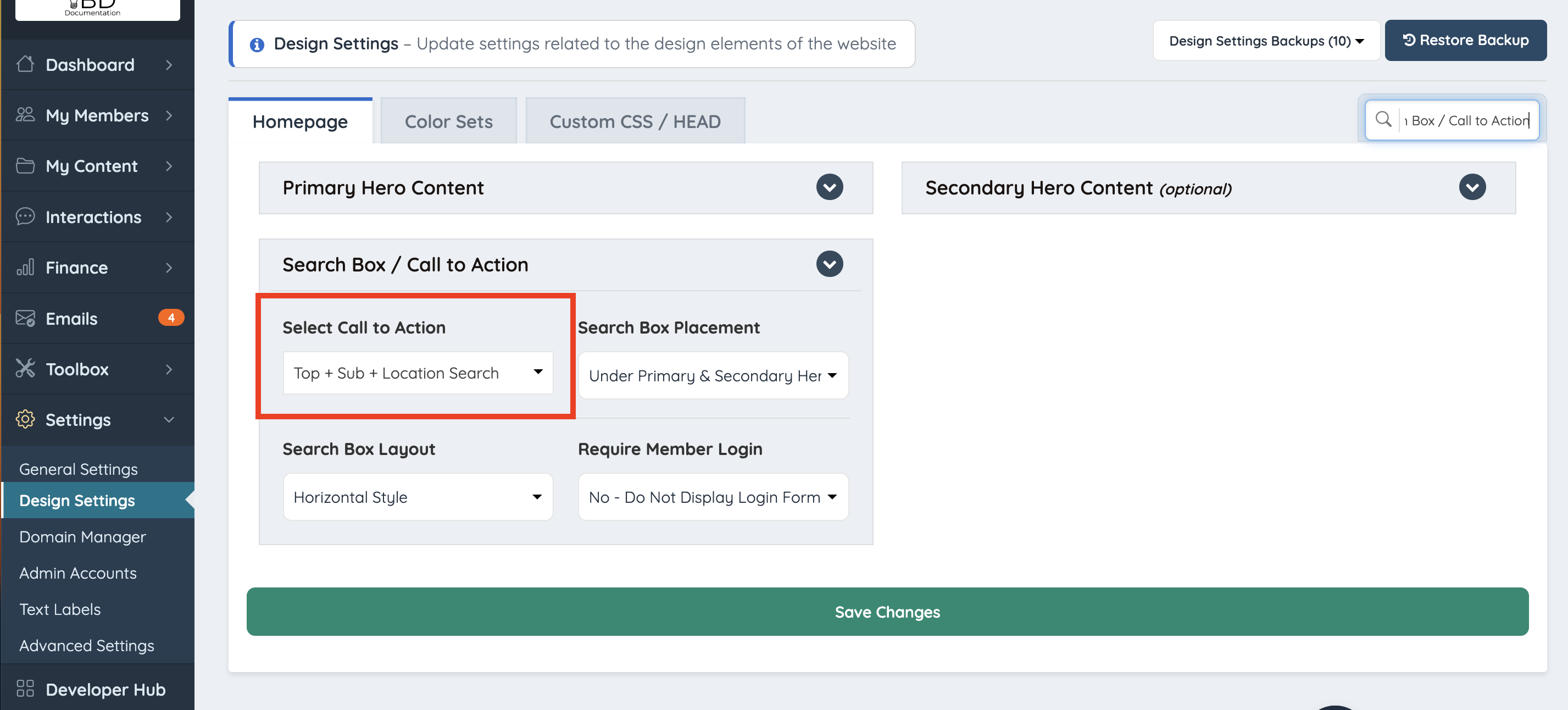
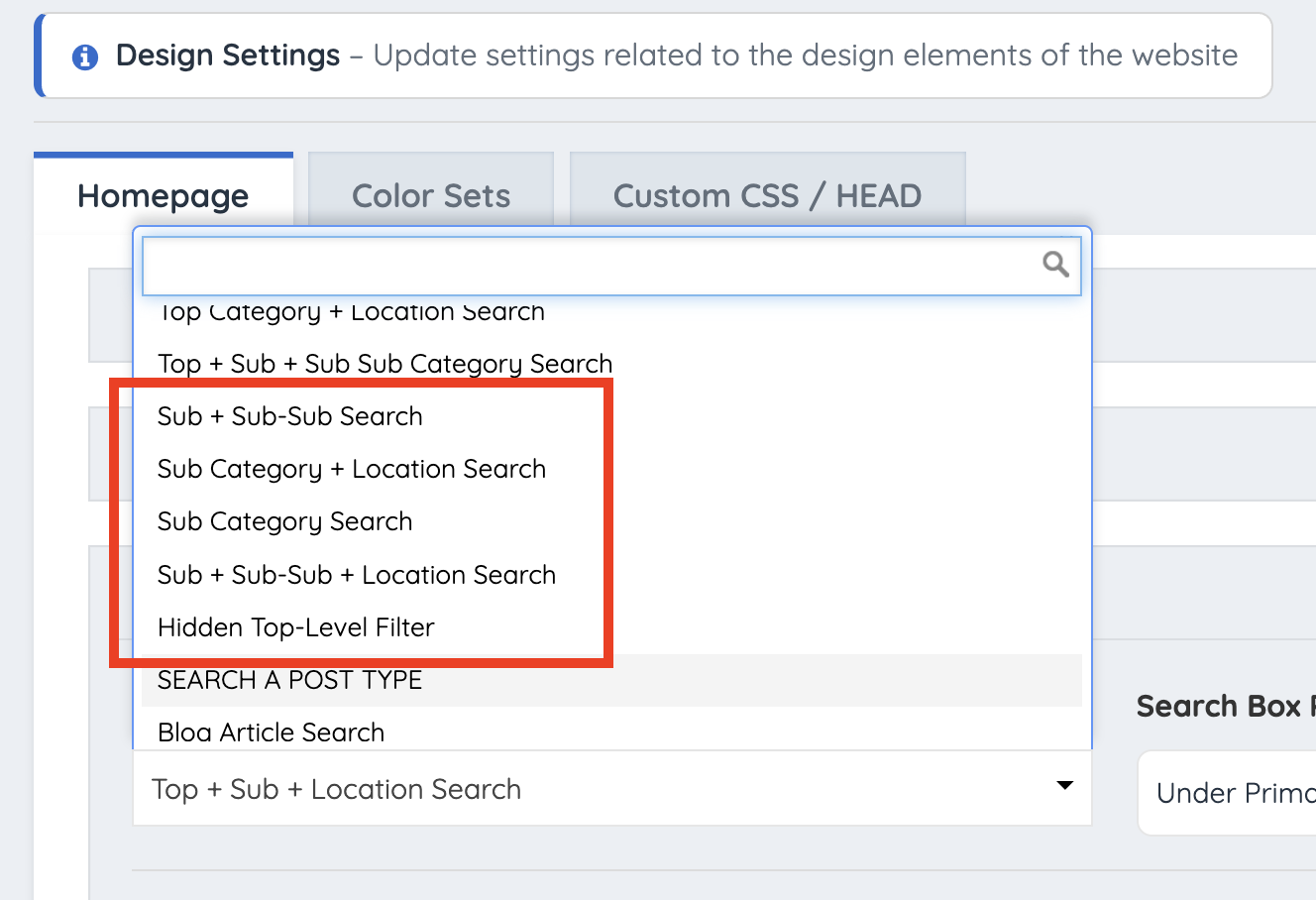
Navigate to Settings » Design Settings. Under the Search Box / Call to Action setting, select a call to action option that does not include a Top-Level filter.
Final Front-End Polish
To ensure the placeholder "Hidden Top Category" label does not visibly display on live member profiles, complete the final visibility steps outlined in the dedicated guide:
