
Adding Dashboard Header-Footer Custom HTML
Link: https://support.brilliantdirectories.com/support/solutions/articles/12000054643
This article explains how to add Custom Header and Footer content to the Member's Dashboard.
The system allows different header and footer widgets to be assigned to each membership plan.
The final result will look like this:

By default, this section can be activated by using the Froala Editor or selecting a custom widget.
It is best to use the Froala Editor, which fully supports rich content like links, media embeds, custom colors, and different fonts.
This article explains how to use both the custom widget and the Froala Editor.
Using the Froala Editor
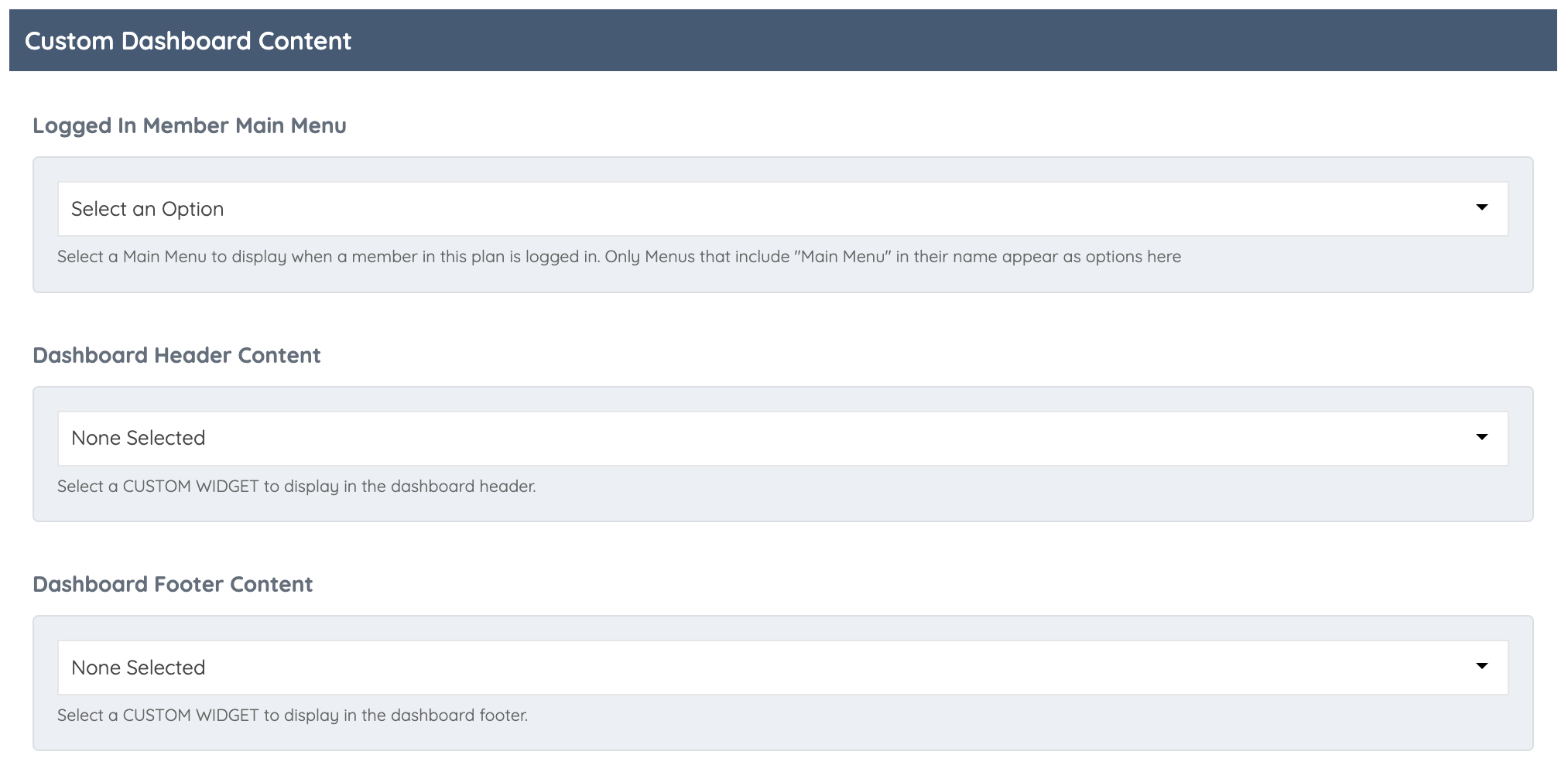
1. Go to Finance » Membership Plans » Member's Dashboard tab. Scroll down to the "Custom Dashboard Content" section and select "Use text Editor" in the Dashboard Header Content option.

2. Add the desired content, such as images, videos, or links.
3. Save the changes.

Follow the same steps if additional content needs to be added to the Dashboard Footer Content.
Using a Custom Widget
Follow these steps:
1. Go to Toolbox » Widget Manager.
2. Click "New Widget+"
3. Add the Widget's Name. Use a widget name that reflects its purpose, making it easier to remember what the widget is for . In this example, the widget is titled 'Custom Header - Dashboard' to clearly identify its function.
4. Add the Widget Code.
5. Make sure the Type of Widget is a "Widget".
6. Save the changes.

7. Then go to Finance » Membership Plans » Member's Dashboard tab. Scroll down to the "Custom Dashboard Content" section and select the custom widget created. Save the changes:

In the member's dashboard the widget will appear at the top because we created a widget for the header section:

Follow the same steps to add a footer widget, but select 'Dashboard Footer Custom HTML' in Step 7.

For additional questions or help setting this up, submit a ticket to support@brilliantdirectories.com or create a ticket HERE.
