
Quick Edit Module For Members
Link: https://support.brilliantdirectories.com/support/solutions/articles/12000046940
The Quick Edit section for the members can be reached by navigating to:
- My Members
- Search Members
- Quick Edit under Actions dropdown
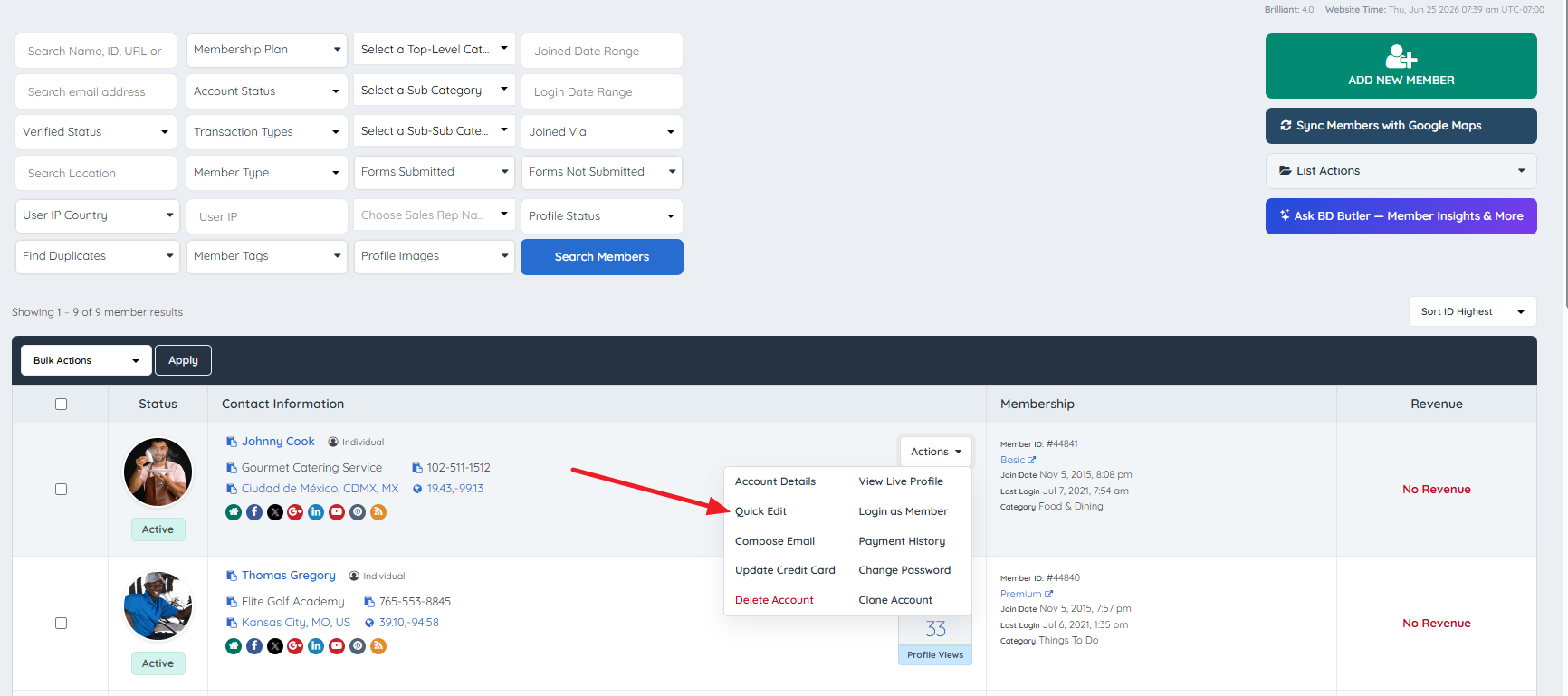
The Quick Edit module provides administrators with direct access to four management tabs for any individual member record without navigating away from the Search Members screen.
The four tabs are:
- Account Details
- Listing Settings
- Member Tags
- Advanced Options
Account Details
This tab is divided into two sections: Basic Information and Contact Information.
Basic Information
This section controls core account-level settings for the selected member.
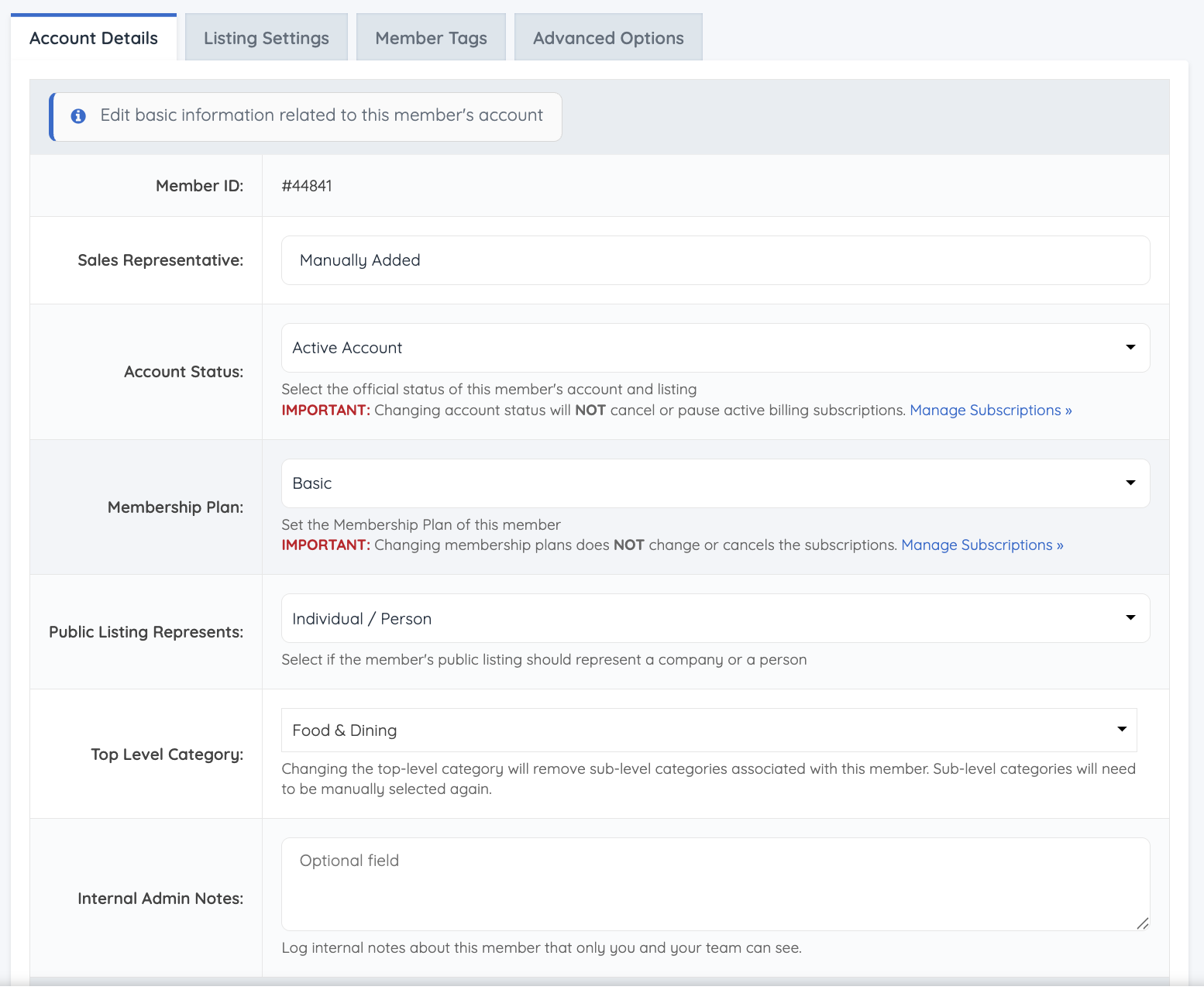
Member ID
The system displays the member's unique system-assigned ID. This field is read-only and cannot be edited.
Account Status
The following status values are available for assignment to a member account:
| Label | Description |
|---|---|
| Not Active | Manually set by the administrator to deactivate an account. |
| Active | Member profile is visible on the front end of the site. |
| Cancelled | Applied when a member has cancelled the account. |
| On Hold | Used during manual admin approval of new signups. |
| Past Due | Applied when the member has an overdue subscription payment. |
| Incomplete | Applied when a paid signup encounters an unaccounted error; the account is created but remains unpaid. |
A member profile is only live and publicly visible on the site when the status is set to Active.
⚠ CRITICAL CAUTION — Status Does Not Control Billing: Changing a member's Account Status does NOT cancel or pause any active billing subscription. Billing management must be handled separately through the subscription and payment system. A member set to "Not Active" or "Cancelled" may still be actively billed if the subscription is not independently cancelled.
Membership Plan
Displays all Membership Plans currently configured under Finance » Membership Plans. The administrator may reassign a member to a different plan from this field.
⚠ CRITICAL CAUTION — Plan Change Does Not Affect Billing: Changing the Membership Plan assigned to a member does NOT modify or cancel the member's existing subscription. Subscription management must be handled separately.
Public Listing Represents (Listing Type)
Determines how the member's public profile is displayed. Two options are available:
- Individual / Person — Profile displays the member's profile photo combined with first and last name.
- Company / Organization — Profile displays the company logo combined with the company name.
Top Level Category
Displays all Top-Level Categories configured under My Members » Member Categories. The administrator may reassign the member's primary category from this field.
Internal Admin Notes
A free-text field for administrator use only. Notes entered here are not visible to the member or to site visitors. This field is intended for internal record-keeping regarding the member account.
Contact Information
This section contains the member's direct contact and identity information.
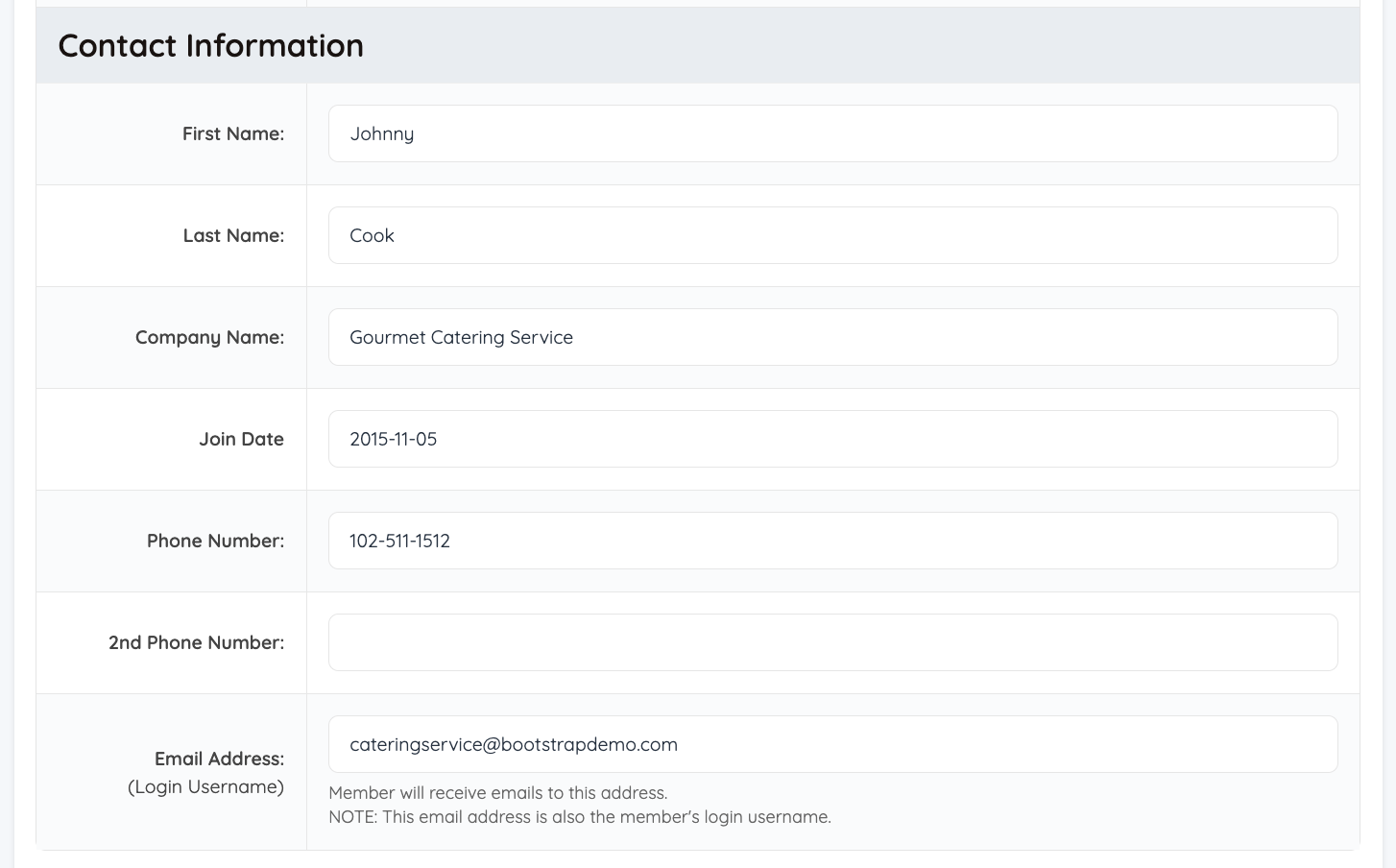
First, Last, and Company Name
Information entered in these fields is displayed directly on the member's public profile. Which fields appear publicly depends on the Listing Type setting (Individual vs. Company) configured in the Basic Information section above.
Join Date
The member's recorded join date can be reviewed and edited from this field.
Phone Number and 2nd Phone Number
Primary and secondary phone numbers for the member can be added or updated here.
Email Address
The member's email address can be added or updated here.
⚠ CRITICAL CAUTION — Email Is the Login Username: The email address entered in this field also serves as the member's login username. Changing this value will change the credentials required for the member to log in to the site. The affected member should be notified of any email address change.
Listing Settings
This tab contains visibility, location, and lead routing settings for the selected member.

Parent ID
ADD-ON REQUIRED — Multi-Member Manager: The Parent ID field is only available if the Multi-Member Manager add-on is active on the site. Without this add-on, this setting will not appear.
When active, this field allows the administrator to assign, change, or remove a parent member ID. Assigning a parent ID converts the selected member into a sub-account under the designated parent.
To assign a parent ID, click the Change Parent Member button.

A dropdown search field appears, search by member ID to locate the intended parent. Select the appropriate parent member from the results.

⚠ CRITICAL CAUTION — Eligibility Restriction: Only Active members who share the same Membership Plan AND have the "Sub Accounts" feature enabled within their Membership Plan Settings will appear as assignable parent options. Members not meeting both criteria will not appear in the search results.

Stock Image Libraries
⚠ ADD-ON REQUIRED — Stock Photo Library for Posts: This option is only visible if the Stock Photo Library for Posts add-on is active on the site.
Homepage Featured Member Order
⚠ ADD-ON REQUIRED — Featured Members On Homepage: This setting is only available if the Featured Members On Homepage add-on is active on the site.
When active, this field allows the administrator to specify the display position of the member within the homepage streaming widget.
⚠ CRITICAL CAUTION — Unique Position Enforcement: The system does not permit two members to occupy the same featured position. Verify existing position assignments before making changes.
Verified Member?
This toggle controls whether the member is displayed with a verified icon badge on their public listing. Setting this to Yes activates the badge display.
Full reference: How To Verify A Listing
List in All Locations?
⚠ ADD-ON REQUIRED — Multi-Location Listing: This setting is only available if the Multi-Location Listing add-on is active on the site.
When active, this toggle determines whether the member's profile is listed across all available site locations.
Max. Location Limit
⚠ ADD-ON REQUIRED — Multi-Location Listing: This setting is only available if the Multi-Location Listing add-on is active on the site.
When active, this field allows the administrator to override the maximum number of locations this specific member can list, independent of what is defined in the member's Membership Plan settings.
CC Lead Emails to
Multiple email addresses can be entered in this field. All addresses entered will receive lead notification emails alongside the member. This is intended for use cases where a member represents a company and lead emails need to be routed to additional internal recipients such as sales representatives.
Member Tags
This tab allows administrators to add or remove tags assigned to the individual member record.
Full reference: Member Tags & Tag Groups

Advanced Options
This tab contains SEO and code injection fields that apply exclusively to the selected member's individual profile page. These settings do not affect site-wide SEO configurations.

⚠ NOTE — SEO Fields Are Optional: All SEO metadata fields in this tab (Meta Title, Meta Keywords, Meta Description, Social Meta Title, Social Meta Description) can be left blank. The platform's existing SEO templates already supply valid metadata to search engines. These fields are intended for profile-specific overrides only.
Listing Custom HEAD Code
A custom code block that is rendered only within the <head> section of the selected member's profile page. This field does not affect any other pages on the site.
Listing Custom FOOTER Code
A custom code block rendered in the footer section of the selected member's profile page only.
Listing Custom CSS Code
Custom CSS entered here applies exclusively to the selected member's profile page.
⚠ NOTE: Do not include <style> tags in this field. The system applies the CSS directly; wrapping tags will cause rendering issues.
Customize Listing URL
The member's profile URL slug can be edited in this field. URLs entered here should be relative, the full site domain is not required and should not be included.
The system also provides an option to fetch the URL from the active SEO template, which resets the slug to match the current SEO template configuration.
Fetching the URL also applies the current name-formatting rules: apostrophes are removed, most other punctuation and spaces become hyphens, and underscores are preserved. For example, Ruby’s Clay Studio becomes rubys-clay-studio in the name portion of the URL. This differs from entering a deliberate custom URL. See How To Customize The Member Profile URL Structure for examples and when existing URLs change.

⚠ CRITICAL CAUTION — Dynamic URL Overwrite Risk: If a member later changes their location or categories, the system will automatically update their profile URL, overwriting any custom URL that was previously set. To prevent this automatic override, check the lock checkbox displayed beneath the URL field after entering a custom slug.
Listing Meta Title
A custom meta title for the selected member's profile page. This field is optional; the platform's SEO templates provide baseline metadata when this field is left blank.
Listing Meta Keywords
Custom meta keywords for the selected member's profile page. This field is optional.
Listing Meta Description
A custom meta description for the selected member's profile page. This field is optional.
Listing Social Meta Title
A custom social media meta title used when the member's profile is shared on social platforms. This field is optional.
Listing Social Meta Description
A custom social meta description used when the member's profile is shared on social platforms. This field is optional.
