
Setting Up PayFast (South Africa) As Your Payment Gateway
Link: https://support.brilliantdirectories.com/support/solutions/articles/12000043027
For Brilliant Directories users in South Africa, PayFast is the recommended payment gateway solution.
To configure PayFast as the payment gateway, the Merchant ID and Merchant Key from the PayFast account are required. For the most recent information about locating these credentials, refer to the PayFast documentation on this topic.
Creating the PayFast Sandbox Environment
Before processing live transactions, test payments can be completed using the PayFast sandbox environment.
To access the sandbox, navigate to https://sandbox.payfast.co.za and sign in using the PayFast account email address.
After signing in, the sandbox environment provides a Merchant ID, Merchant Key, Buyer Email, and Buyer Pass for testing purposes. These credentials should be saved, as they will be required during the test payment process.
Making Test Transactions
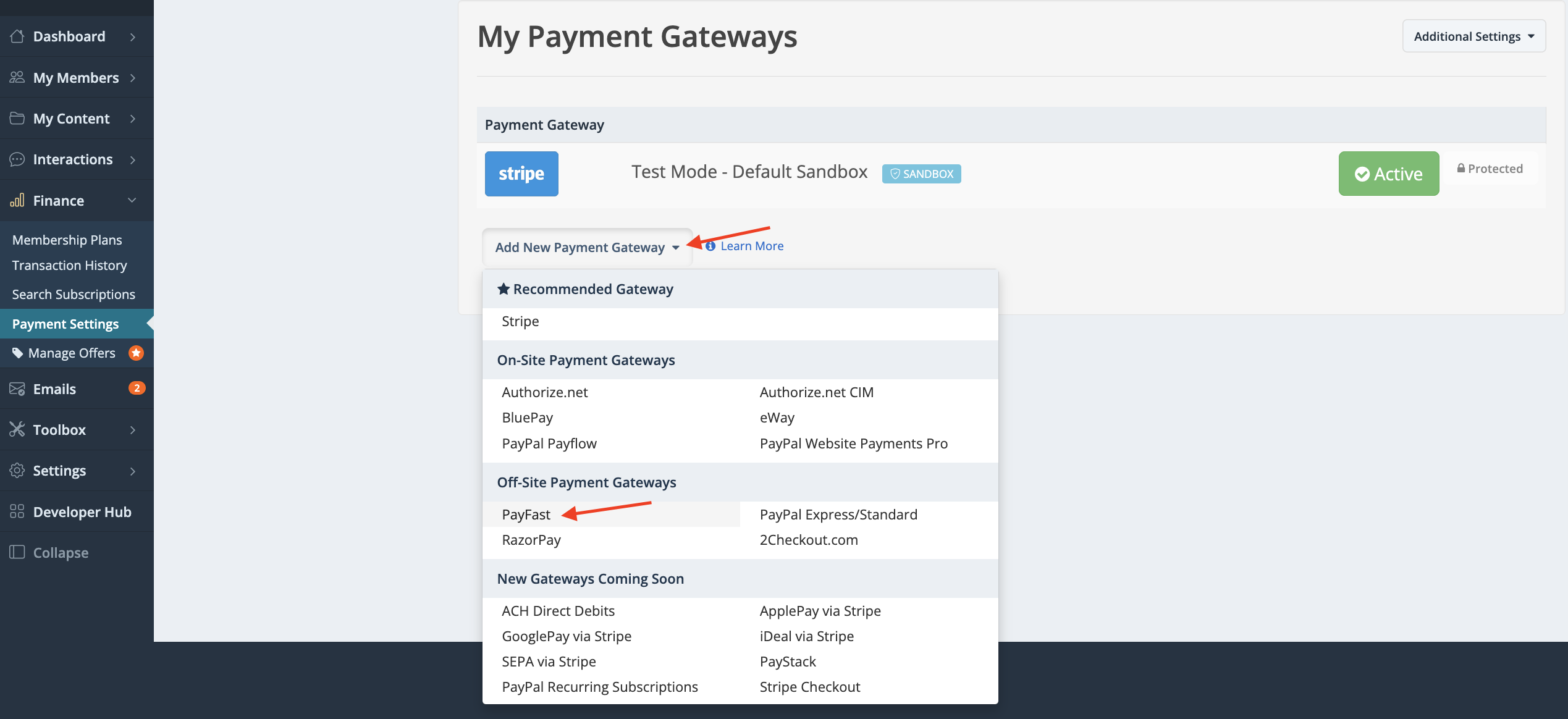
Next, select PayFast as the payment gateway in the Brilliant Directories Admin by navigating to Finance >> Payment Settings and selecting PayFast:
Enter the Merchant ID and Merchant Key provided by the PayFast sandbox account, then set Enable Test Mode to Yes.

After saving the credentials, a test payment can be processed.
To complete a test payment, create a member account on the website using the standard registration process.
The member should be redirected to PayFast and automatically logged into the test account. If automatic login does not occur, the Buyer Email and Buyer Pass provided by the PayFast sandbox account can be used to access the test account manually.
After completing the test payment in PayFast, the member should be redirected back to the website and see a successful payment confirmation message. Once testing has been completed successfully and the website is ready to accept live payments, update the payment gateway settings by replacing the sandbox Merchant ID and Merchant Key with the live PayFast credentials, and set Enable Test Mode to No.
Accepting Credit Cards
PayFast accounts can accept both international and domestic Visa and Mastercard payments. However, PayFast account verification is required before credit card payments can be accepted. For more information, refer to the PayFast account verification documentation.
Issuing Refunds
PayFast does not provide an automatic or programmatic method for issuing refunds. As explained in the PayFast documentation, refunds must be requested by contacting PayFast Support.
IMPORTANT NOTE: The Brilliant Directories Admin area includes an option to mark payments as refunded. When PayFast is used as the payment gateway, this option only updates the transaction status for internal reporting purposes and does not initiate an actual refund through PayFast.
When processing a refund, it is recommended to first request the refund through PayFast. After the refund has been confirmed by PayFast, the invoice can then be marked as refunded using the Refund option in the Brilliant Directories Admin area. This provides an internal record that the payment was refunded.
Minimum & Maximum Transaction Amounts
The minimum and maximum transaction amounts available through PayFast vary depending on the account. These limits can be reviewed by navigating to Settings >> Payment Methods within the PayFast account.
At the time this article was written, recently launched and verified accounts allowed Credit Card, EFT, Debit Card, and Masterpass payments with a minimum transaction amount of R 5.00 and a maximum transaction amount of R 10,000.00 per transaction. Other payment methods may have different limits.
When testing transactions or configuring pricing on a website, PayFast account transaction limits should be considered to help prevent processing errors.
