
Member Leads » Lead Settings » Lead Form
Link: https://support.brilliantdirectories.com/support/solutions/articles/12000008053
The Lead Form settings control what the lead forms show to visitors (the Get Matched form and the contact forms on member profiles) and a few site-wide lead limits.
Open the Lead Form Settings
- Navigate to Interactions » Member Leads (1).
- Click Lead Settings (2) at the top of the page.
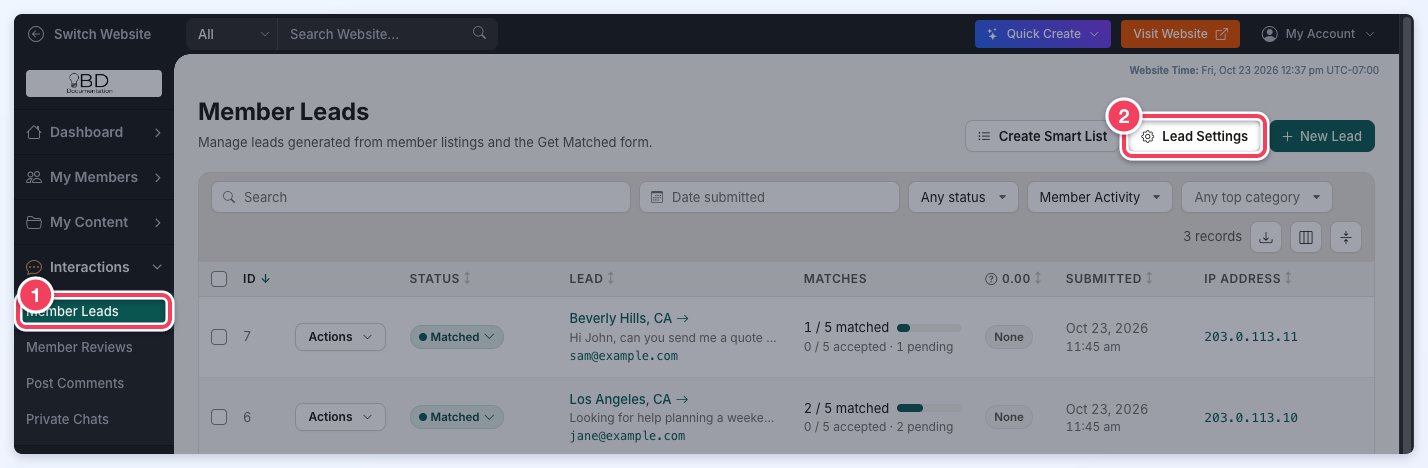
The Lead Settings drawer opens with the Lead Form sections in its side menu: General, Location Fields and Category Fields.
If the Automatic Lead Matching Add-On is active, the drawer has a General and a Lead Rules tab instead. The site-wide limits are on the General tab (see How Does Auto-Matching Work?), and the form settings belong to each rule: open Lead Rules and click Edit beside the rule (the Main Rule is the default) to reach its Lead Form sections.
Click Save at the top of the drawer to keep any changes.
General
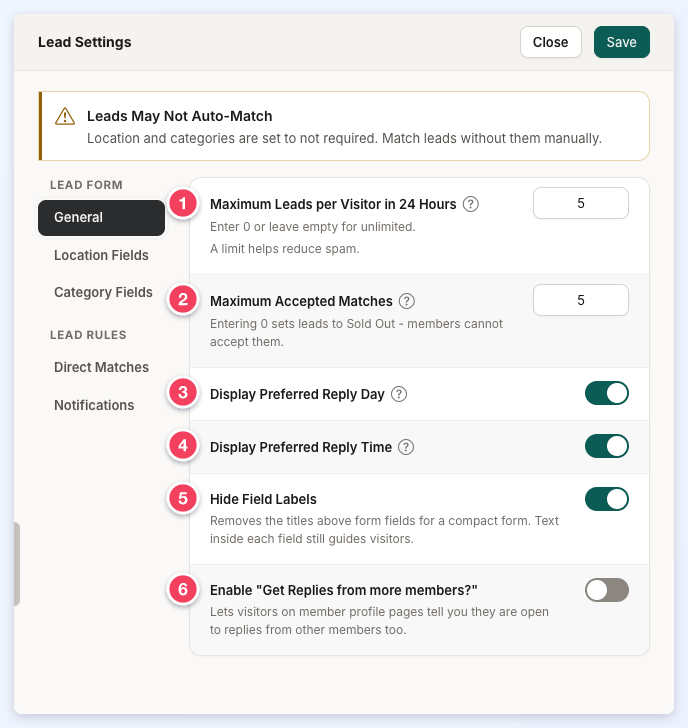
- Maximum Leads per Visitor in 24 Hours: The total number of leads one visitor can submit in 24 hours, tracked by IP address. Enter 0 or leave it empty for unlimited. Once a visitor reaches the limit, the form shows the alert Daily Submission Limit Reached. That alert is the text label daily_getmatched_limit_reached, which can be edited in Settings » Text Labels.
- Maximum Accepted Matches: The most members who can accept or purchase each lead after it has been matched with them, whether directly or automatically. Once the limit is reached, the lead is Sold Out. Entering 0 sets leads to Sold Out, so members cannot accept them.
- Display Preferred Reply Day: Lets visitors pick the day they want to hear back.
- Display Preferred Reply Time: Lets visitors pick the time of day they want to hear back.
- Hide Field Labels: Removes the titles above the form fields for a compact form. The text inside each field still guides visitors. When labels are hidden, the word Required is shown in required fields; it can be edited from its text label.
- Enable "Get Replies from more members?": Lets visitors on member profile pages say they are open to replies from other members too. It applies only to the lead forms on profile pages.
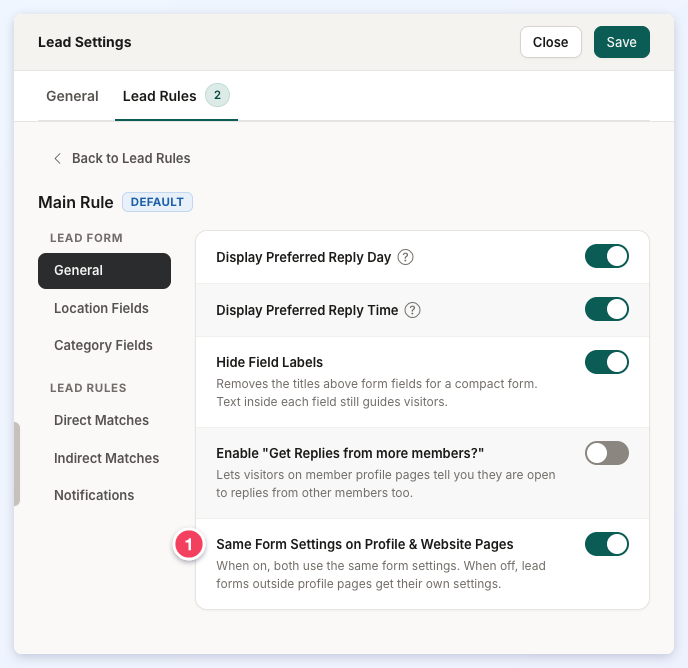
With the Automatic Lead Matching add-on, settings 1 and 2 are on the General tab of the Lead Settings drawer, and each rule's General section has one more setting, Same Form Settings on Profile & Website Pages (1). When it is on, the lead forms on profile pages and on other website pages (such as the Get Matched page) use the same settings. When it is off, the lead forms outside profile pages get their own settings: the side menu splits into Profile Pages and Website Pages, each with its own General, Location Fields and Category Fields sections.
Location Fields
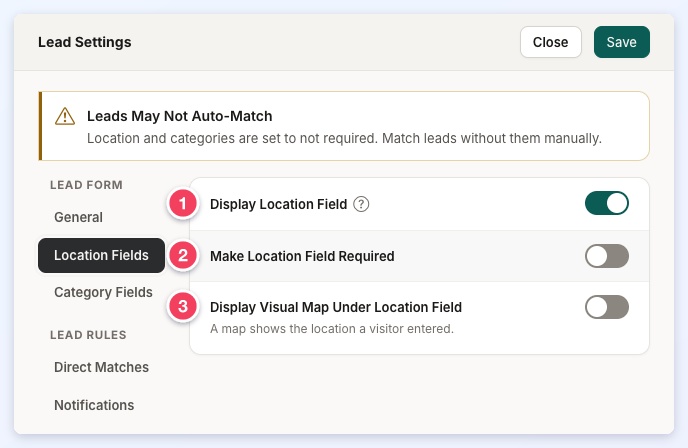
- Display Location Field: Shows the location field on the lead form.
- Make Location Field Required: Visitors must enter a location to submit the form.
- Display Visual Map Under Location Field: Shows a map of the location the visitor entered below the field.
Location and categories are the two ways leads are matched with members. With Automatic Lead Matching, keep at least one of them on and make at least one of them required. When neither is required, the drawer shows a Leads May Not Auto-Match notice.
Category Fields
Turn on Display Category Fields (1) to show the category fields on the lead form. The other category settings appear once it is on.
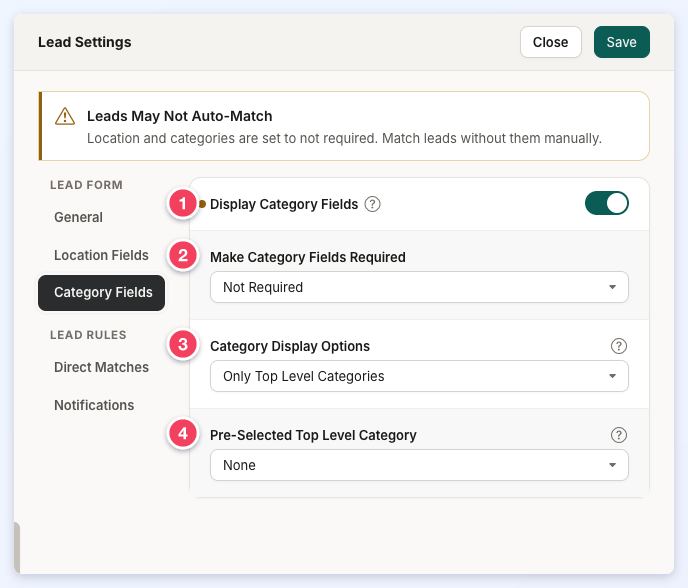
- Make Category Fields Required: All Category Fields, Only the First Category Field or Not Required.
- Category Display Options: Which category levels the form shows: Only Top Level Categories, Top & Sub Level Categories, Top & Sub & Sub-Sub Level Categories, Only Sub Level Categories, or Sub & Sub-Sub Categories. On a profile page the category fields list only that member's categories; on other pages they list every category on the website.
- Pre-Selected Top Level Category: The category the form starts on, so visitors have one less step. Visitors can still pick a different one. A Pre-Selected Sub Level Category and a Pre-Selected Sub-Sub Level Category appear for the display options that include those levels.
When Only Sub Level Categories or Sub & Sub-Sub Categories is chosen, Show Sub Categories from Selected Top Categories limits the list to the sub categories of the top categories ticked there. Leave it empty to list the sub categories of every top category.
The category fields follow the order set by the website's Default Category Sort Order setting.
