
How Does Auto-Matching Work? (Lead Settings » General)
Link: https://support.brilliantdirectories.com/support/solutions/articles/12000009581
The following documentation is exclusively for the Automatic Lead Matching add-on (Advanced Leads Package).
Auto-matching relies on the auto-matching settings and the search inputs submitted by the visitors of the website. Here are the core concepts of how auto-matching works:
- The engine only matches members that fit the lead's criteria. If a visitor selects a location such as San Francisco and only 2 members are located in San Francisco, only those two members are matched (as long as they also fit the other criteria the visitor chose, such as categories).
- Membership Level Sort Order is taken into consideration. If there are three premium members in San Francisco, those three premium members are always auto-matched ahead of the free members that are also located in San Francisco.
- For accurate auto-matching, the lead form should ask for a category, a location, or both. A lead form that does not require a location or a category limits the engine.
- Auto-matching works the same way as the member search on the website. The system runs a search just like a visitor would and auto-matches leads from the top of the results down.
- Members without a real email address (a blank or placeholder email) are skipped, because they cannot receive the lead.
Auto-Matching Lead Settings
The site-wide auto-matching settings are in the Lead Settings drawer:
- Navigate to Interactions » Member Leads (1).
- Click Lead Settings (2) at the top of the page.
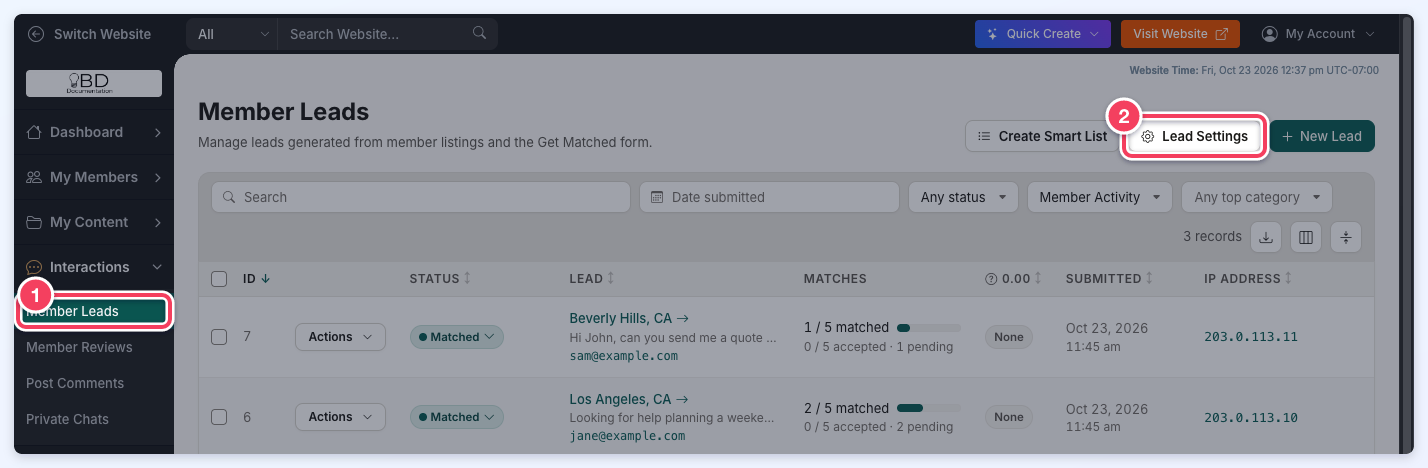
The Lead Settings drawer opens on its General tab, which holds the following settings:
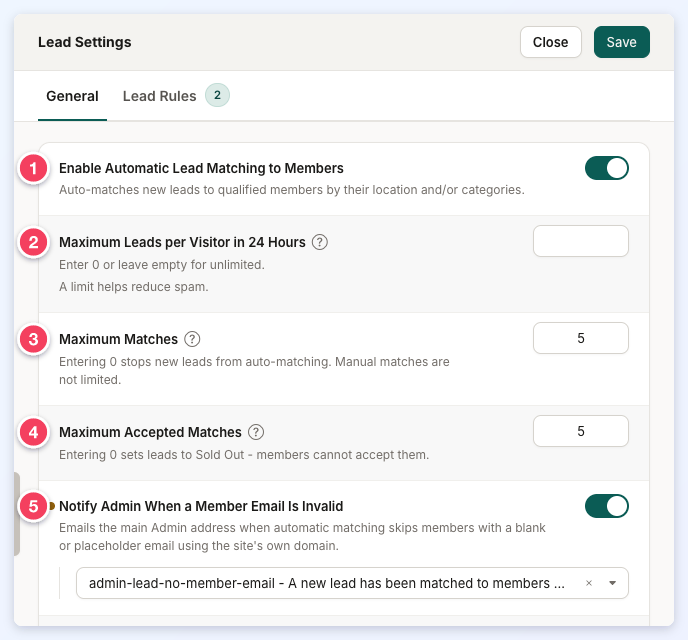
- Enable Automatic Lead Matching to Members: Turn this on to auto-match new leads to qualified members by their location, their categories, or both. Turn it off to match every lead manually from the lead's Find Matches tab.
- Maximum Leads per Visitor in 24 Hours: The total number of leads one visitor can submit in 24 hours, tracked by IP address. Enter 0 or leave it empty for unlimited. A limit helps reduce spam.
- Maximum Matches: The most members a single lead is sent to automatically. Set it to 3 and a lead is auto-matched with up to 3 members. If no member meets the search criteria, nobody is matched and the lead stays Unmatched. Entering 0 stops new leads from auto-matching. Manual matches are not limited by this setting.
- Maximum Accepted Matches: The most members who can accept a lead. This is helpful when Maximum Matches is set to 5 or more and the visitor should not be contacted by every matched member. Once the limit is reached, the lead's status changes to Sold Out. Entering 0 sets leads to Sold Out, so members cannot accept them.
- Notify Admin When a Member Email Is Invalid: Turn this on to email the main admin address when automatic matching skips members with a blank or placeholder email (an address at the site's own domain). When it is on, choose the email template to send in the field below it.
Click Save at the top of the drawer to keep the changes.
Enable Automatic Lead Matching to Members and the visitor limit used to be in the Main Rule. They now apply to the whole site from the General tab. The old Search Radius setting is no longer shown: automatic matching uses the website's default search radius.
Lead Rules
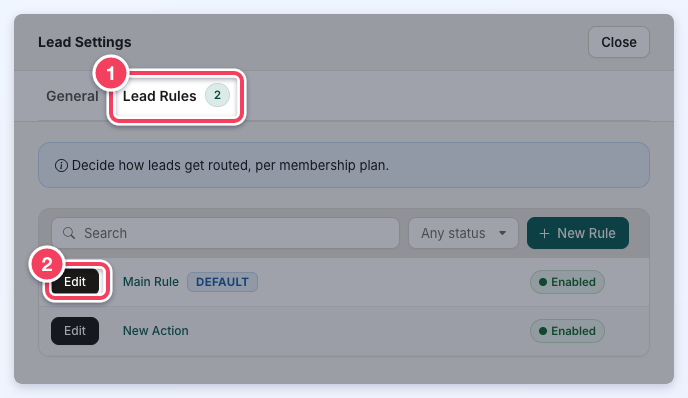
The Lead Rules tab (1) lists the website's lead rules. The Main Rule is the default rule, and additional rules can apply to specific membership plans. Click Edit (2) beside a rule to choose whether its members receive direct leads immediately, whether indirect leads (from the Get Matched form, landing pages or the API) are auto-matched, the match status and the emails members receive.
Related Documentation:
» Lead Settings » Receiving Indirect Leads (Automatic Lead Matching)
