
Adding Custom Rotating Banner Ads
Link: https://support.brilliantdirectories.com/support/solutions/articles/5000686294
Rotating banner ads can be added to different areas of a Brilliant Directories website, including sidebars, headers, footers, homepage sections, and content areas.
There are three rotating banner widget sizes available:
Available Banner Types
Bootstrap Theme - Banner - 250_250 Rotating
Recommended for sidebars.
Bootstrap Theme - Banner - 300_250 Rotating
Recommended for sidebars, headers, and footers.
Bootstrap Theme - Banner - 970_90 Rotating
Recommended for headers and footers.
Displaying Banner Ads
Before adding rotating banners, make sure Banner Ads are enabled on the website.

Adding Rotating Banners
To add a rotating banner to a sidebar:
- Go to Toolbox → Sidebar Manager.
- Select the sidebar where the rotating banner should display. The appropriate sidebar depends on the page where the banner will appear.In this example, the rotating banner is added to the Member Search Results sideba

- In the Available Widgets search box, search for "rotating".
- Drag and drop the appropriate rotating banner widget into the right-hand column.

Save the sidebar changes.
Editing a Rotating Banner
After adding the rotating banner widget to a sidebar, the next step is to configure the images that will rotate and the URLs they will link to.
Go to Toolbox → Widget Manager and search for the rotating banner widget that was added to the sidebar.
For example, if the Bootstrap Theme - Banner - 250_250 Rotating widget was added, search for that widget and click Customize.

The rotating banner widget contains three primary elements that can be customized:

- Rotation Interval
Controls how often the banner changes images. The default value is 3000 milliseconds (3 seconds). Banner Link
Thehref="#"value defines the destination when the banner is clicked. Replace#with the desired URL.Example:
Copyhref="https://www.google.com"
- Banner Image
Thesrcattribute specifies the image displayed for that banner slide.
Selecting Banner Images
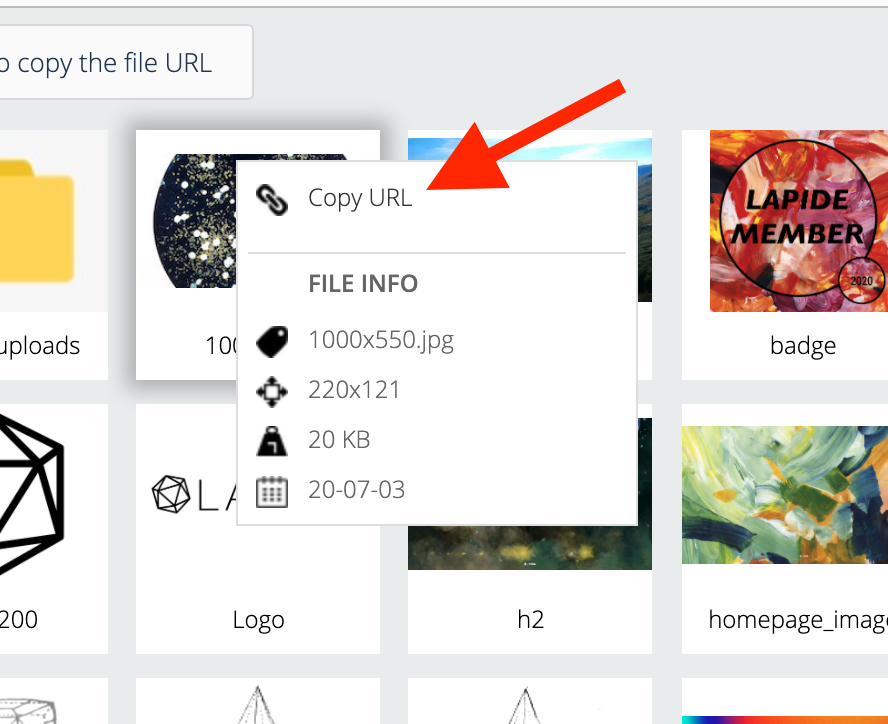
Upload the banner images to the Media Manager.
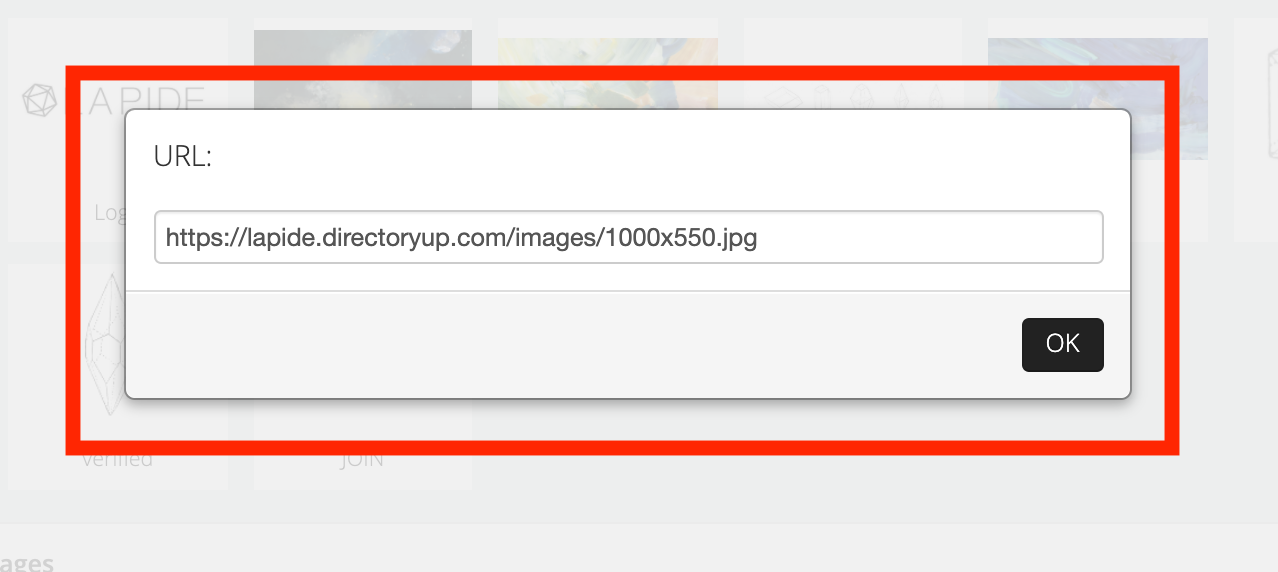
Right-click the uploaded image and select Copy URL to copy its file path.
Adding and Removing Banner Images
Return to the rotating banner widget and replace the existing src value with the URL of the uploaded image.
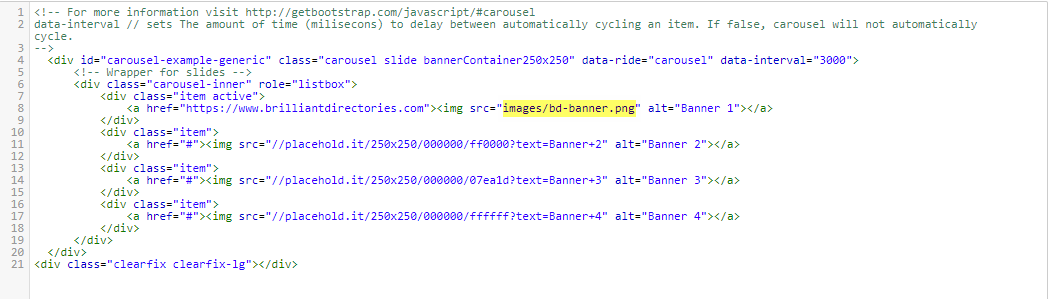
By default, the widget includes four banner slides.
Additional slides can be added as needed, and existing slides can be removed if fewer banners are required.
The widget's appearance can also be customized by editing the CSS tab. This can be used to adjust dimensions, colors, spacing, and other styling options.
Adding Additional Banner Slides
To add another rotating banner, duplicate one of the existing banner items and update its image and link.
<div class="item">
    <a href="#"><img src="http://placehold.it/970x90/000000/00fffa?text=Banner+1" alt="Banner 1"></a>
</div>
Each additional banner uses the same structure.
Removing Banner Slides
To remove a banner, delete the entire <div class="item">...</div> block associated with that image.
The examples below demonstrate how the widget code changes as banner slides are added or removed.
[Keep the three existing code examples exactly as they are]
Adding a Rotating Banner to the Footer
A rotating banner can also be displayed in other widgetized areas of the website, such as the footer.
To do this, customize the Bootstrap Theme - Footer widget and add the following shortcode where the rotating banner should appear:
[widget=Bootstrap Theme - Banner - 250_250 Rotating]
This embeds the selected rotating banner widget in the footer.
