
How To Edit The SEO For Social Media Sharing for SEO Templates
Link: https://support.brilliantdirectories.com/support/solutions/articles/5000682655
Steps
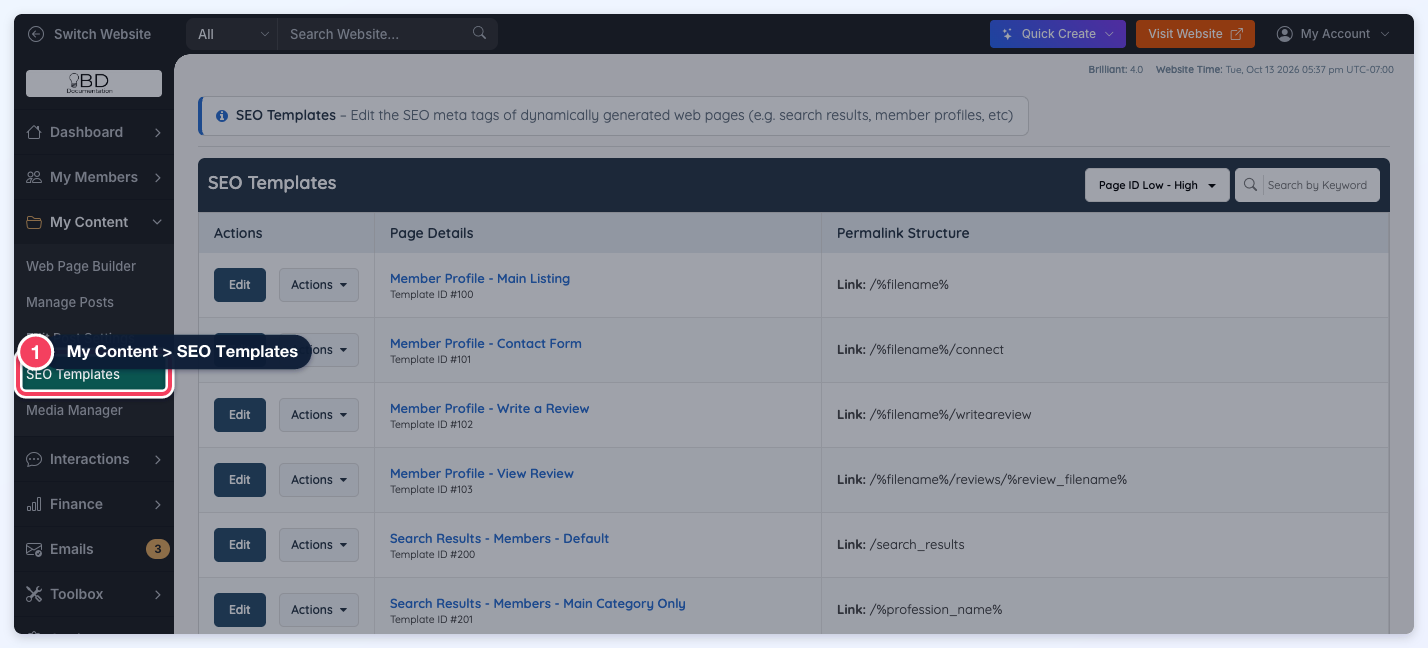
- Navigate to My Content > SEO Templates.
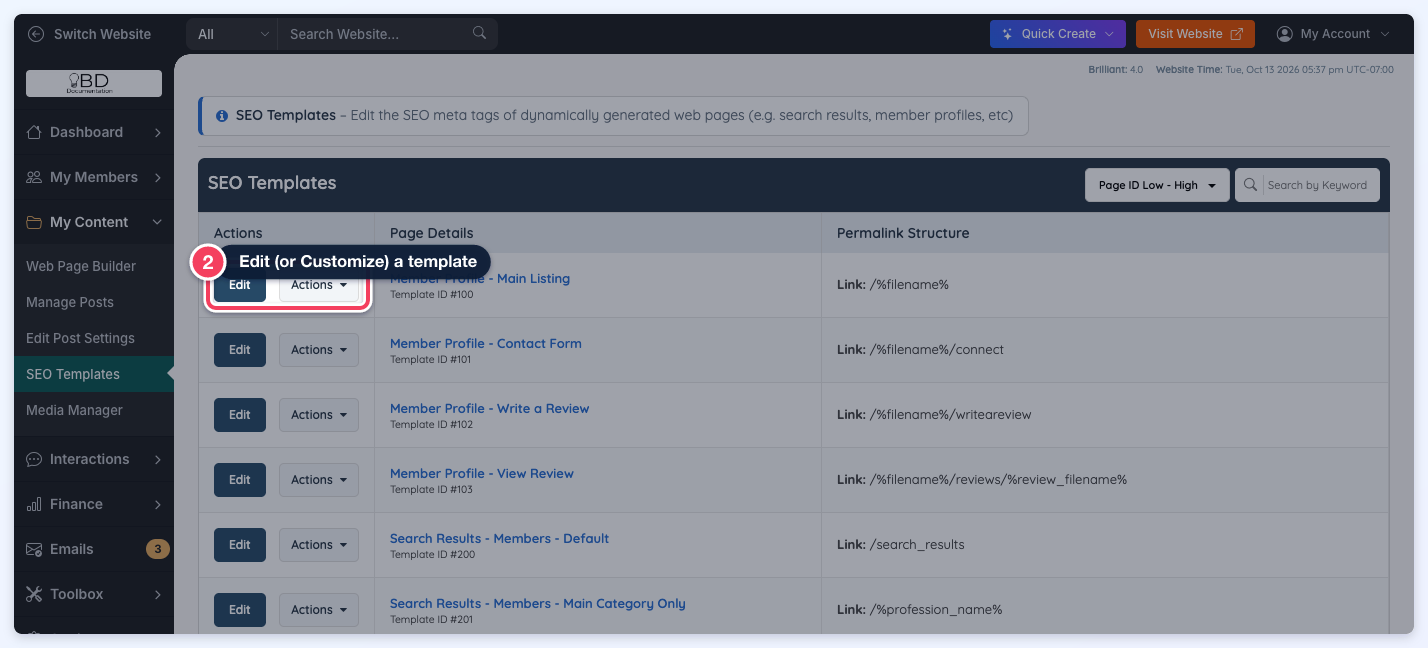
- Locate the relevant template and click Customize or Edit.
- On the SEO Settings tab, scroll down to the Social Media Sharing section.
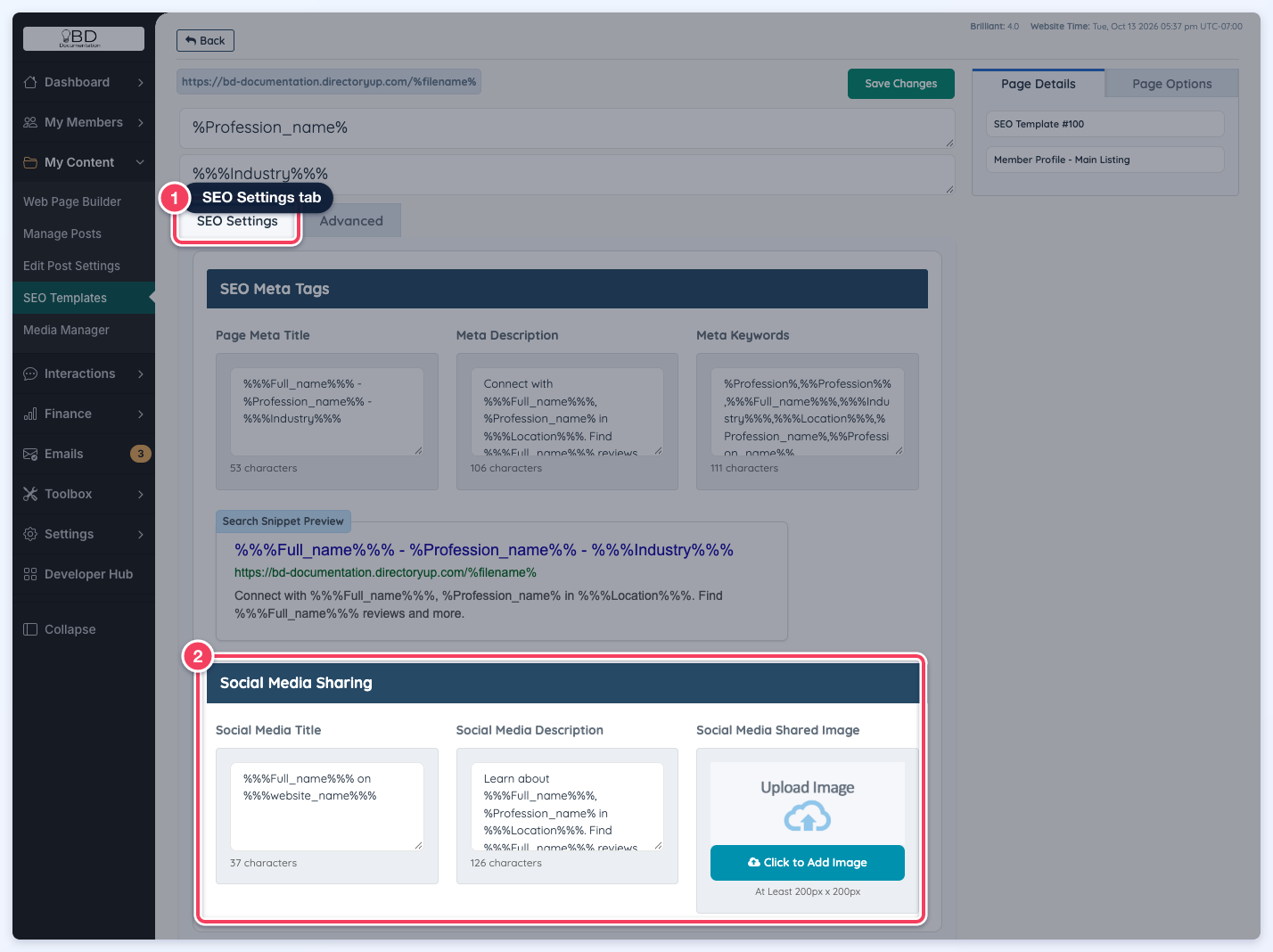
- Update the fields as needed.
- Click Save Changes.
Social Media Shared Image
A Social Media Shared Image can be set for the template. As with other SEO settings, this is treated as a suggestion: social media platforms and search engines decide at their own discretion whether to use the supplied image.
The template's Social Media Shared Image is a fallback. When a page has an image of its own, that image is shared instead:
- Member profile pages: the member's own Listing Social Meta Image is used first, then the member's cover photo, logo or profile photo.
- Post pages: the post's image, or the video thumbnail for a video post.
- Photo album pages: the album's first photo.
The template image is used only when the page has none of these, for example a post saved without an image or a photo album with no photos. When the template has no Social Media Shared Image either, the site's Default Social Media Image is used.
Facebook and LinkedIn store the image of each link the first time it is shared. To show a new image on a link that was already shared, refresh it in the Facebook Sharing Debugger or the LinkedIn Post Inspector.
The default social media image and the full order of precedence are covered in the "How to Set a Default Social Media Image" article.
