
Toolbox » Sidebar Manager
Link: https://support.brilliantdirectories.com/support/solutions/articles/5000673365
Overview
A sidebar is a column of widgets shown next to the page content, such as a search form, a newsletter sign-up or a banner ad. The Sidebar Manager lists every sidebar on the website, and is where sidebars are created, edited, cloned, turned on and off, and deleted.
Where Can I Access This Tool?
In the admin area, navigate to Toolbox » Sidebar Manager.
The Sidebar List
The page has two tables: Custom Sidebars (sidebars made for this website) at the top, and Default Sidebars (the sidebars that come with the website) below it. Some default sidebars belong to add-ons: Global Website Search, for example, is listed only while the Global Website Search add-on is active.
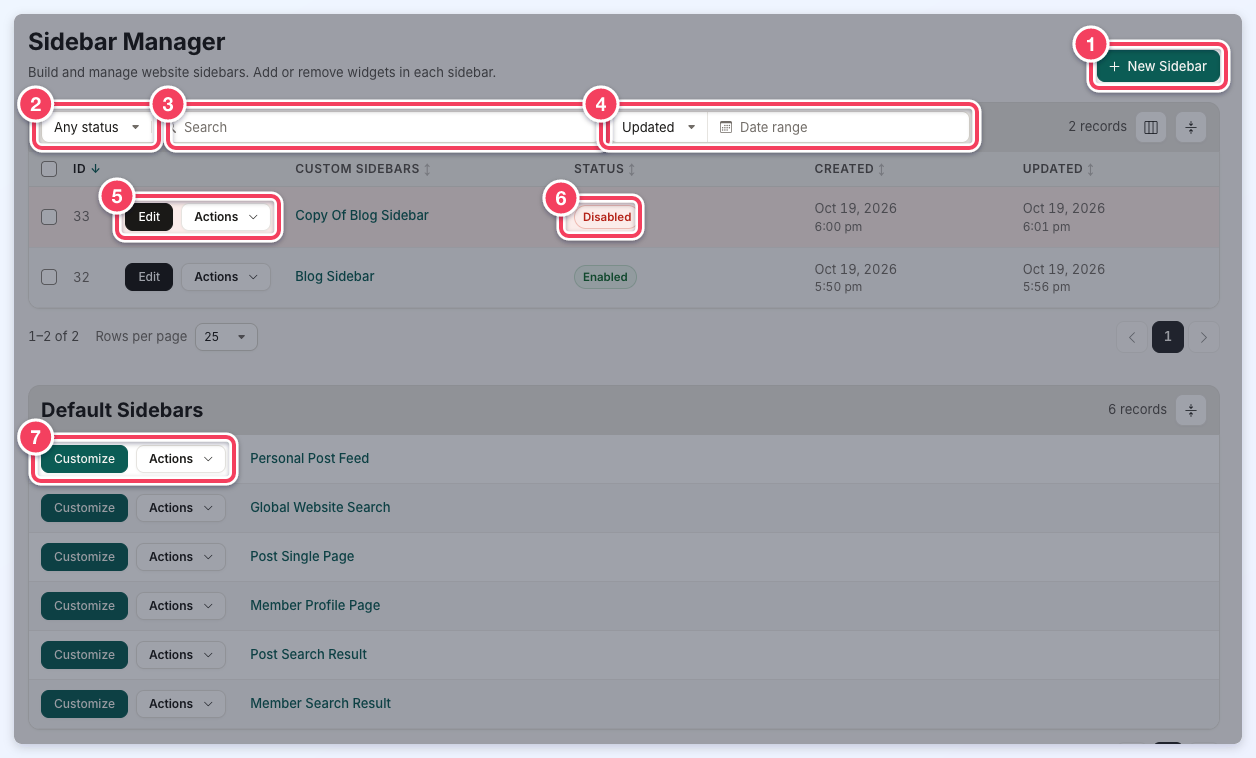
- New Sidebar: creates an empty custom sidebar. See How to Create a Sidebar.
- Status filter: show Any status, only Enabled or only Disabled sidebars.
- Search: find sidebars by name, shortcode or ID. The search also filters the Default Sidebars table.
- Date filter: choose Updated or Created, then pick a date range.
- Edit and Actions: click Edit (or the sidebar name) to open the sidebar. The Actions menu has the other options for that sidebar (see below).
- Status: each custom sidebar is Enabled or Disabled.
- Customize and Actions for a default sidebar: Customize opens it to make a custom copy for this website, and Actions has Copy Shortcode.
Hover over a sidebar name and click the clipboard icon next to it to copy its shortcode.
Actions for Custom Sidebars
The Actions menu of a custom sidebar has:
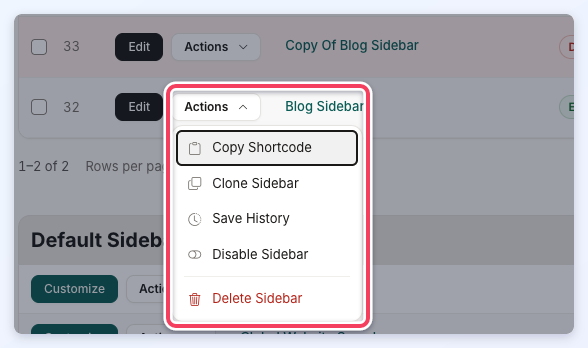
- Copy Shortcode: copies the sidebar's shortcode (EG [sidebar=Blog Sidebar]), which places the sidebar on a web page or inside a widget.
- Clone Sidebar: makes a copy named Copy Of followed by the sidebar's name, with the same widgets, and opens it. Cloning is the quickest way to start a sidebar that is close to an existing one.
- Save History: lists the changes made to the sidebar (see Save History below).
- Disable Sidebar / Enable Sidebar: turns the sidebar off or on. While a custom sidebar is disabled, the website does not use it. The change can take up to 1 minute to show on the website.
- Delete Sidebar: permanently deletes the custom sidebar from the website. This cannot be undone.
Bulk Actions
To enable, disable or delete several custom sidebars at once:
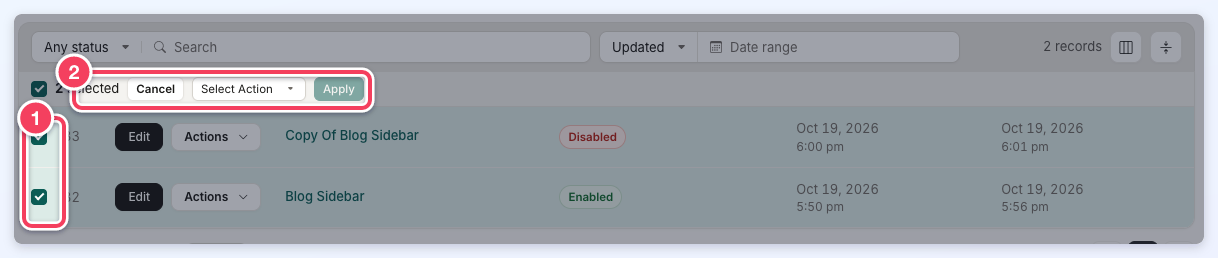
- Check the box next to each sidebar, or check the box in the header to select every sidebar on the page.
- Choose Enable, Disable or Delete from Select Action, then click Apply. Click Cancel to clear the selection.
Editing a Sidebar
Click Edit on a custom sidebar, or Customize on a default sidebar, to open the sidebar editor:
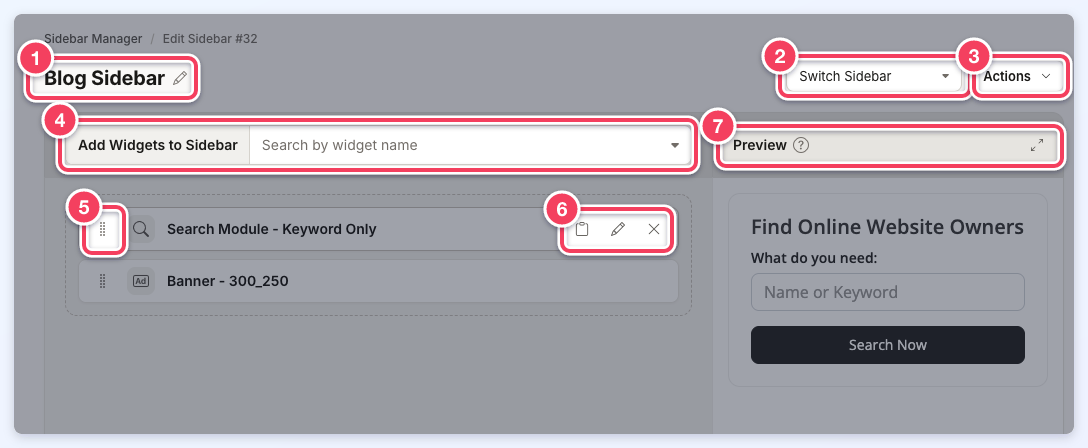
- Sidebar name: click the name (or the pencil icon) to rename a custom sidebar, then click Save.
- Switch Sidebar: opens another custom sidebar without going back to the list.
- Actions: the same options as in the list: Copy Shortcode, Clone Sidebar, Save History, Disable Sidebar (or Enable Sidebar) and Delete Sidebar. Deleting from here returns to the Sidebar Manager list.
- Add Widgets to Sidebar: search by widget name and pick a widget. New widgets are added to the end of the list.
- Drag handle: drag a widget up or down to change its order.
- Widget options: hover over a widget to copy its widget shortcode, open the widget for editing, or remove it from the sidebar with the X.
- Preview: shows the widgets as they will look on the website, in their current order, including changes that are not saved yet. Click the enlarge icon at the right to view the preview in a larger window.
After adding, removing or reordering widgets, click Save in the Unsaved changes bar to keep the changes, or Discard to undo them.
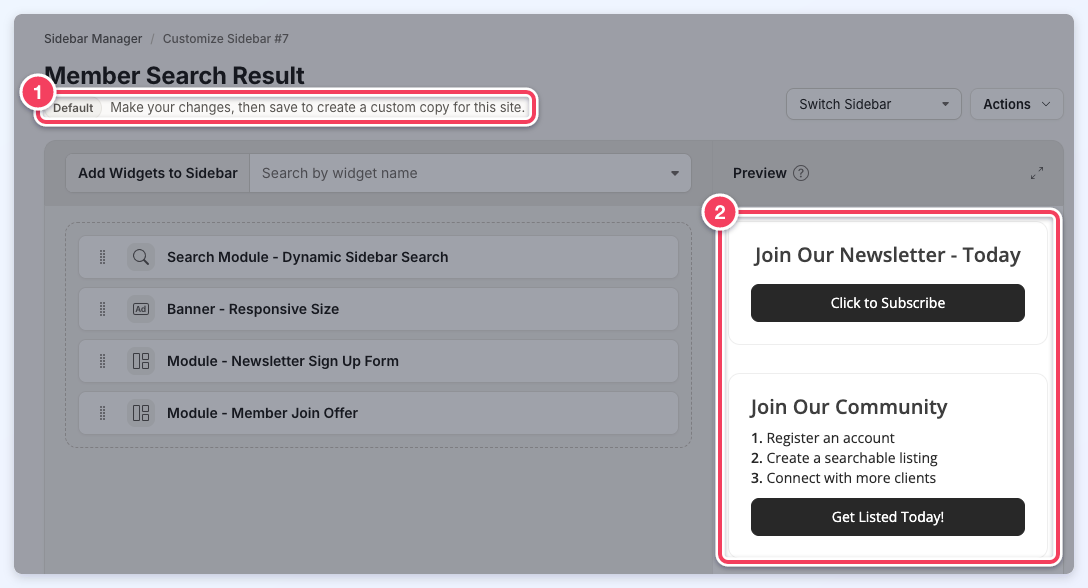
The ? next to Preview explains that some widgets only show on certain pages, so the preview can look different from the live website. That is expected: in the example below, the Dynamic Sidebar Search widget is in the sidebar but does not appear in the preview.
Customizing a Default Sidebar
A default sidebar opens with a Default label and the note Make your changes, then save to create a custom copy for this site. (1). Saving creates a custom sidebar with the same name, which the website then uses in place of the default sidebar. The preview (2) shows the sidebar as it currently stands.
Disabled Sidebars
A disabled custom sidebar shows a Disabled label and the note Your website does not use this sidebar until you enable it. Use Actions » Enable Sidebar to turn it back on.

Save History
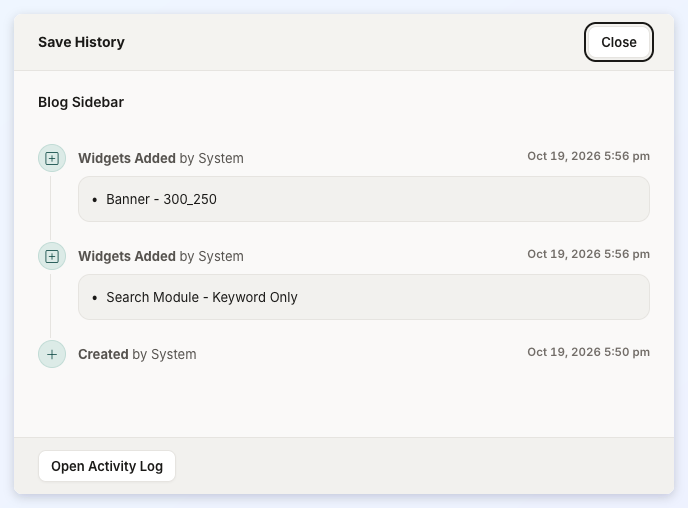
Actions » Save History opens a panel listing when the sidebar was created and saved, which widgets were added, removed or reordered, and when it was enabled or disabled, with who made each change. Click Open Activity Log for the full log. Save History reads the website's activity log, so it is only offered to admins who can view the activity log.
Notes
- Only one search dropdown widget works properly per sidebar. When a sidebar holds both a Dynamic Category Filter and another category search widget, saving asks for confirmation (Save Both Search Widgets?).
- The widgets available to add are search modules, banners, modules and Dynamic Category Filter widgets (when the Dynamic Category Filtering add-on is active), plus the website's own custom widgets, which are listed under Custom Widgets.
