
Emails » Email Accounts
Link: https://support.brilliantdirectories.com/support/solutions/articles/5000558363
Email accounts (mailboxes) at the website's own domain, such as support@example.com, are created and managed in Settings > Domain Manager > Mailboxes. The Emails > Email Accounts menu item opens that tab directly.
Before starting
- Connect a custom domain to the website. A free directoryup.com address has no mailboxes of its own.
- Confirm which provider receives the domain's email. Mailboxes on the website's hosting receive new mail only when the domain's MX records point to them.
Open the email accounts
- In the admin, open Emails.
- Click Email Accounts.
- Domain Manager opens on the Mailboxes tab, which lists the mailboxes, their storage use, and where the domain's email is delivered.
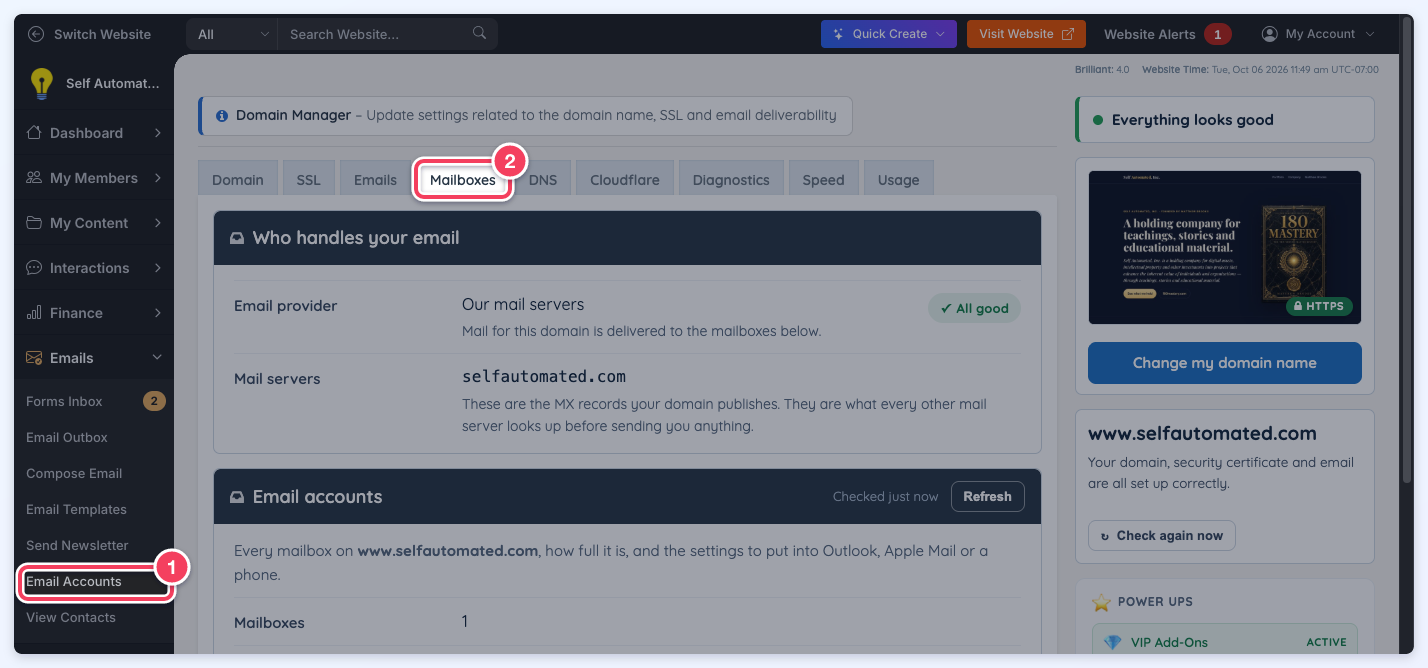
Email Accounts in the Emails menu (1) opens Domain Manager on the Mailboxes tab (2).
Create and manage mailboxes
On the Mailboxes tab, Add a mailbox creates a new mailbox with its password and storage limit. Each mailbox in the list offers Open webmail, Set up for the settings to enter in Outlook, Apple Mail, or a phone, and More for changing the password or storage limit or deleting the mailbox. The full steps are in Settings » Domain Manager » Mailboxes and Email Routing.
Generic addresses such as info@ are more often treated as spam by receiving mail systems. Addresses such as support@, admin@, or contact@ are usually a better choice.
When the previous Email Accounts page appears
The previous Manage Email Accounts page still opens in two cases:
- The website uses a free directoryup.com address. The page explains that a live domain name must be connected before email accounts can be set up, and offers Connect Live Domain. See How to Connect a Domain to a Brilliant Directories Website.
- The administrator's role does not include access to the Domain Manager's Mailboxes tab.
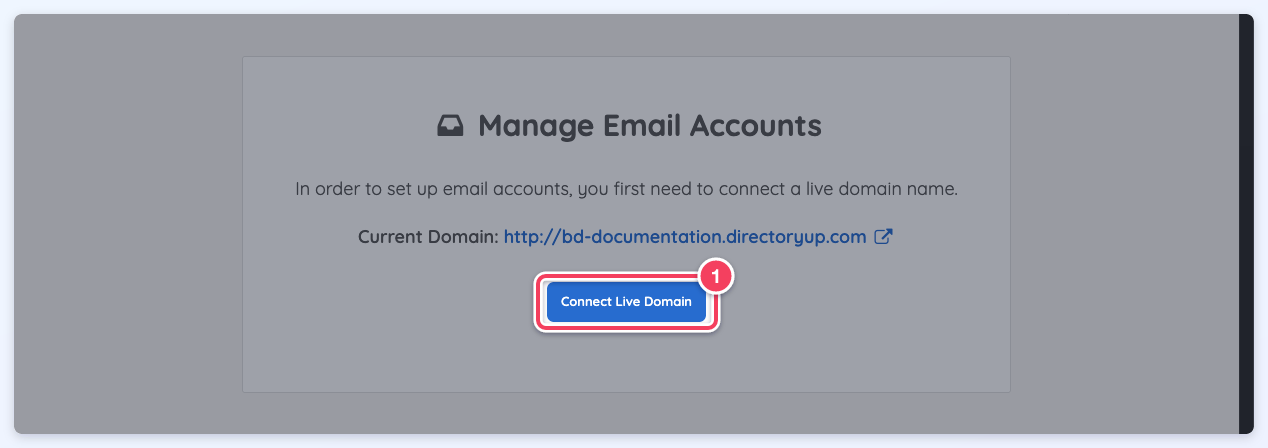
On a free directoryup.com address, Email Accounts shows the previous page with Connect Live Domain (1).
Additional notes
- Email replies do not have a separate reply-to address. Responses go to the address that sent the original message.
- To read a mailbox in the browser, see How To Access Webmail Through the Admin Area.
