
Settings » Advanced Settings » Text Editor
Link: https://support.brilliantdirectories.com/support/solutions/articles/12000110343
These settings are on the Text Editor tab of Settings » Advanced Settings. How to find a setting, read its details, change it and save is explained in Settings » Advanced Settings.
This section outlines settings related to Text Editors, Permissions, and File Upload capabilities on the website. These options help manage how users create and format content, what types of HTML and media are permitted, and the size limits for uploads.
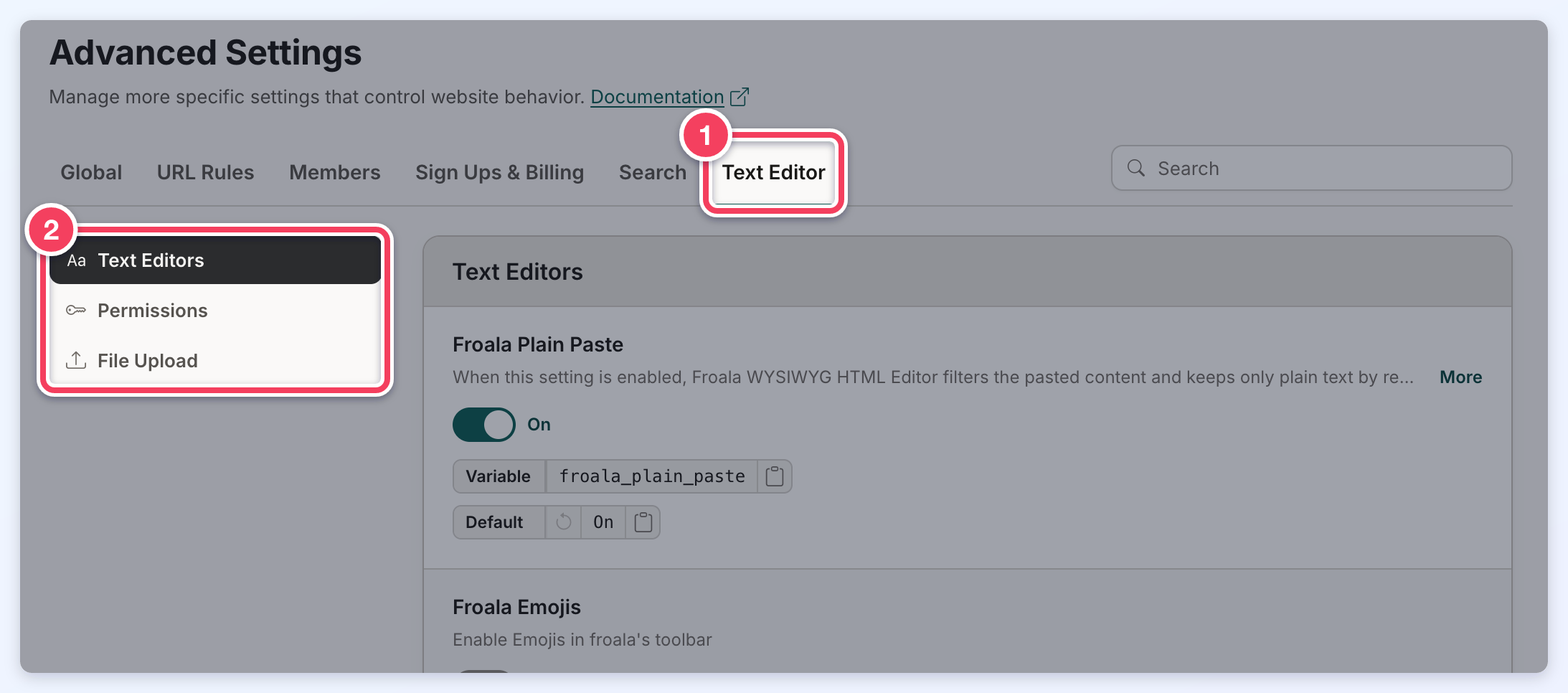
Text Editors
This section covers advanced settings for the Froala WYSIWYG text editor, including options to simplify pasted content to plain text, enable emojis, embed widget shortcodes, and integrate third-party tools like Embedly and ChatGPT.
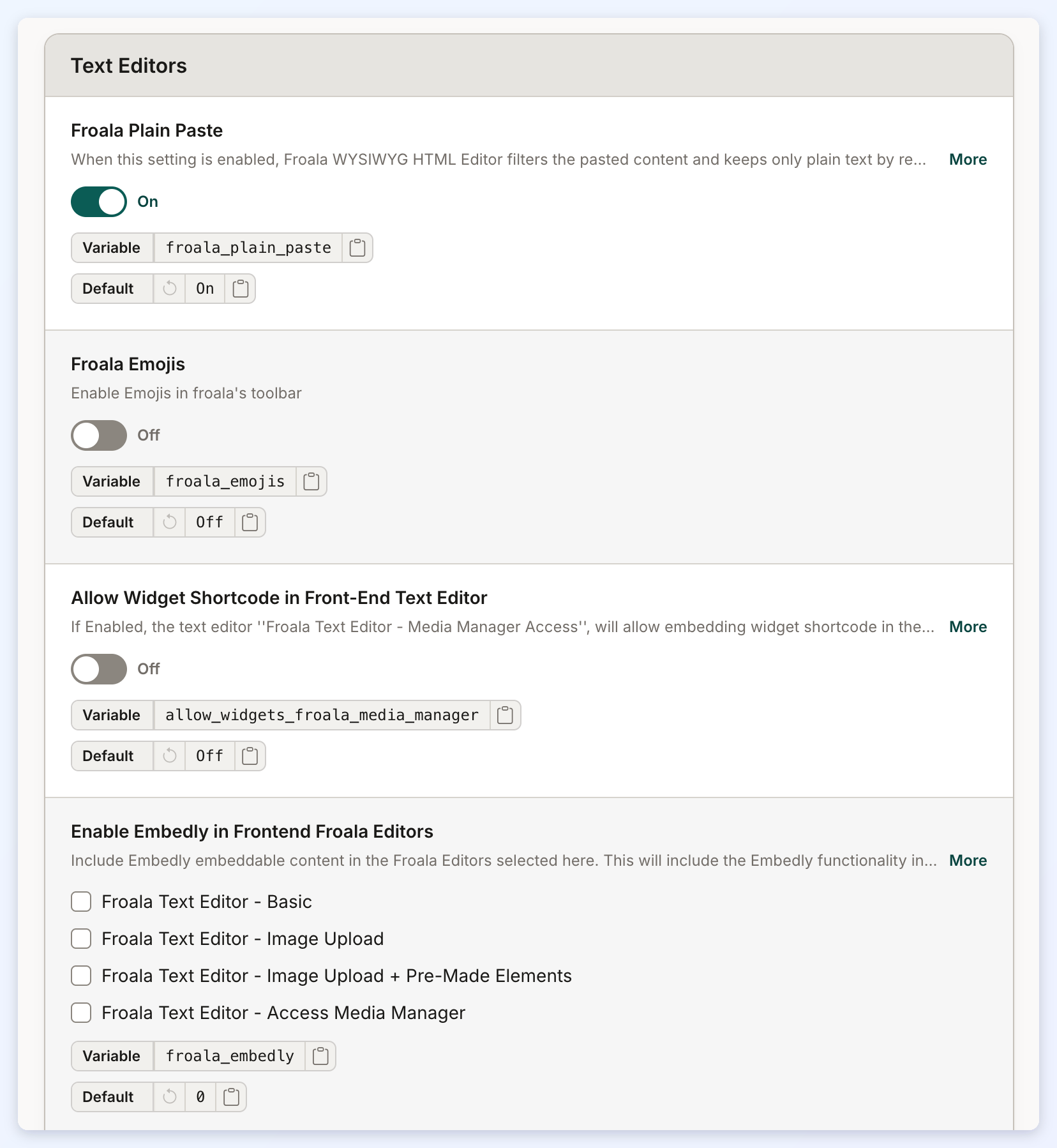
Froala Plain Paste
When this setting is enabled, Froala WYSIWYG HTML Editor filters the pasted content and keeps only plain text by removing all its rich formatting.
Froala Emojis
Enable Emojis in Froala's toolbar.
Allow Widget Shortcode in Front-End Text Editor
The text editor "Froala Text Editor - Media Manager Access" will allow embedding widget shortcode in the text editor and rendering the widget's HTML on the front-end of the website.
Enable Embedly in Frontend Froala Editors
Include Embedly embeddable content in the Froala Editors selected here. This will include the Embedly functionality in all of the Froala Editors of each type used throughout the website.
Enable chatGPT in Frontend Froala Editors
Enable the integration of the chat GPT functionality in the selected Froala Editors.
Froala Remove Attributes When Pasting Text
A comma separated list of attributes that will be removed when pasting something into the text editor.
Froala Markdown
Enable Markdown in Froala's toolbar.
Froala Enable Stock Photo Library
Select which front-end text editors the stock photo library will be enabled for. Remember to also enable access for membership plans or individual users as well.
Auto-Save Drafts
When enabled, the Edit Web Page editor auto-saves changes as a draft. If the changes were not saved, the draft is restored the next time the page is opened, with a Draft from ... restored notice. Embedded videos and other iframes from the sources in Allowed Iframe Sources (Text Editor tab) are kept in the draft; iframes from other sources are left out of it. If a draft holds fewer embeds than the saved page, the editor does not restore it and shows Draft from ... not restored: it is missing embeds this page has, with a Discard draft button. Turn it OFF to disable drafts site-wide.
Permissions
This section defines content and formatting controls for posts and frontend forms, including settings for selecting post publish dates, specifying which HTML tags are permitted in posts and forms, and managing allowed iframe source domains.
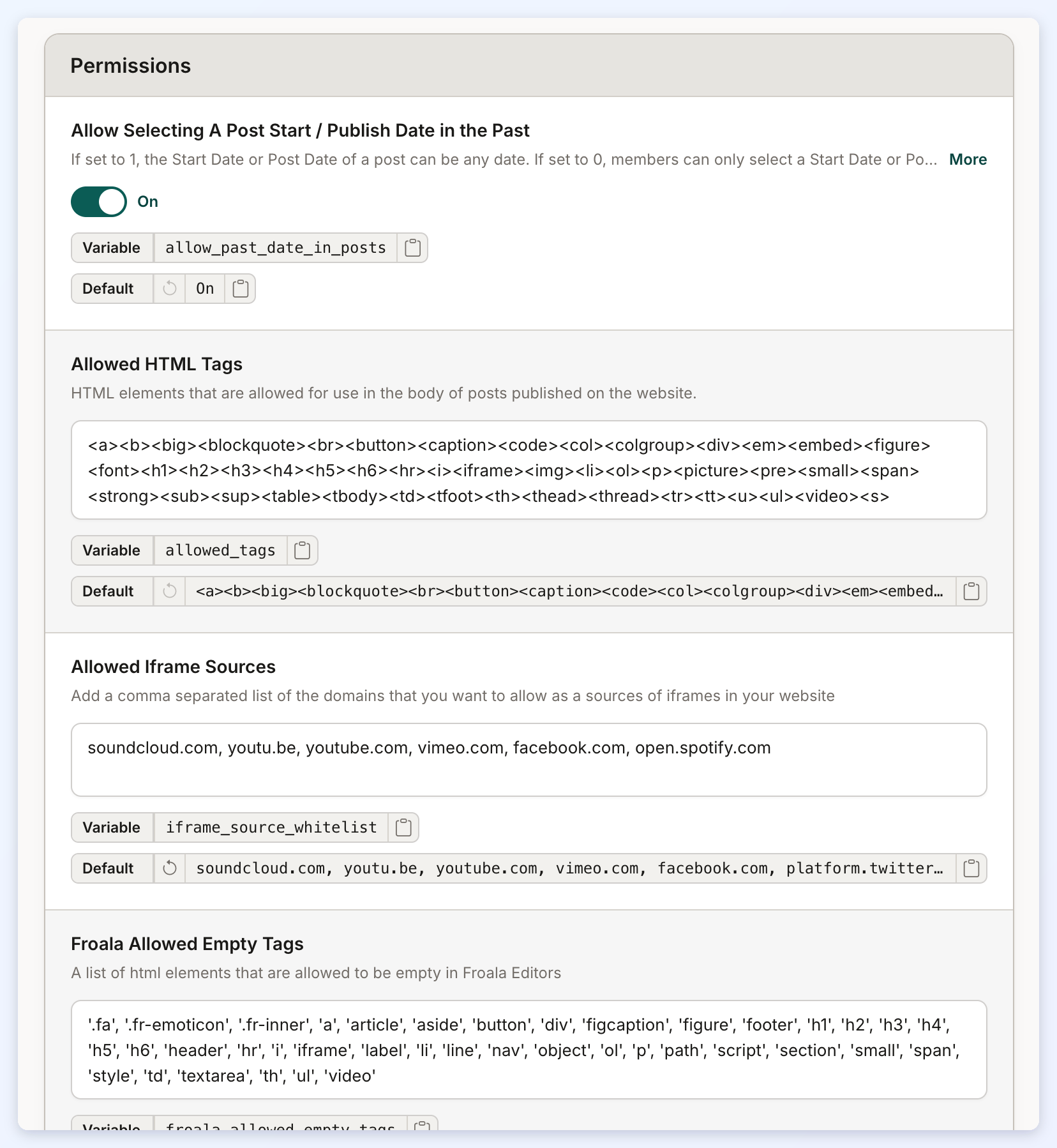
Allow Selecting A Post Start / Publish Date in the Past
The Start Date or Post Date of a post can be any date. If set to 0, members can only select a Start Date or Post Date in the present or future.
Allowed HTML Tags
HTML elements that are allowed for use in the body of posts published on the website.
Allowed Iframe Sources
A comma-separated list of the domains allowed as sources of iframes on the website. The same list decides which embeds are kept in auto-saved web page drafts (see Auto-Save Drafts). More details: How to Whitelist and Allow 3rd Party iFrames.
Froala Allowed Empty Tags
A list of HTML elements that are allowed to be empty in Froala Editors.
Allowed Frontend HTML Tags
HTML elements that are allowed for use in frontend forms.
File Upload
This section outlines file size limits for uploads across different features, including the maximum file size for the Froala text editor, image uploads for single and group posts, file uploads, and PDF files shared in private member chats.
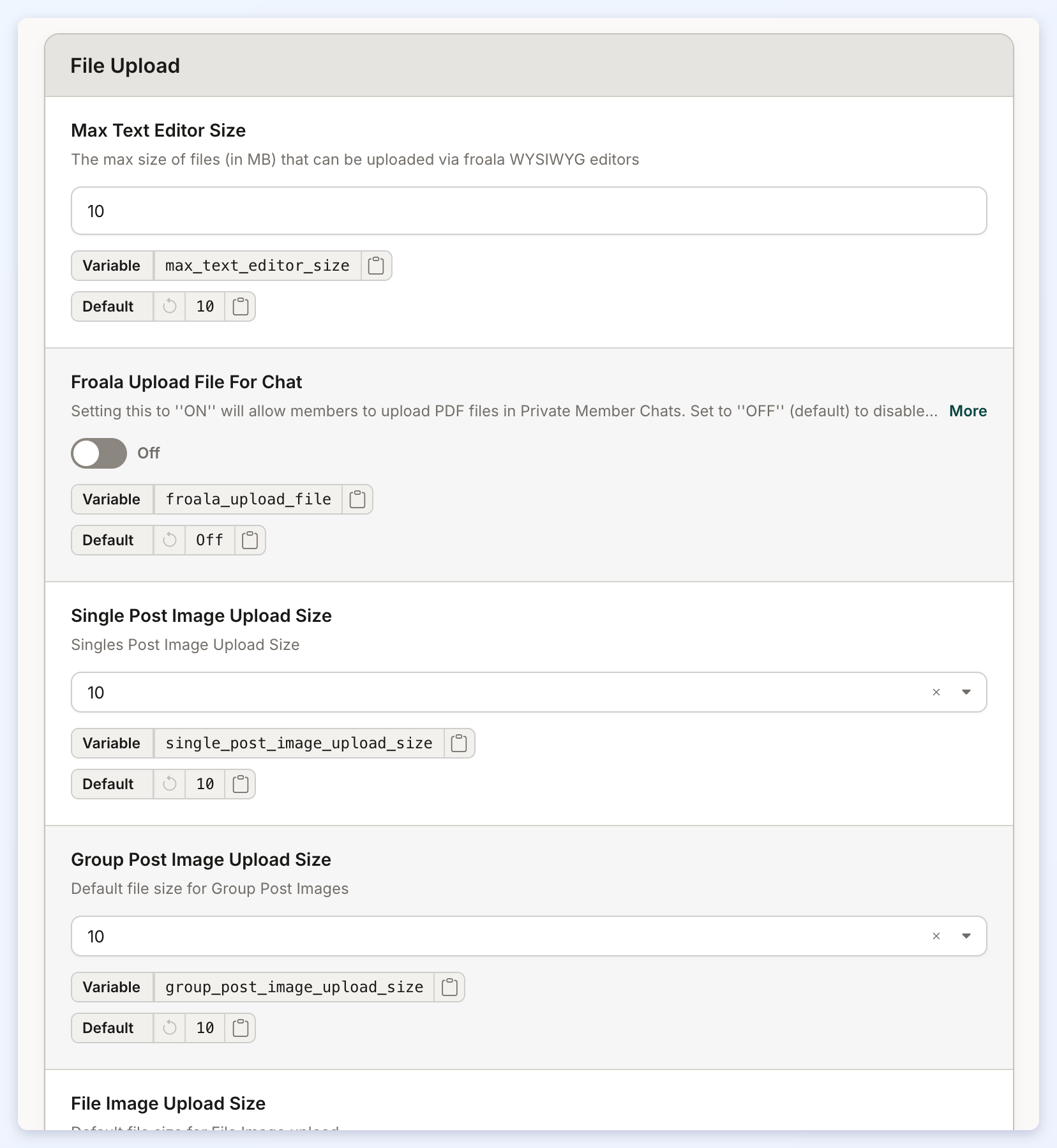
Max Text Editor Size
The max size of files (in MB) that can be uploaded via froala WYSIWYG editors.
Froala Upload File For Chat
Setting this to ''ON'' will allow members to upload PDF files in Private Member Chats. Set to ''OFF'' (default) to disable the sending of PDF files in Private Member Chats.
Single Post Image Upload Size
Single Post Image Upload Size.
Group Post Image Upload Size
The default file size for Group Post Images.
File Image Upload Size
The default file size for File Image upload.
Froala Chat PDF File Size
Default file size for the Froala Chat PDF file.
