
Settings » Advanced Settings » Search
Link: https://support.brilliantdirectories.com/support/solutions/articles/12000110342
These settings are on the Search tab of Settings » Advanced Settings. How to find a setting, read its details, change it and save is explained in Settings » Advanced Settings.
This section focuses on Display Settings, Search Modules, and Search Logic; key areas that shape how users interact with and experience search results on the website. These settings consist of:
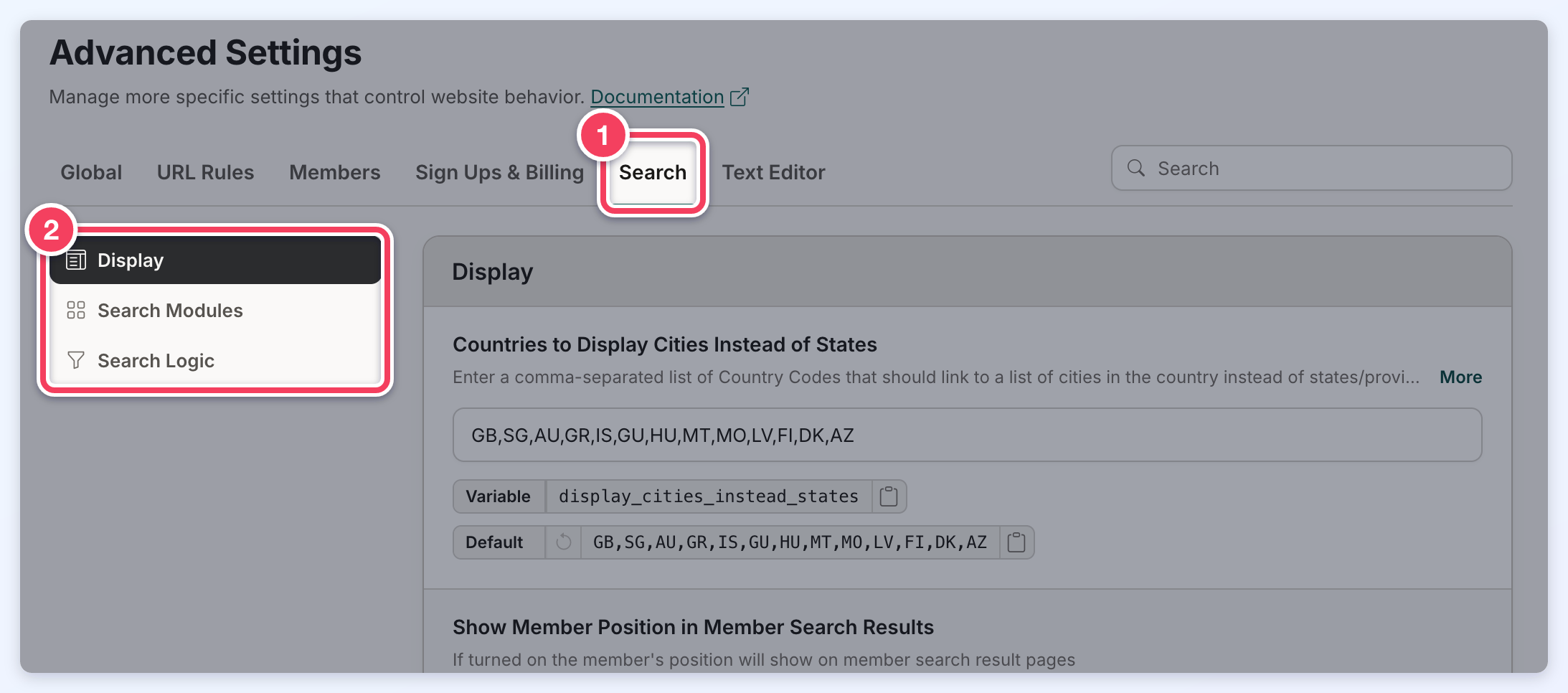
Display
This section focuses on enhancing location-based search and URL functionality.
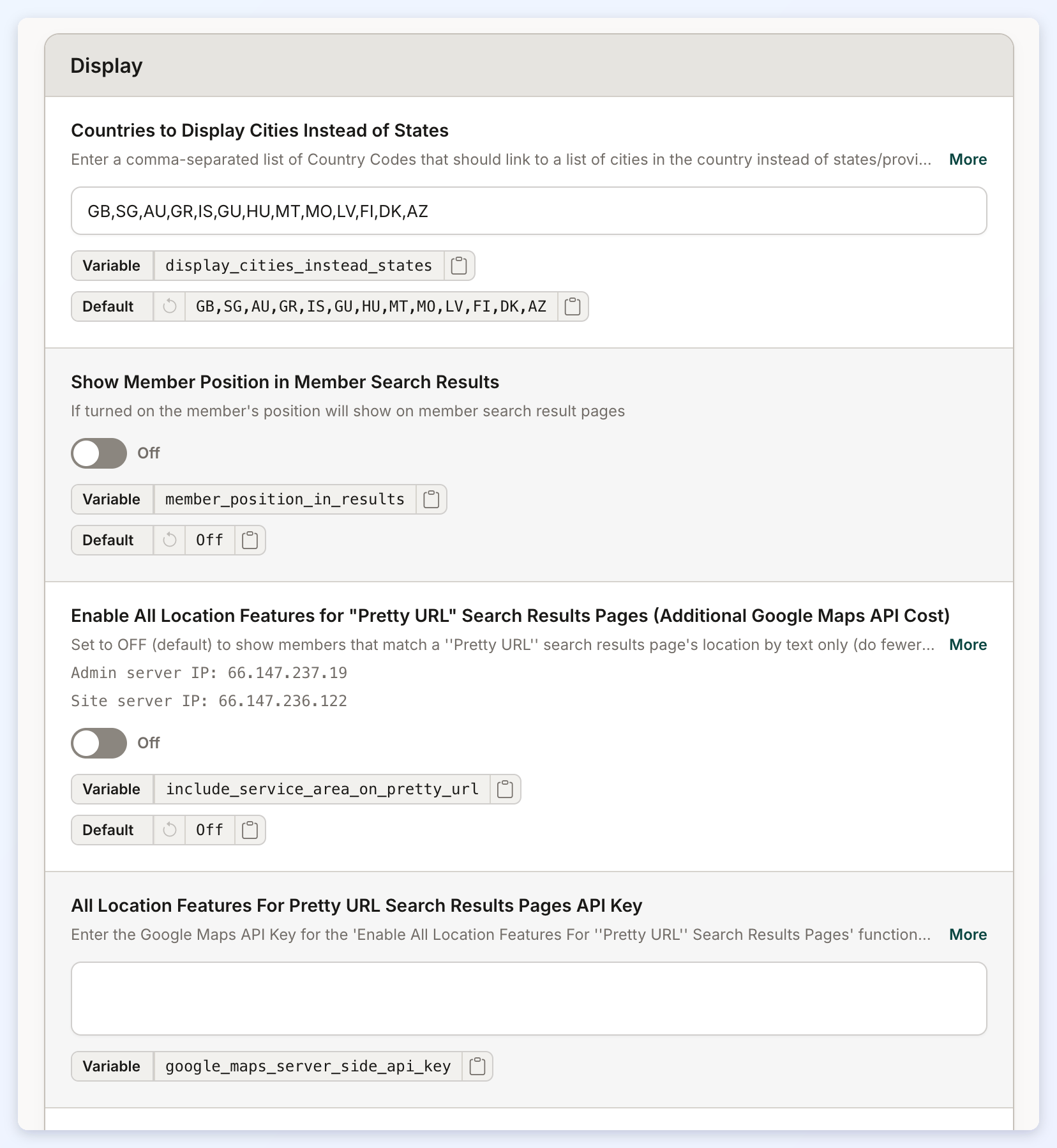
Countries to Display Cities Instead of States
Enter a comma-separated list of Country Codes that should link to a list of cities in the country instead of states/provinces on the /locations page of the site.
Show Member Position in Member Search Results
If turned on the member's position will show on member search result pages.
Enable All Location Features for "Pretty URL" Search Results Pages (Additional Google Maps API Cost)
Set to OFF (default) to show members that match a ''Pretty URL'' search results page's location by text only (do fewer Google Maps API calls). Set to ON to include all member location search results features (do more Google Maps API calls).
All Location Features For Pretty URL Search Results Pages API Key
Enter the Google Maps API Key for the 'Enable All Location Features For ''Pretty URL'' Search Results Pages' functionality.
Prompt visitors to share their location automatically on page load?
When set to OFF (default), visitors to the site can share their location by clicking on the icon in the website's location search fields. When set to ON, prompt all visitors to share their location automatically as soon as they visit the website.
Insta-Load Search Results Button Behavior
Select how more search results are fetched with the ''Load More Results'' button.
Serve the 404 Page for Empty Member Search Results
When turned on, member search pages with no matching members return the site's 404 page instead of the full search results page, saving bandwidth on pages crawlers request. The default search results page and pages with their own content are not affected. Off by default.
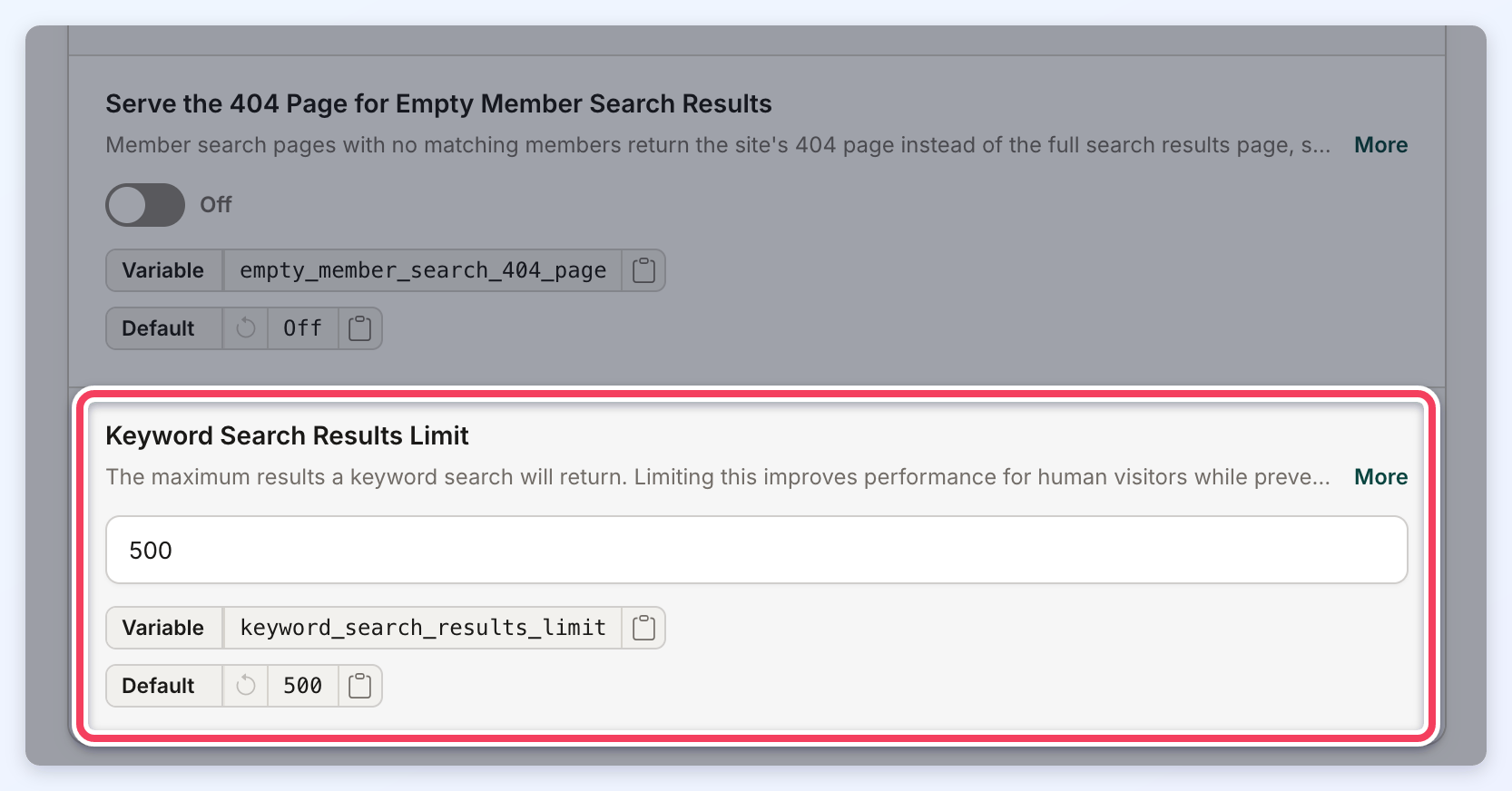
Keyword Search Results Limit
The maximum number of results a post or member keyword search returns. The default is 500; enter 0 for no limit. Only a whole number of 0 or more is accepted: any other value is refused on save with the message "Keyword Search Results Limit must be a whole number of 0 or more (0 means no limit)."
When a keyword search matches more results than the limit, visitors see the limit followed by a plus sign in the results count (for example, "of 500+ Results"), and the page links and the Load More Results button stop at the limit. A results page past the limit shows the site's 404 page, the page chosen in the Default 404 Error Page setting of the URL Rules tab.
Search Modules
This section offers settings to customize how categories and filters behave in member search results.
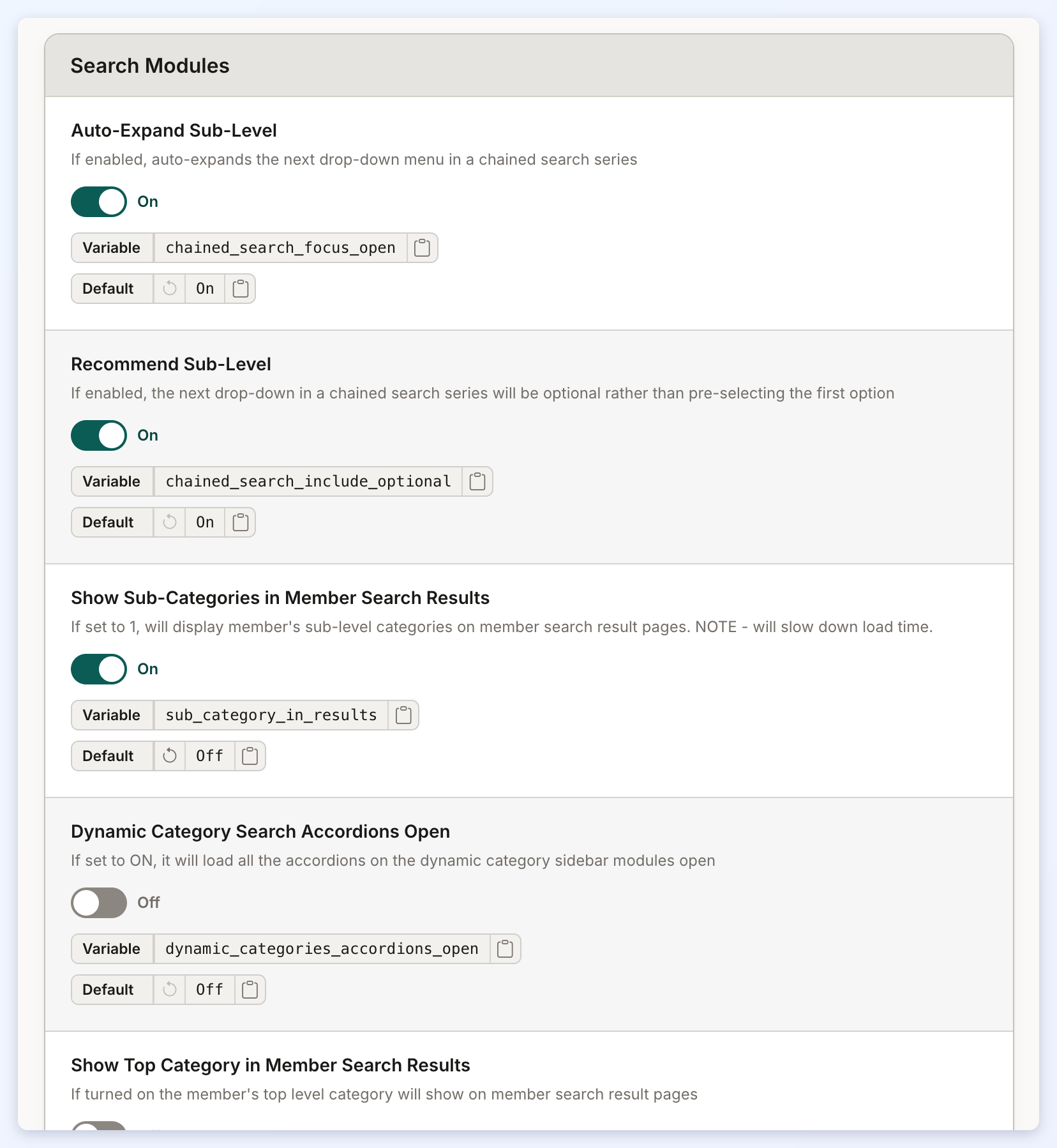
Auto-Expand Sub-Level
If enabled, auto-expands the next drop-down menu in a chained search series.
Recommend Sub-Level
If enabled, the next drop-down in a chained search series will be optional rather than pre-selecting the first option.
Show Sub-Categories in Member Search Results
Will display member's sub-level categories on member search result pages. NOTE - will slow down load time.
Dynamic Category Search Accordions Open
It will load all the accordions on the dynamic category sidebar modules open.
Show Top Category in Member Search Results
If turned on the member's top level category will show on member search result pages.
Dynamic Category Filter - Broad Match
Set to ON (default) to return members listed in ANY of the selected categories. Set to OFF to only return members listed in ALL of the selected categories.
Dynamic Category Filtering - Only Show Categories Related to the Searched Category
When clicking on dynamic filters checkboxes, keep the top or sub category context from the URL so the dynamic filters in sidebar only show categories related to the page the category filter widget is being displayed on.
Search Logic
This section defines how location-based searches are conducted for different administrative levels, such as neighborhoods, counties, and states, allowing results to be returned based on either geographical bounds or a specified radius.
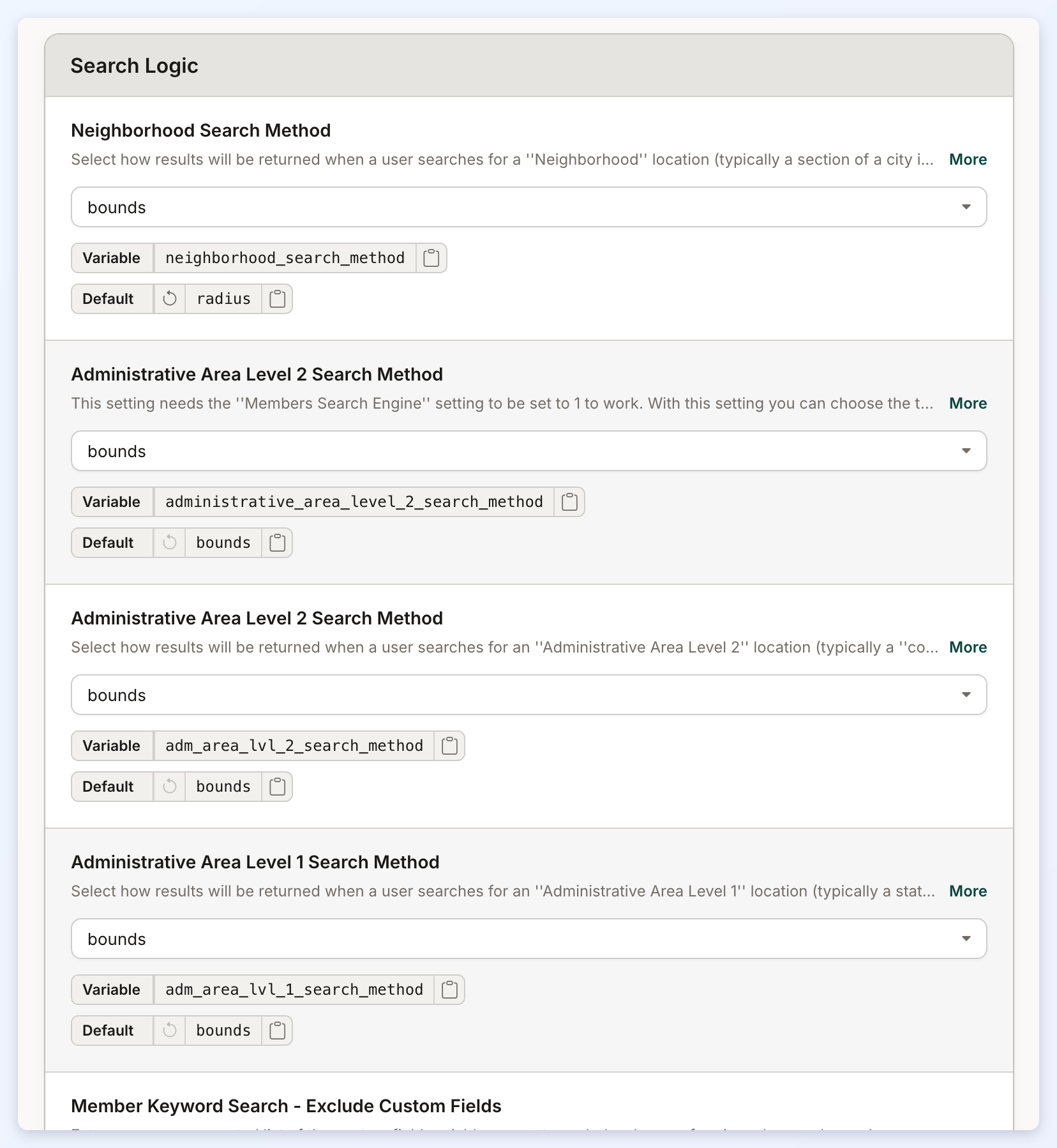
Neighborhood Search Method
Select how results will be returned when a user searches for a "Neighborhood" location (typically a section of a city in many countries). Selecting "Bounds" will return results that are within the bounds of the searched location. Selecting ''Radius'' (default) will return results within the default search radius of the center of the searched location.
Administrative Area Level 2 Search Method
Chooses the type of search that is performed when a location is an Administrative Area Level 2 or has the same location scope as an Administrative Area Level 2. The two options are ''bounds'' (default) and ''radius''. When set to radius, the website's default search radius is applied.
Administrative Area Level 2 Search Method
Select how results will be returned when a user searches for an ''Administrative Area Level 2'' location (typically a ''county'' in many countries). Selecting ''Bounds'' (default) will return results that are within the bounds of the searched location. Selecting ''Radius'' will return results within the default search radius of the center of the searched location.
Administrative Area Level 1 Search Method
Select how results will be returned when a user searches for an ''Administrative Area Level 1'' location (typically a state or province). Selecting ''Bounds'' (default) will return results that are within the bounds of the searched location. Selecting ''Radius'' will return results within the default search radius of the center of the searched location.
Member Keyword Search - Exclude Custom Fields
Enter a comma-separated list of the custom field variable names to exclude when performing a keyword search.
Member Keyword Search - Exclude Custom Fields
Enter a comma-separated list of the custom member fields to exclude when performing a keyword search.
Member Keyword Search - Exclude Default Fields
Enter a comma-separated list of the default member fields to exclude when performing a keyword search.
Complete Profile Fields
A comma-separated list [NO SPACES] of the Member Profile Fields that must be filled in by a member for their profile to be considered "COMPLETE". When complete profiles are required on the website (this is off by default), a member will not appear in search results unless their profile is "COMPLETE".
