
Settings » Advanced Settings » Sign Ups & Billing
Link: https://support.brilliantdirectories.com/support/solutions/articles/12000110341
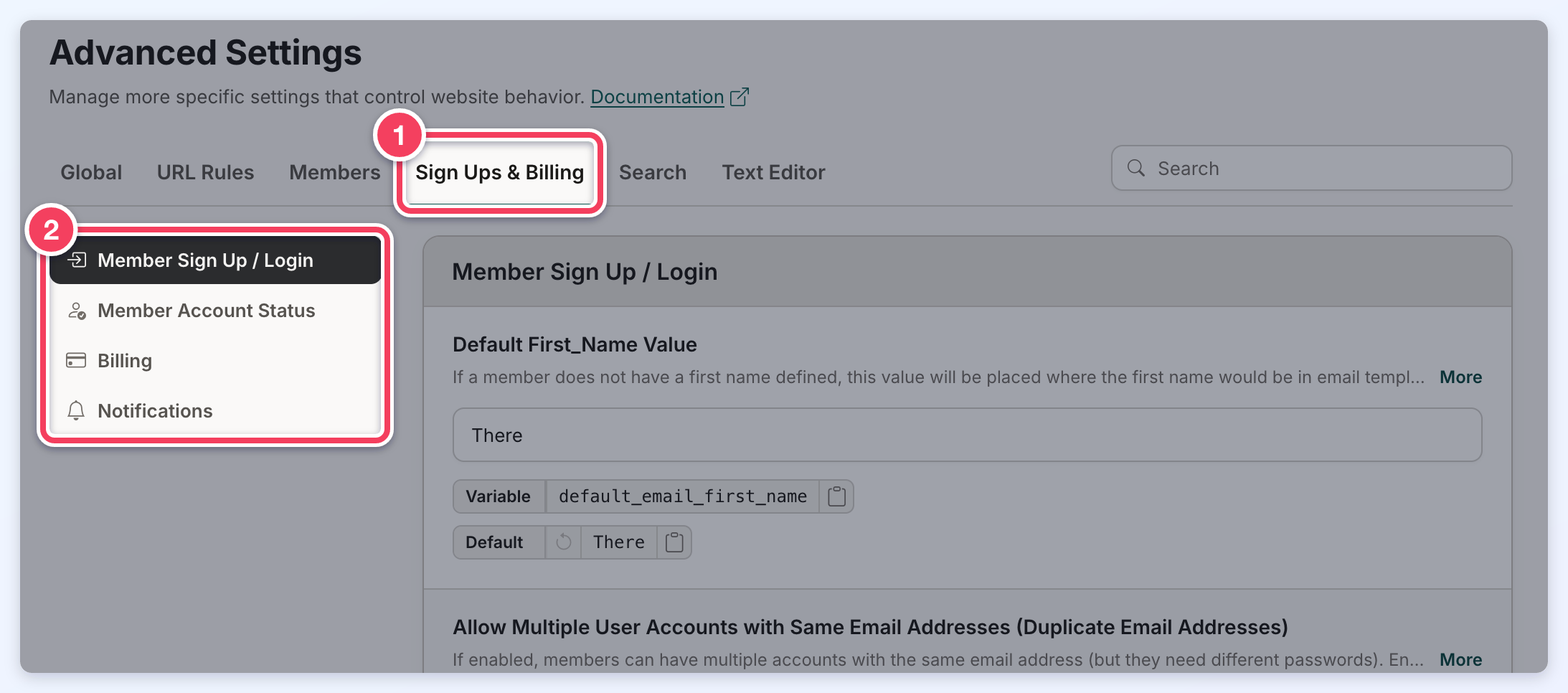
These settings are on the Sign Ups & Billing tab of Settings » Advanced Settings. How to find a setting, read its details, change it and save is explained in Settings » Advanced Settings.
This section covers settings related to Member Sign-Up and Login, Account Status, Billing, and Notifications, offering tools to customize and streamline user account management and payment processes. These settings include:
Member Sign Up / Login
This section outlines various member account and registration settings that enhance user experience and site functionality.
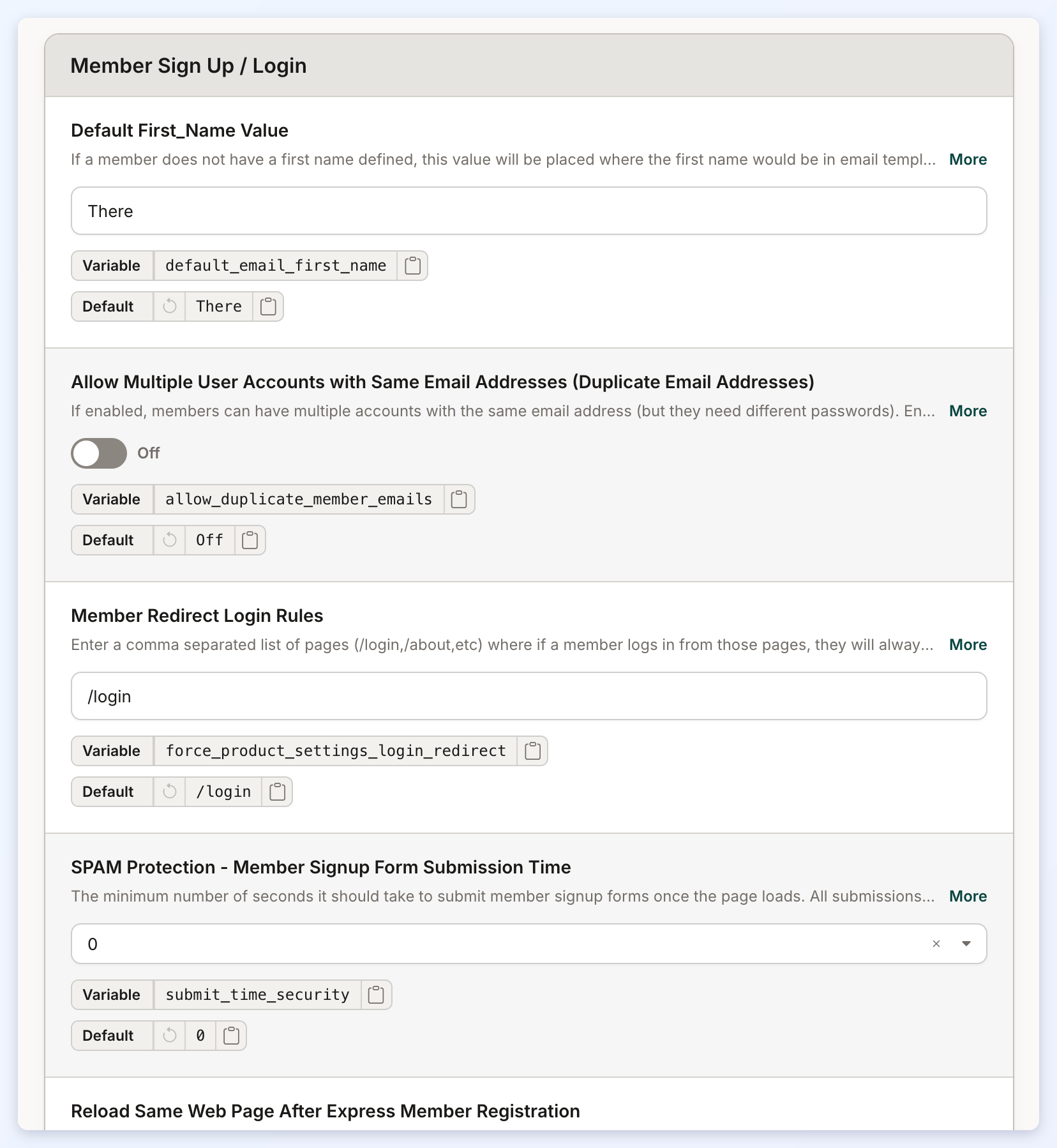
Default First_Name Value
If a member does not have a first name defined, this value will be placed where the first name would be in email templates.
Allow Multiple User Accounts with Same Email Addresses (Duplicate Email Addresses)
Members can have multiple accounts with the same email address (but they need different passwords).
Member Redirect Login Rules
Enter a comma separated list of pages (/login,/about,etc) where if a member logs in from those pages, they will always be redirected to the page defined in their membership level setting.
SPAM Protection - Member Signup Form Submission Time
The minimum number of seconds it should take to submit member signup forms once the page loads.
Reload Same Web Page After Express Member Registration
The user will remain on the same page after they sign up as a member via the Express Member Registration form instead of being redirected to the Member Dashboard.
Reload Same Web Page After Express Member Registration - Exception List
A comma-separated list of pages that will continue to redirect users to the Member Dashboard after they have signed up via the Express Member Registration form, even if the ''Reload Same Web Page After Express Member Registration'' Advanced Setting is enabled.
Use Card-Based Layout on Member Upgrade Page
When enabled, the member account Upgrade page (/account/upgrade) displays available membership plans as a modern card-based layout instead of the classic stacked list.
Member Account Status
This section manages member account statuses related to cancellations and payments.
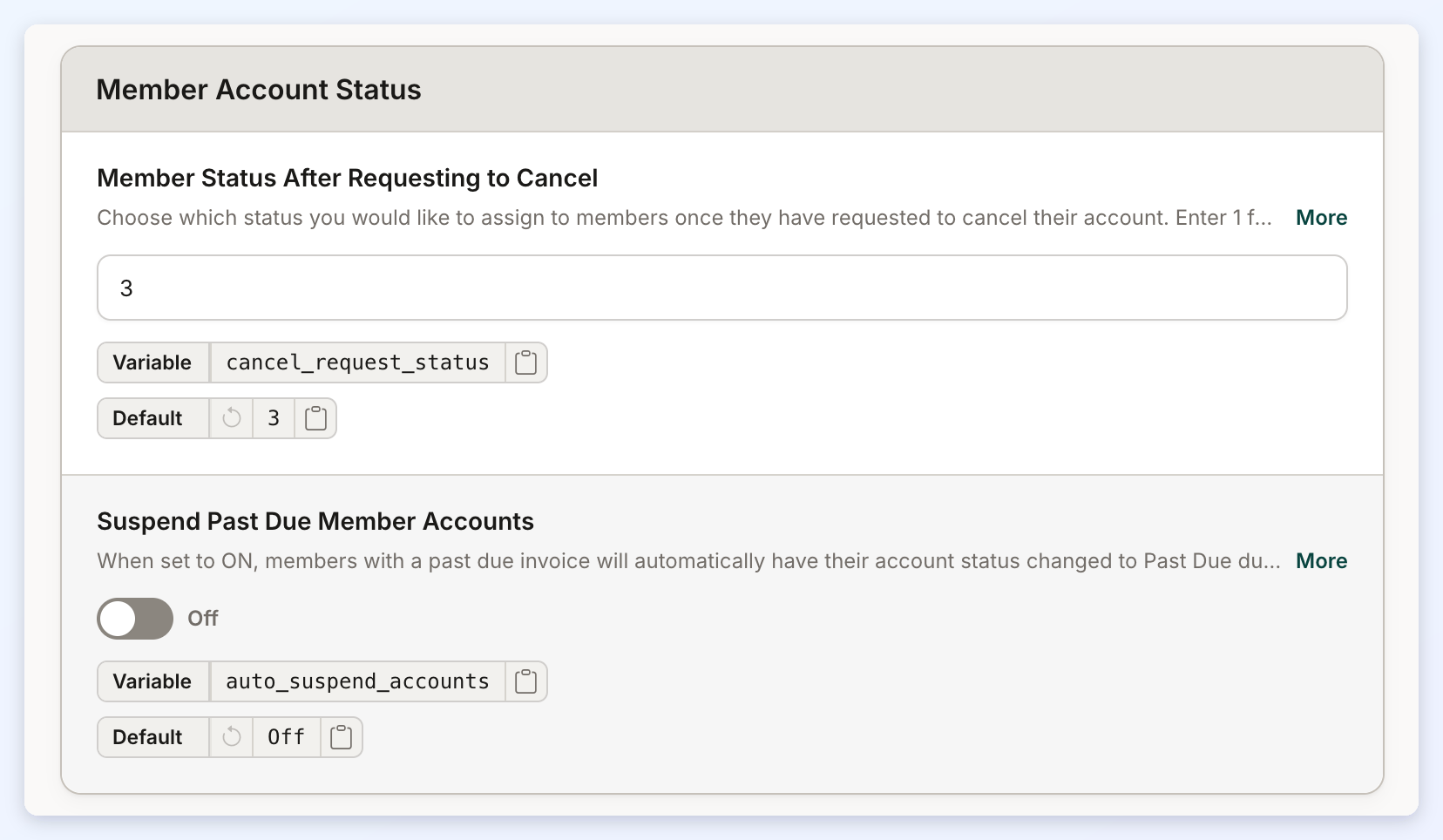
Member Status After Requesting to Cancel
Choose which status you would like to assign to members once they have requested to cancel their account.
Suspend Past Due Member Accounts
When set to ON, members with a past due invoice will automatically have their account status changed to Past Due during the site's daily billing process, even if they do not log in. If a member logs in or appears in the Search Members page in the Admin before the daily process runs, their status will be updated to Past Due at that time instead.
Billing
This section covers advanced billing and member management features, including sales representative tracking, AVS address validation for payments, and invoice payment instructions.
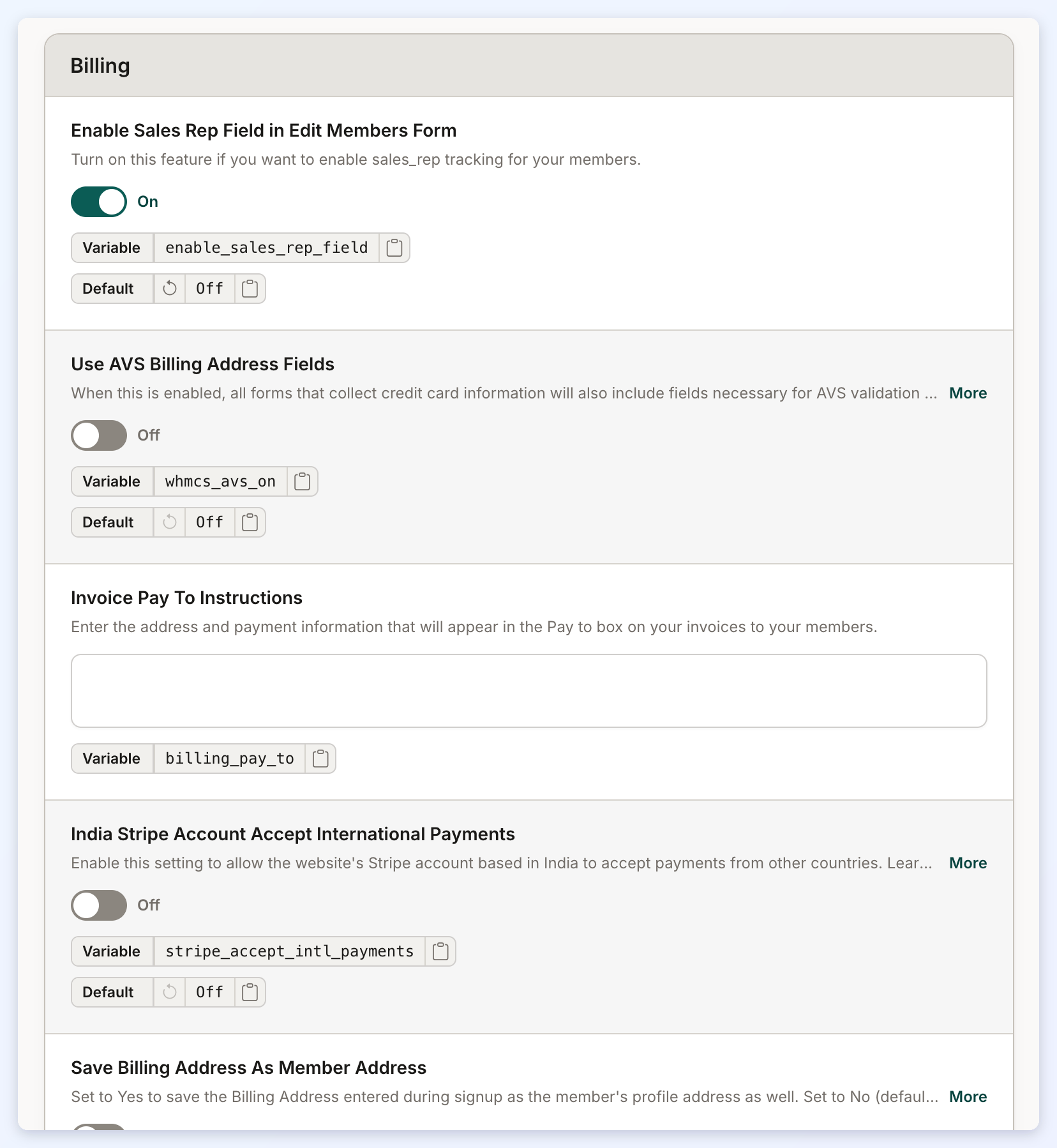
Enable Sales Rep Field in Edit Members Form
Turn on this feature if you want to enable sales_rep tracking for your members.
Use AVS Billing Address Fields
When this is enabled, all forms that collect credit card information will also include fields necessary for AVS validation by your payment gateway. When you disable this, make sure all AVS settings in your active payment gateway are off.
Invoice Pay To Instructions
Enter the address and payment information that will appear in the Pay to box on your invoices to your members.
India Stripe Account Accept International Payments
Enable this setting to allow the website's Stripe account based in India to accept payments from other countries.
Save Billing Address As Member Address
Set to Yes to save the Billing Address entered during signup as the member's profile address as well. Set to No (default) to only save the Billing Address as billing information and not as their profile address.
MEMBER CREDITS: Enable Credit System
Turn this setting ON to enable the credit system. Turn this setting OFF to disable showing the credit system functionality and auto-applying of credits to your members. You must also have the Member Credit System Add-on active for this setting to work.
MEMBER CREDITS: Enable Prorated Plan Changes
Only works when the “Member Credits System” Add-On is enabled and the "Enable Credits System" Advanced Setting is set to "ON". Set to ON in order to enable prorated calculation when members change their own plans.
MEMBER CREDITS: Proration: Deduct First Day Usage from Proration Calculation
Only works with “MEMBER CREDITS SYSTEM” add-on.. Set to ON to deduct the first day's usage from the proration amount calculation.
MEMBER CREDITS: Select Transaction Types Credits Can Be Applied To
Select the types of transactions where member credits can be applied. If an item is unchecked, member credits will not be used for those types of transactions.
Notifications
This section focuses on email notification settings related to member billing and account status changes.
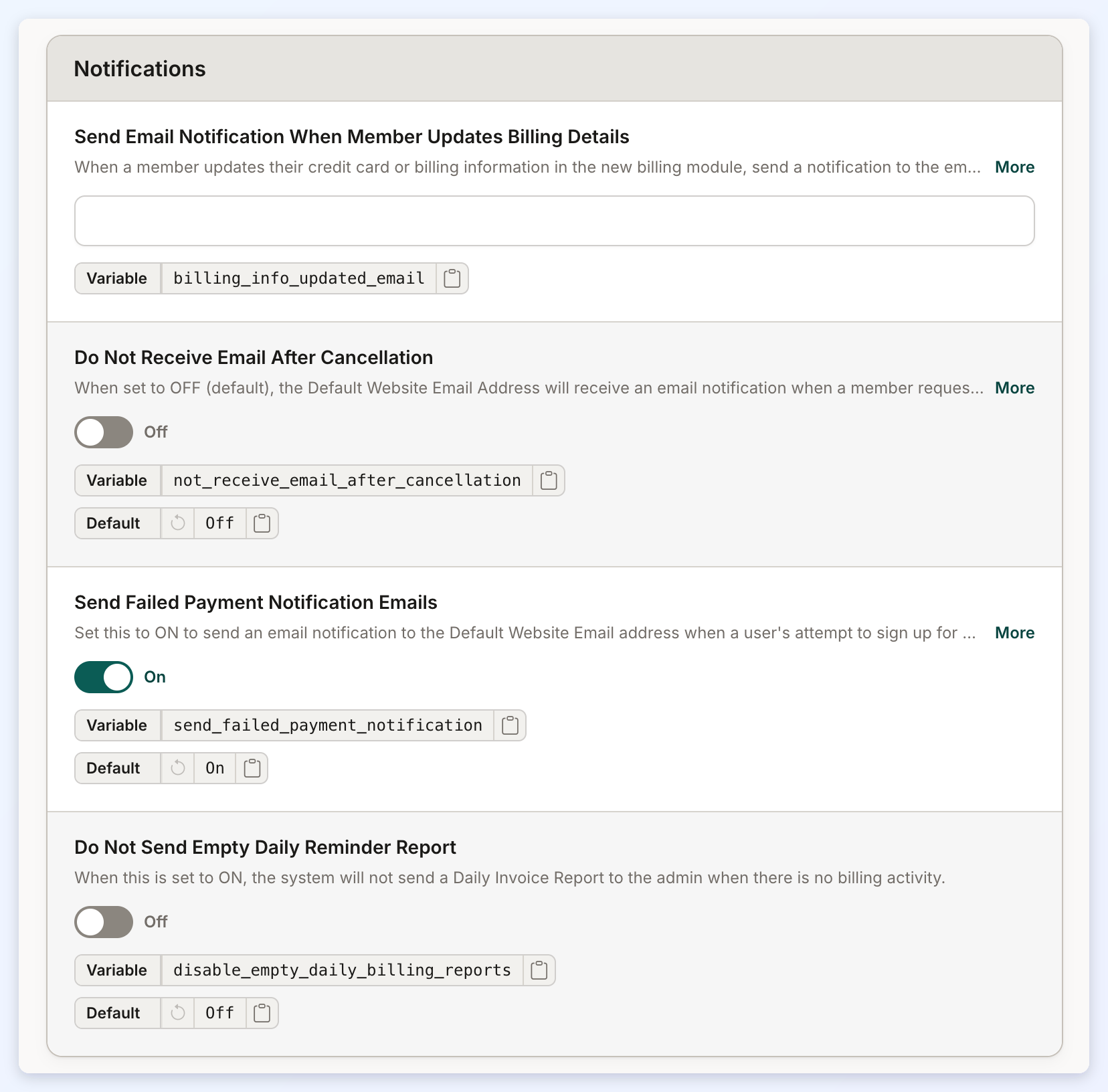
Send Email Notification When Member Updates Billing Details
When a member updates their credit card or billing information in the new billing module, send a notification to the email addresses specified here.
Do Not Receive Email After Cancellation
When set to OFF (default), the Default Website Email Address will receive an email notification when a member requests to cancel their accounts. When set to ON, no notification email will be sent when a member requests to cancel their account.
Send Failed Payment Notification Emails
Set this to ON to send an email notification to the Default Website Email address when a user's attempt to sign up for a paid Membership Plan fails.
Do Not Send Empty Daily Reminder Report
When this is set to ON, the system will not send a Daily Invoice Report to the admin when there is no billing activity.
