
Settings » Advanced Settings » Global
Link: https://support.brilliantdirectories.com/support/solutions/articles/12000110338
These settings are on the Global tab of Settings » Advanced Settings. How to find a setting, read its details, change it and save is explained in Settings » Advanced Settings.
This section outlines key configuration settings and optimizations available for enhancing the website's performance, security, design, and administrative experience. These settings are categorized into four primary sections:
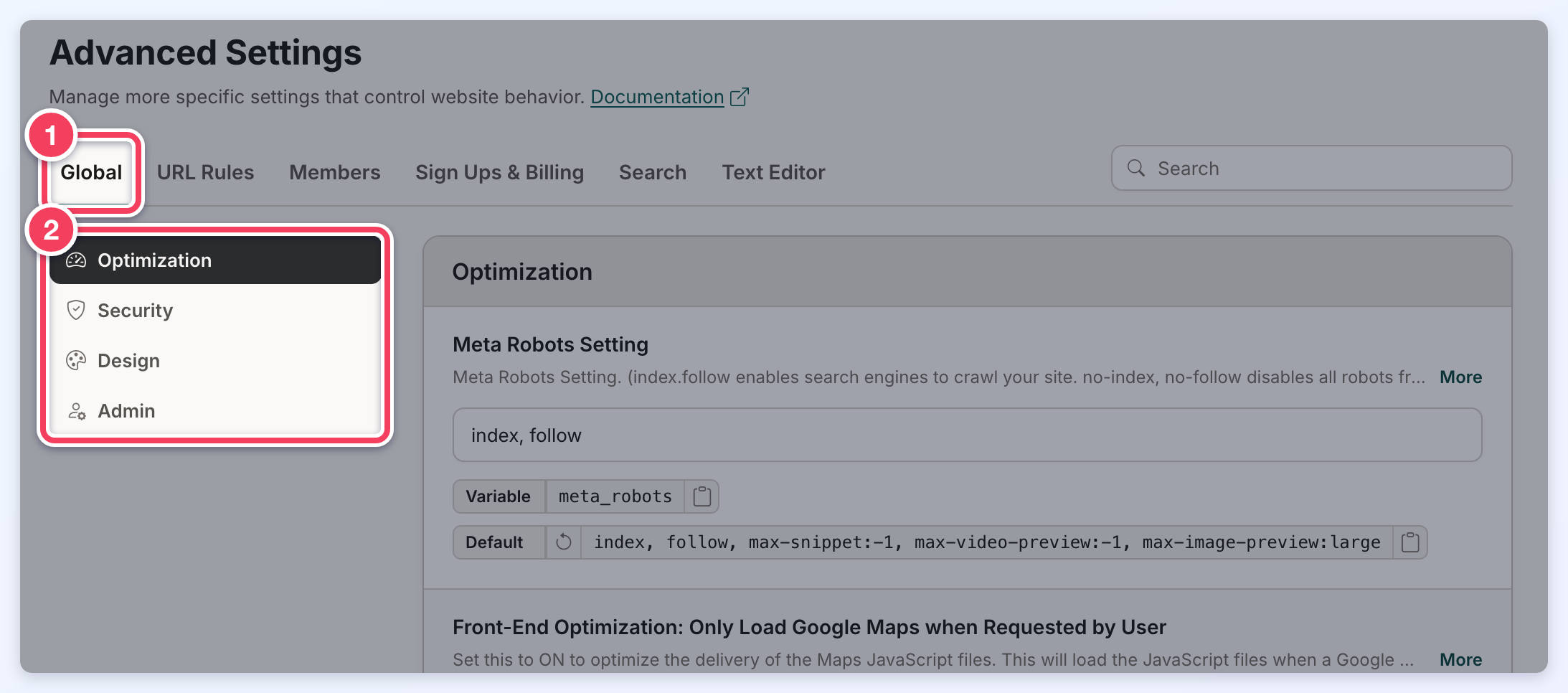
Optimization
This section outlines key website optimization and index settings aimed at improving site performance, user experience, and search engine visibility.
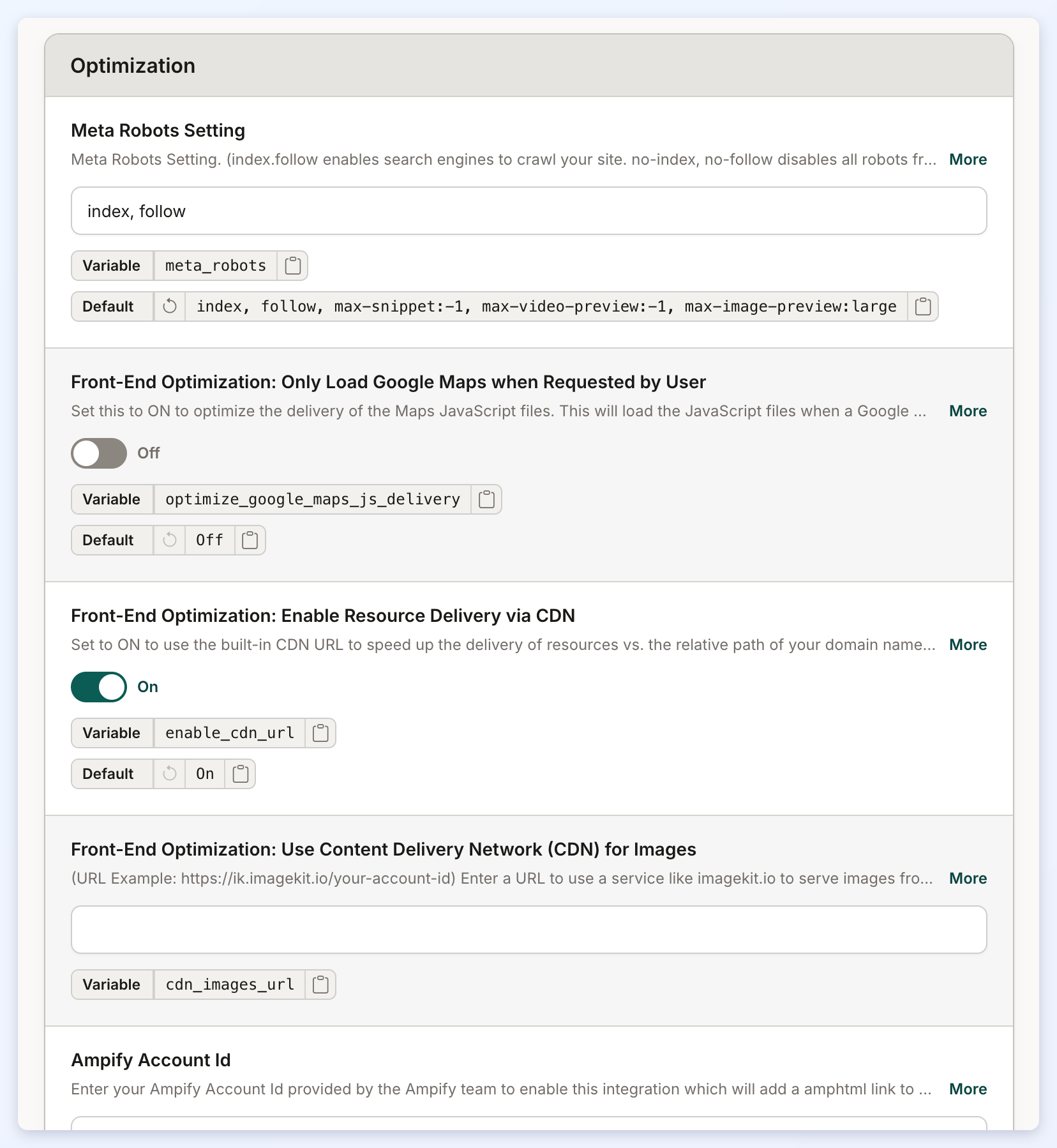
Meta Robots Setting
Meta Robots Setting. (index.follow enables search engines to crawl your site. no-index, no-follow disables all robots from crawling your website.
Front-End Optimization: Only Load Google Maps when Requested by User
It improves website performance by optimizing the delivery of Google Maps JavaScript files. When enabled, the system only loads the required JavaScript files when a Google Maps feature or location autocomplete functionality is requested on a page.
This helps reduce unnecessary resource loading and can improve page load times, especially on pages where Google Maps functionality is not required.
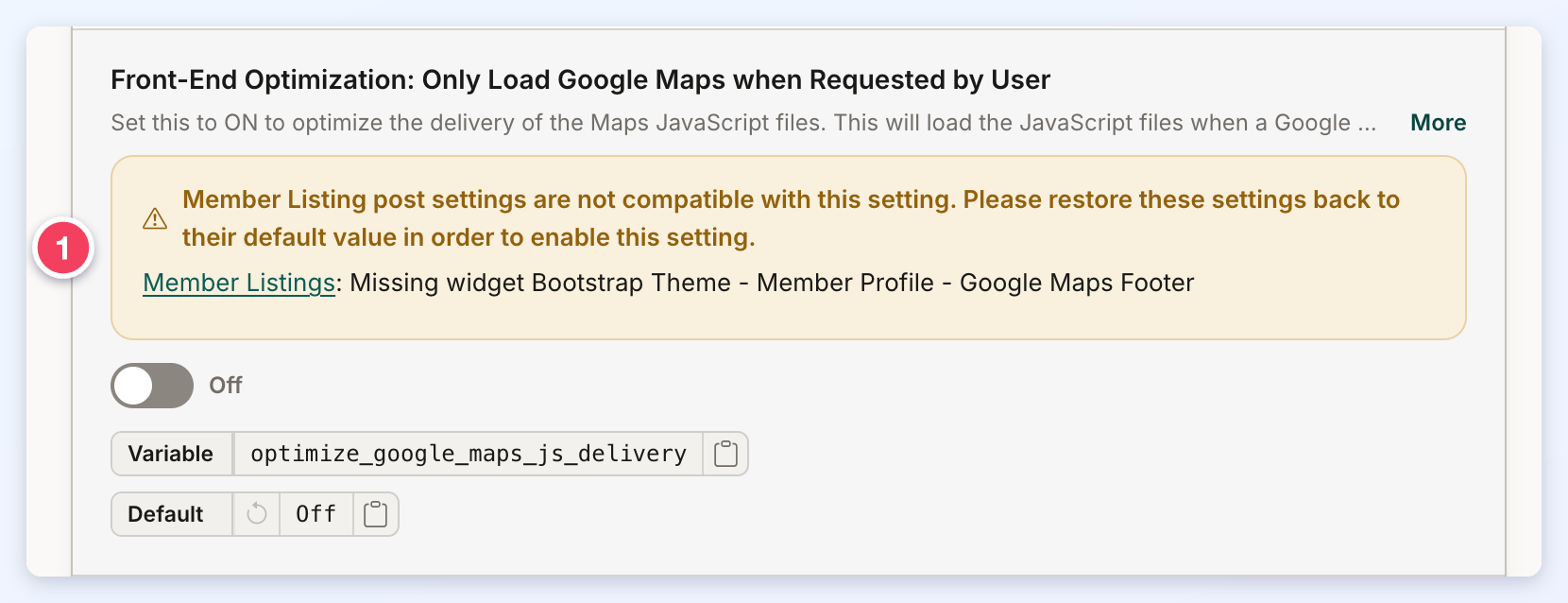
If a customized widget or a member listing post setting is not compatible with this setting, turning the switch on shows a Setting Not Compatible message and the switch stays off. A warning under the setting names each widget or post setting causing the conflict, with a link to it, so it can be updated or restored to its default:
Front-End Optimization: Enable Resource Delivery via CDN
Use the built-in CDN URL to speed up the delivery of resources vs. the relative path of your domain name.
Front-End Optimization: Use Content Delivery Network (CDN) for Images
Section to enter a URL to use a service like imagekit.io to serve images from an image CDN with automatic optimization and real-time transformation.
Ampify Account Id
Ampify is used to create an Accelerated Mobile Page (AMP) compliant version of your website. AMP-compliant websites are lightweight and designed to give mobile visitors a fast, smooth, and engaging experience.
Front-End Optimization: Load Latest JavaScript Files on Frontend of Website
When enabled (recommended), the frontend of the site will use updated versions of jQuery, jQuery UI, and Bootstrap JavaScript libraries.
Front-End Optimization: Mobile Preloader
If enabled, the first web page visited from a mobile device will display a brief loading message, which helps improve page speed metrics.
Front-End Optimization: Lazyload iFrame Embeds
If ON, embedded iFrames will be lazy loaded, and the full iframe will be loaded when visitors scroll to it — improving PageSpeed scores. For embedded YouTube videos, only their thumbnail will load at first, and the full video only when visitors click to play.
Front-End Optimization: Lazyload iFrame Embeds - Supported Domains
When Lazyload iframe Embeds is enabled, this comma separated list of source domains will be targeted as iFrames to lazyload.
Front-End Optimization: Convert User-Uploaded Images to WebP Format
Automatically converts all user-uploaded images to WebP for better performance.
Security
This section highlights important security settings designed to protect the website and its users.
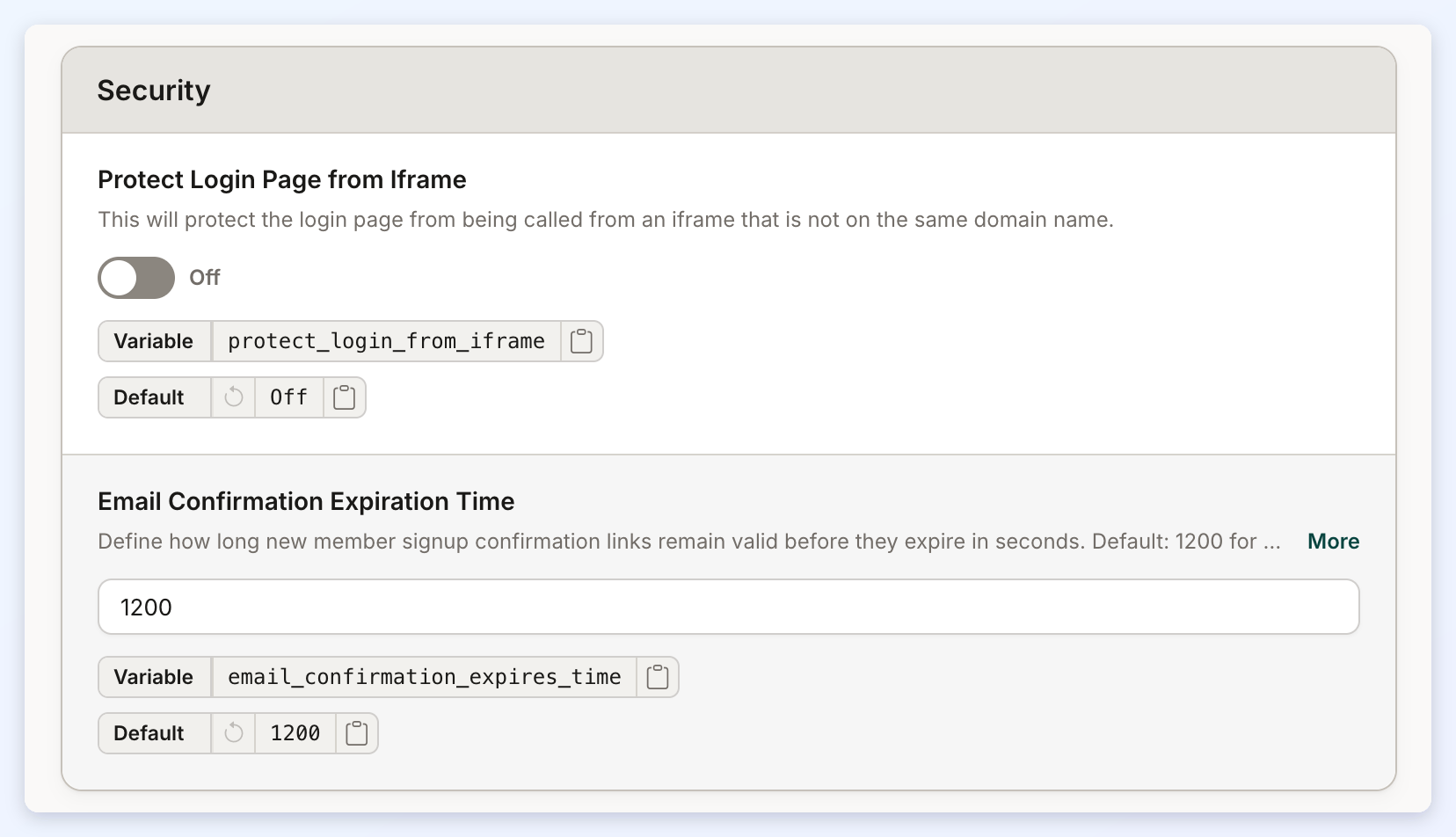
Protect Login Page from Iframe
This will protect the login page from being called from an iframe that is not on the same domain name.
Email Confirmation Expiration Time
Define how long new member signup confirmation links remain valid before they expire in seconds.
Design
This section covers various configuration and localization settings for the website’s front-end experience.
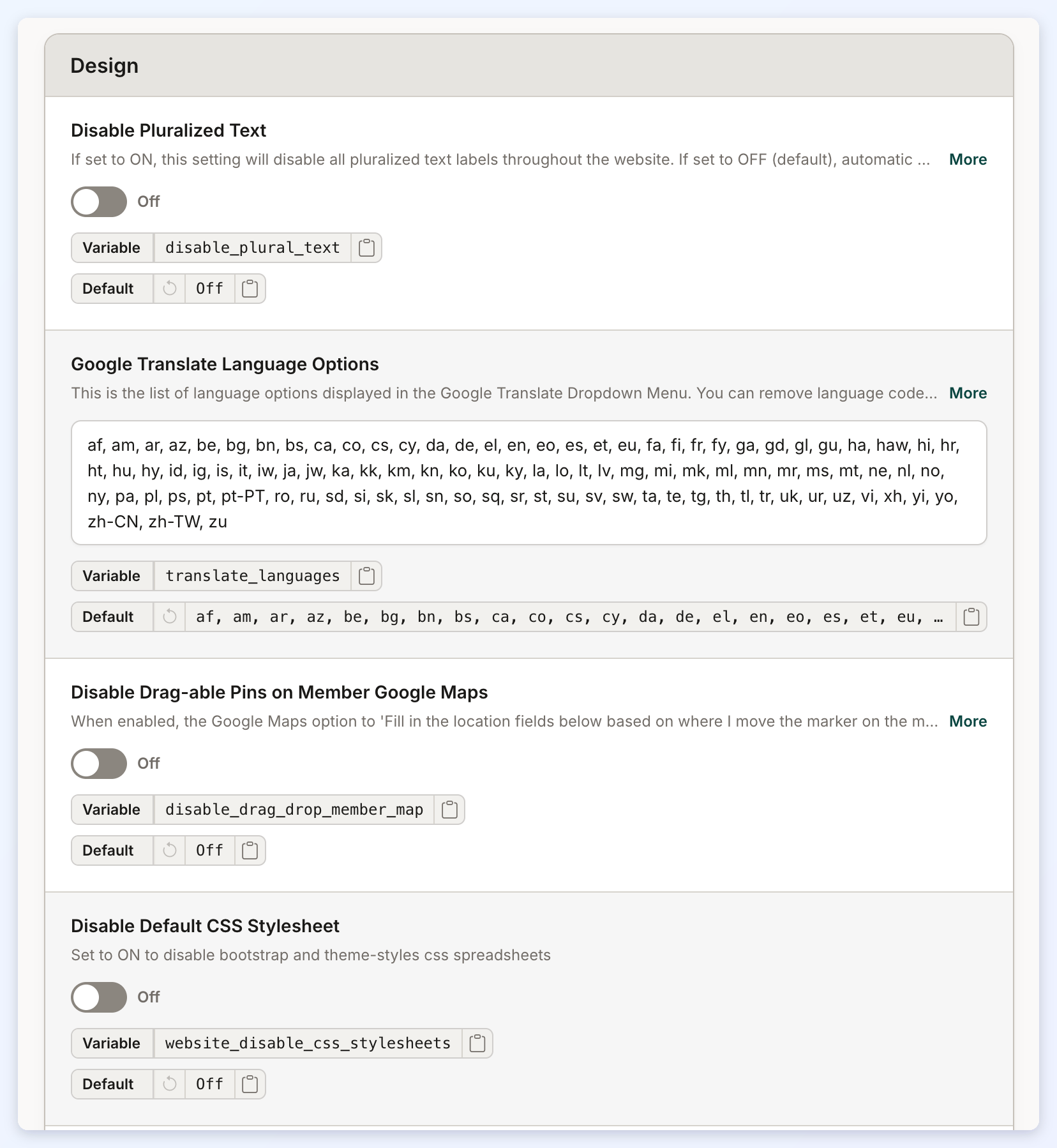
Disable Pluralized Text
This setting will disable all pluralized text labels throughout the website. If set to OFF (default), automatic pluralization of text labels surrounded by %% will be enabled.
Google Translate Language Options
This is the list of language options displayed in the Google Translate Dropdown Menu.
Disable Drag-able Pins on Member Google Maps
The Google Maps option to 'Fill in the location fields below based on where I move the marker on the map above' when members are entering the location for their profile will be hidden.
Disable Default CSS Stylesheet
When set ON, it will disable Bootstrap and theme-styles CSS spreadsheets.
Text Direction
Will modify text if the language of the website should be read from the right side of the page to the left.
Default Center Map Location
Section to add the latitude and longitude separated by a comma.
Admin
This section controls the visibility of the built-in chatbot within the admin panel.
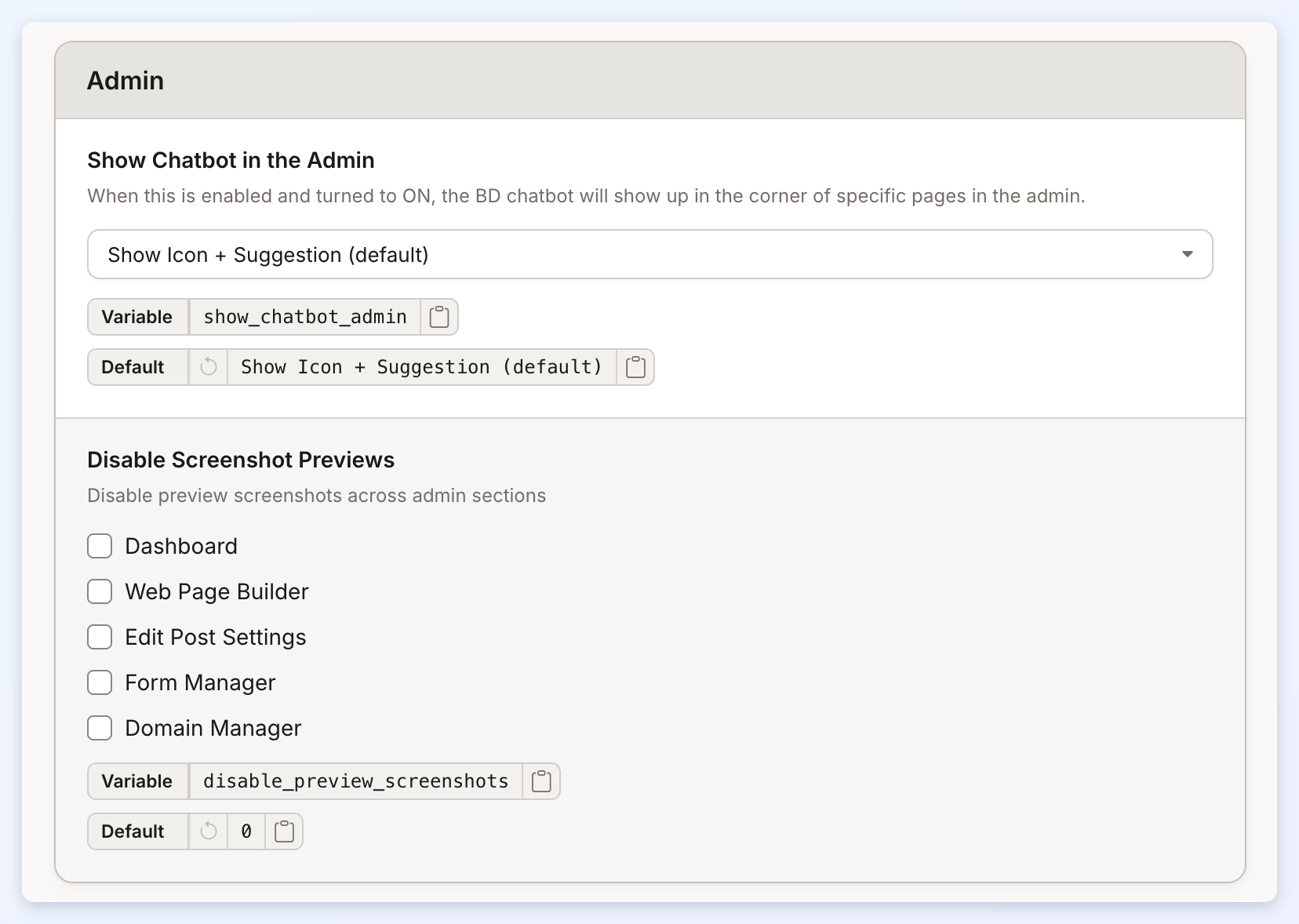
Show Chatbot in the Admin
When this is enabled, the BD chatbot will show up in the corner of specific pages in the admin.
Disable Screenshot Previews
Disable preview screenshots across admin sections. Select from: Dashboard, Web Page Builder, Edit Post Settings, Form Manager and Domain Manager.
