
Account Dashboard » Verified Users
Link: https://support.brilliantdirectories.com/support/solutions/articles/12000109948
The Verified Users page in the Account Dashboard lists the people the Brilliant Directories support and billing teams may contact about the account's websites, and what each person can discuss. A website owner can give a colleague, partner or assistant access here directly, instead of asking support to add them.
Each verified user gets one of three access levels:
- Billing & Support – Can be contacted about both billing and support matters.
- Billing Only – Can be contacted about billing matters only.
- Support Only – Can be contacted about support matters only.
Before Starting
- Sign in to the Account Dashboard with the account that owns the websites. The page is for website owners: an account that does not own any active, suspended or pending website sees a message explaining there is nothing to set.
- Verified users are stored in the account's support records. If the page shows We could not reach your support record just now, saving may not work until the record is available again; try later or contact support.
- Verified users are contacts for support and billing. Adding someone here does not give them a login to the website admin. To add an admin login, see Settings » Admin Accounts.
How to Open Verified Users
- In the Account Dashboard, click the admin name at the top right.
- Select Update Profile (or any other account page).
- In the Account menu on the left, click Verified Users.
Add a Verified User
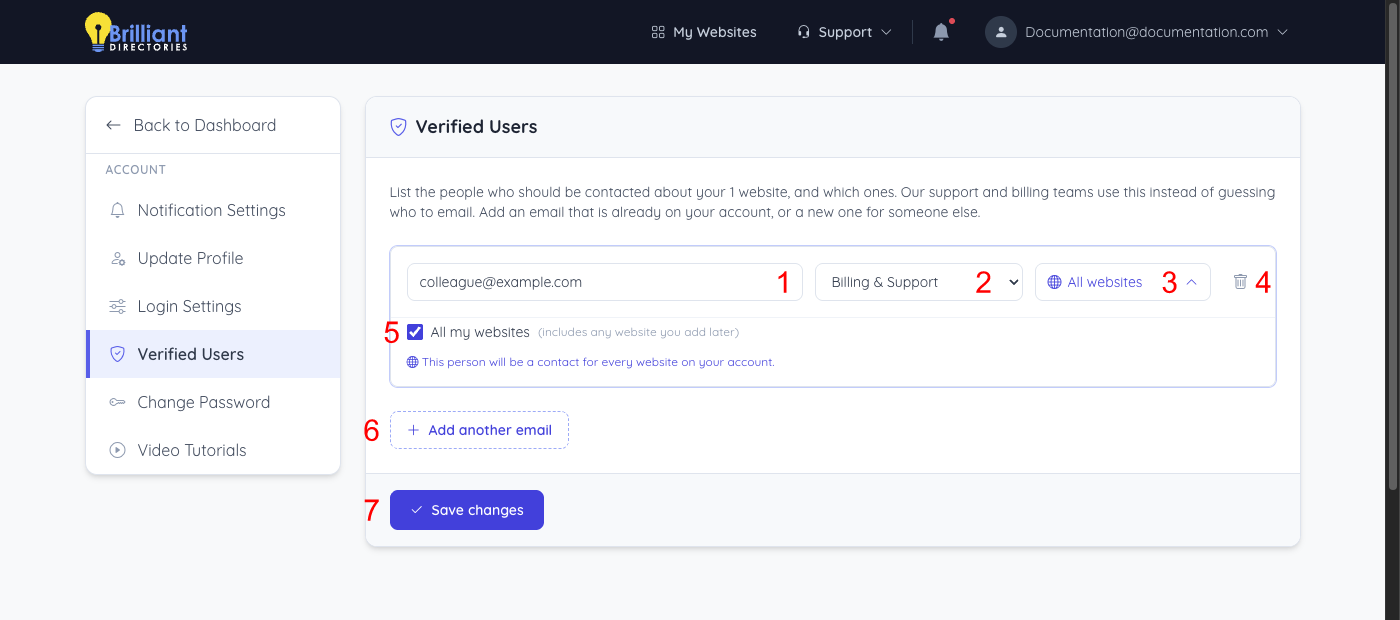
- Email address – Enter the person's email address. It can be an email already on the account or a new one for someone else.
- Access level – Choose Billing & Support, Billing Only or Support Only.
- Websites – Click to choose which websites this person is a contact for. Search by name, URL or ID, tick the websites, then click Done. Select all shown and Clear tick or untick the whole list.
- Remove – The trash button removes the person from the list.
- All my websites – Makes the person a contact for every website on the account, including any website added later.
- Add another email – Adds a row for another person.
- Save changes – Saves the list. Adding, changing or removing a person takes effect only after saving.
Every person needs at least one website, or All my websites. A person with no websites is not saved, and a message names them.
After Saving
The message Verified users were saved. confirms the change. The support and billing teams then use this list to confirm who may be contacted about each website, and at which access level.
Contacts that the Brilliant Directories team entered earlier appear under On file with our support team. They cannot be changed on this page, but they show the full list of people on file. Contact support to change one of them.
