Content » Web Page Builder » Draft System (Autosave)
Link: https://support.brilliantdirectories.com/support/solutions/articles/12000109411
While editing a page in the Web Page Builder, the system automatically saves work in progress as a draft every few seconds. If the tab closes accidentally, the browser crashes, or the editor is closed before clicking Save, the changes aren't lost, the draft is offered back so editing can continue right where it left off.
This article explains how the draft system works, what counts as a change, and how to discard one.
How It Works
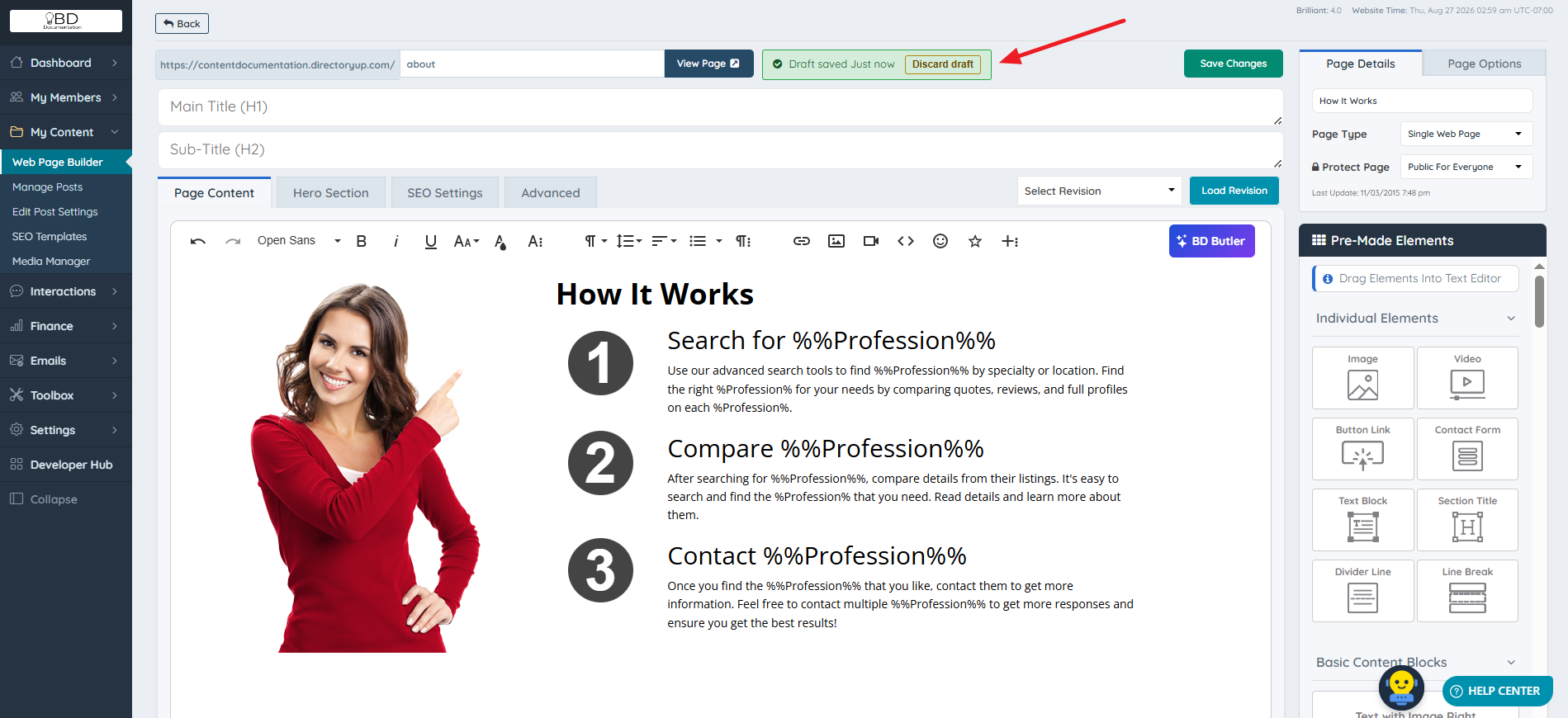
As edits are made in the Web Page Builder, the system silently saves a draft copy of the page every 2 seconds. A status badge next to the Save button reflects the current state, for example:
- Saving Draft — the draft is being written
- Draft saved Just now — the latest changes are saved as a draft
What Counts as a Change
The draft system captures any edit made in the page editor, including:
- Typing or editing text (including single keystrokes, like adding a space)
- Rearranging or restyling content
- Inserting an image
- Inserting a video
- Changing Page Details and Page Options settings
Any of these will trigger the autosave and update the draft badge.
Drafts Don't Go Live
Saving a draft is not the same as publishing. Nothing written to a draft ever appears on the live, front-facing page until Save is explicitly clicked on the page.
This means edits can be made freely, experimenting, stepping away, or losing connection mid-edit, without any risk of half-finished changes showing up for site visitors. Clicking Save publishes the changes and clears the auto-saved draft, since it's no longer needed once the page is saved.
Discarding a Draft
To discard a draft, click the "Discard Draft" button. This deletes the draft and reverts the page back to its last saved (original) state.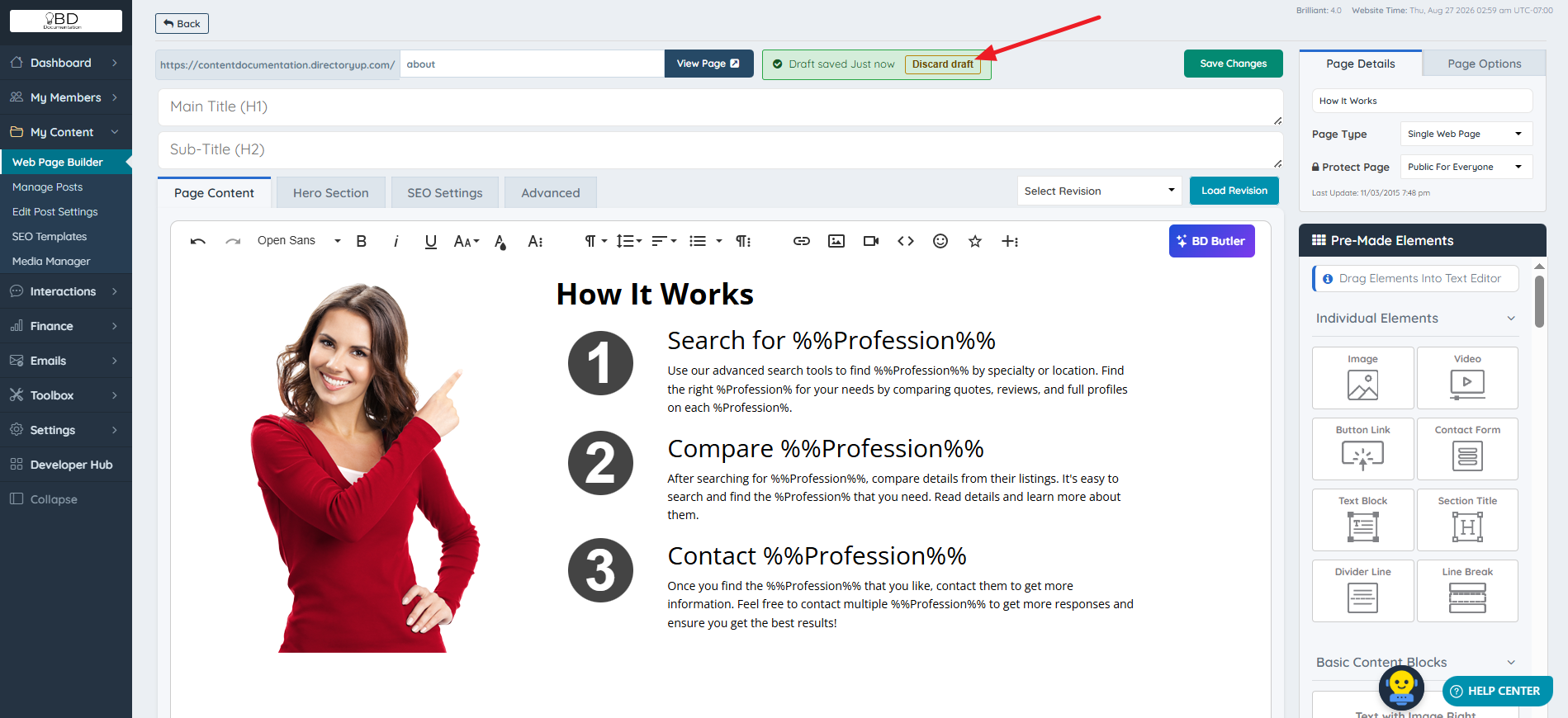
How to Disable This Functionality
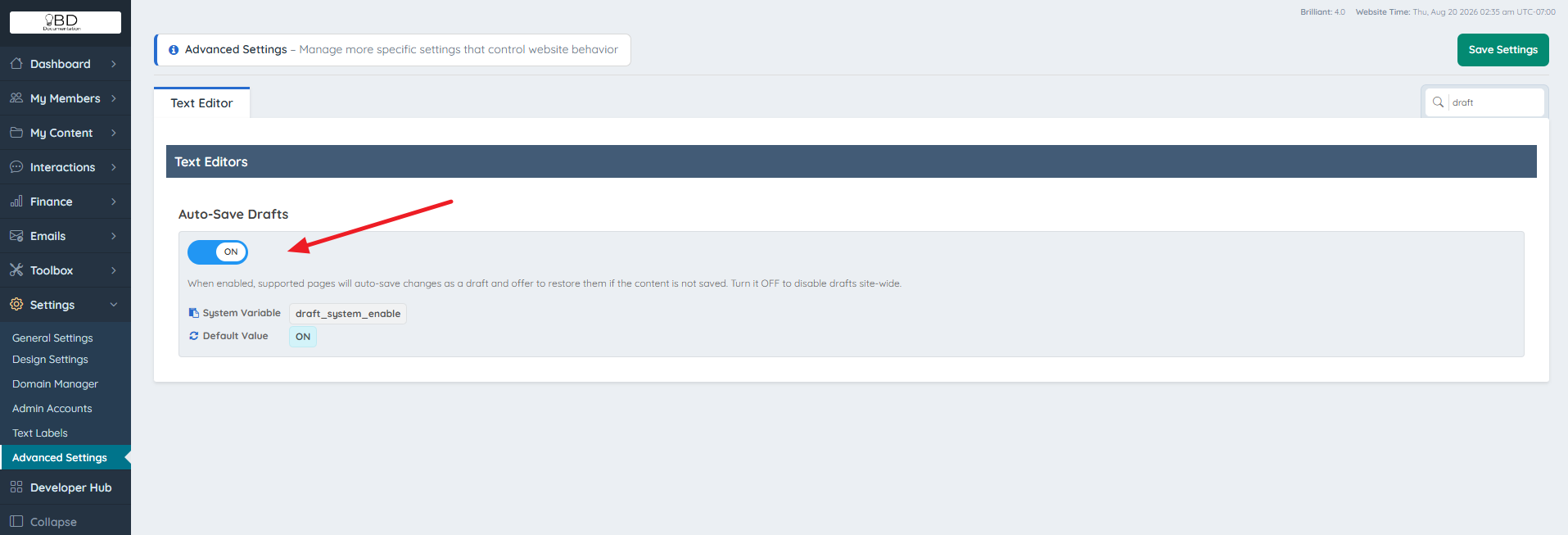
If needed, this functionality can be disabled under Settings » Advanced Settings by disabling the Auto-Save Drafts advanced setting.