
Installing Google Analytics Tracking Code
Link: https://support.brilliantdirectories.com/support/solutions/articles/12000108611
Important Notices:

1. If you have not yet installed Google Analytics 4 on your Brilliant Directories website, follow the steps in this article to copy and paste a Google Analytics 4 ID into the General Settings of your website. If you need to set up GA4, please see: Google Instructions: How to Set Up GA4
2. If you are still using Google Analytics 3, which is a Google Analytics ID that begins with UA-XXX, tracking has been deprecated and no longer works. You'll want to migrate to Google Analytics 4. If you need to migrate from GA3 to GA4, please see: Google Instructions: Migrate GA3 to GA4
3. If you've already manually added Google Analytics 4 Code to your website's HEAD or via Google Tag Manager, then no further action is required and the steps in this article DO NOT need to be followed.
-- Manually Embed Google Analytics 4 Code (advanced method)
-- Google Tag Manager Method
How to Copy Google Analytics 4 ID
- Sign in to your Google Analytics account.
- Click Admin in the side menu of the website property.
- At the top of the page, search for "Measurement ID".
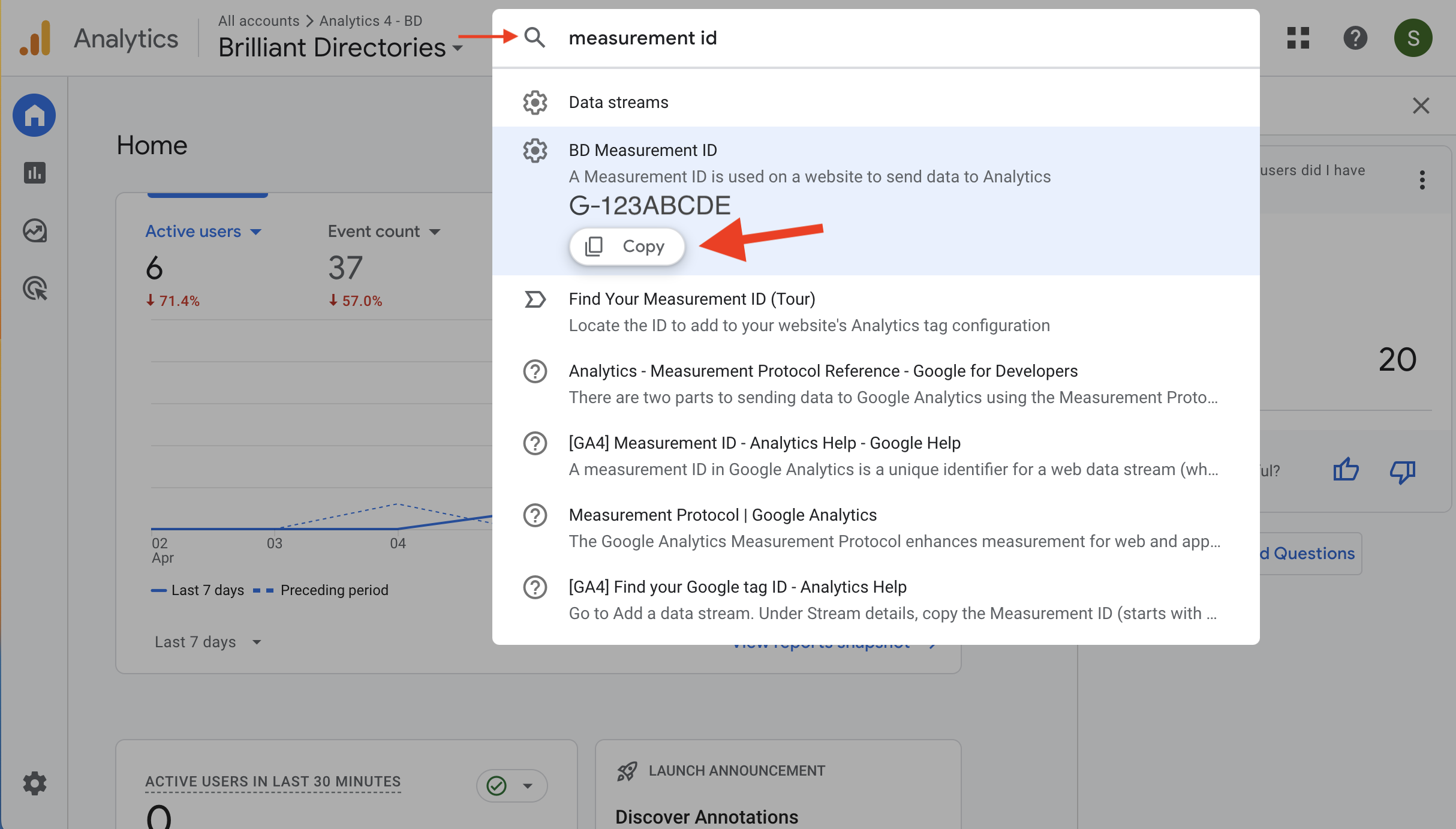
Adding the Google Analytics 4 ID
- Go to Settings » General Settings and click on the tab named Integrations
- Copy the code and paste it into the Google Analytics 4 field.

- e.g.: G-XXXXXXX

This field works only with Google Analytics 4.
If You're Still Using Google Analytics 3 ID (UA-XXX)

When the new GA4 ID is entered and saved the website will no longer show the old ID and start using only the new field:

