Account Dashboard » Notification Settings
Link: https://support.brilliantdirectories.com/support/solutions/articles/12000107265
The Notification Settings page in the Account Dashboard controls how the admin is notified about activity on the account's websites, such as new member signups, payments and leads. Notifications can be delivered through three channels: the Account Dashboard notification bell, desktop browser pop-ups, and the ManageMyDirectory.com mobile app. Each channel is turned on separately and has its own list of activity that triggers it.
Before Starting
- Sign in to the Account Dashboard.
- Desktop notifications need the browser's permission to show notifications on that computer.
- Mobile app (in-app) notifications need the ManageMyDirectory.com app installed and signed in. See Account Dashboard » Login Settings.
How to Open Notification Settings
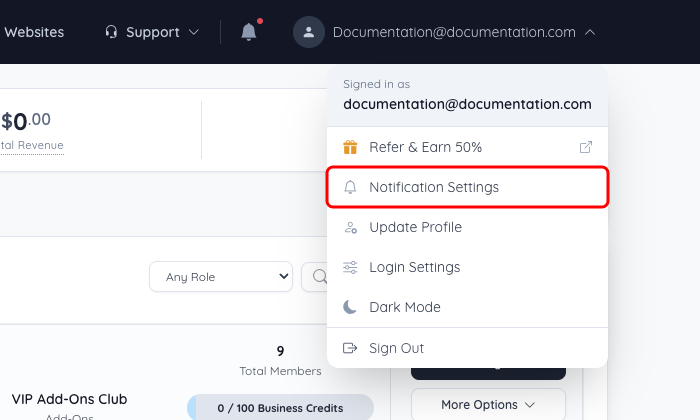
- In the Account Dashboard, click the admin name at the top right.
- Select Notification Settings.
Notification Settings
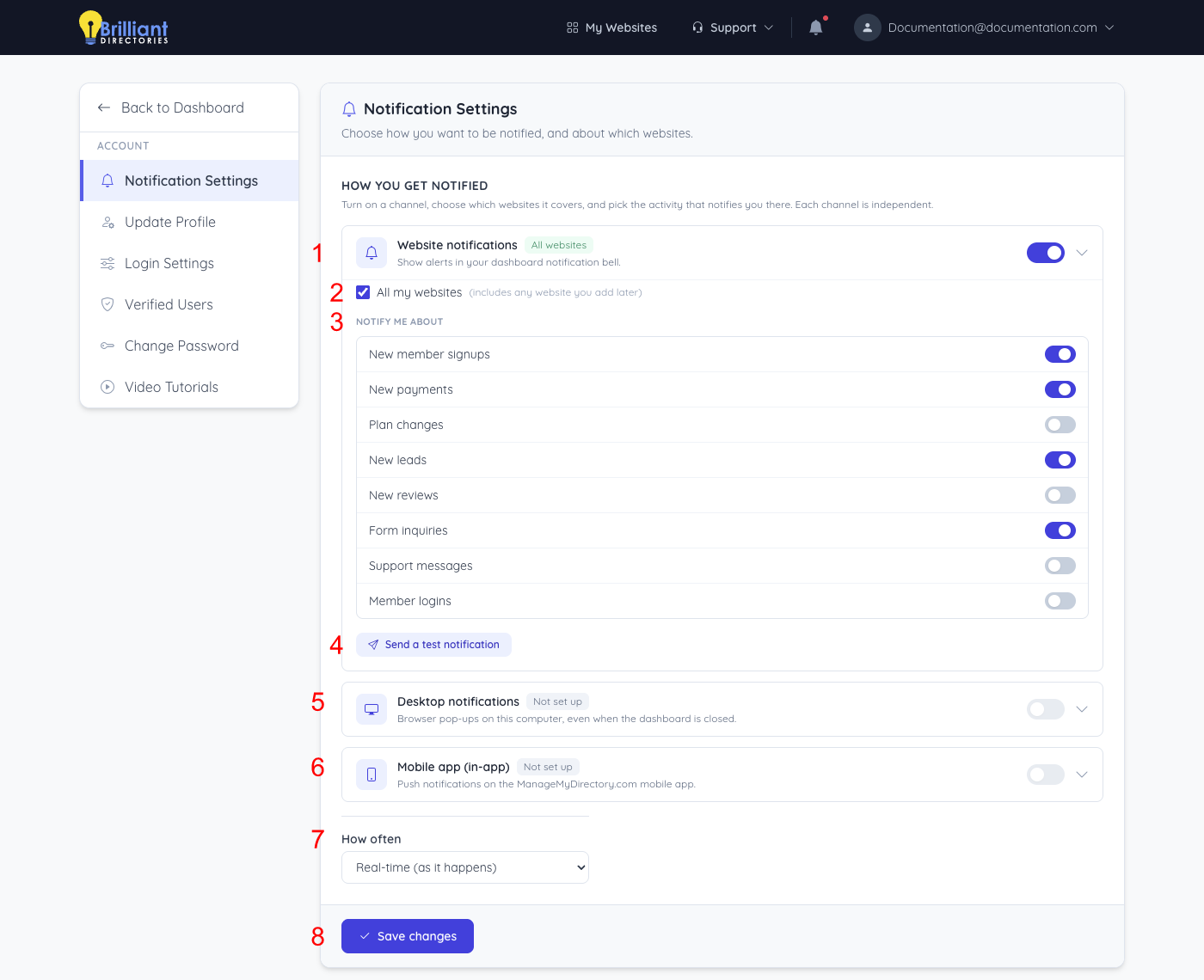
- Website notifications – Shows alerts in the Account Dashboard notification bell. Use the switch on the right of the channel to turn it on or off, and the arrow to expand or collapse its options. The label next to the channel name shows its current state.
- All my websites – Covers every website on the account, including any website added later.
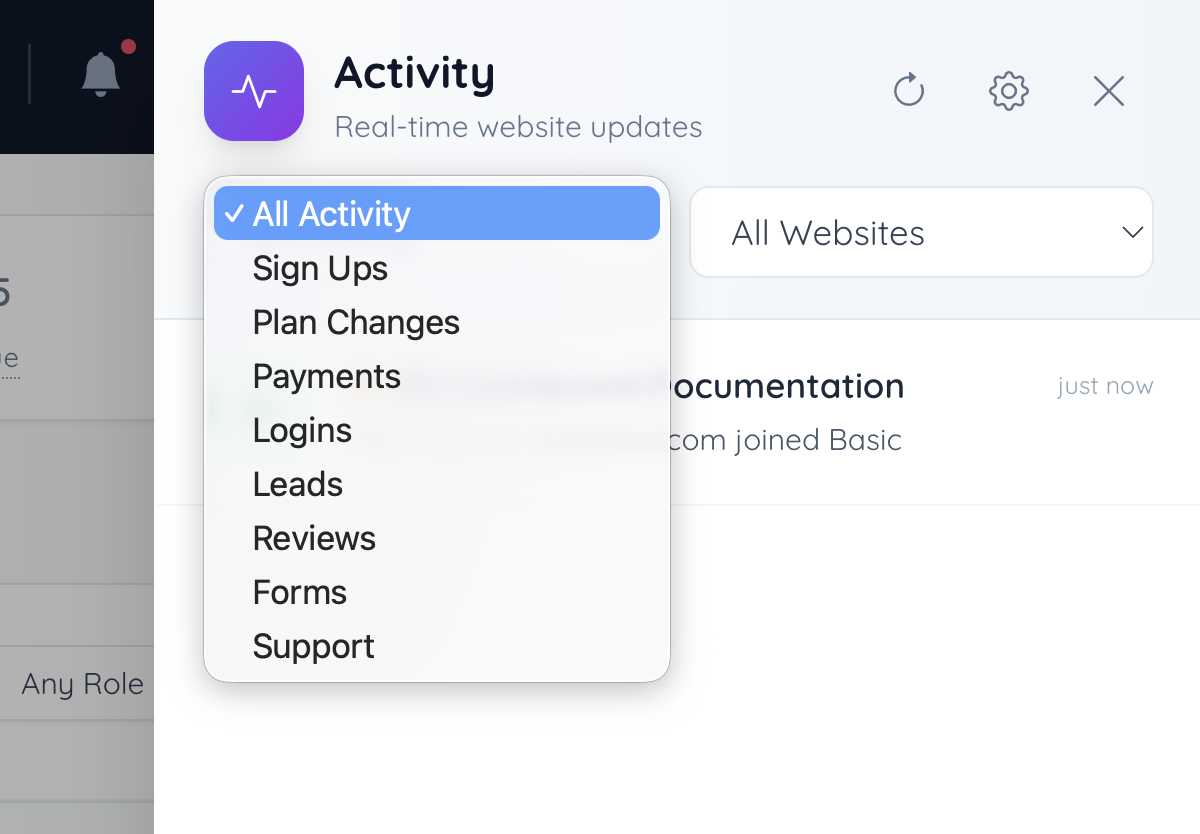
- Notify me about – Turns each type of activity on or off for this channel: New member signups, New payments, Plan changes, New leads, New reviews, Form inquiries, Support messages and Member logins.
- Send a test notification – Sends a sample notification through the channel to confirm it works.
- Desktop notifications – Browser pop-ups on this computer, even when the dashboard is closed. Click Enable desktop notifications and allow notifications when the browser asks. The channel then has its own website and activity options.
- Mobile app (in-app) – Push notifications on the ManageMyDirectory.com mobile app. It shows Not set up until the app is signed in on a phone; its options appear here after that.
- How often – How often notifications are sent: Real-time (as it happens), Every 5 minutes, Every 15 minutes, Every 30 minutes or Every hour.
- Save changes – Saves every channel. The message Notification settings saved. confirms the change.
When All my websites is cleared, Choose websites opens a list of the account's websites. That selection is saved with the channel, but delivery does not yet limit notifications to the chosen websites.
Desktop delivery of live website activity is still being finished. The desktop test notification already works.
Saving from a browser that cannot use a channel (for example, desktop notifications not allowed in that browser, or no signed-in mobile app) leaves that channel's saved settings unchanged.
Activity Panel
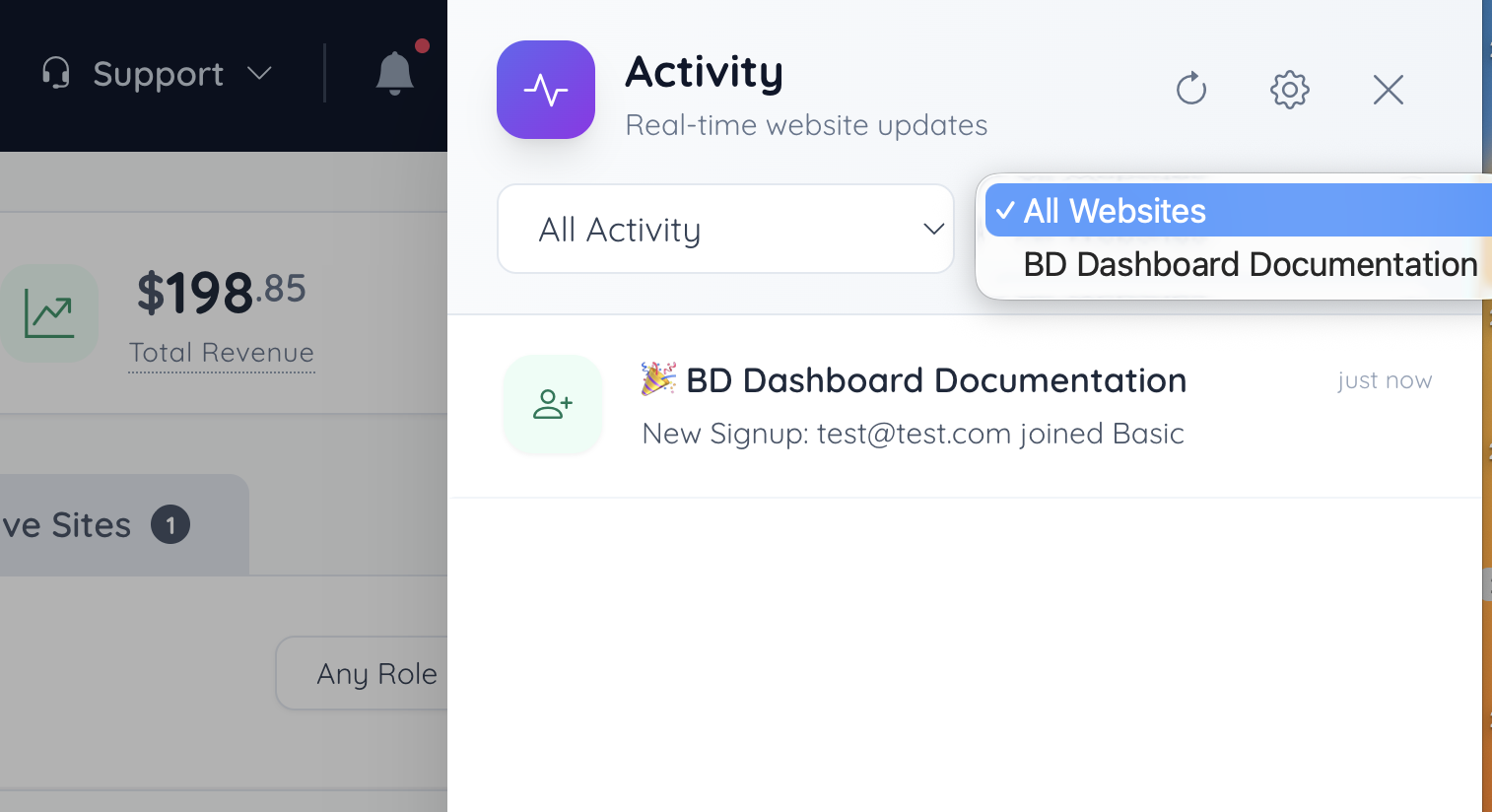
The bell icon at the top of the Account Dashboard opens the Activity panel, which lists recent activity from the account's websites for any channel set to Website notifications. The panel can be filtered by activity type and by website.
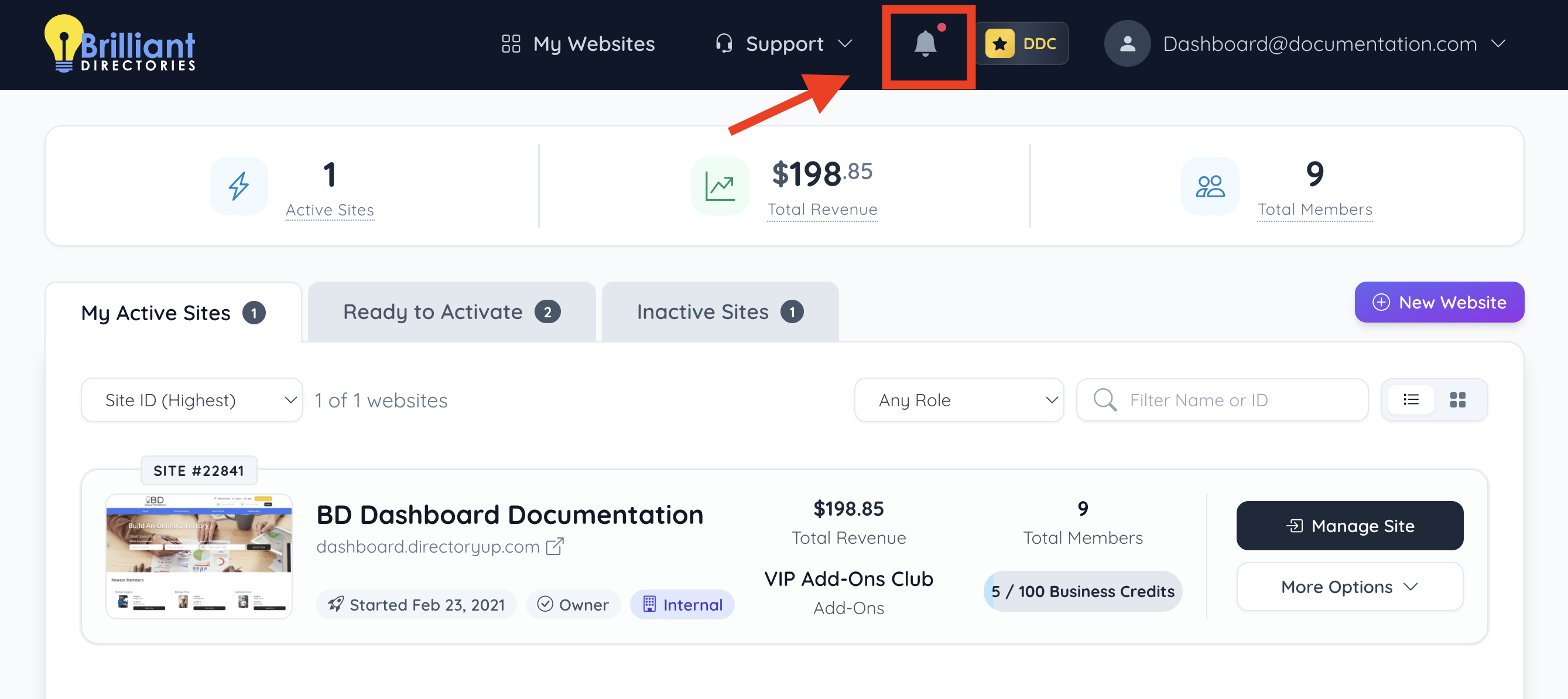
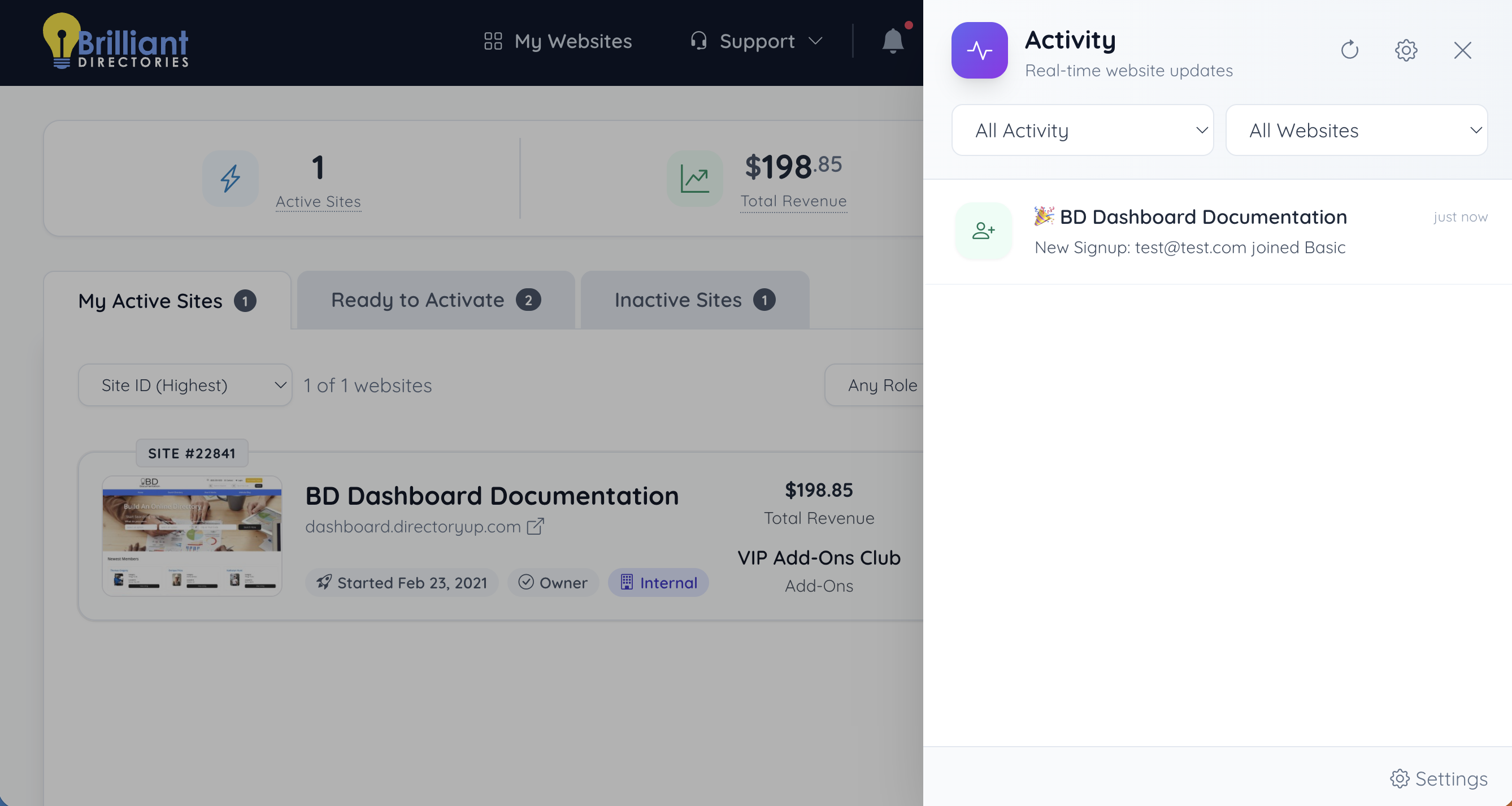
Activity Type
Select which activity type to show.
|
|
Select Website
Select the websites activity to be shown.