Setup Wizard
Link: https://support.brilliantdirectories.com/support/solutions/articles/12000100503
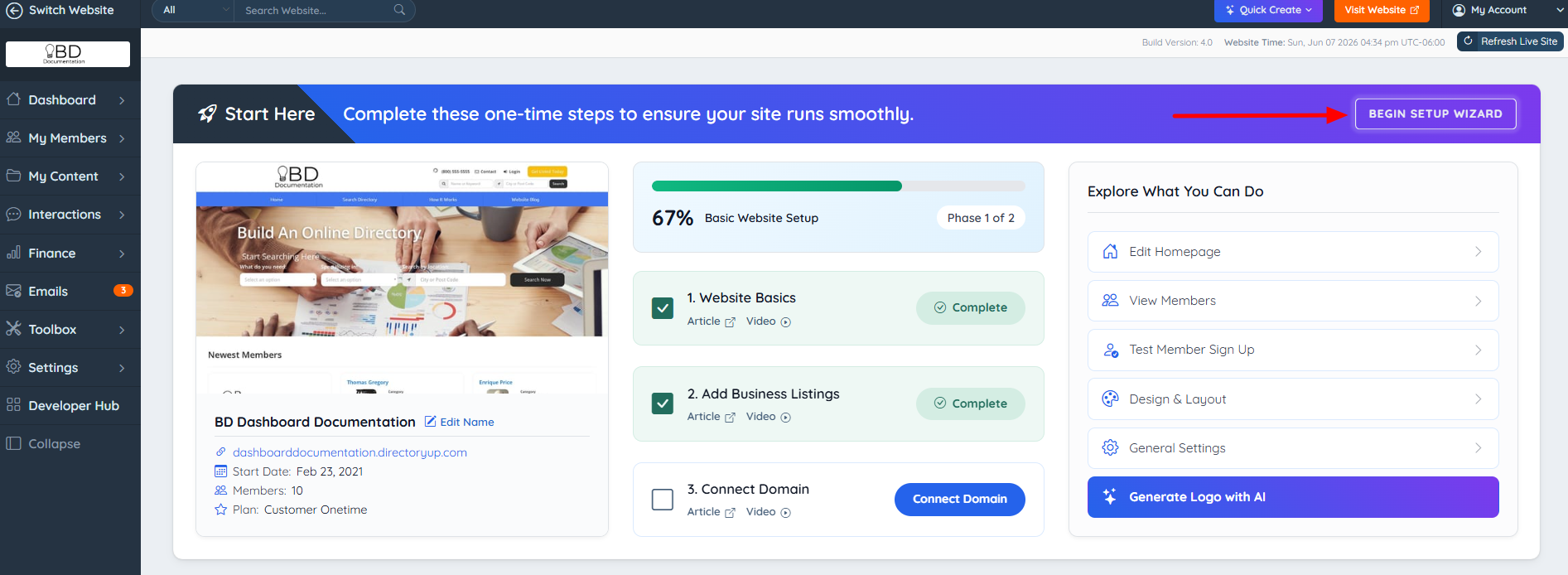
The Setup Wizard is a tool that will take the admin step by step, in completing the most basic setup for the new website. To find this tool:
- Go to the Admin Dashboard
- Look for the Start Here section
- Click on the button that says "BEGIN SETUP WIZARD":
Setup Wizard Steps
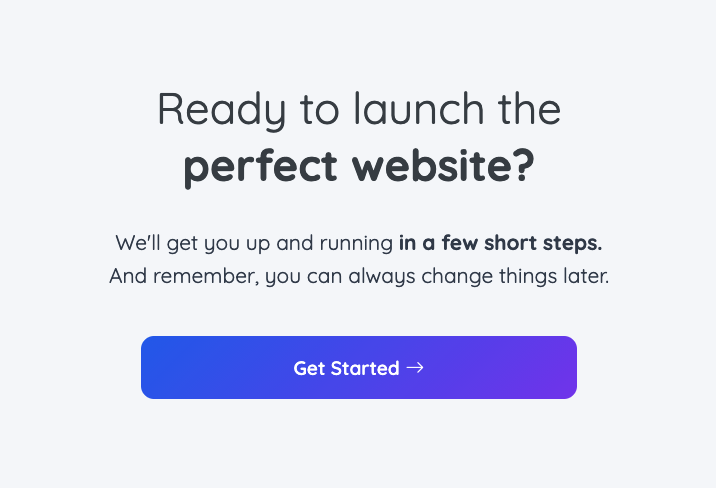
The first screen introduces the Setup Wizard. Click on Get Started to continue:
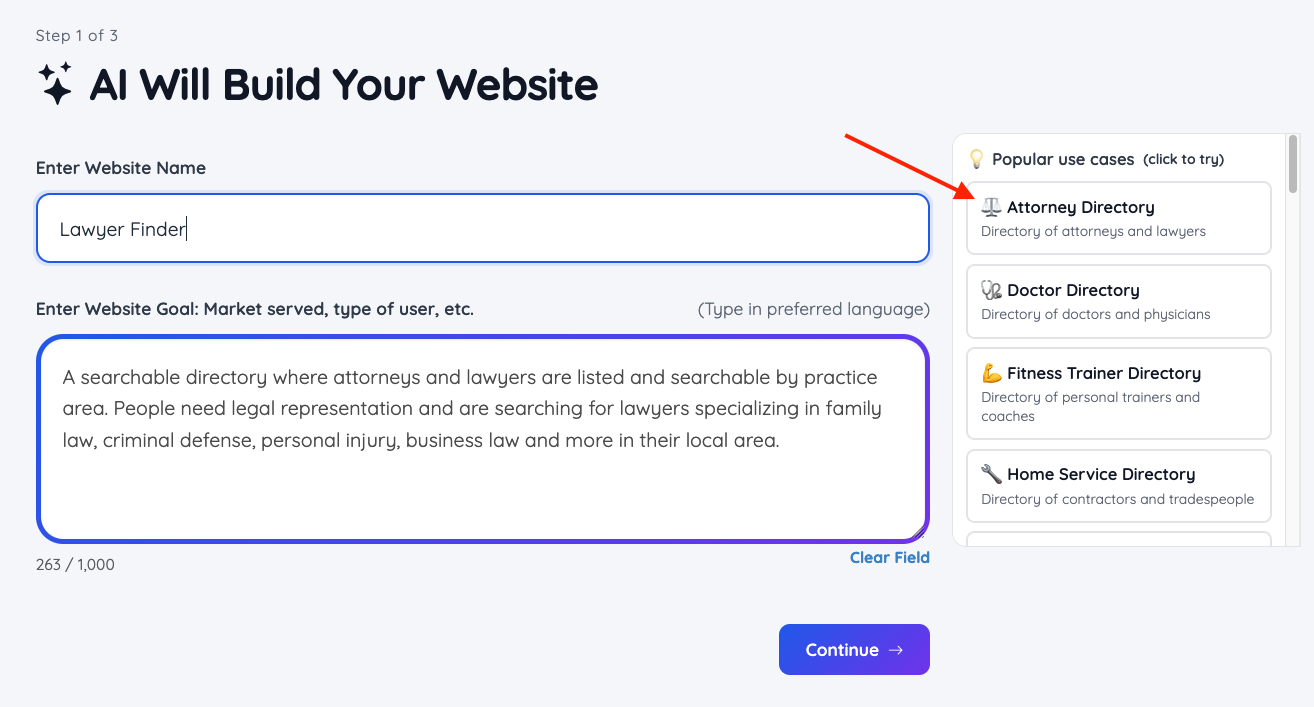
1. Enter Website Name
Add the Website Name. This can be edited later on if needed in the "Website Name" field in the Settings » General Settings Tab.
This screen also allows the admin to choose enter the Website Goal, what is the market served, type of users, etc.
By selecting from the Popular user cases list, the Website Goal will be auto-populate and it can be further edited based on business needs.
2. Review and Generate Website
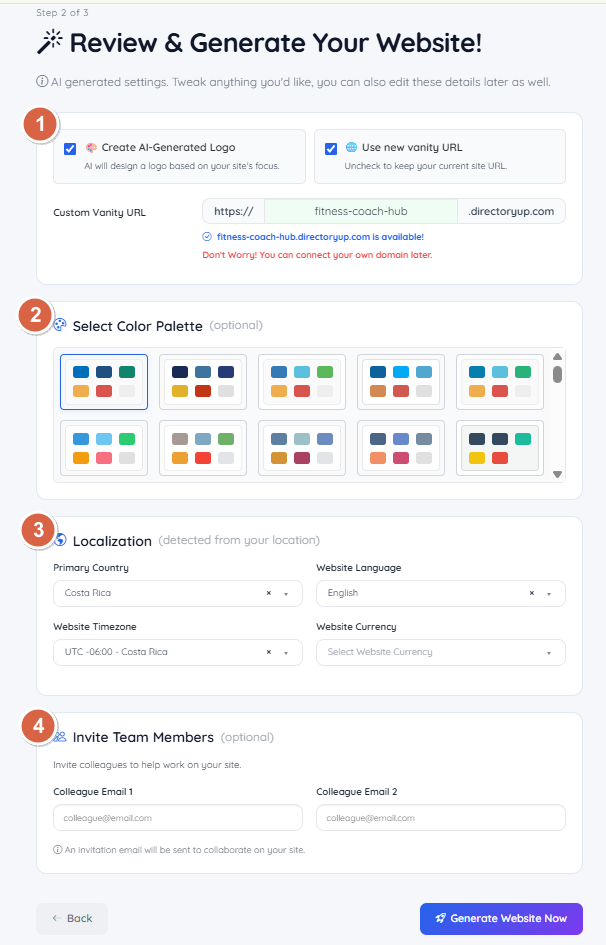
AI Generated Logo and Custom Vanity URL
The admin can generate a logo for the Site with AI based on the information previously shared, also in this step creates a custom vanity temporary URL. The admin will be able to connect their own domain following the steps in the guide: How to Connect a Domain to A Brilliant Directories Website
Select Color Palette
The admin can choose a color palette to automatically apply coordinated colors throughout the website, creating a consistent look and feel. The selected colors can be customized later from Settings >> Design Settings >> Color Sets.
Localization
This section gets filled automatically based on the location of the admin running the wizard. From here the admin can select the Primary country, the website language, the website timezone and website Currency. This can also be edited later on in this section of the admin dashboard: Settings » General Settings » Localization
Invite Team Members
The admin can invite additional admins to assist in the website via email. This can also be done afterwards from this section: Admin Accounts » Invite Admin +
Generate Website Now
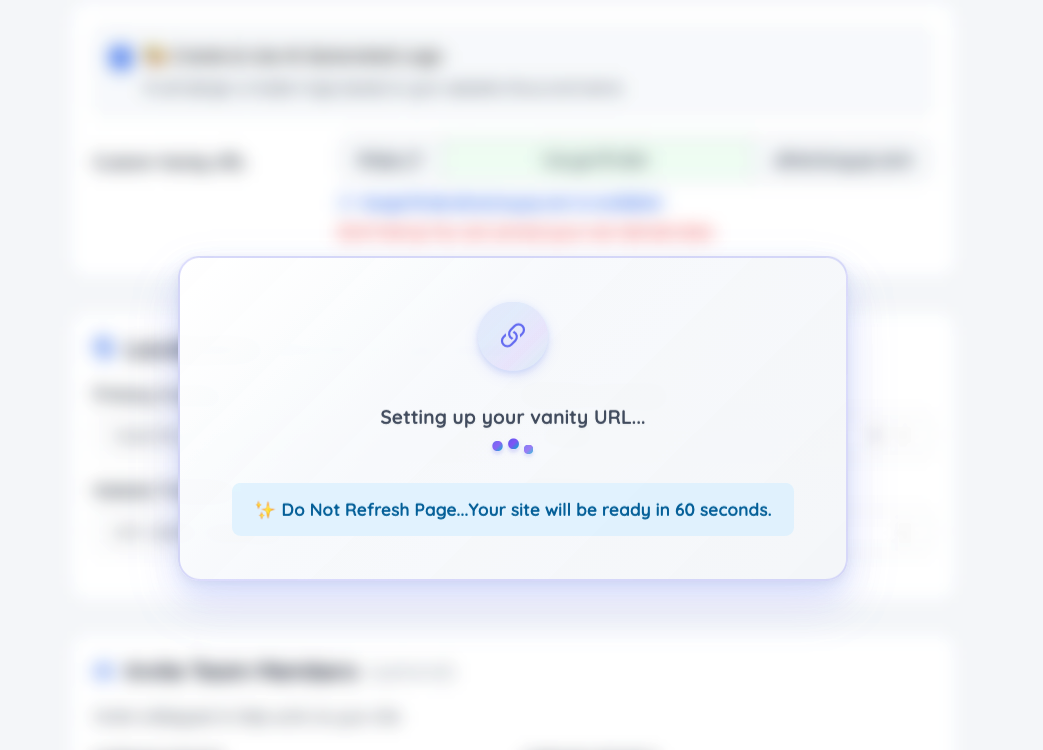
Once the admin clicks on the Generate Website Now button, a status bar will show indicating that is currently working on creating the website and within a minute or two, everything is done automatically.
Once the process is completed, it will show the screen below where the admin is able to go to the admin area to keep working on the site setup, Import Business Listings and watch additional tutorial videos.

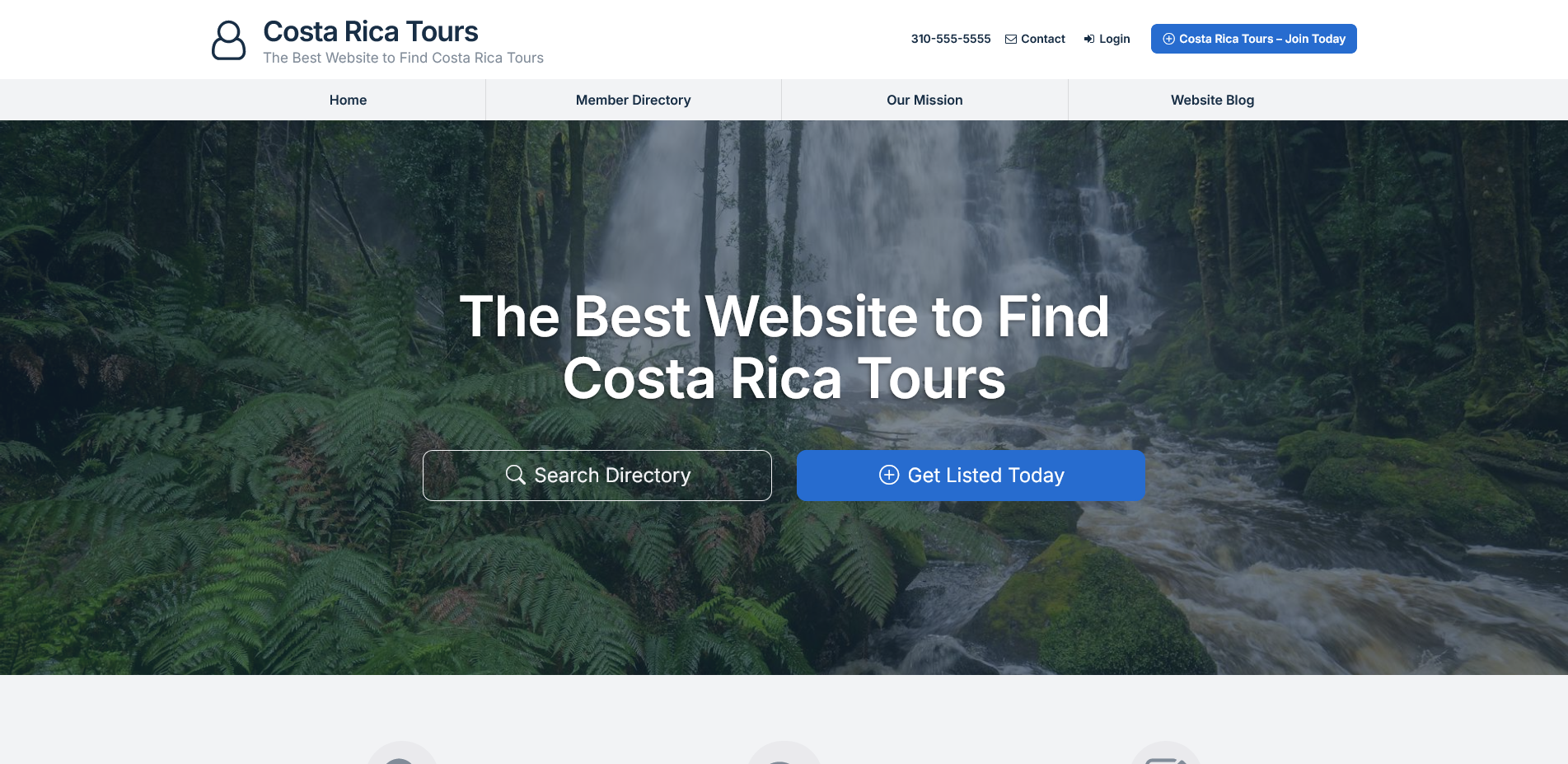
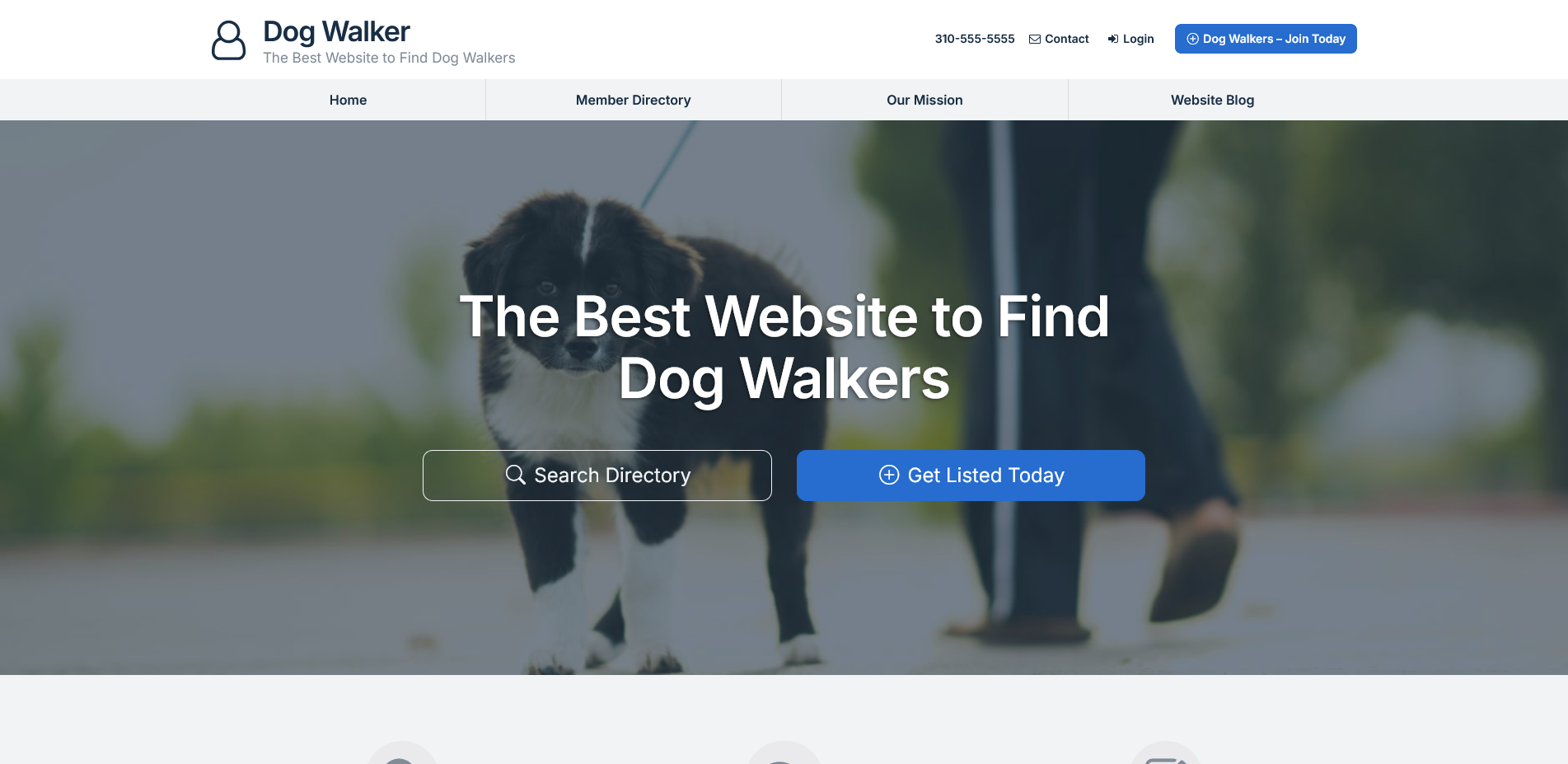
Stock Photo Homepage Hero Image
Based on the information added in all Steps above, the platform will auto-find and use a stock photo Homepage Hero Image that matches the website name, industry and profession entered.