
Emails » Email Outbox
Link: https://support.brilliantdirectories.com/support/solutions/articles/12000100235
This article explains how to use the Email Outbox, which lists the automatic and system emails sent from the website, who they were sent to, and what happened to each one after it was sent.
How to Access This Tool
This tool can be accessed under Emails » Email Outbox in the admin area:
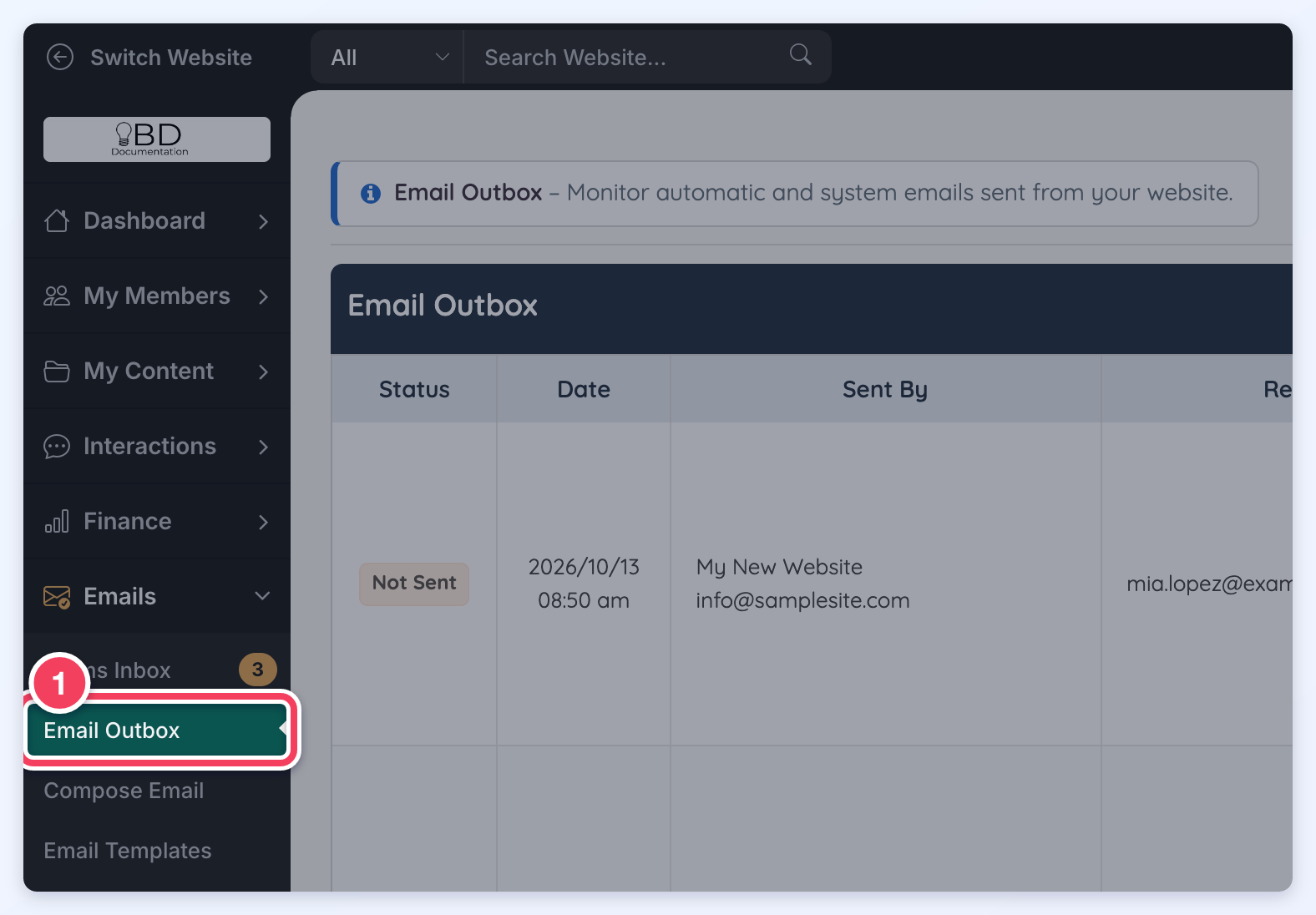
Overview of the Layout
In this section, the Email Outbox layout is outlined and explained. This includes the different statuses, activities, and information displayed for each email.
Status
Two different labels can be displayed based on the status of the emails sent from the system:
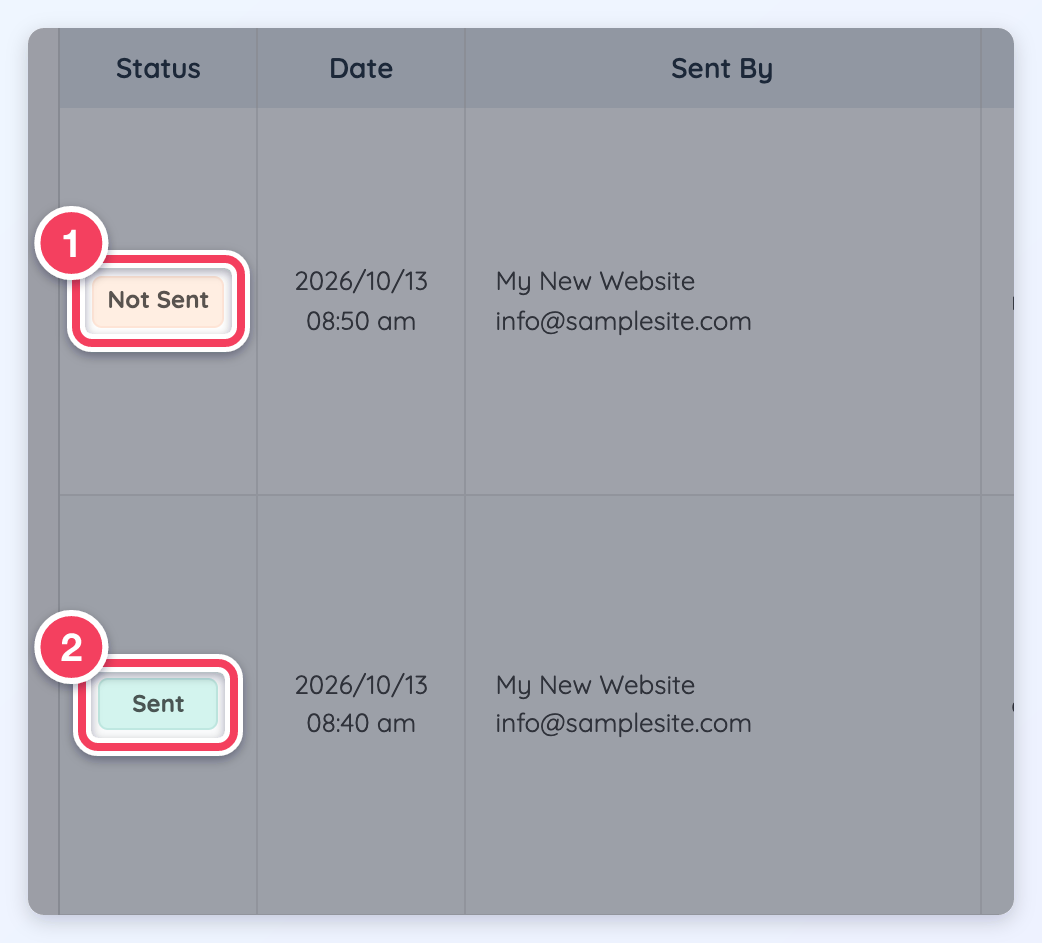
- Not Sent: The email has not been sent out. When the email failed before it was sent, the Activity column shows Error Before Sending with the error.
- Sent: The email has been sent out.
Date
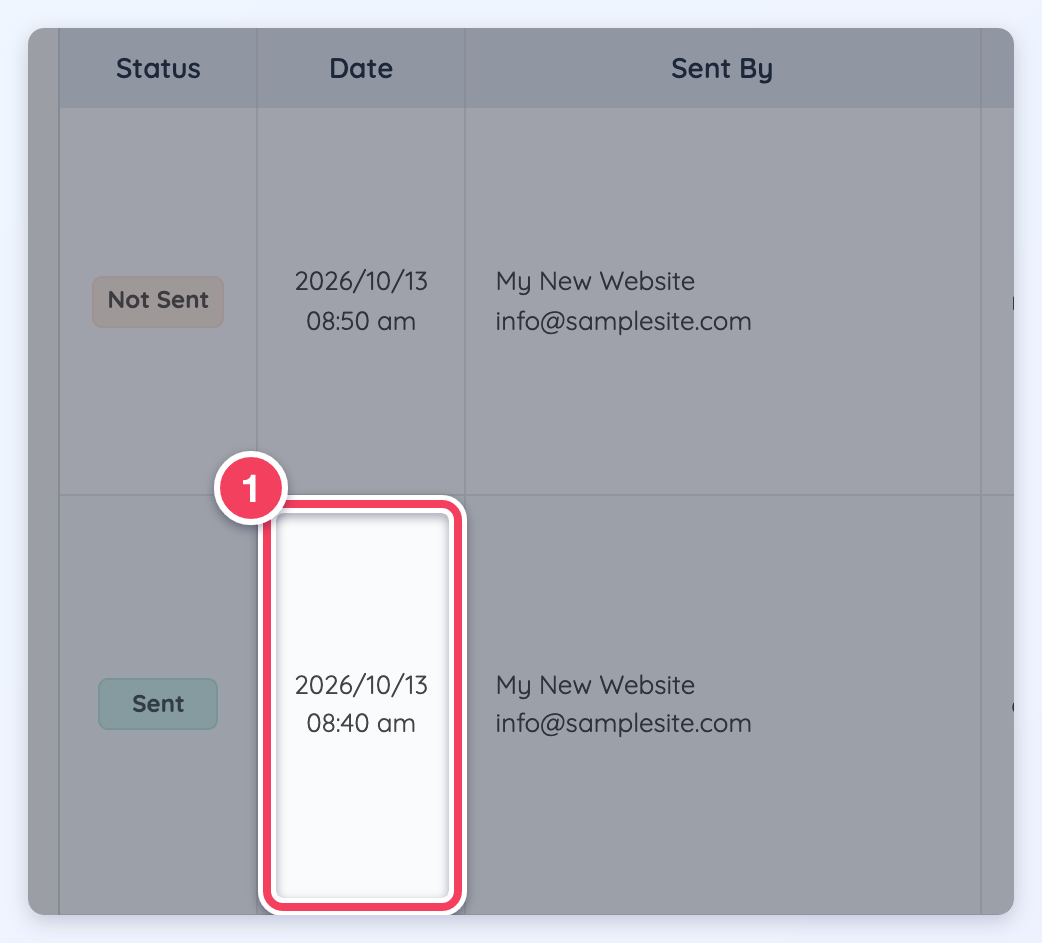
The date and time the email was sent is displayed here:
Sent By
The sender name and email address are displayed:
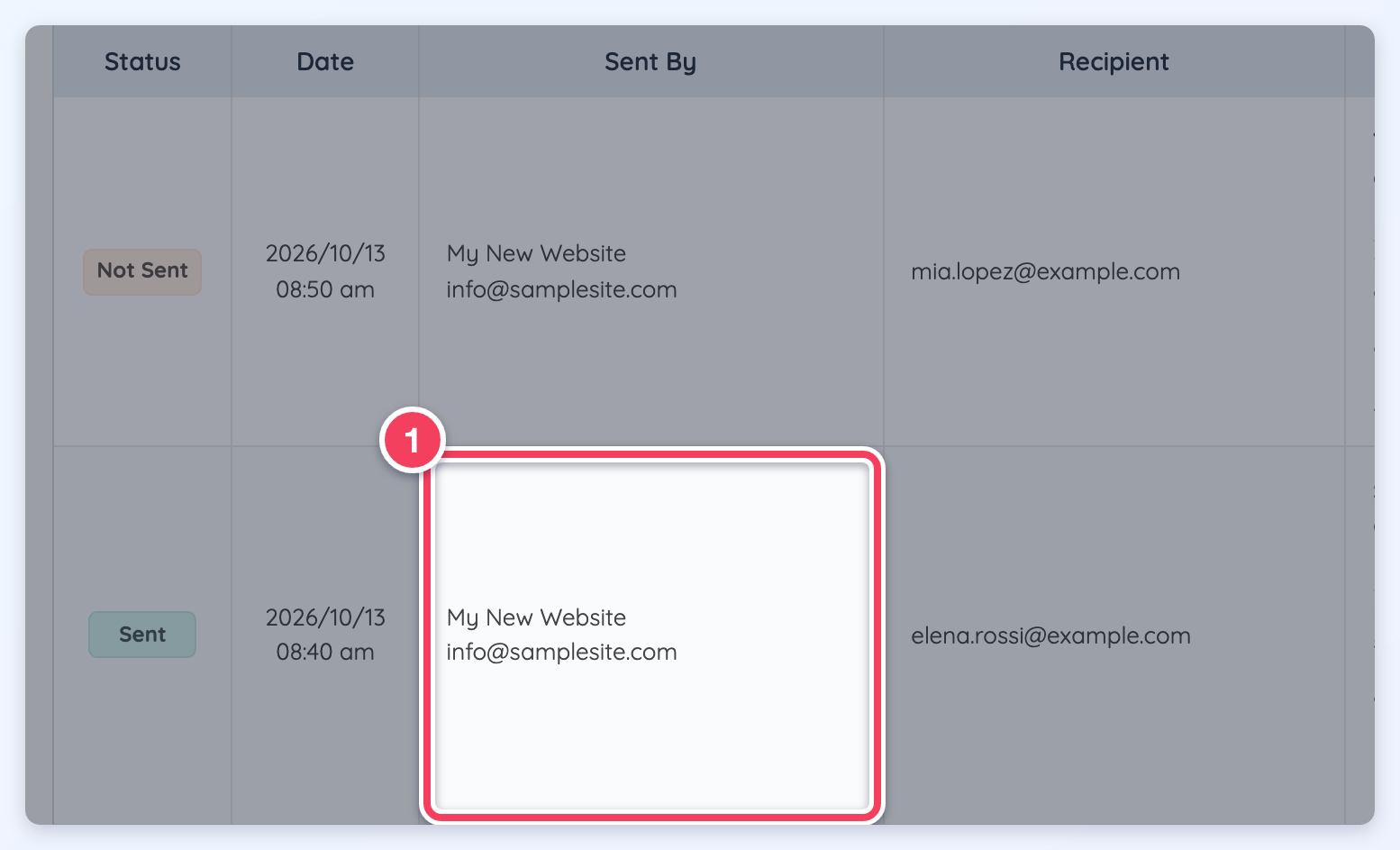
The default Website "FROM" Email Address can be set up under General Settings » General Settings Tab » Website "FROM" Email Address.
Recipient
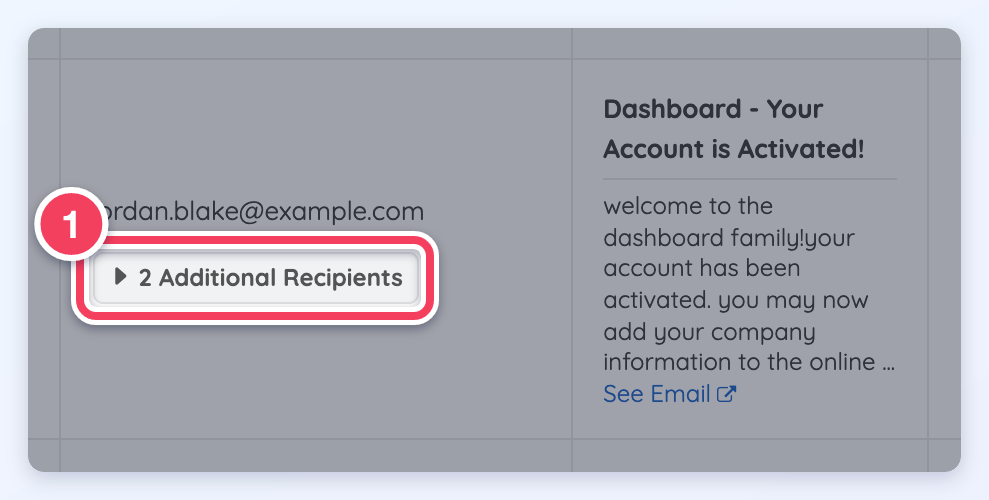
This section displays the recipient email address. When the email was also sent to CC or BCC recipients, an Additional Recipients label shows how many:
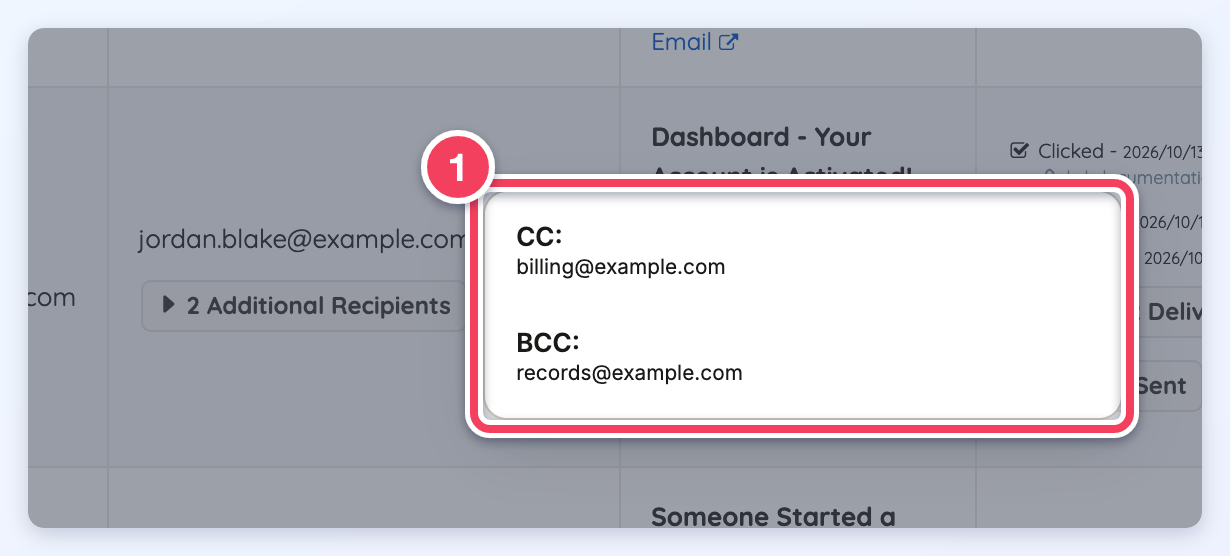
Hover over the Additional Recipients label to see the CC and BCC addresses:
Email Content
In this section, the subject of the email and the start of its text are displayed:
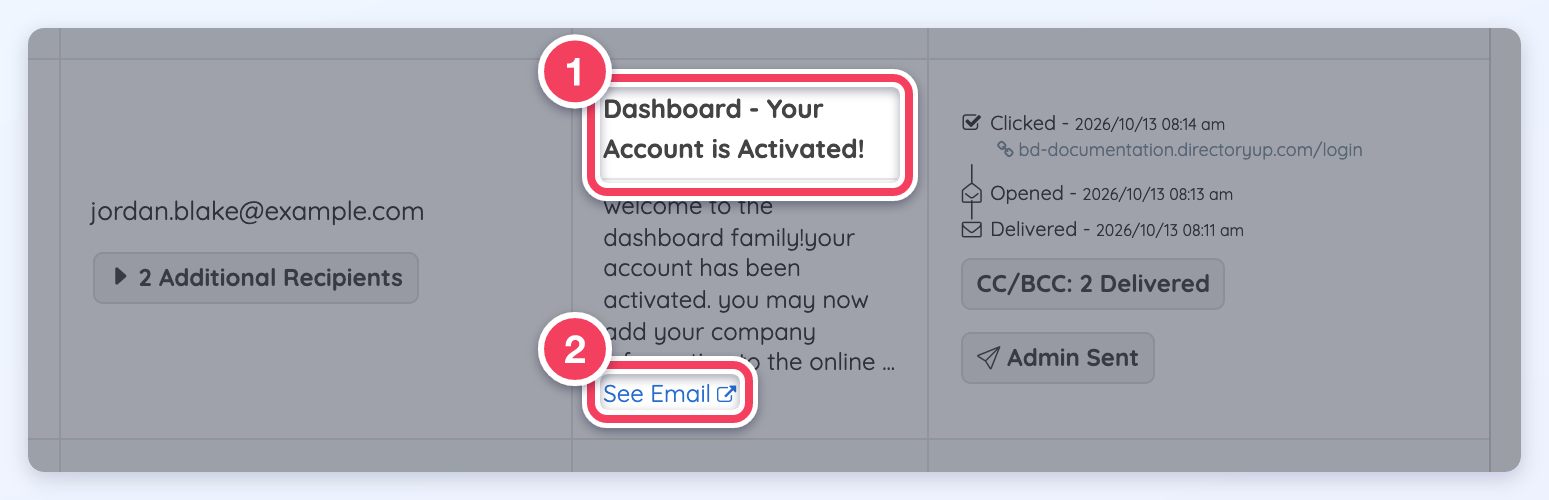
- The email subject.
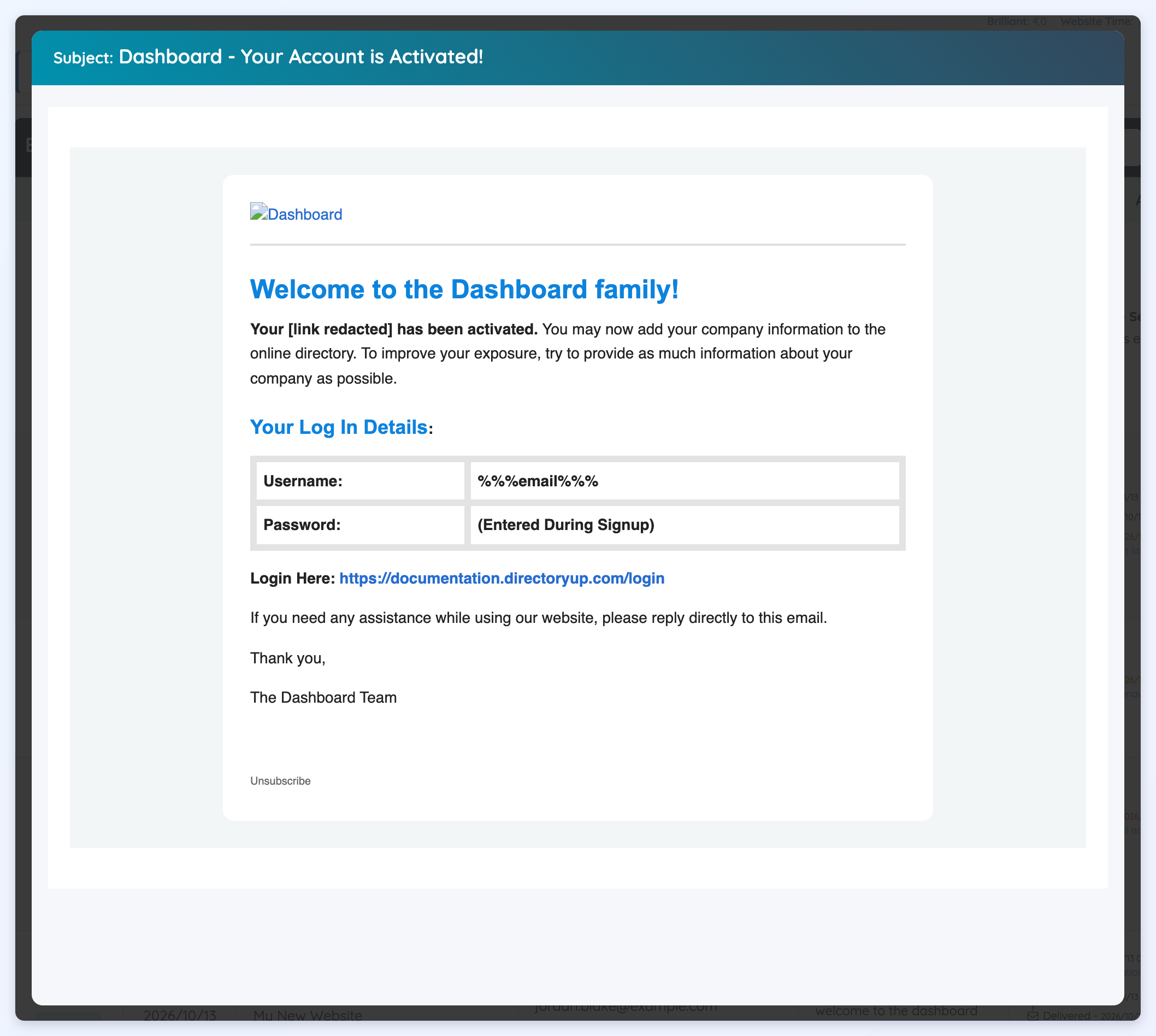
- Click See Email to open a preview of the email that was sent.
Activity
Email activity for the main recipient is displayed in this column, newest first, with the date and time of each event. Clicks and bounces show more detail on a line under the event:
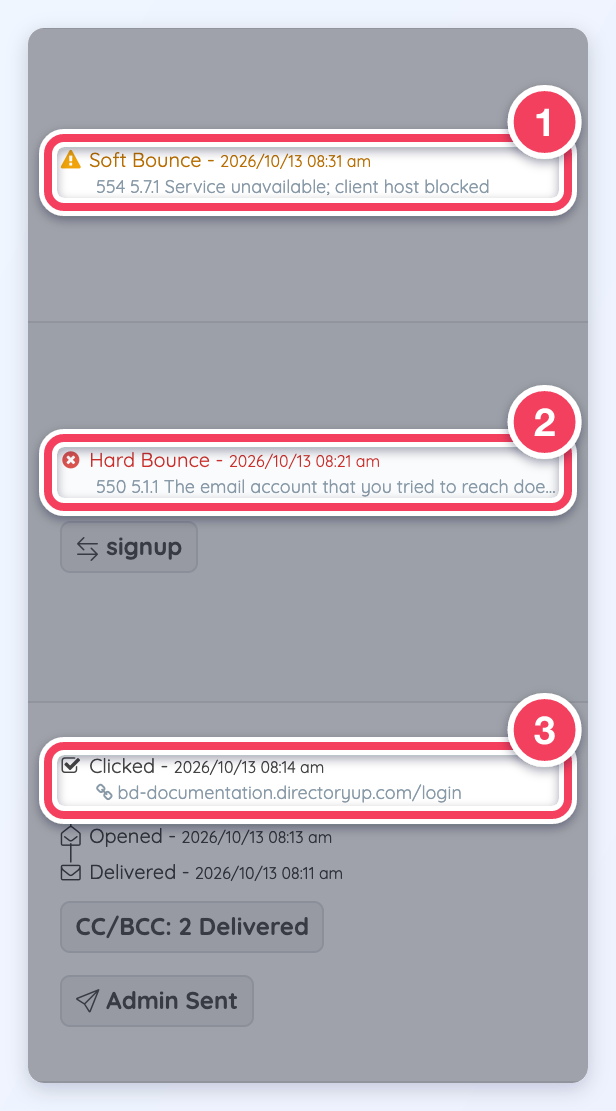
- Soft Bounce lines (amber) show the reason the receiving mail server gave.
- Hard Bounce lines (red) show the reason the receiving mail server gave. Long reasons are shortened with an ellipsis; hover over the reason to read it in full.
- Clicked lines show the link that was clicked. Hover over the link to see the full address, or click it to open the link in a new tab. A recipient who clicked several links has one Clicked line for each link.
Email Status
Different statuses will show:
- Delivered: The email was accepted by the recipient's mail server.
- Unopened: The email was delivered, but the recipient has not opened it.
- Opened: The recipient opened the email.
- Clicked: The recipient clicked a link in the email. The link that was clicked is shown under the line.
- Spam Complaint: The recipient reported the email as spam.
- Hard Bounce: The recipient's mail server permanently rejected the email, for example because the address does not exist. The reason is shown under the line.
- Soft Bounce: The email could not be delivered for now, for example because the recipient's mail server was busy or temporarily refused it. The reason is shown under the line. A message the receiving server blocked (refused for now, often for reputation or policy reasons) is also shown as a Soft Bounce.
- Previously Bounced: The email was not sent because the address had bounced or was suppressed before. The reason is shown under the line.
Links and bounce reasons are recorded only for emails sent after this feature was added. Older emails show their statuses without them.
CC and BCC Activity
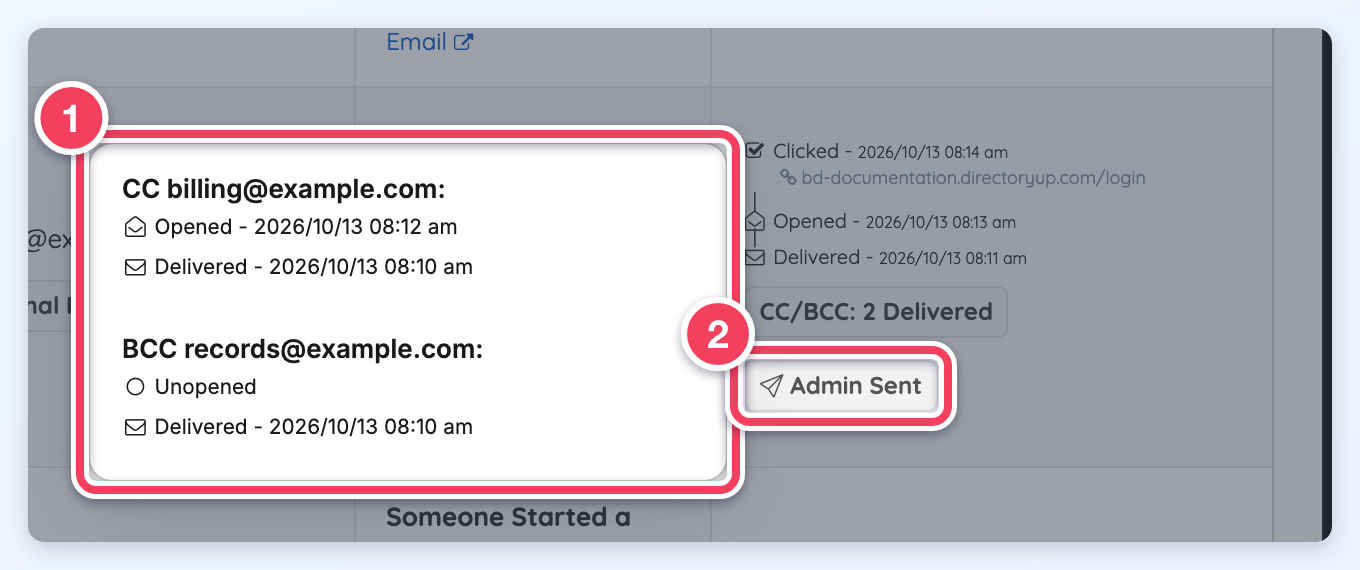
For an email with CC or BCC recipients, a CC/BCC label below the activity summarizes their results, for example CC/BCC: 2 Delivered. Hover over the label to see the events for each CC and BCC address. The detail lines for clicked links and bounce reasons are shown for the main recipient only.
Email Source
A label at the bottom of the Activity column shows what triggered the email, for example Admin Sent (number 2 above) or signup:
- Admin Sent: The email was manually sent using the Emails » Compose Emails functionality.
- Signup: Triggered by a Signup / Welcome email.
- API: Email sent by the API.
- Newsletter: Newsletter submissions.
- Billing Upgrade / Update: Complete an upgrade or update credit card.
- Password Reset.
- Email Verification.
- Lead Message / Lead Complete and Lead Match.
- Contact Form and Feedback
- Recommendation: Reviews
- (No Label): Triggered by a custom widget or code.
Exploring Additional Functionality
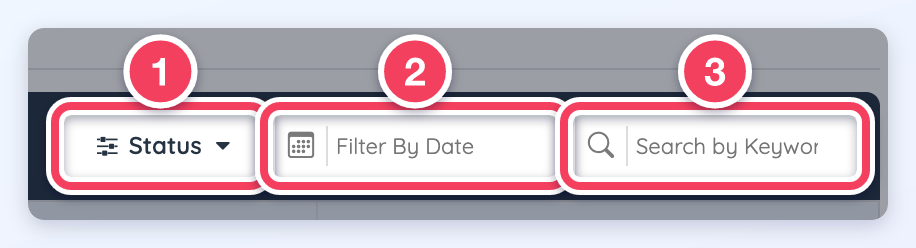
Some additional functionality is available within the Email Outbox for filtering and searching the list of emails.
1. Filter by Status
This option filters the Outbox by email status: Sent, Not Sent, Delivered, Unopened, Opened, Clicked, Spam Complaints, and Failed.
2. Filter by Date
This option limits the Outbox to emails sent in a selected date range.
3. Search by Keyword
This option searches the sent emails by recipient address, sender name or address, subject, or email text.
