
Settings » Domain Manager » SSL
Link: https://support.brilliantdirectories.com/support/solutions/articles/12000090590
The SSL tab in Settings > Domain Manager checks the website's security certificate and HTTPS connection. It also provides the available installation, detection, and repair actions.
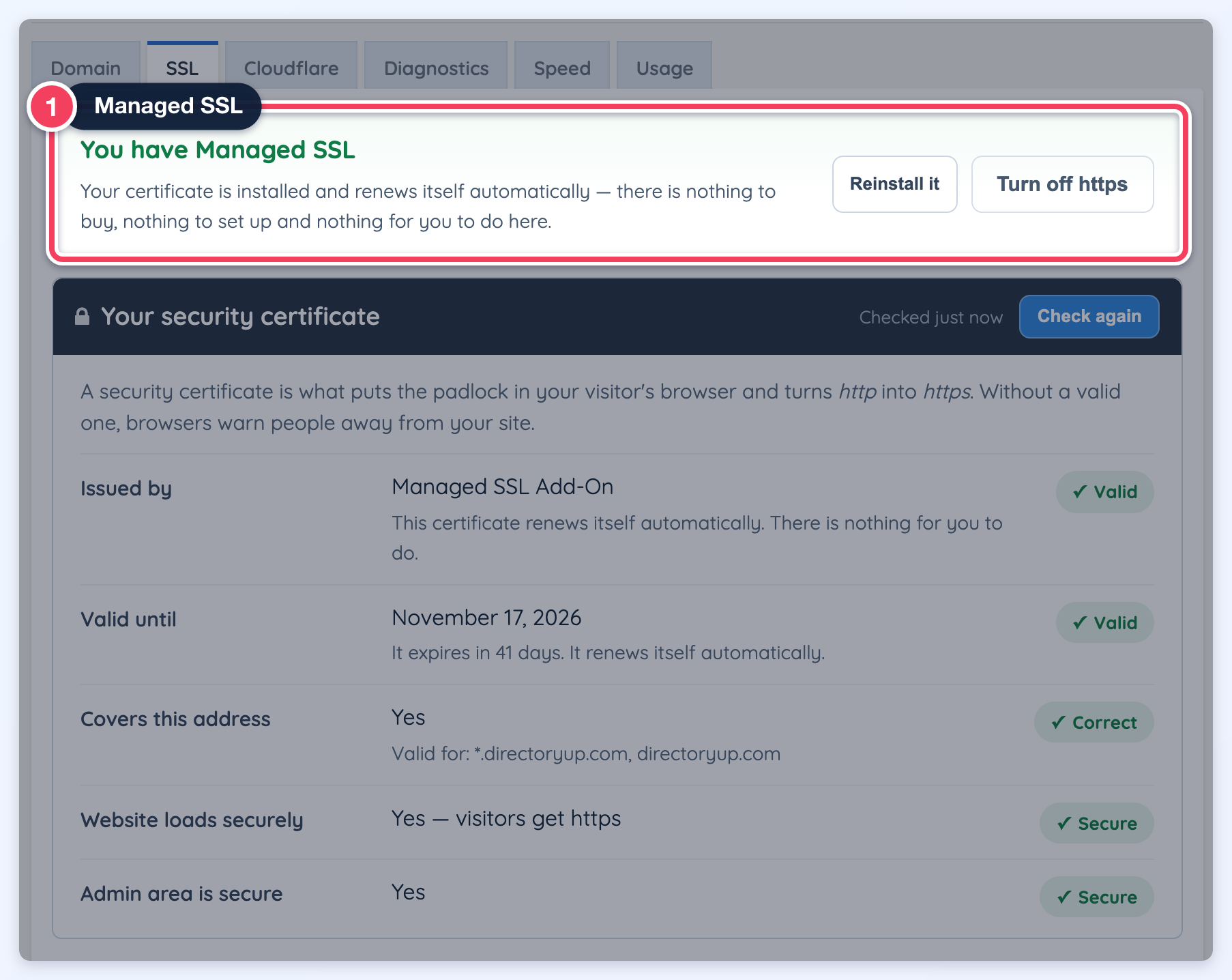
Example certificate status on a directoryup.com website with the Managed SSL add-on: the You have Managed SSL card (1) offers Reinstall it and Turn off https. Custom-domain certificate details and available actions depend on the website configuration.
Before starting
Confirm that the domain points to the intended website. Managed installation and renewal require an active Managed SSL add-on. A certificate purchased elsewhere must first be installed for the correct domain; see Install 3rd Party SSL.
Read the certificate details
- Open Settings > Domain Manager.
- Select SSL.
- Click Check again after a recent certificate or DNS change.
| Field | Meaning |
|---|---|
| Issued by | The certificate issuer. A self-signed certificate is not equivalent to a certificate trusted by ordinary browsers. |
| Valid until | The expiration date of the certificate currently detected, how long remains, and when a managed certificate renews. See When the certificate renews. |
| Covers this address | Whether the certificate includes the website hostname. |
| Website loads securely | Whether visitors receive the website over HTTPS. |
| Admin area is secure | The security of the admin connection, which is checked separately from the public website. |
If no certificate is installed for the website, the page reports that condition instead of presenting another hostname's certificate as the site's certificate.
Install or repair Managed SSL
- Find the You have Managed SSL card.
- If the card reports a problem, click Install my certificate when offered.
- Wait for the installation process to finish.
- Click Check again to review the current result.
- Open the public website over HTTPS.
A healthy Managed SSL connection offers Reinstall it as a repair action. Routine renewal is automatic; a healthy certificate does not need repeated reinstallations. If the add-on is unavailable, Add Managed SSL opens the available purchase flow for eligible administrators.
When the certificate renews
A Managed SSL certificate renews itself; nothing needs to be bought or reinstalled for a routine renewal. The Valid until row shows the expiration date and how long remains, such as It expires in about 2 months. For a certificate issued through the Managed SSL add-on by ZeroSSL, the same row also gives the expected renewal date: It renews itself automatically around a date 15 days before the expiration date. A certificate that is close to expiring but has not reached that date yet is not overdue.
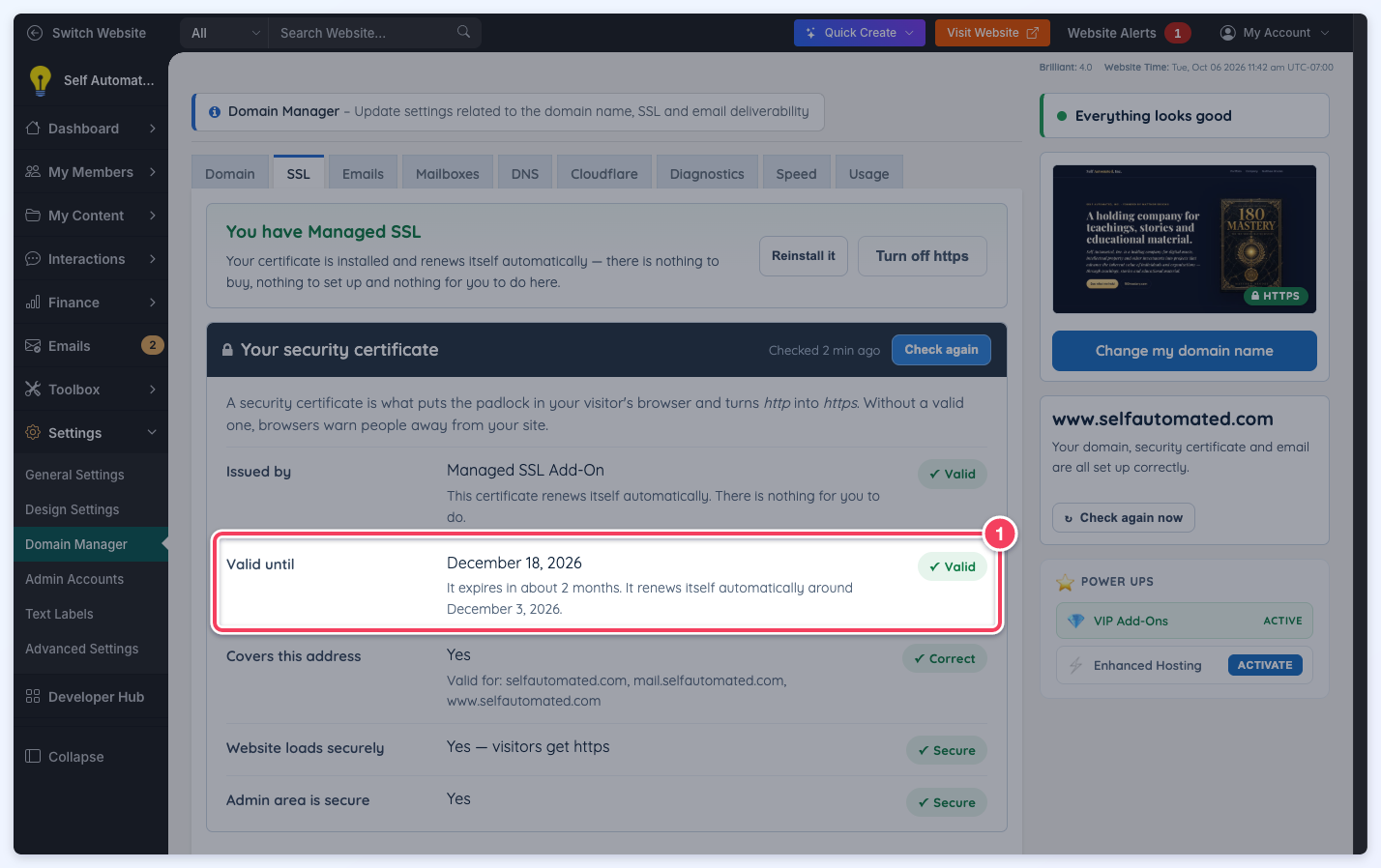
The Valid until row on a Managed SSL website: the certificate expires on December 18, 2026, and renews itself automatically around December 3, 2026.
Other automatically renewed certificates, such as those served by Cloudflare or issued by Let's Encrypt, show It renews itself automatically. without a date, because their renewal schedule is not predicted.
If a renewal is overdue
When a Managed SSL add-on certificate from ZeroSSL is still not renewed three days after its expected renewal date, the tab reports it:
- The Valid until row shows a Renew soon status and reads It was due to renew around that date and has not yet.
- A The certificate has not renewed yet warning gives the due date and the days left before expiration, and explains that installing it again from this page usually completes the renewal.
- The You have Managed SSL card reports that something looks wrong and offers Install my certificate.
- Click Install my certificate on the You have Managed SSL card.
- Wait for the installation to finish, then click Check again.
- If the certificate still has not renewed after a day or two, contact support with the website address and the dates shown.
Detect an existing third-party certificate
- Install the certificate for the website using the third-party SSL instructions.
- Return to the SSL tab.
- Click I already installed a certificate — check for it when offered.
- Confirm the detected hostname and secure connection.
Cloudflare has two certificate connections
For a proxied Cloudflare site, visitors connect to Cloudflare, which then connects to the website's server. The visitor-facing certificate and the server certificate can have different issuers and expiration dates.
Expand Certificate on your server when that section appears. Its Trusted or Not trusted result helps explain which Cloudflare encryption settings are suitable. Full (strict) requires a valid, trusted server certificate for the hostname; resolve the reported certificate problem before selecting that mode.
When the check still shows a problem
Read the specific warning: an expired certificate, wrong hostname, missing certificate, and failed connection require different fixes. Confirm domain pointing first. If installation finishes but the public site still shows a certificate error, include the hostname and the exact warning when contacting support. Diagnostics provides additional certificate detail.
Use Turn off https only when that change is intended. It is not a routine response to an installation warning.
