
Developer Hub - Webhooks
Link: https://support.brilliantdirectories.com/support/solutions/articles/12000083005
Overview
Webhooks are one of the methods that allow web applications to communicate with each other. They enable real-time data transfer between applications whenever a specific event occurs.
They also allow data to be sent to any URL endpoint. This makes it possible to send data to intermediary platforms such as Zapier, Pabbly Connect, Workato and APIFuse, to API endpoints on other platforms, or to custom endpoints configured to receive data.
On the website, a webhook event is the action that triggers the data to be sent, such as a form being submitted or a member changing plans. Each event has an on/off switch and a Webhook Link: the full address the data is sent to when the event happens.
Connections and Advanced Settings
To learn how to connect a webhook through Zapier see: Connecting Webhook Events With Zapier
For Smart List webhooks and how to connect them see: How To Create Smart List Webhooks
To include the member login token in outgoing webhook payloads for member-related events (new member registrations, member additions, updates, deletions, and member self-service form submissions), the advanced setting Include Login Token in Member Webhook Payloads must be enabled.
For the fields each webhook sends, see the List of Variables Per Webhook.
Opening the Webhooks Page
- Go to Developer Hub.
- On the Manage Webhooks card, click Manage Webhooks.
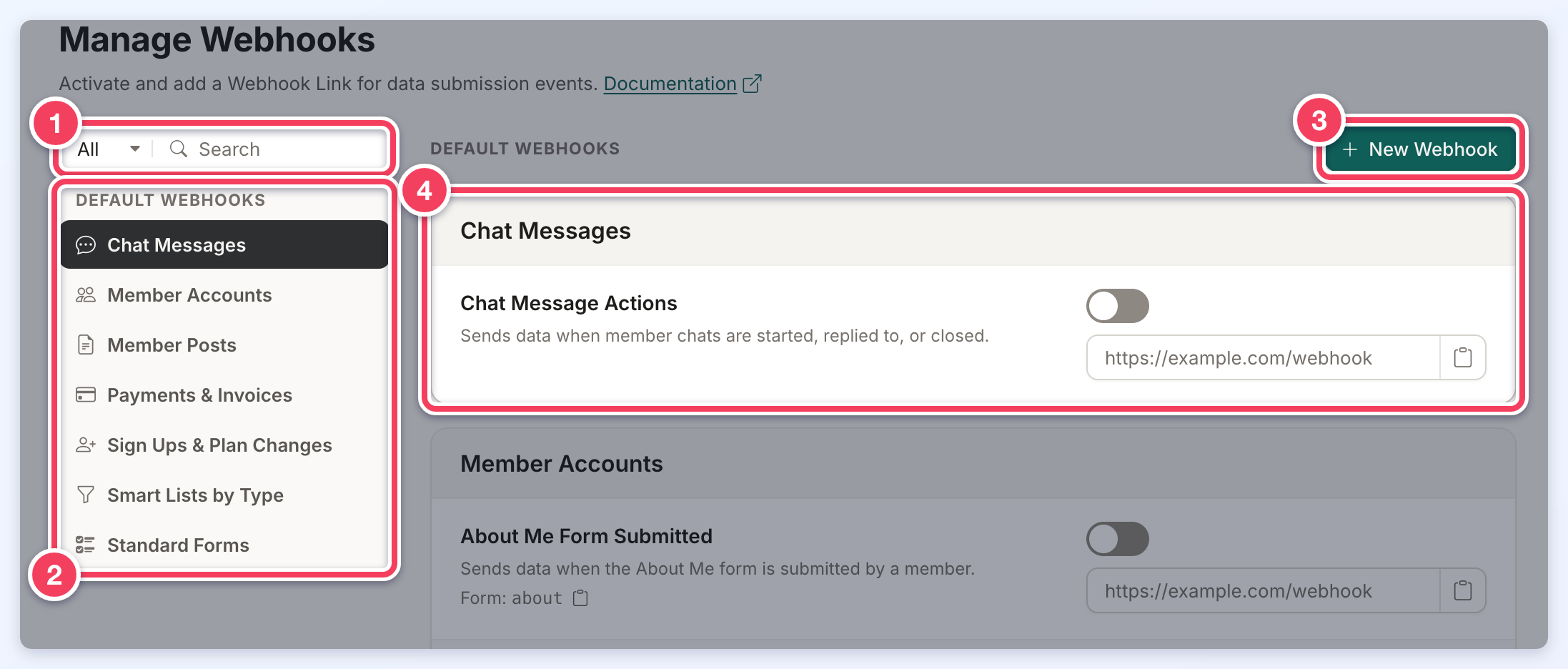
- All / On / Off and Search: the menu shows every webhook, only the ones switched on, or only the ones switched off. The search box finds webhooks by the words typed. While either is in use, a line under the search box counts the matches and offers Clear.
- The section list. Webhooks are grouped into sections under Default Webhooks, and under Custom Webhooks once any custom webhook exists. Clicking a section jumps to it.
- New Webhook: creates a custom webhook for a specific form or Smart List. See How To Create A Custom Webhook.
- A section with its webhooks. Each row shows the event's name, what triggers it and, for form events, the form's name.
Turning a Webhook On

- The switch turns the webhook on or off.
- Webhook Link: the full address (starting with https:// or http://) the data is sent to.
- The copy button copies the Webhook Link. Form events also have a copy button beside the form name.
To turn a webhook on:
- Switch the webhook on.
- Paste the endpoint address into its Webhook Link.
- Click Save in the Unsaved changes bar at the top of the page. Discard in the same bar undoes the changes instead.
A webhook that is switched on must have a Webhook Link. If the link is empty or is not a full web address, the page does not save and shows the problem under the field.
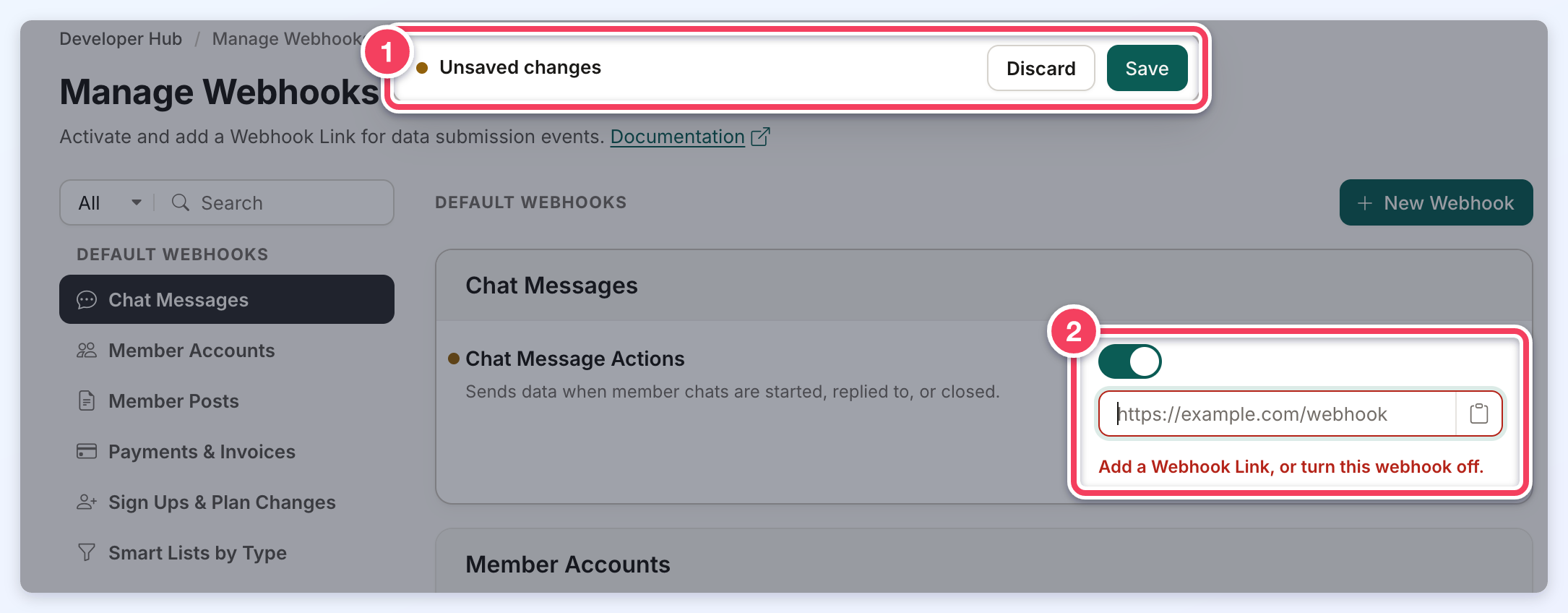
- The Unsaved changes bar, with Discard and Save. A dot also marks each webhook that has unsaved changes.
- A webhook switched on without a link: Add a Webhook Link, or turn this webhook off.
How Webhooks Are Delivered
Each webhook is sent once, at the moment its event happens, as an HTTPS POST to the Webhook Link. Payment renewals are the exception in timing: they are sent during the daily billing run.
- Format: the data arrives as form fields (
Content-Type: application/x-www-form-urlencoded), not as JSON, so a PHP receiver reads it from$_POST. Nested values arrive as bracketed keys, EGmember[user_id]. - Headers: the user agent is
BD-Software. Webhooks carry no signature, authentication header, event ID or timestamp. - Timeout and retries: the website waits up to 30 seconds for the receiving endpoint to answer. A webhook that fails or times out is not sent again, and the order in which webhooks arrive is not guaranteed.
- Redirects: redirects are not followed, so the Webhook Link must be the exact final address, including
https://andwww.where the receiving site uses them. A link that redirects loses the data, and its Webhook Sent entry in the Activity Tracker shows Failed with the redirect's 3xx status (EG 301).
Because webhooks are not signed, add a long random secret to the Webhook Link's query string (EG
https://example.com/receiver?key=<secret>) and have the endpoint reject any request without it. For payments, confirm each one through the API before acting on it.Checking Whether a Webhook Was Accepted
Each time a webhook event happens, a Webhook Sent entry is written to the Activity Tracker (Dashboard » Activity Tracker). Clicking the entry opens it, with the Webhook Link it was sent to and the fields that were sent (Body). For a webhook that is switched on, the entry also shows how the receiving endpoint answered:
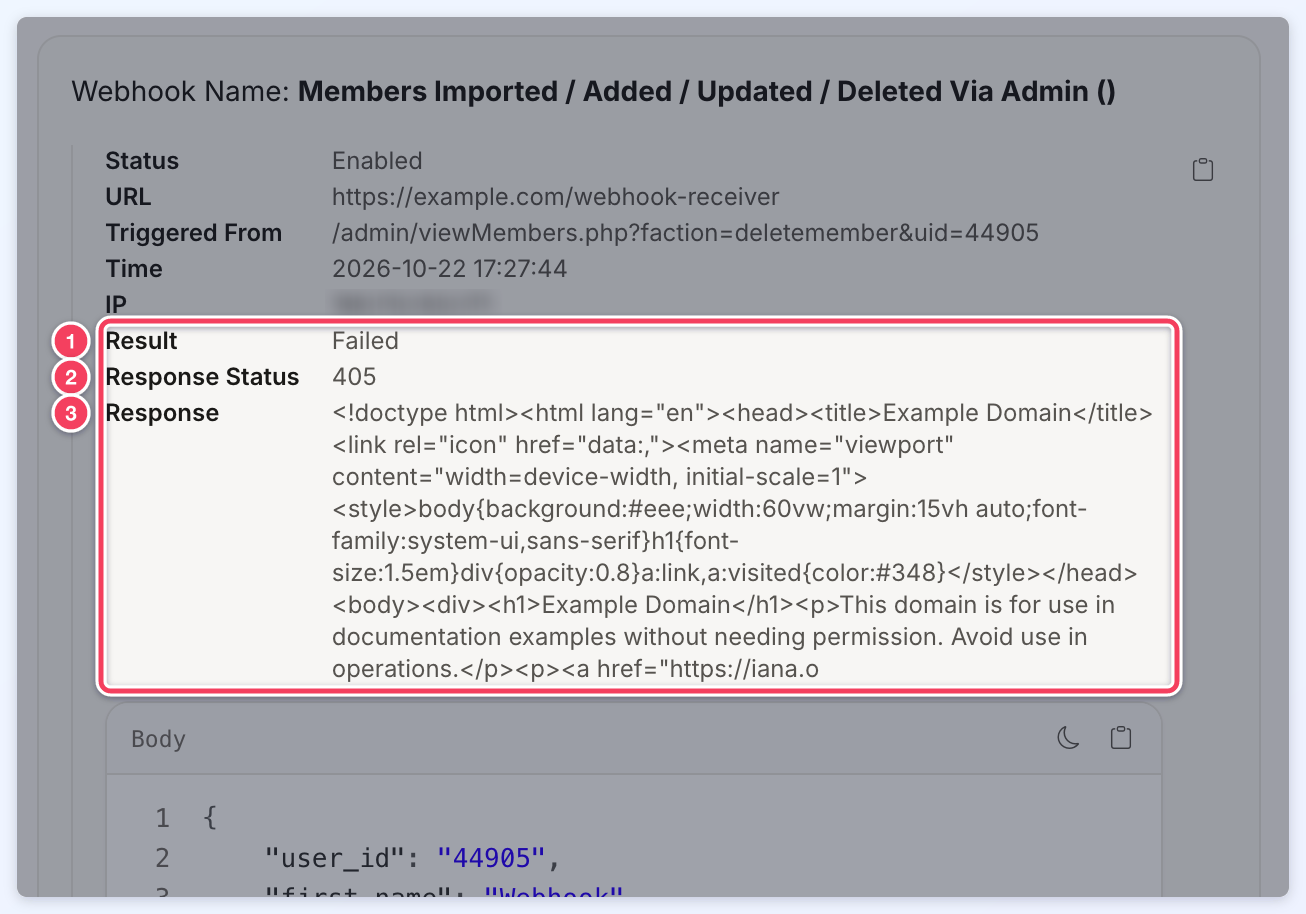
- Result: Success when the endpoint answered with an HTTP 2xx status (EG 200). Failed when it answered with an error (a 4xx or 5xx status), with a redirect, or not at all.
- Response Status: the HTTP status code of the answer. 0 means no answer arrived, EG the request timed out or the address could not be found; the Response then shows the connection error instead.
- Response: the first 500 characters of the endpoint's reply, shown as plain text. It is left out when the reply was empty.
The Status line only shows whether the webhook was switched on (Enabled) or off (Disabled). A webhook that is switched off sends nothing, so its entry has no Result.
Default Webhook Events
Every default webhook on the page, with the event that sends it, is listed by section in List of Default Webhook Events.
Custom Webhooks
A custom webhook sends the data of one specific form, or of one specific Smart List, to its own Webhook Link. Custom versions of the member forms (EG a copy of the Contact Details, Additional Details or About forms under a different name) and custom forms are connected this way. Custom webhooks are listed under Custom Webhooks, in a Forms section and a Smart Lists section, and each has a menu with Edit and Delete Webhook.
