Toolbox » Form Manager » Field Validation Options
Link: https://support.brilliantdirectories.com/support/solutions/articles/12000081944
Validation rules restrict what can be entered into a form field and display an error message when the input doesn't meet the requirements. Rules are configured per field.
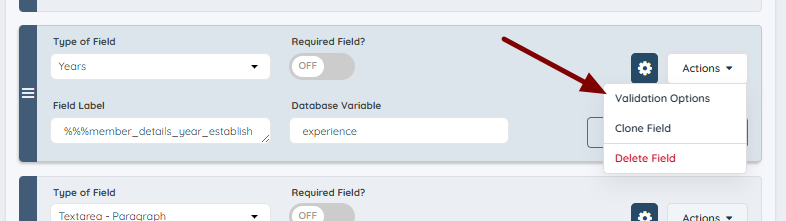
To turn on and require validation rules for a form field, please go to Actions >> Validation Options:
Enable validation here:
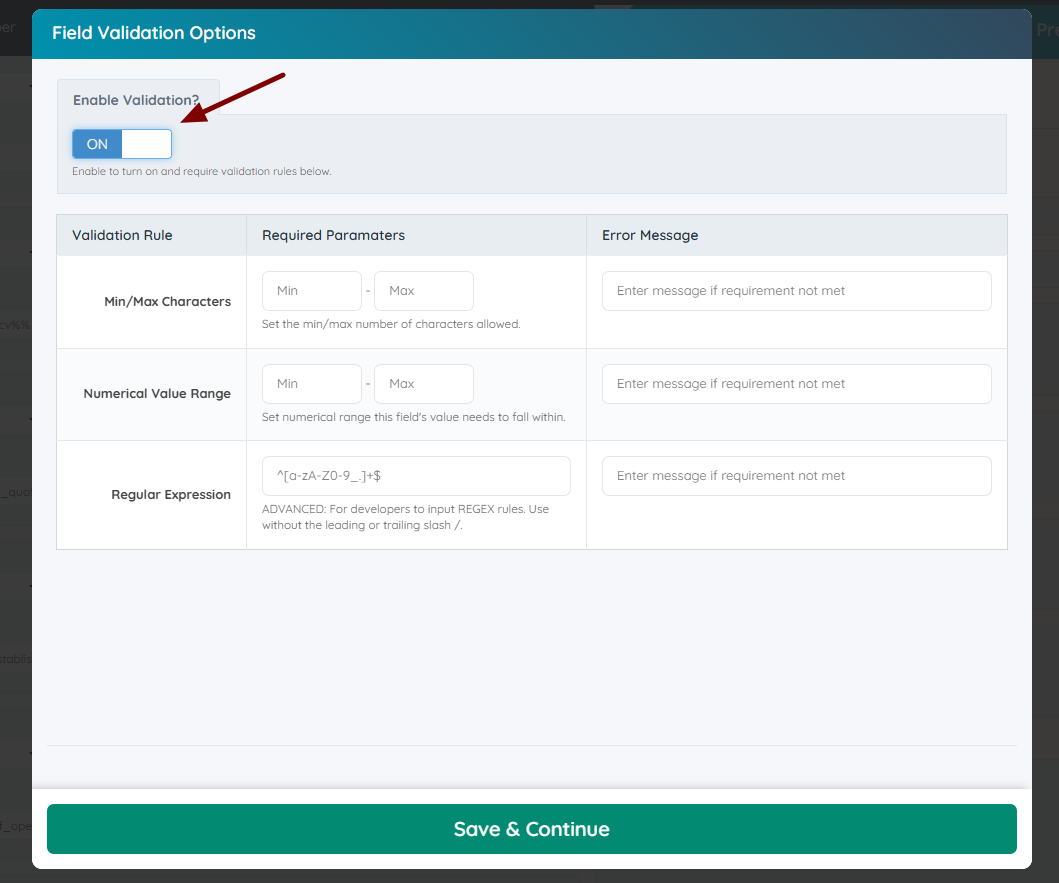
For every rule type, a custom error message can be added in the field on the right side. If no custom message is added, the system falls back to the general error messages (see "Default error messages" below).
Validation Rules:
Min/Max Characters
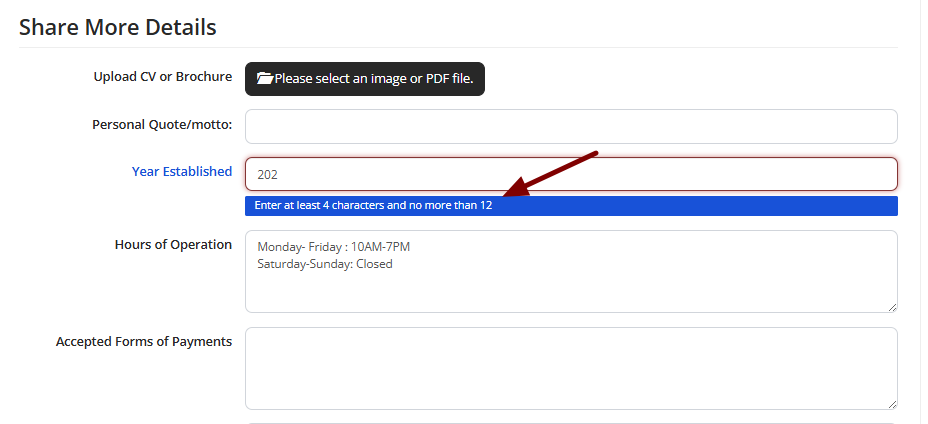
Restricts how many characters a field can have.
On the right side, the error message can be added.
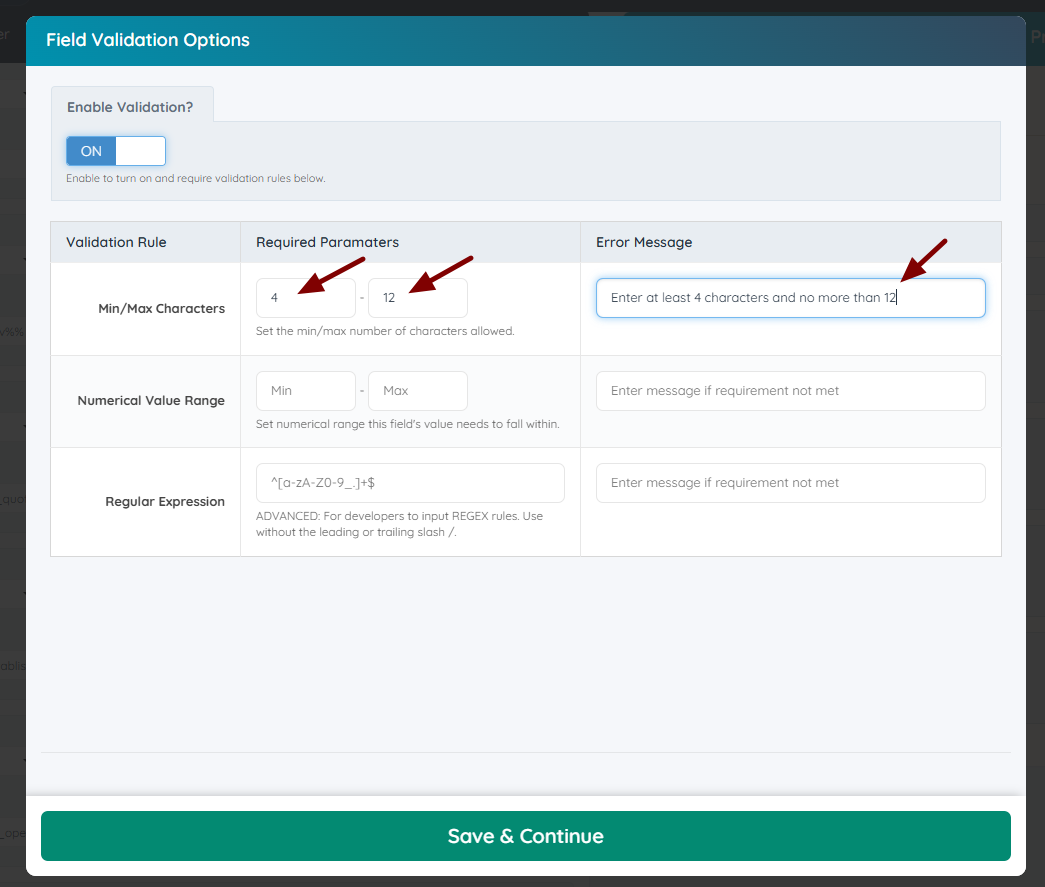
It will look like this in the front end:
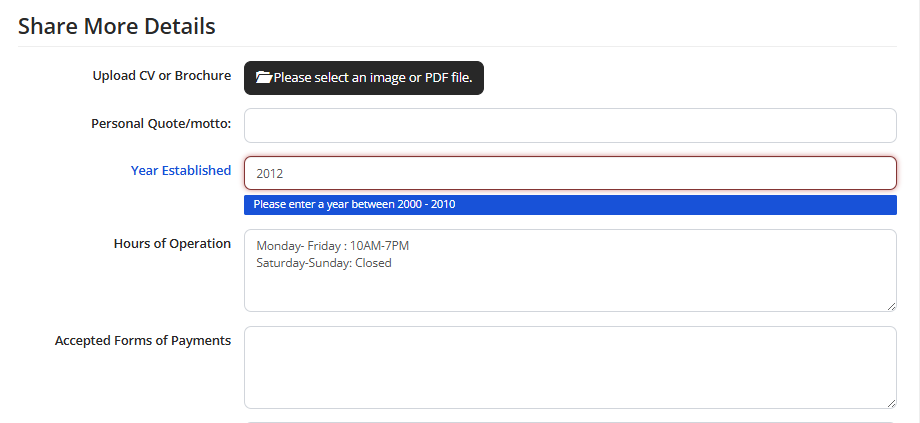
Numerical Value Range
Set numerical range this field's value needs to fall within.
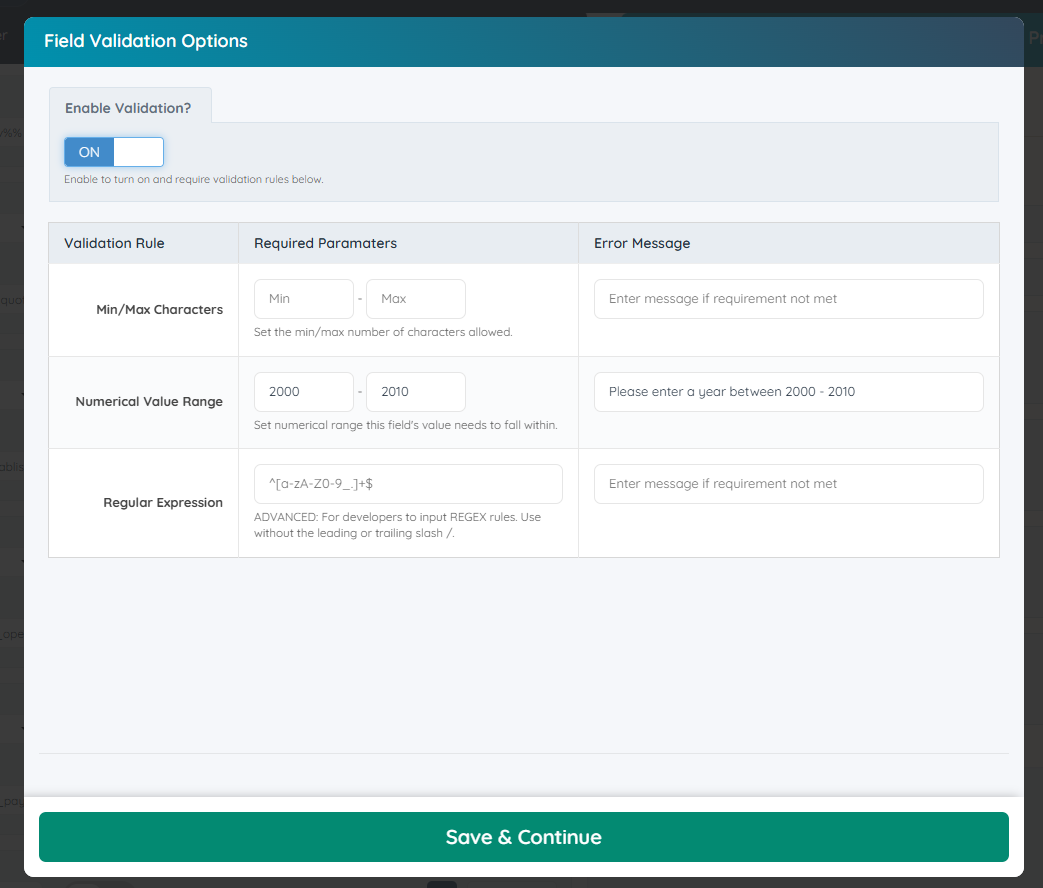
It will look like this in the front end:
It will look like this in the front end:
Regular Expression
This is an advanced setting for developers to input REGEX rules.
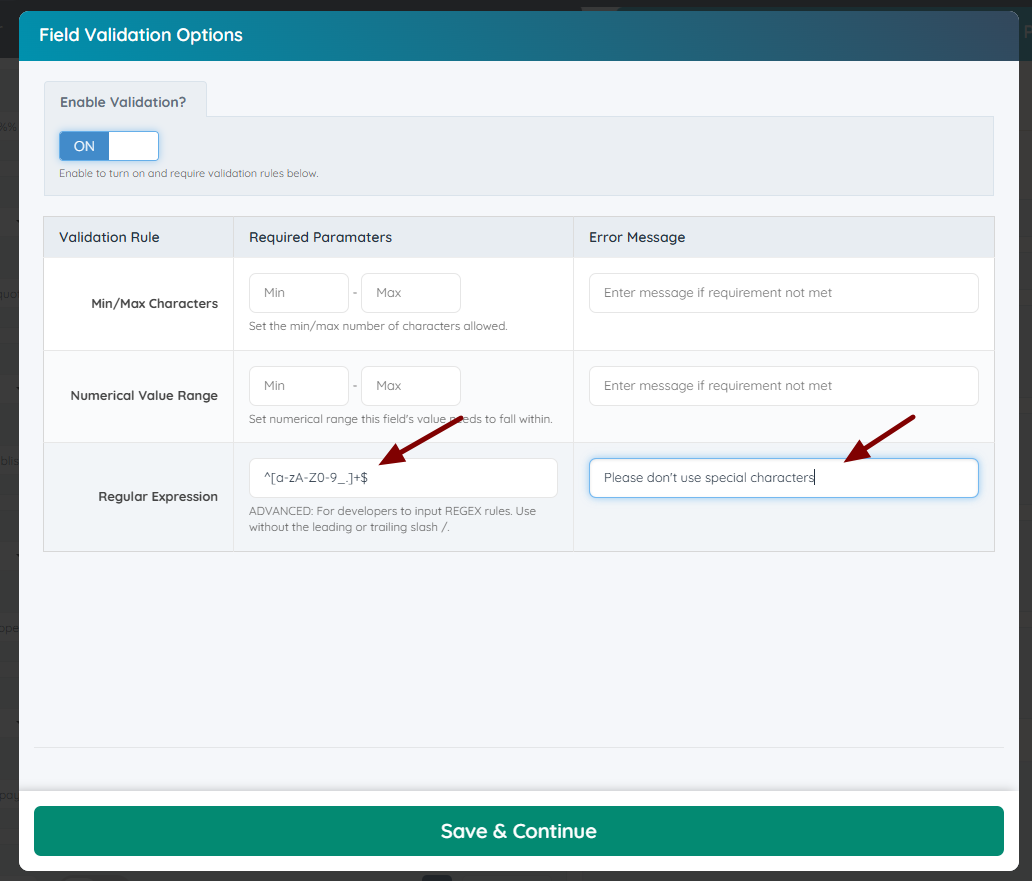
So, for example, the regex that is in the placeholder above:
^[a-zA-Z0-9_.]+$
This means the content must be any combination of lowercase or uppercase letters (A–Z), numbers, underscores, and periods. No other characters are accepted.
No other characters would be accepted. Use without the leading or trailing slash /.
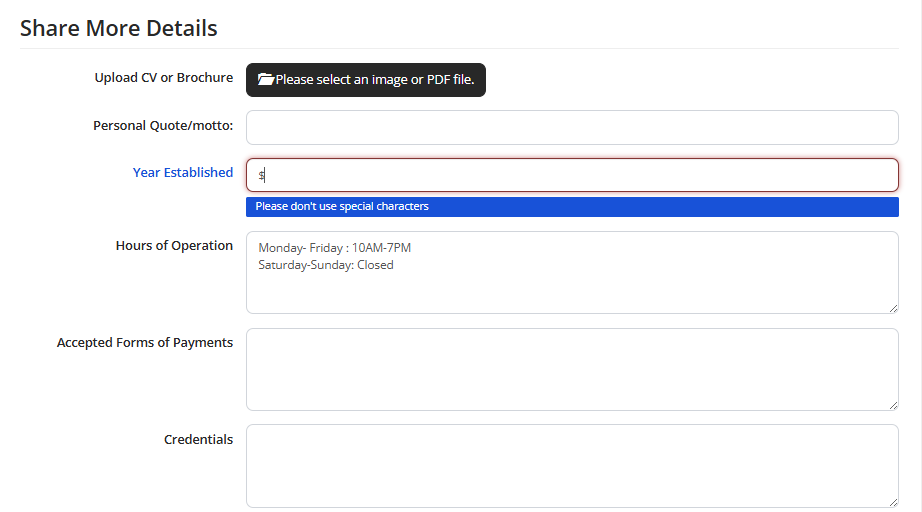
It will look like this in the front end:
Default error messages
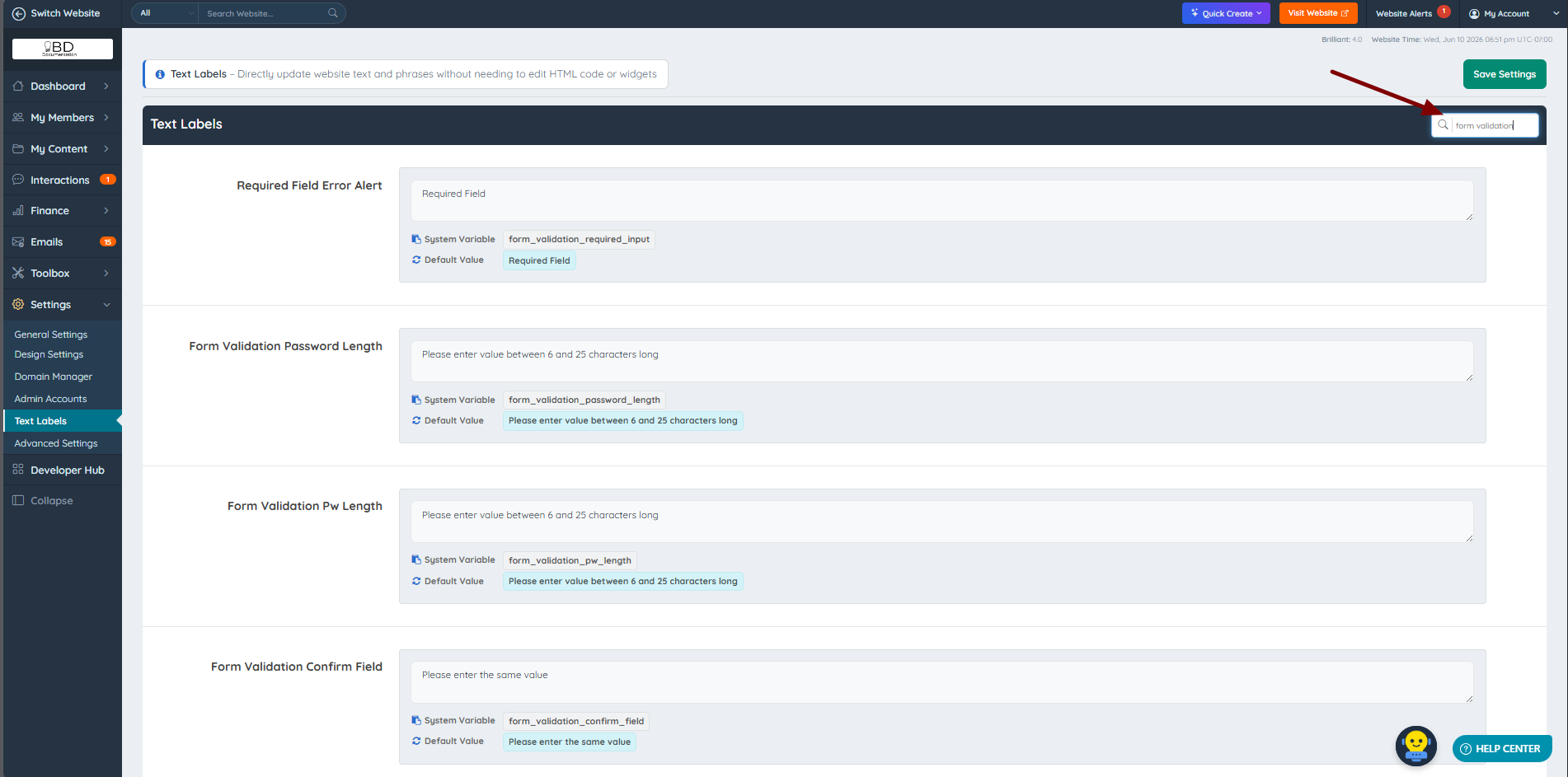
If no custom error message is added to a rule, the system shows general error messages. These messages are text labels and can be edited under Settings >> Text Labels.
In the search bar at the top right, type "Form validation" and all labels related to these messages will appear.