
Adding Google Tag Manager and Google Tags
Link: https://support.brilliantdirectories.com/support/solutions/articles/12000078670
Google Tag Manager is a tag management system (TMS) that can be used to quickly and easily update measurement codes and related code fragments, collectively known as tags, on a website or mobile app. It is not a tracking system itself. To set up data tracking, first Install Google Analytics 4.
To learn more please refer to the following Google document: Tag Manager overview
To get started with Google Tag Manager: https://developers.google.com/tag-manager/quickstart
NOTE: This setup needs a GTM (Google Tag Manager) ID, which can be created by following these instructions: Set up and install Tag Manager
Creating the Container
In Tag Manager, click on the body to create a container:

Name the container, select the Web option, and click Create:

This displays the two sections of code that need to be added to the website:

Step 1: Add the Script Code to the HEAD Section
The first part of the code goes in the HEAD section. To add it, go to:
Settings > Design Settings > Custom CSS/HEAD > Additional HEAD Code:

The code looks like this (replace GTM-XXXXXX with the container ID):
<!-- Google Tag Manager -->
<script>(function(w,d,s,l,i){w[l]=w[l]||[];w[l].push({'gtm.start':
new Date().getTime(),event:'gtm.js'});var f=d.getElementsByTagName(s)[0],
j=d.createElement(s),dl=l!='dataLayer'?'&l='+l:'';j.async=true;j.src=
'https://www.googletagmanager.com/gtm.js?id='+i+dl;f.parentNode.insertBefore(j,f);
})(window,document,'script','dataLayer','GTM-XXXXXX');</script>
<!-- End Google Tag Manager -->
Step 2: Add the Noscript Code to the Tag Manager Widget
The second part of the code is added through a widget called Bootstrap Theme - Google Tag Manager Code. To edit this widget and add the code, go to:
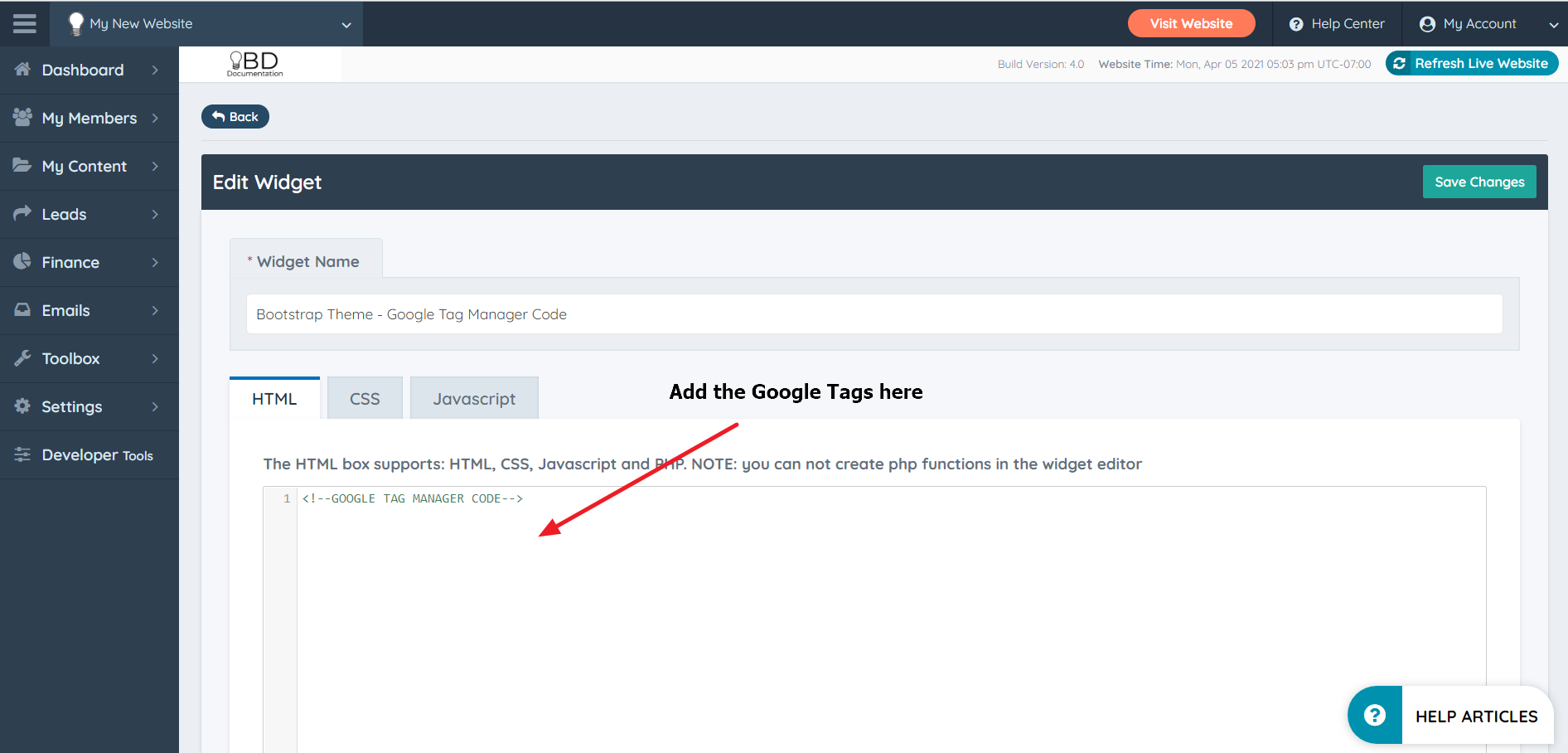
The code has the following format (replace GTM-XXXXXX with the container ID):
<!-- Google Tag Manager (noscript) -->
<noscript><iframe src="https://www.googletagmanager.com/ns.html?id=GTM-XXXXXX"
height="0" width="0" style="display:none;visibility:hidden"></iframe></noscript>
<!-- End Google Tag Manager (noscript) -->

Publishing the Container
After placing the code, click Submit in Tag Manager:

And click on Publish after it:

Troubleshooting
If Google Tag Manager is not working as expected after following these instructions, use Google Tag Assistant to check for errors with the Tag Manager code added to the site and review possible solutions.
