
Bulk Actions for Widgets
Link: https://support.brilliantdirectories.com/support/solutions/articles/12000078437
Bulk actions change several custom or brand-new widgets at once in the Custom Widgets table under Toolbox » Widget Manager. The available bulk actions are Enable, Disable and Delete. These actions are not available for default widgets.
NOTE: Bulk Delete permanently removes the selected widgets and cannot be undone. If the goal is to deactivate widgets while keeping them available for future use, use Disable instead — see How To Disable a Widget.
Applying a Bulk Action
1. Select the widgets. Tick the checkbox in the table header to select every widget on the page:
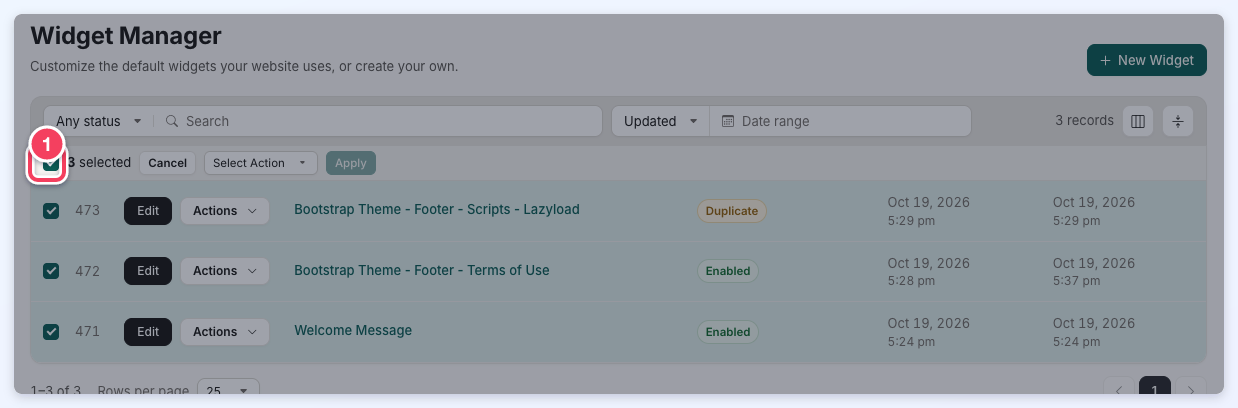
Or tick the checkbox at the start of each widget's row to select widgets individually. A bar above the rows shows how many widgets are selected; Cancel clears the selection. When the matching widgets fill more than one page, a Select All N Records link in that bar (N is the number of matching widgets) selects every one of them.
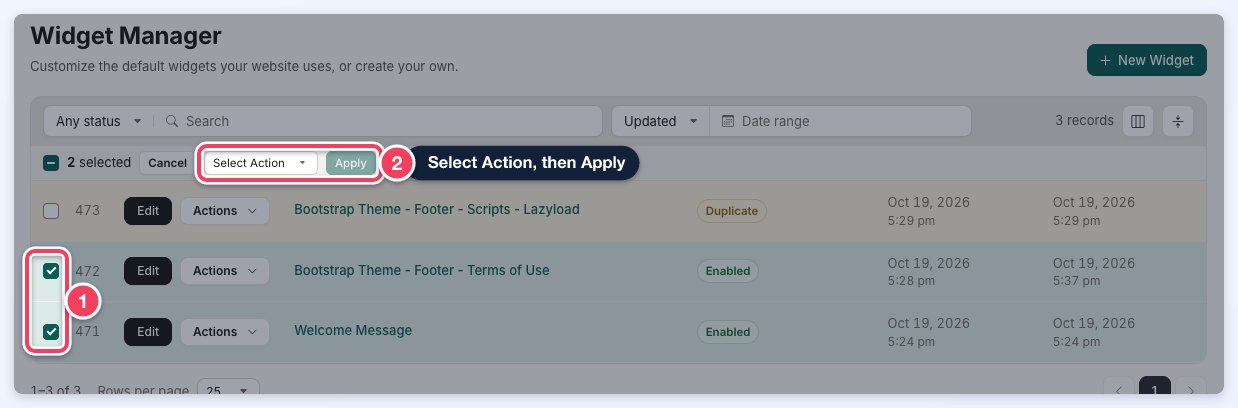
2. Choose Enable, Disable or Delete in the Select Action dropdown and click Apply.
3. Confirm the action in the pop-up. For Enable and Disable, the pop-up names the action and the number of widgets, EG Disable 2 Widgets, and notes that updates can take a minute to take effect; click Enable Records or Disable Records.
4. The action is applied to every selected widget, and the Status column updates.
Deleting Several Widgets
Bulk Delete follows the same steps. When two or more widgets are selected, the confirmation pop-up asks for the number of selected widgets to be typed in (EG Type 2 to confirm) before Delete Records can be clicked.
